Working on something together
Two people, two devices, one tool session, edited live. No account, no sign-in, no server in the middle, and no internet needed if both devices are on the same network. This page is the whole feature: how to start one, the three ways to hand the invite over, the reply leg that trips most pairs up, the six characters that tell you the connection is private, what you see while you work, how to send files and sessions down the same link, and what to do when a network refuses to let two devices talk.
This is the individual path. It pairs exactly two devices, directly, and it is yours to start whenever you want one. Nothing about it asks permission from anything.
What a private collab is
A private collab is a live editing link between two devices. One person invites, the other joins, and from that moment both are typing into the same tool session: change a field on one device and it appears on the other. The link is made by the two browsers talking to each other directly. Your work does not travel through a service on the way, because there is no service - the invite and the reply are the whole of the setup, and you are the one who carries them across.
Two things follow from that, and they are worth knowing before you invite anyone.
- The person who invites owns the session. The saved session lives on the inviting device. The joining device gets a working copy that is deliberately never written into its own Projects. That copy is real, editable and exportable on the joining device, but it is not filed there and it does not survive the collab.
- Anyone holding the invite can join and edit. The invite is the key. Send it through a channel you would send the work itself through, and treat a re-sent invite as a re-shared document.
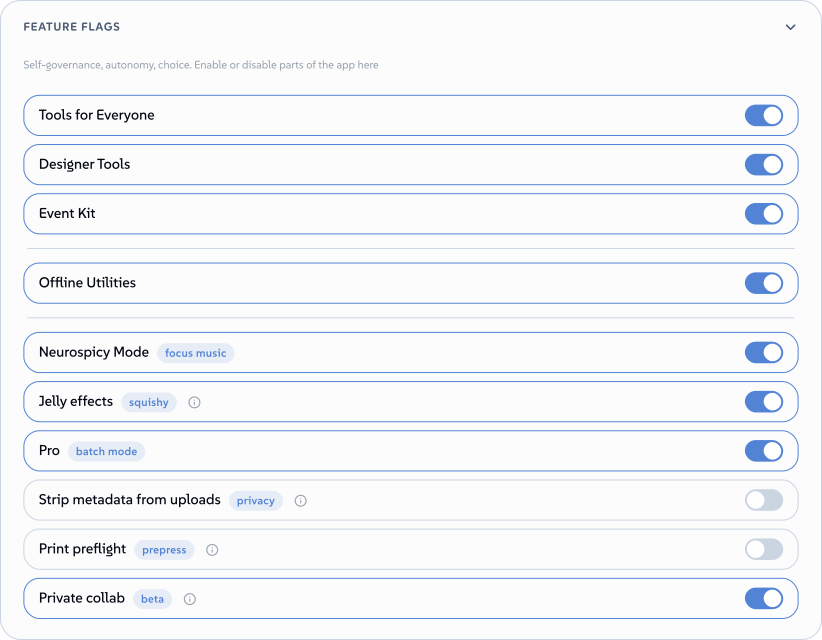
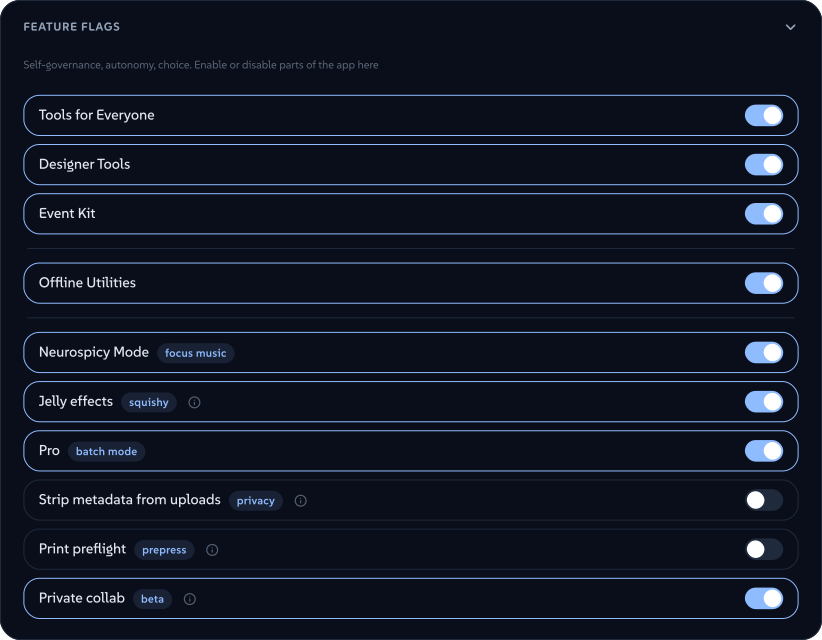
The feature is on by default. It carries a beta pill in the profile settings, which is where you can also turn it off. Turning it off means an invite link opened on that device offers to turn it back on rather than dead-ending.
 подписано от Lollyвектор SVGПровери самВземи подписания файл27 paths~6.1k nodes79 groups122 KB
 подписано от Lollyвектор SVGПровери самВземи подписания файл27 paths~6.1k nodes79 groups122 KB


What both devices need. The same tool, present locally on each. A collab sends values, never code, so the template and the logic always come from the catalogue on each device. If the joining device does not have the tool, the join is refused at the moment the invite is read, by name, rather than opening something that renders nothing.
Start a collab
Open the tool and get the session to the state you want to share. Then:
- Press Share in the export controls, the same button that copies a share link.
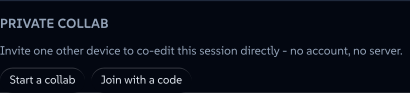
- Scroll to Private collab and press Start a collab.
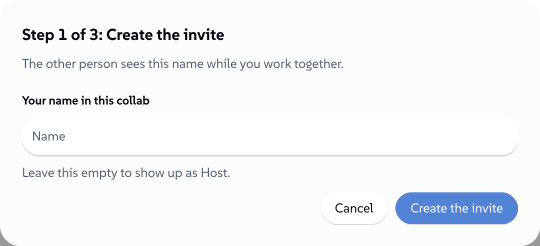
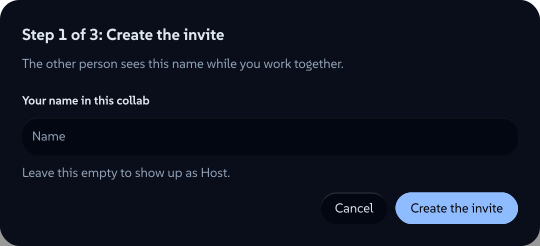
- Give yourself a name for this collab and press Create the invite.
 подписано от Lollyвектор SVGПровери самВземи подписания файл6 paths~2.4k nodes7 groups50 KB
 подписано от Lollyвектор SVGПровери самВземи подписания файл6 paths~2.4k nodes7 groups50 KB


The name is chosen here, per collab, and it is the only thing about you that crosses the link. It is not read from your profile, and nothing else from your profile goes anywhere. Leave it empty and you appear as Host to the other person, or Invitee if you are the one joining.
 подписано от Lollyвектор SVGПровери самВземи подписания файл10 paths~3.5k nodes13 groups71 KB
 подписано от Lollyвектор SVGПровери самВземи подписания файл10 paths~3.5k nodes13 groups71 KB


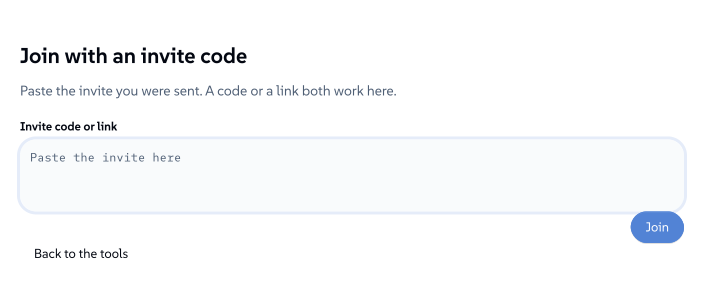
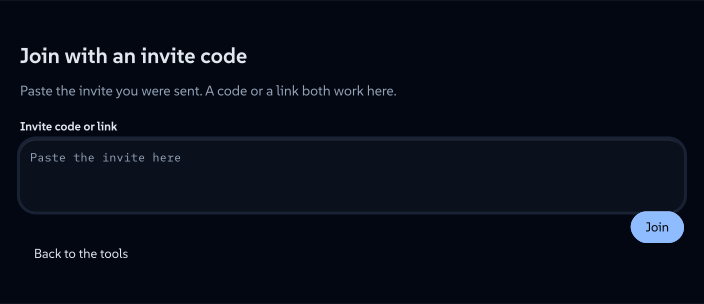
The whole ceremony is numbered 1 of 3, 2 of 3, 3 of 3 on every screen, on both sides. That is deliberate: the hand-over has two legs, both people are looking at different screens, and the numbers are how you tell each other where you are.
Handing over the invite
Once the invite is minted you get the same invite in three forms at once. They are the same thing wearing different clothes, so pick whichever suits the two of you and wherever you happen to be.
A link
The invite as a #/join?inv=... URL. Send it through any channel the two of you already use. The other person clicks it, their device opens Lolly at the join screen with the invite already read, and they go straight to naming themselves. Nothing to paste.
When it fits: you have any messaging channel at all between the two devices, and the joining device can reach the same address you are using.
A QR code
The invite as a QR on screen. The other device points its camera at it and scans.
When it fits: the two devices are in the same room and there is no channel between them at all. It is also the leg that works when one device is a phone and the other is a laptop across a desk.
Two things to know. The reply comes back the same way, so this is genuinely two scans and not one: your device shows the invite, theirs scans it, then theirs shows the reply and yours scans that. Numbering the steps 1-2-3 is what keeps that survivable. And scanning is only offered where the browser can actually decode a QR, which today means Chromium-family browsers. Where it cannot, there is no Scan a code button at all rather than a button that opens a camera and never finds anything - the code beside the QR is the same payload, so pasting is always available.
A code
The invite as a block of text. Copy it, send it however you like, and the other person opens #/join on their device with nothing in the URL and pastes it into the field there. The Share dialog has a Join with a code button that opens exactly that screen, so both entrances are one place.
When it fits: the invite came through a channel that mangles links, or the other person is typing an address in by hand, or you are reading it out.
 подписано от Lollyвектор SVGПровери самВземи подписания файл9 paths~2.8k nodes9 groups55 KB
 подписано от Lollyвектор SVGПровери самВземи подписания файл9 paths~2.8k nodes9 groups55 KB


The invite does not last forever. While you are waiting, the screen counts down how long the current invite still works. After ten minutes a fresh one is minted automatically and the screen says so, so send the new one rather than the one you already sent. That happens twice; after that the wait gives up and tells you nothing came back in time. Make a new invite sits on the waiting screen throughout, if you want to start the clock again yourself.
Sending the reply back
This is the leg pairs give up on, so it is worth being explicit: an invite on its own does not connect anything. The joining device makes a reply, and that reply has to get back to the waiting device before either of you is connected. Same three forms, same choice.
- As a link. The reply is a
#/join-reply?ans=...URL. Opening it on the same device that made the invite hands the reply straight to the window that is waiting, and that window moves on by itself. The tab that did the handing says so and can be closed. If no window on that device is waiting, it says that too and leaves the code on screen to copy. - As a code. Paste it into the Paste the reply here field on the waiting screen and press Connect.
- As a QR. The waiting screen has its own Scan a code button, so the reply can be scanned back exactly like the invite was scanned across.
Testing it with two tabs on one device works. If you open your own invite in another tab, the join screen notices and says so in one dismissible line. It is information and never a refusal - the pairing is real, it just happens to be between two windows of one browser.
If the reply arrives in a window that was not expecting it, nothing silently goes wrong: a reply pasted into the invite door is named as a reply and you are told which window it belongs in, and a device with more than one invite waiting says so and leaves the code for you to paste into the right one rather than guessing.
The matching plates
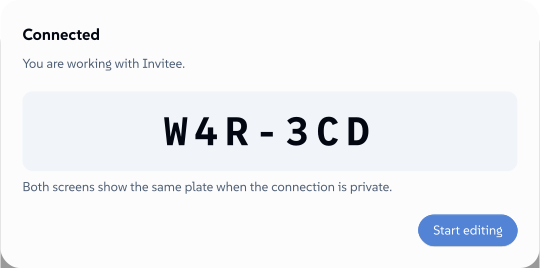
The moment the two devices connect, both screens show the same six characters, grouped as three and three. Under them, one sentence:
Both screens show the same plate when the connection is private.
Read the plate out loud and check it against the other screen. If they match, the two devices are talking to each other and to nobody in between.
 подписано от Lollyвектор SVGПровери самВземи подписания файл6 paths~2.5k nodes9 groups51 KB

Here is what the check is actually doing, because it is the one security property of this feature that needs a person rather than code. The invite carries a fingerprint of the inviting device, and the reply carries one back. The plate is derived from both fingerprints together, ordered so that each device computes the same answer without either of them having to be told who is who. Anyone who wanted to sit in the middle would have to terminate the connection on both sides with certificates of their own, which is two fingerprints neither of your devices ever saw, and there is no substitution they can make in the invite or the reply that produces two matching plates on your two screens.
This is the same idea as the short authentication string in ZRTP (RFC 6189 section 7): the humans are the part of the channel that cannot be forged. It is not a formality. Comparing the plates is what turns "the invite reached them" into "the invite reached them and nothing changed it on the way".
A few details that follow from how it is built:
- The alphabet has no ambiguous characters. No 0 or O, no 1 or I or L, no B against 8. The plate exists to be compared out loud, and "oh" against "zero" is exactly the confusion the comparison must not absorb.
- A screen reader says it character by character, spaced, with a pause at the group break. Read as a word it would sound like a match when it is not.
- A new pairing has a new plate. If the connection drops and you pair again, compare again. The old plate belongs to a connection that no longer exists.
Editing together
Once you are connected, the tool opens on both devices with the session in it and you both just work.
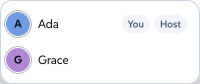
What you see. A collab pill sits over the canvas: the people in the collab as a stack of initials, and a dot for the state of the link - Connecting, Live, Reconnecting, Away, Disconnected. Open it for the roster, which names everyone and tags who is you, who is away and who is observing.
 подписано от Lollyвектор SVGПровери самВземи подписания файл3 paths69 nodes12 groups6 KB

 подписано от Lollyвектор SVGПровери самВземи подписания файл6 paths430 nodes14 groups12 KB

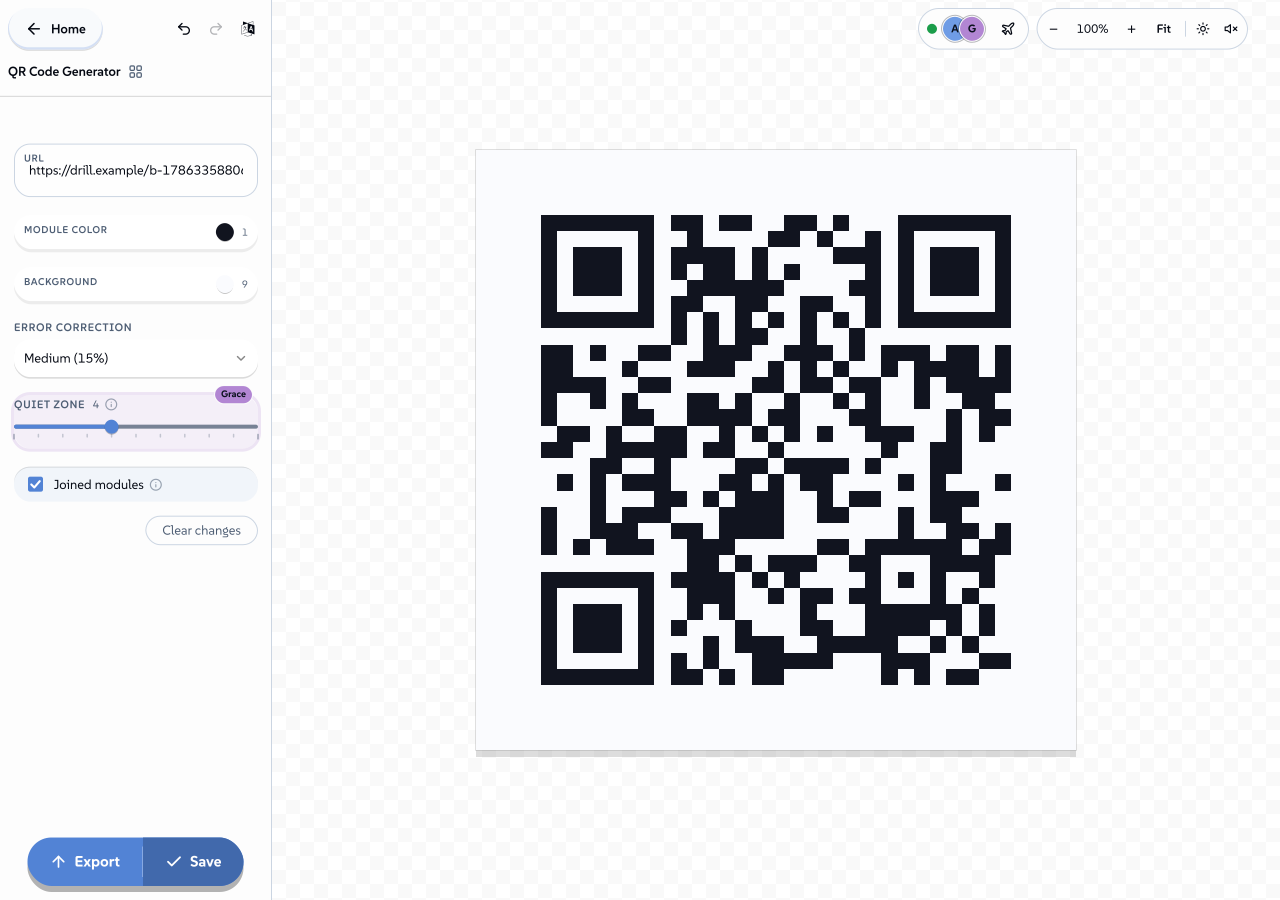
Where the other person is working shows as a coloured ring on the control they are in, with their name on a chip beside it, and as a matching outline on the part of the render that control draws. Colour is never the only signal - the ring is always paired with the name, the canvas outline carries a hairline that reads as a shape rather than a hue, and every handover is spoken through the live region for screen readers.
 подписано от Lollyвектор SVGПровери самВземи подписания файл56 paths~6.7k nodes124 groups1 image126 KB

What you do not see is a floating mouse pointer. That is a decision rather than a gap: the canvas here is a rendered preview and not a freeform surface, so "Priya is editing the Headline" is both truer and cheaper than an arrow drifting over a picture. Nothing about presence is written into the render - the rings and outlines are painted on a layer above it - so someone else working alongside you cannot change a single byte of what you export.
Undo stays yours. Your undo history is a record of your own edits and nothing else. A change arriving from the other device never lands on your undo stack, so you can never undo something you did not do. When you do undo, the value goes back the way you meant and that change travels to the other device like any other edit.
Two people in the same field. The last write wins, per field. There is no locking and no queue, and both of you will see the same final value. Two people typing into the same text field at the same moment is the one case that behaves poorly, for the same reason it does in every design tool: you get one of the two versions, not a merge of both. In practice this is what the focus rings are for - you can see where the other person is.
If the connection wobbles, the dot says Reconnecting and nothing is torn down. A brief drop heals on its own. A real drop needs a fresh invite, because a private collab has no server to resume from: the state lives on the two devices and nowhere else.
If the two devices are running different versions, you are told rather than left to wonder. A minor difference in the tool says some fields may not match. A larger difference in the collab format puts the older device into Observing: it keeps seeing everything, and its own edits are not sent.
Sending files and sessions
The same link that carries your edits will also carry things that are too big to be edits. This is a beam, and it works like handing someone a file across the table.
Press Send this session on the collab pill. The other device gets a card naming what is being offered, how many items it contains and how large it is, with Accept and Decline. Nothing moves until they accept. Both of you watch the same progress card, and either of you can cancel.
 подписано от Lollyвектор SVGПровери самВземи подписания файл9 paths~2.7k nodes12 groups58 KB

What travels. The session itself, plus the files you brought to it - uploads, recordings, captures. Those exist on one device only, so without them the session would arrive with holes in it.
What does not travel. Anything already in the catalogue on both devices. Those are listed by reference and resolved locally, which keeps the transfer to the size of your own work rather than the size of a design system. If the two devices are set up differently and a reference cannot be resolved on the other side, the manifest says plainly which ones those were rather than pretending the render is faithful.
What happens on arrival. A received session is filed as a new session, always, labelled with who it came from. It never overwrites anything. Received files are stored byte for byte as they arrived, with no re-encode and no downscale, and the transfer is checked against its declared size and digest before and after the write - which is also what keeps content credentials intact across the hop. A file the other device already has is recognised by its checksum and not stored twice.
The transfer runs on its own channel, so a large beam never queues your edits behind it. Editing stays responsive for the whole transfer.
Today the one control wired up is Send this session, and it appears only while the bulk channel is actually open. The wider shapes the format already supports - a hand-picked set of files, a whole project, everything under a tag - are not reachable from the interface yet.
When there is no internet at all
This is the case the feature was built for.
Same network is the first-class path. Two laptops on the same Wi-Fi, a laptop and a phone on the same router, two machines on a wired switch: the two devices find each other on the local network and the pairing completes without anything leaving it. No internet is involved at any point in the editing.
The hotspot trick. If there is no network to share, make one. Turn on the personal hotspot on a phone and connect the other device to it. That is a network with exactly two devices on it, no route to anywhere, and it is enough - a plane, a basement, a site with no coverage. This is also the standing answer when a venue's Wi-Fi will not let two of its own clients talk to each other, which happens more often than you would like.
What needs what, honestly:
| The part | What it needs |
|---|---|
| Editing together | Both devices reachable from each other on the same network. Nothing else. |
| Opening an invite link | The joining device has to be able to load Lolly at the address in the link. Already installed as an app, or already open on that device, and it loads offline. A first-ever visit needs to be able to reach the address. |
| A code or a QR | Nothing beyond the app being open on both devices. This is the fully cold path. |
| Scanning a QR | A camera, and a browser that can decode barcodes - Chromium-family today. |
| A beam | Both people in the tool. There is no queue for a transfer offered before the other side has the tool open. |
Across the open internet, be realistic. The pairing uses the addresses each device can see on the network it is on, and this build configures no external address-discovery server. Two devices on different networks, in different buildings, is not something to plan around. Get onto one network, or onto a hotspot.
When it will not work
The failures are named rather than shrugged at, and each screen offers the one thing worth doing next.
This network blocks direct connections. Both devices gathered addresses and no route between them ever formed. This is client isolation - a guest network, a corporate Wi-Fi, a hotel, a conference floor - where the network deliberately stops its own clients from talking to each other. The screen says so and offers Try again.
What to try: a personal hotspot from a phone, with both devices on it. Or a wired network. Or any network you control. Nothing about the app can talk its way past a network that has been configured to prevent exactly this, and pretending otherwise would waste your time.
Nothing came back in time. The reply never arrived. Make a new invite and send it again. Nine times in ten this is the reply leg: the invite was sent, the other person opened it, and the reply is still sitting on their screen waiting to be sent back.
The connection dropped. The other device stopped answering. A new invite is needed to carry on - there is no server holding the session, so there is nothing to resume from. Your work is untouched on your own device.
This device does not have that tool. The collab needs a tool the joining device does not have. Add it there, then ask for a fresh invite.
The two versions of that tool do not match. One device has a version of the tool the other cannot read. Update both.
This device could not open the connection. The browser refused to make a direct connection at all. Reload and try again.
This link carries no invite, or this invite could not be read. The link arrived incomplete or something changed it on the way. Ask for a fresh one. If the code came through a channel that wraps lines, the code form pastes more reliably than the link form.
Related: Using Lolly for the tool, the canvas and saving sessions. Trust for how the rest of the app treats your work and your data. Privacy for what is stored and where.