URL Mode
Every tool's state is expressible as URL parameters. This means any combination of inputs and export settings can be bookmarked, linked, embedded, or piped through automation - with no login, no cookies, and no server state.
The CLI uses the same parameter names and the same conversion logic. A URL you build for the web shell runs unchanged as --flag=value arguments on the CLI.
URL structure
https://your-host/#/tool/{toolId}?{param}={value}&{param}={value}Examples:
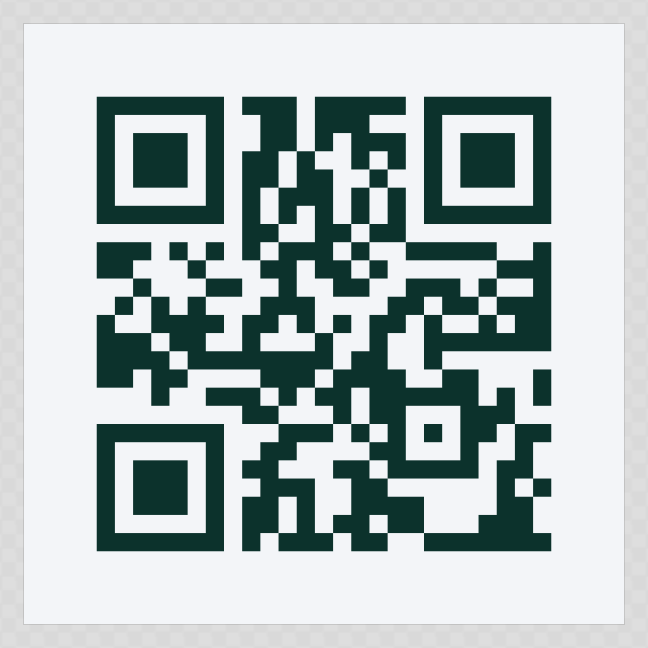
/#/tool/qr-code?url=https://suse.com&color=%230c322c
/#/tool/qr-code?url=https://suse.com&format=png&export&filename=my-qr
/#/tool/quotes?quote=Open+source+wins.&name=Andy&format=svg&export&full
The first of those opens the QR tool with the address and the dark green already applied, no clicks in between.
Clean URL redirect
If a tool is deployed at a dedicated domain or path, you can use a plain query string and the shell redirects to hash form automatically:
https://qr.brand.example.com/?url=https://suse.com
  → redirects to → /#/tool/qr-code?url=https://suse.com
Setting tool inputs
Every input defined in a tool's manifest can be set as a URL parameter using its id as the key.
String, text, longtext, url
Pass the value directly. URL-encode spaces and special characters.
?quote=The+best+way+to+predict+the+future+is+to+create+it.
?name=Andy+Fitzsimon
?url=https%3A%2F%2Fwww.suse.com
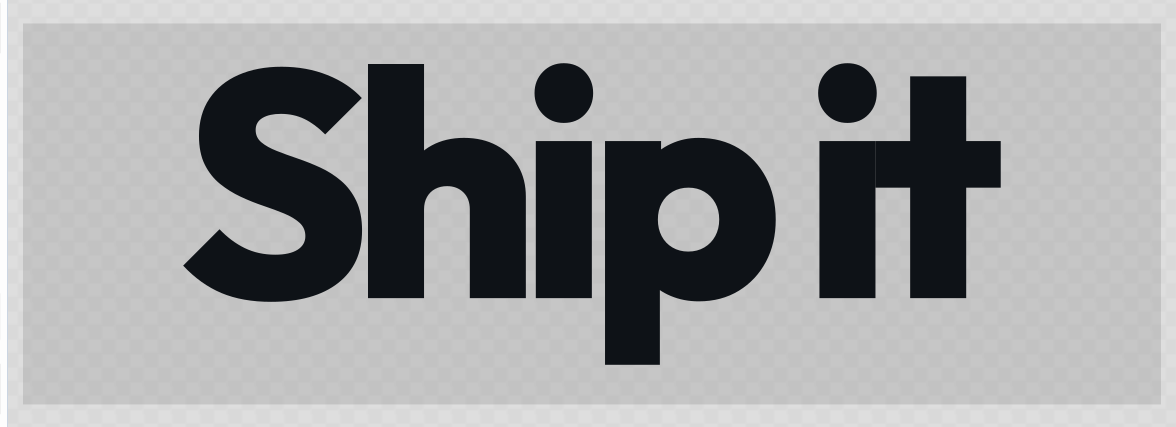
The Wordmark tool is nothing but text params, so a link is the whole brief: /#/tool/wordmark?text=Ship it&weight=800&tracking=-12&size=200.
Select
Pass the option value (not the label).
?theme=dark
?ecl=H
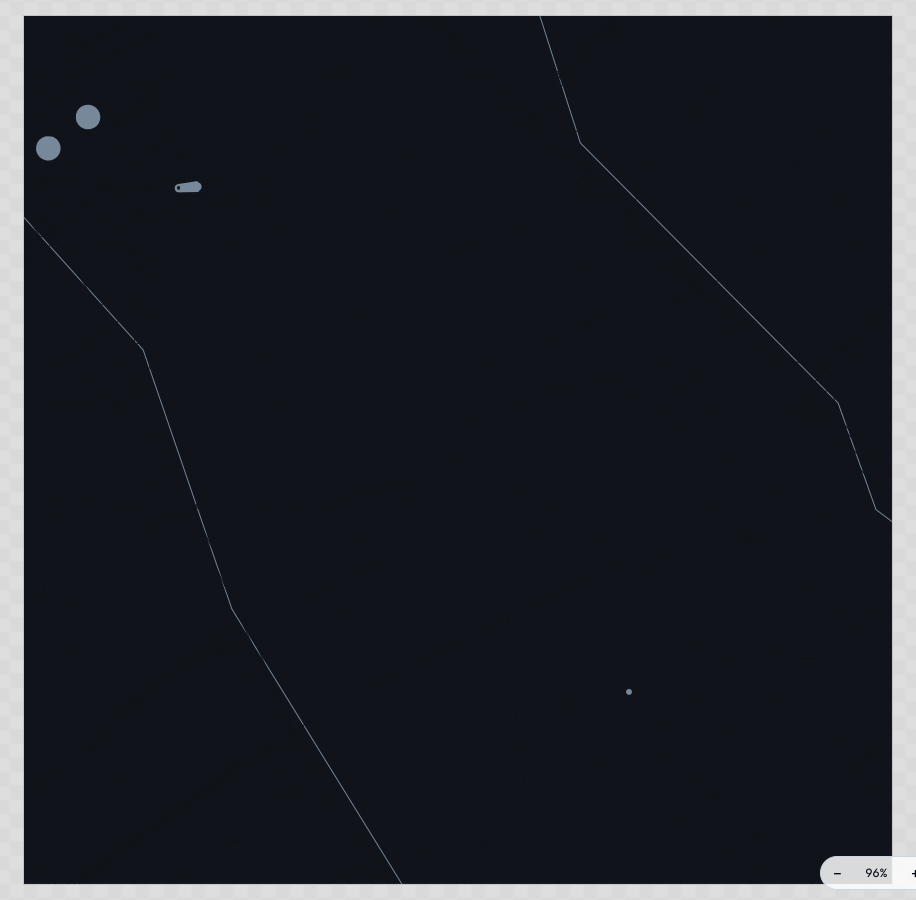
A one-word change swaps the whole render: /#/tool/street-map?city=barcelona&theme=dark.
Number
?size=800
?padding=4
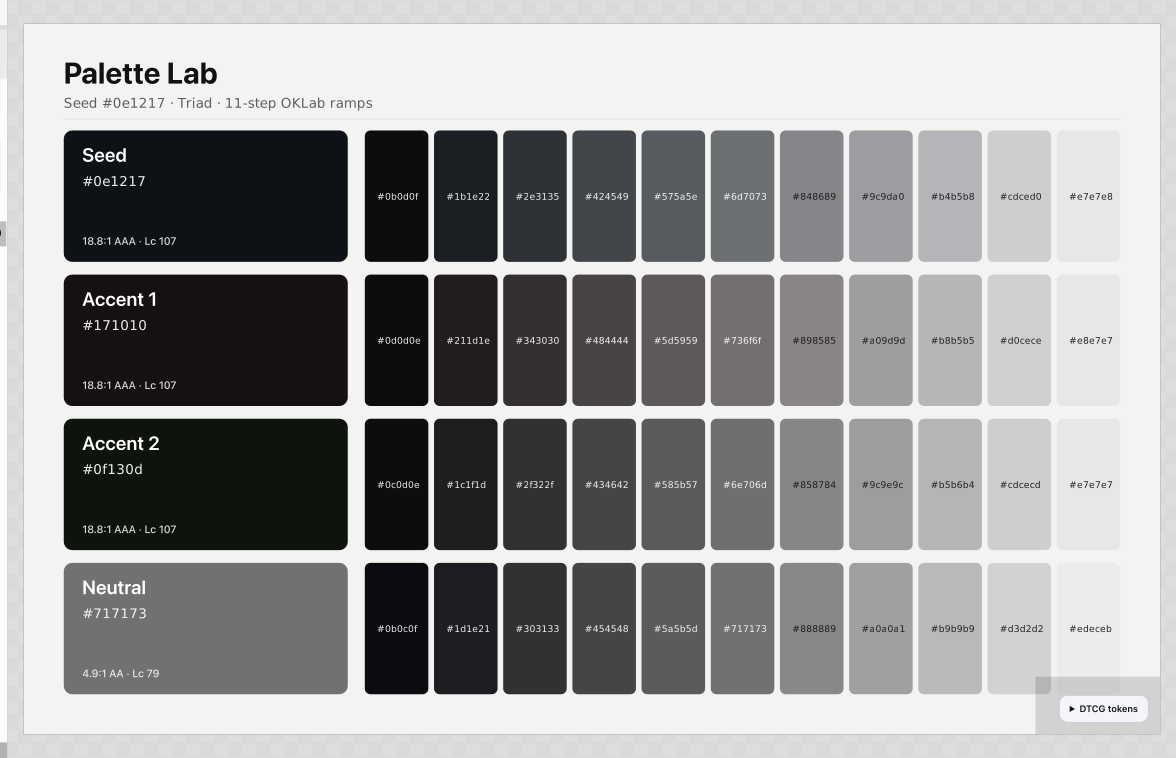
A number can also set how much of a thing gets made. Colour Palette builds one ramp cell per step, so /#/tool/color-palette?steps=11 returns a wider sheet than the default seven.
Boolean
1 or true for on, 0 or false for off.
?join=1
?showBorder=false
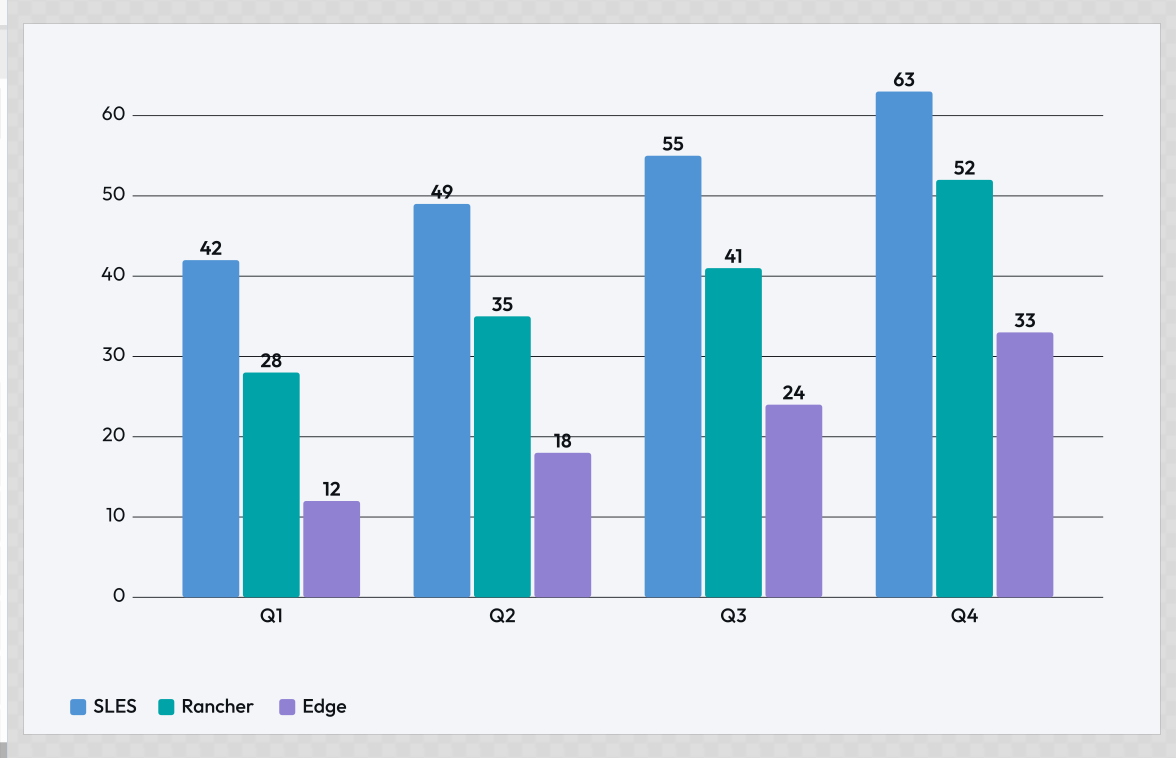
One flag can add a whole layer of information: /#/tool/d3?showValues=1 prints the number on every bar.
Color
Pass a hex value (URL-encode the #).
?color=%230c322c
?background=%23ffffff
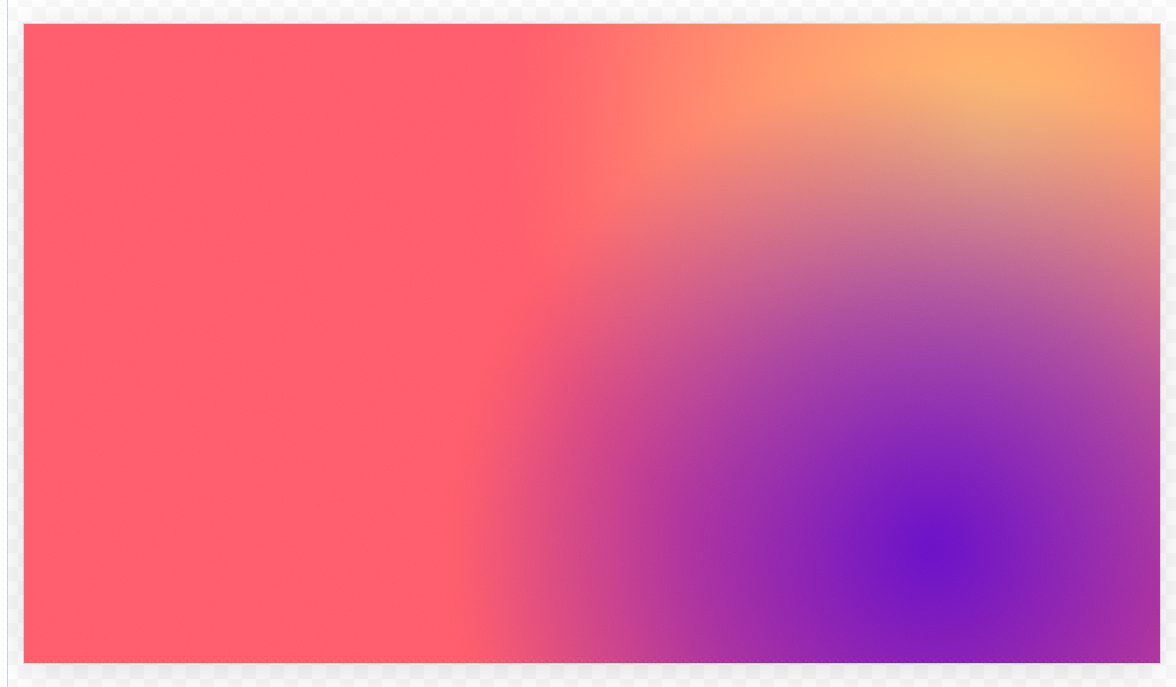
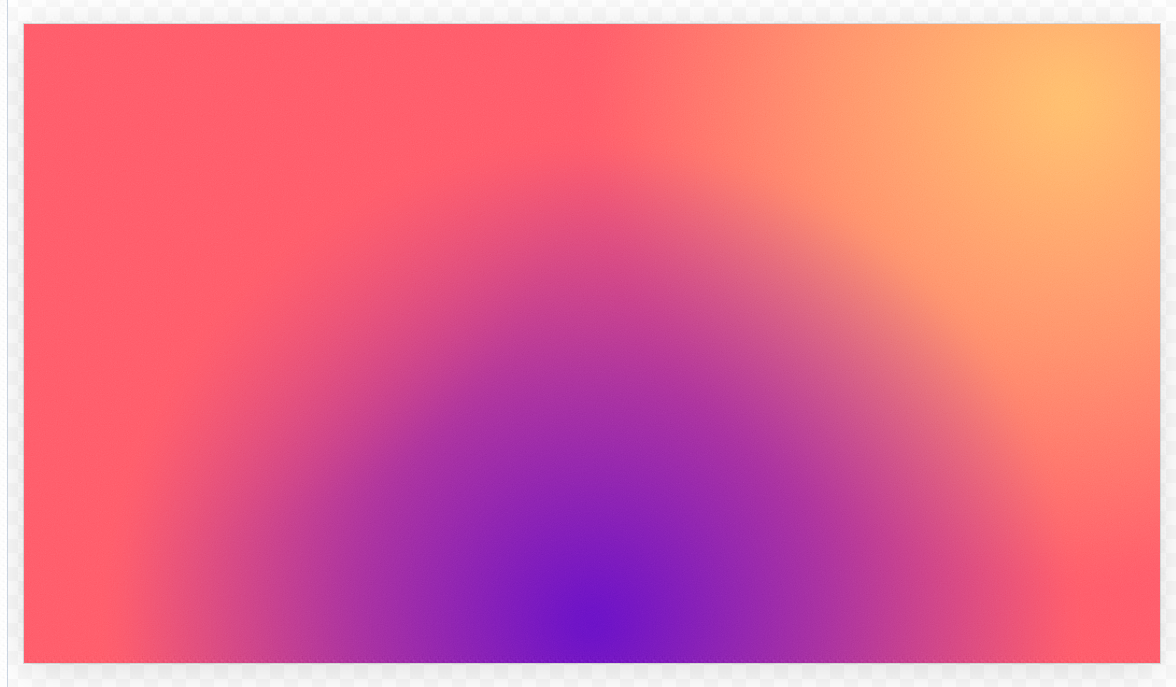
Colour params stack. Mesh Gradient takes one per stop, so three hex values in a link are three fields of colour in the render.
Asset
Pass the asset's library ID - the runtime resolves it to the full asset object at render time.
?logo=suse/logo/primary
?headshot=team/andy-fitzsimon
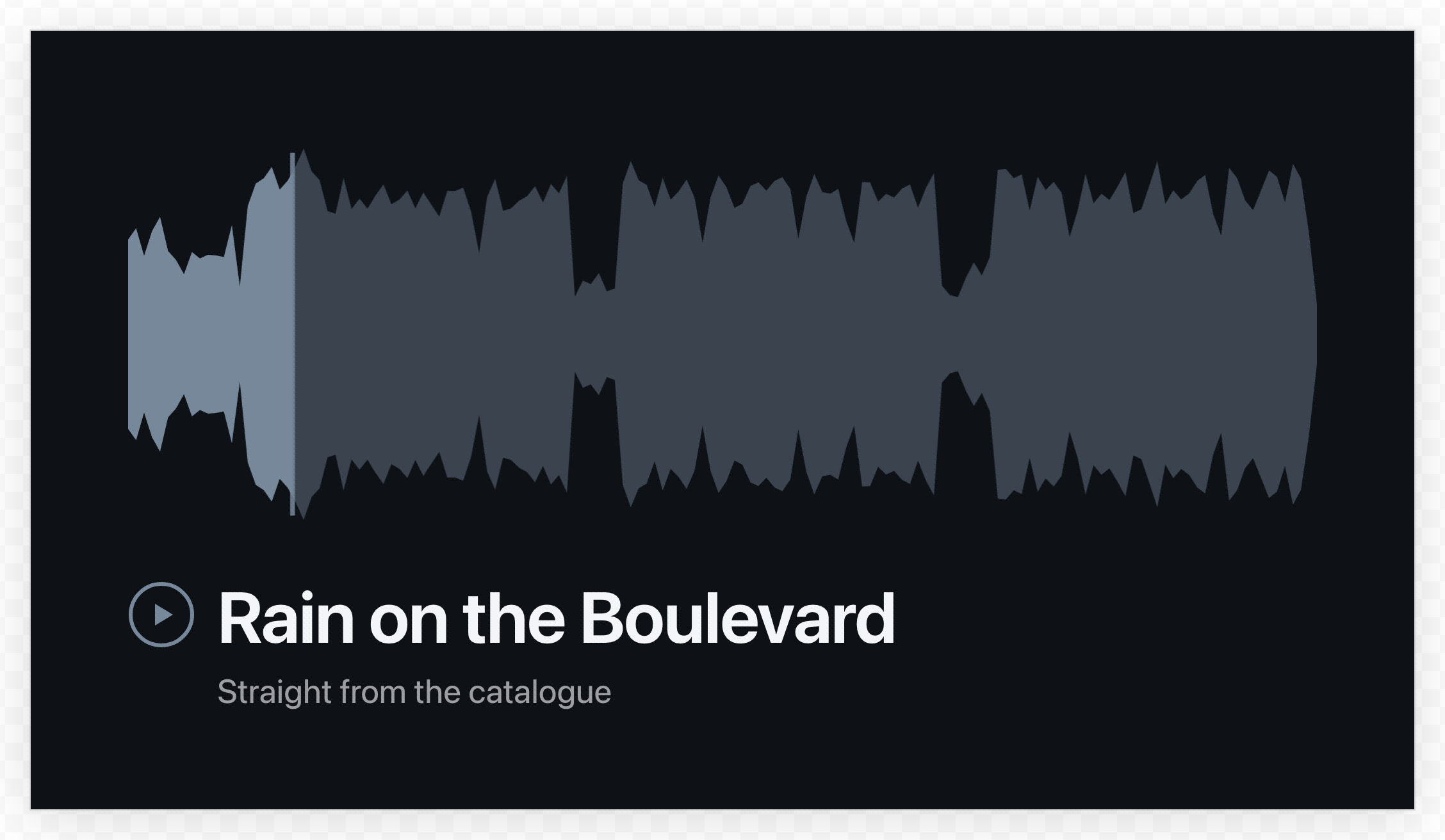
To discover asset IDs, open the asset picker in the tool UI and inspect the value shown when an asset is selected. An audio ID works the same way as an image: Audiogram decodes whichever track the link names and draws its real waveform.
An asset value can also be another tool's render. When a user pastes a Lolly tool link into the asset picker (a share link or an embed URL), the chosen value's "id" is the canonical embed URL of that render, so it round-trips through the URL exactly like a library id - just longer:
?hero=https%3A%2F%2Flolly.tools%2Ftool%2Fqr-code.svg%3Furl%3Dhttps%3A%2F%2Fsuse.com%26w%3D600%26h%3D600On load the runtime re-renders it via host.compose.renderUrl instead of looking it up in the catalog. This is how one tool's output (a QR code, a filtered hero graphic) flows into another tool's image slot through a plain shareable link. See Tool composition and the authoring guide.
User-uploaded images are device-local and not URL-shareable. Images a user adds from their own device (
AssetRef.source: "user", ids likeuser/upload/…) live only in that device's local storage. There is no shareable id to encode, so they are deliberately omitted from the URL - a link that referenced one would not resolve on another device. To share a layout that uses a personal image, the recipient must select their own. (Avoiding this would require cloud hosting, which the platform intentionally does not do.)
Blocks
Blocks inputs are repeating groups of fields (e.g. a list of team members, each with a name and city). Pass the value as a JSON array of objects, URL-encoded.
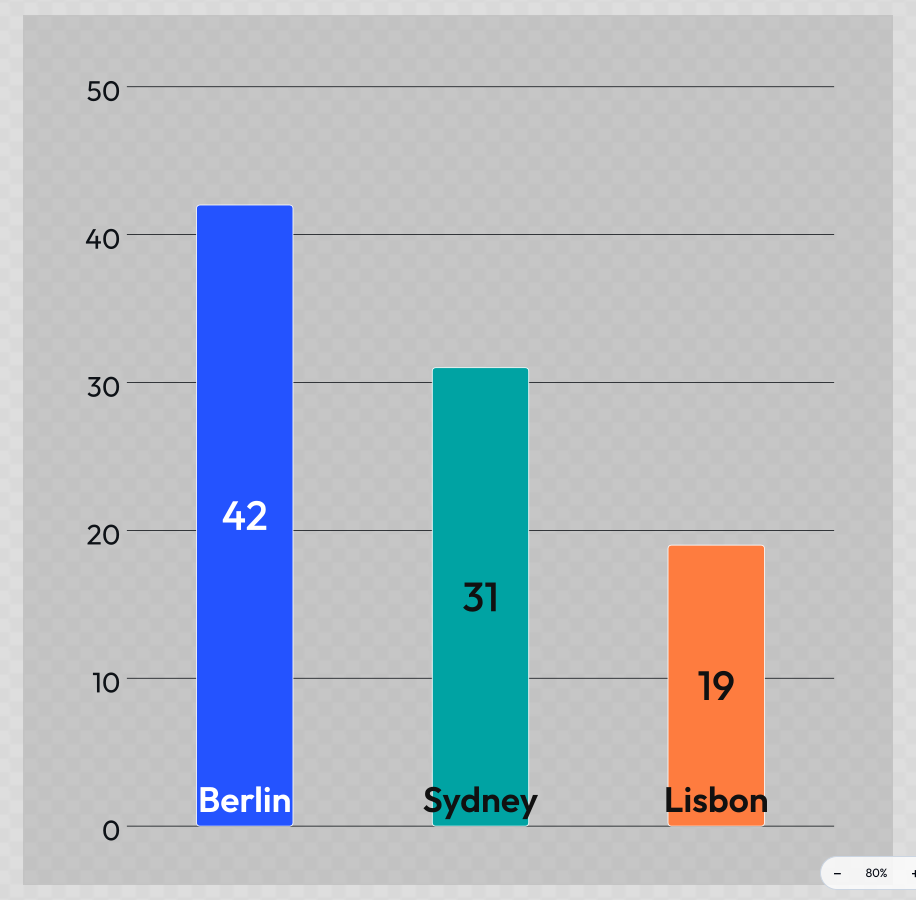
?people=[{"name":"Andy","city":"Nuremberg"},{"name":"Lisa","city":"Sydney"}]Each object's keys must match the field ids defined in the tool's manifest. Fields can be omitted - missing fields are treated as empty strings. Chart Creator's data input is a blocks list of label, value and colour, so a whole dataset travels in the link:
CLI:
lolly meeting-planner --people='[{"name":"Andy","city":"Nuremberg"},{"name":"Lisa","city":"Sydney"}]'The URL updates automatically as block items are added, removed, or edited in the UI - copy from the address bar to get a shareable link with all entries included.
Blocks with a JSON representation larger than 8 KB are not written to the URL to avoid exceeding browser URL limits. In that case, use a saved state
slotfor sharing.
Vector
A vector input is a fixed group of numbers edited as one control (e.g. a zoom + x/y offset). It has no single-param form - pass each field as a flat dotted param <inputId>.<fieldId>:
?imageFraming.zoom=200&imageFraming.x=30&imageFraming.y=70One readable value per param. Used by tools such as bag-video, chart-creator, filter-duotone, dynamic-layout, and quotes. Mesh Gradient parks each colour stop with one, so adding ?pos1.x=8&pos1.y=8&pos2.x=92&pos2.y=12&pos3.x=50&pos3.y=94 to the gradient above drives its three blooms out to the edges:
File
A file input (the user's own file, processed in memory) is never put in a URL - its bytes live only on the device, so there is nothing shareable to encode. On the CLI a file param is a filesystem path, loaded into memory before rendering:
lolly strip-data --source=./photo.jpg --format=jpg --output=clean.jpgIn the web shell a file input can't be pre-filled from a URL; a link that referenced one resolves as blank, and the recipient picks their own file.
Compact encoding (opt-in)
Tools can opt into a shorter URL form, which the web shell emits when you copy a share link (the live address bar keeps the readable long form). Both the long forms above and the compact forms below parse, so either kind of link works:
urlKeyaliases - an input (or block field) can declare a short key, e.g.textColor→tc, so?tc=ff0000sets it.- Colors without
#- a 6-char hex is stored bare (?color=0c322c), restored to#0c322con parse. - Tilde-delimited block arrays - instead of JSON, blocks serialise as
field,field,field~field,field,field(one~-separated group per item; values URL-encoded, colors#-less). - Omitted defaults - values equal to the input's default are dropped from the URL entirely.
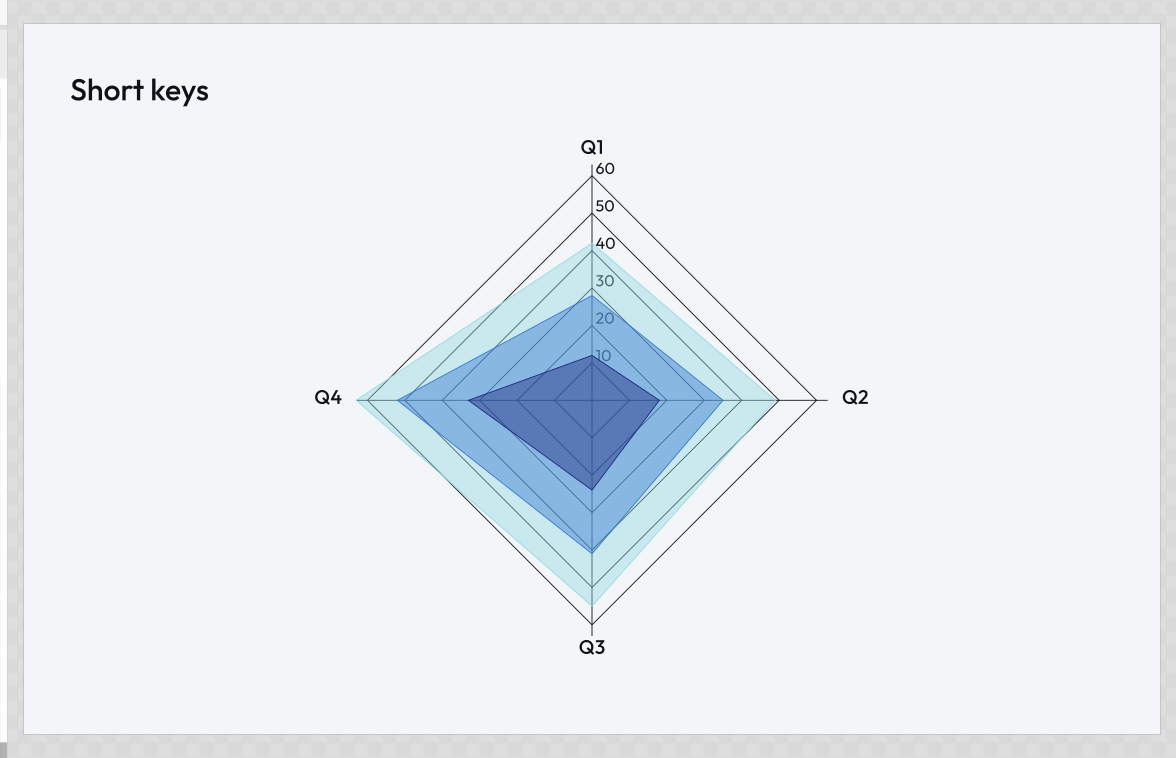
chart-creator is a live tool that uses urlKey, so a link copied via its Copy URL / share button won't match the long-form examples in this doc - that's expected. d3 uses them too: ?ct=radar&pl=cool&t=Short keys&lg=0 is chart type, palette, heading and legend in twelve characters of query.
Reserved parameters
These keys are never treated as tool inputs. They control shell-level behaviour.
| Param | Where | Description |
|---|---|---|
format | web + CLI | Output format (png, svg, pdf, …). Used by export and copy. |
export | web + CLI | Presence flag - trigger an immediate download on page load. |
copy | web only | Presence flag - arm copy-to-clipboard on first interaction. |
full | web only | Presence flag - open in fullscreen (sidebar collapsed). |
options | web only | Presence flag - open with the export-settings panel expanded instead of the collapsed Render button. full wins if both are set. |
filename | web only | Name for the downloaded file (no extension). Defaults to the tool ID. |
slot | web only | Name of a saved state slot to pre-load. URL params override saved values. (The one-shot CLI has no saved-state store, so it ignores slot.) |
output | CLI only | File path to write the exported file. Defaults to stdout. |
_v | web + CLI | Tool version pin (e.g. 1.0.0). Ignored if not matched - forward-compat safety. |
width / w | web + CLI | Output width, as a value in unit. Also pre-fills the export dimensions panel. |
height / h | web + CLI | Output height, as a value in unit. Also pre-fills the export dimensions panel. |
unit | web + CLI | Physical unit for width/height: px (default), mm, cm, in, pt, pc. |
dpi | web + CLI | Raster resolution for physical units (default 300). Ignored for px and for vector formats. |
password | web + CLI | PDF open password (pdf only; the CLI applies it wherever it can render a PDF). A basic lock, not strong encryption; it travels in clear text in the URL, so it's a light deterrent, not protection for confidential material. Ignored when bleed/marks are on (encrypted PDFs can't carry print finishing). |
profile | web only | Colour profile, two roles by format. For ordinary raster (png / jpg) it selects the ICC profile: srgb (the default) embeds an sRGB profile; none omits it. For the print formats (pdf-cmyk / cmyk-tiff) it is the CMYK press condition, e.g. fogra51 - embedded as the PDF's output intent, recorded in the TIFF's provenance. |
bleed | web only | Bleed amount for the print formats (pdf / pdf-cmyk / cmyk-tiff), as a dimension (e.g. 3mm, 0.125in). The artwork is scaled to fill the bleed; the PDF declares TrimBox/BleedBox, the TIFF is enlarged to the full sheet. |
marks | web only | Print marks for the print formats (pdf / pdf-cmyk / cmyk-tiff) - a CSV of crop, reg, bleed, bars, prov. Drawn in the page margin (PDF) or rasterised into the image margin (TIFF); registration prints on all four plates in pdf-cmyk and cmyk-tiff. prov (provenance credit text) is PDF-only. |
c2pa | web + CLI | Content Credentials for the stampable formats. c2pa=7/30/90/365 embeds the credential with that ephemeral-certificate lifetime in days; c2pa=1 (or a bare --c2pa on the CLI) uses the default (30); c2pa=off forces it off, overriding a tool's render.c2pa default. Web: an enrolled identity's certificate window (fixed at enrolment) takes precedence and the lifetime value is ignored. CLI: ephemeral signing only (svg in the lean CLI). Mutually exclusive with password on PDFs. |
durable | web (opt-in) | Durable Content Credential for raster exports (png / jpg/jpeg / webp / avif / tiff): an opt-in neural TrustMark-format watermark carrying Lolly's own identifier, so the "made with Lolly" link survives a metadata strip (a social upload, a re-save) and any TrustMark-aware tool can recover it. Off by default - a heavy on-device neural encode that also needs a model fetched once - so pass durable=1 (or durable=on) to turn it on. A no-op if the encoder model isn't on-device (see scripts/convert-trustmark-encoder-onnx.py); raster-only for now (not the pdf/pptx container rasters). Complements - does not replace - the default imprint and the c2pa credential. Recognised on-device on the /verify page as a "Lolly durable mark" pip. See plans/durable-content-credentials.md. |
imprint | web (default-on) + CLI (opt-in) | Lolly pixel watermark for raster exports (png / jpg/jpeg / webp / avif / tiff - the RGB TIFF, not Print/CMYK TIFF), plus Lolly-rendered raster content embedded inside a pdf, pdf-cmyk, or pptx export - a composed tool render, a gradient/filter fallback, or an SVG illustration that gets walked to pixels still carries the mark even though the container itself isn't a raster format (a zip bundle carries it through to whichever of its members qualify). It never marks a user's own uploaded image - only art Lolly itself rasterised. On by default on the web, like c2pa - embedded unless explicitly disabled; imprint=0 (or imprint=off) turns it off. imprint=1 (or a bare ?imprint) is still accepted for existing links (redundant with the web default). On the CLI it is opt-in - pass --imprint (and note the resvg PNG fast path can't embed it; use a browser-tier format). Unlike c2pa - which lives in a metadata container and dies to any re-save or strip - the imprint survives metadata stripping, recompression (down to ~JPEG q50) and an 8-pixel-aligned crop, so it's a durable complement to the credential. TIFF (lossless) round-trips the mark exactly; AVIF's AV1 encode applies the mark pre-encode but its survival through that encode is not yet calibrated/verified. It does not survive an arbitrary resize, and it is security-through-obscurity (the detector key is public), so it's an integrity hint, not a hardened claim. Detected on-device on the /verify page - for pdf/pdf-cmyk/pptx files, detection scans the embedded Lolly-rendered rasters, not the page/slide as a whole. |
lang | web + CLI | UI/content language as a canonical short code: en (default), es, de, fr, zh (Simplified), zh-hant (Traditional), ja, ko, vi, pt, it, nl, sv, no, pl, cs, ro, tr, uk, bg, ms, id, tl, hi, bn, ur, and ar (the LANGS set in engine/src/lang.ts is the source of truth). Arabic and Urdu render right-to-left (the whole UI mirrors). Informal aliases (cn, jp, and in for id) are accepted and normalized on parse. Applies for that session only - it does not overwrite the recipient's saved language preference. Unset/unrecognized falls back to the profile, then localStorage, then the browser's language, then English. |
nostage | web only | Presence flag - for the html export only, drop the fixed-size canvas frame ("stage") so the saved page fills the whole window: the tool's content becomes the document body, with no centred card or grey backdrop. Mirrors the Full page toggle in the export panel. |
z | web + CLI | A packed whole-state token - the entire readable query, compressed (raw DEFLATE) and base64url-encoded, for complex tools whose readable link would blow past practical URL limits. See Packed links below. |
zx | web only | An encrypted whole-state token - the packed state AES-256-GCM-encrypted under a password-derived key (PBKDF2). Opening the link prompts for the password in the browser (no server); the password itself is never in the link. See Encrypted links below. |
export, copy, full, options, and nostage are presence flags - the parameter value is ignored; what matters is whether the key appears in the URL.
lang is the one reserved param that changes the interface rather than the file. Adding ?lang=ja to any tool link hands the recipient the whole sidebar in Japanese for that session, without touching their saved preference.
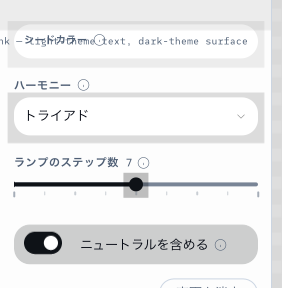
Building share links in the UI. In the web shell you don't have to hand-write these. The Share button (in the export panel) opens a dialog with the ready-to-copy link plus a toggle for each on-visit flag - _open fullscreen_ (
full), _open with the export panel expanded_ (options), _download automatically_ (export), _copy to clipboard_ (copy), and _pin tool version_ (_v). The copy toggle appears only for clipboard-friendly formats (bitmap/text/html) and is hidden for SVG, PDF, and video. Ticking a box rewrites the link in place. The same dialog is reachable from Projects → Share link on any saved session (it reconstructs the tool URL from the saved inputs).
Packed links (z)
Readable URLs are first-class - a simple ?color=30BA78&theme=dark link can be hand-edited. But a complex tool (e.g. Layout Studio, with dozens of boxes each carrying coordinates, colours and text) serialises to thousands of characters, past the ~2000-char ceiling that pasted links, social crawlers, QR codes and some servers still enforce.
For those, the app compresses the entire readable query into one z param:
/t/layout-studio?background=…&boxes=…&format=png   ← readable (e.g. 2729 chars)
/t/layout-studio?z=1eJyFkc… ← packed (e.g. 1059 chars)- Codec.
z's value is<tag><base64url>. The one-chartag(1today) is raw DEFLATE (RFC 1951, a frozen standard) via the platform-nativeCompressionStream; base64url keeps the whole value URL-safe. The tag versions the codec so a future variant can be added without breaking links minted today. - Stable by construction. The packed form compresses the app's own canonical readable query, so there's no separate encoding to keep in sync - and DEFLATE is standard, so a link packed in a browser decodes identically in Node's
zlib(and the CLI), across app versions. There is no server-side or app-side lookup table that could drift. - When it kicks in. Packing is used only when it's actually shorter (it loses on short links - DEFLATE framing plus base64's ⁴⁄₃ blow-up exceed tiny payloads), and the address bar switches to it automatically once the readable query passes ~1800 characters. Below that, links stay readable and editable. The Share dialog surfaces a Shortest link checkbox (auto-ticked for large states) showing the character saving.
- Expansion.
expandQuery()(engine) turns azlink back into a plain query before parsing, so everything downstream - the web shell, the CLI (lolly <id> --z=1eJ…), and pasted-link composition - behaves identically to the readable form. On-visit flags (export,full,_v, …) can ride alongsidezin readable form and still take effect.
Encrypted links (zx)
A password-gated variant of a packed link: share a link that only opens for someone who knows the password - with no server and no account.
The state is DEFLATE'd then AES-256-GCM-encrypted under a key derived from a password (PBKDF2-SHA256), and carried in a zx param. Opening the link prompts for the password, derives the key, and decrypts entirely in the recipient's browser, then rebuilds the tool content. Wrong password → it asks again; cancel → the tool loads at its defaults.
- The password never travels. Only the ciphertext (plus a random salt and IV) is in the link. You share the password separately - and because it's not stored anywhere, it can't be recovered if lost.
- Turn it on in the Share dialog - tick Password-protect this link and set a password; the link updates to the
zxform. On-visit flags still ride readable alongside it. - Interactive-only. An encrypted link can be opened in Lolly but not embedded as an image (the embed path renders headless and can't prompt) - such a link simply renders at defaults there.
- Independent of
z.zxis its own codec (<tag><base64url>ofsalt‖iv‖ciphertext), so it versions separately andexpandQuerydeliberately never touches it - decryption happens only at the interactive load boundary that can prompt.
Physical units (unit= + dpi=)
width/height are plain numbers; unit says what they mean. With a physical unit the output is rendered at the correct physical size for the format, not just a pixel count:
- PDF → a true page of that size (points, resolution-free).
?w=210&h=297&unit=mm&format=pdfis a real A4. - SVG →
width/heightcarry the unit (e.g.210mm) with a pxviewBox, so it scales cleanly. - PNG / JPG / WebP → pixels at
dpi(e.g. 210mm @ 300dpi = 2480px). PNG also embeds the DPI (apHYschunk) so print/layout software places it at the intended size.
px is the default and behaves exactly as before (the CSS 96-DPI convention). The canvas takes the physical shape straight away, so ?w=210&h=297&unit=mm&format=pdf shows you a portrait A4 before you export anything.
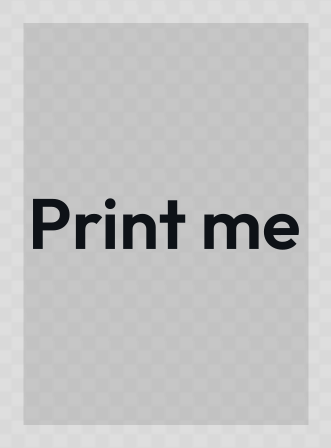
lolly quotes --quote="Print me." --width=210 --height=297 --unit=mm --export=svg --output=a4.svgPrint marks & bleed (bleed= + marks=)
For print-ready output, bleed= and marks= add the prep a print shop expects to the pdf (RGB), pdf-cmyk (Print PDF) and cmyk-tiff (Print TIFF) formats. They're ignored for every other format. The two CMYK formats apply the same engine geometry - the PDF as vectors with declared page boxes, the TIFF rasterised onto an enlarged sheet.
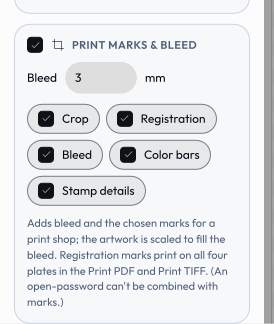
bleed=3mm- the design is scaled to fill the bleed (the trim area is unchanged). The PDF declares itsTrimBox(final cut) andBleedBoxfor the RIP; the TIFF is enlarged to the full sheet, the artwork composited over white to cover the bleed.marks=crop,reg,bleed,bars- draws, in the margin: crop (trim) marks, registration targets, bleed marks, and a colour bars. Inpdf-cmykthe line marks are DeviceCMYK1 1 1 1so they print on every plate; incmyk-tiffthey're written straight into the pixel buffer as all four channels at full ink (C=M=Y=K=255, the raster analogue), drawn after the RGB→CMYK pass so they aren't remapped; in the RGBpdfthey're black. Mark length, gap and stroke weight are fixed to print standards.- In
pdf-cmykthe bar becomes a brand verification strip: the four solid process primaries (C, M, Y, K) come first as a fixed calibration reference, then - after a wider gap - each brand colour that actually substituted in this artwork appears as an RGB reference swatch touching its CMYK substitution, so a press operator can confirm the RGB→CMYK swap landed. Only the inks really used are shown (substitution records which palette colours were hit); the pairs are capped by the available margin width and a flat ceiling of 12 brand cells. The RGBpdfand thecmyk-tiff(which does a flat per-pixel conversion with no exact substitution to verify) show a generic process/overprint/tint control bar instead. prov(PDF only) - adds small provenance credit text in the proof margin, taken from the export's authorship metadata: the export timestamp {YYYY-MM-DD HH:MM} at the top-left, "Made with https://lolly.tools" at the top-right, and "{Tool} by {Author}" climbing the bottom-left. Like the other marks it sits outside the trim, so it's removed at the final cut (a proof annotation, not artwork). The author appears only when the user has opted into personal details (Profile → "Use my details").
The CMYK press condition (profile=, e.g. fogra51) is carried for both CMYK formats: the Print PDF embeds it as the document's output intent; the Print TIFF records it as provenance in ImageDescription (the pixels stay untagged DeviceCMYK - no embedded profile, so the file is never mislabelled).
?format=cmyk-tiff&bleed=3mm&marks=crop,reg,bleed,bars&profile=fogra51&exportMarks/bleed and the PDF open-
passwordare mutually exclusive: print finishing is applied via pdf-lib, which can't write encrypted PDFs, so apasswordis ignored when marks/bleed are on. (cmyk-tiffhas no password concept.)
Format with format=
format=<fmt> selects the output format for both export (download) and copy (clipboard).
Supported values:
| Value | Output |
|---|---|
svg | Scalable vector (requires <svg> root in the template) |
svg-anim | Animated SVG - self-contained vector flipbook (animated tools only) |
emf | Enhanced Metafile vector (for Office apps) |
eps | Encapsulated PostScript vector (RGB) |
eps-cmyk | Encapsulated PostScript vector - DeviceCMYK (naive conversion, no output intent) |
dxf | DXF vector cut file - AutoCAD R12, paths in mm (laser/vinyl/CNC) |
png | Lossless raster |
jpg / jpeg | Lossy raster |
webp | Lossy/lossless raster |
avif | AVIF raster |
tiff | Uncompressed sRGB raster (RGB TIFF) |
pdf | PDF document |
pdf-cmyk | Print PDF - CMYK with output intent (see print marks & bleed) |
cmyk-tiff | Print TIFF - flattened CMYK raster |
pptx | PowerPoint deck - native editable text/shapes + extractable images/vectors |
ico | Icon bundle (e.g. tool-logo) |
zip | Multi-file bundle (optionally password-locked - see Exporting → Locked downloads) |
html | Static HTML document |
md / txt | Markdown / plain text |
json / csv | Structured data |
ics / vcf | Calendar event / contact card |
gif | Animated GIF (animated tools only) |
apng | Animated PNG - full colour + real alpha (animated tools only) |
webp-anim | Animated WebP - full colour + alpha, smallest file (animated tools only) |
webm | WebM video (animated tools only; Chrome/Firefox/Android) |
mp4 | MP4 video (animated tools only; Safari/iOS and recent Chrome) |
Not all tools support all formats - only the formats listed in the tool's manifest render.formats are valid (the full set is the 30-value enum in schemas/tool.schema.json). Requesting an unsupported format falls back gracefully.
Download with export
Adding export (no value needed) triggers an automatic download the moment the tool finishes rendering. Pair it with format= to set the file type; if format is omitted the tool's default format is used.
/#/tool/qr-code?url=https://suse.com&format=svg&export
/#/tool/qr-code?url=https://suse.com&format=png&export
/#/tool/qr-code?url=https://suse.com&format=pdf&export
export without format downloads in the tool's first listed format:
/#/tool/qr-code?url=https://suse.com&exportDownload filename with filename=
Sets the name of the downloaded file. The format extension is appended automatically - do not include it.
/#/tool/qr-code?url=https://suse.com&format=png&export&filename=homepage-qr
→ downloads as homepage-qr.png

/#/tool/qr-code?url=https://suse.com&format=svg&export&filename=event-badge
→ downloads as event-badge.svg
Without filename=, the download is named after the tool ID (e.g. qr-code.png).
Copy to clipboard with copy
copy (no value needed) arms the tool's copy-to-clipboard action. Pair it with format= to choose the format; if format is omitted the tool's default is used.
/#/tool/email-signature?firstname=Andy&format=html©
/#/tool/qr-code?url=https://suse.com©
/#/tool/qr-code?url=https://suse.com&format=png©It does not fire silently on load. Browsers only allow a clipboard write in response to a user gesture (navigator.clipboard.write rejects otherwise, and the image path would fall back to an unexpected download). So when copy is present, the shell highlights the Copy button and performs the copy on your first interaction with the page - the click that supplies the required gesture.
Use export instead if you want a genuinely unattended result (a download needs no gesture). copy is for "open this link, then it's ready to paste." It is a web-shell affordance; the CLI ignores it (use --output / stdout).
Canvas dimensions with width= / height=
width and height (short aliases w and h) set both the canvas document size and pre-fill the export dimensions panel. They are not passed to the tool as inputs.
?width=1200&height=630
?w=800&h=800
?w=1920&h=1080
Mixing long and short forms is fine - ?width=1200&h=630 works. The canvas preview updates to the new aspect ratio.
Fullscreen with full
full collapses the sidebar so the canvas fills the entire viewport. The value is ignored - presence of the param is enough.
/#/tool/qr-code?url=https://suse.com&fullAny tool takes it. Mesh Gradient with full is artwork and nothing else.
Combine with export for a clean unattended export flow:
/#/tool/qr-code?url=https://suse.com&format=png&filename=my-qr&export&fullLand on the export panel with options
options opens the tool with the export-settings panel already expanded (format, dimensions, DPI, and the export/copy buttons) instead of the collapsed Render button. Use it to share a link where the recipient is one click from downloading.
/#/tool/qr-code?url=https://suse.com&options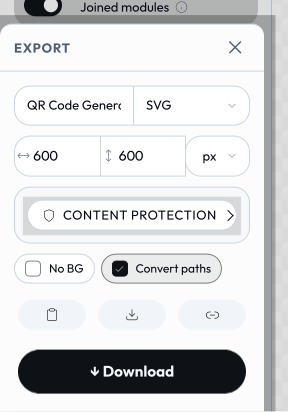
options is the opposite of full: full hides all chrome to show only the preview, while options surfaces the export chrome. If both appear, full wins (there's nowhere to anchor the export panel once the sidebar is collapsed). The flag is web-only - the CLI ignores it.
Transparent background
Tools that support transparent export expose a transparentBg boolean input. Pass it like any other boolean input:
?transparentBg=1Transparency is preserved in formats that support an alpha channel: png, webp, and avif. It is ignored for jpg, pdf, and svg (SVG has no background rect when transparent).
Full example:
/#/tool/qr-code?url=https://suse.com&color=%230c322c&transparentBg=1&format=png&export&filename=qr-transparentThe engine injects a second export toggle the same way: convertPaths (the Convert paths text-to-vector outlining control) is added automatically to tools that export a vector format. It is URL-expressible as any boolean - ?convertPaths=0 to leave text live, ?convertPaths=1 to outline it - and defaults on. A tool that sets render.convertPaths: false suppresses it (and the param has no effect).
Loading saved state with slot=
Saved state slots are named snapshots of input values stored in the browser. The slot param loads one by name. Any URL params present alongside slot override the saved values for that render only.
/#/tool/quotes?slot=andy-quote-v2
/#/tool/qr-code?slot=homepage-qr&format=png&export
Combining parameters
All parameters compose freely. A fully-specified automation URL might look like:
/#/tool/qr-code?url=https://suse.com/event&color=%230c322c&background=%23ffffff&ecl=H&padding=4&format=png&export&filename=event-qr&w=600&h=600&fullThis opens the QR tool, applies all inputs, sets the canvas to 600×600, collapses the sidebar, and immediately downloads event-qr.png.
The same stacking works on a chart, where inputs, compact keys, canvas size and full arrive together:
/#/tool/d3?ct=donut&pl=warm&t=Everything+in+one+link&lg=1&lp=right&sv=1&w=1200&h=800&full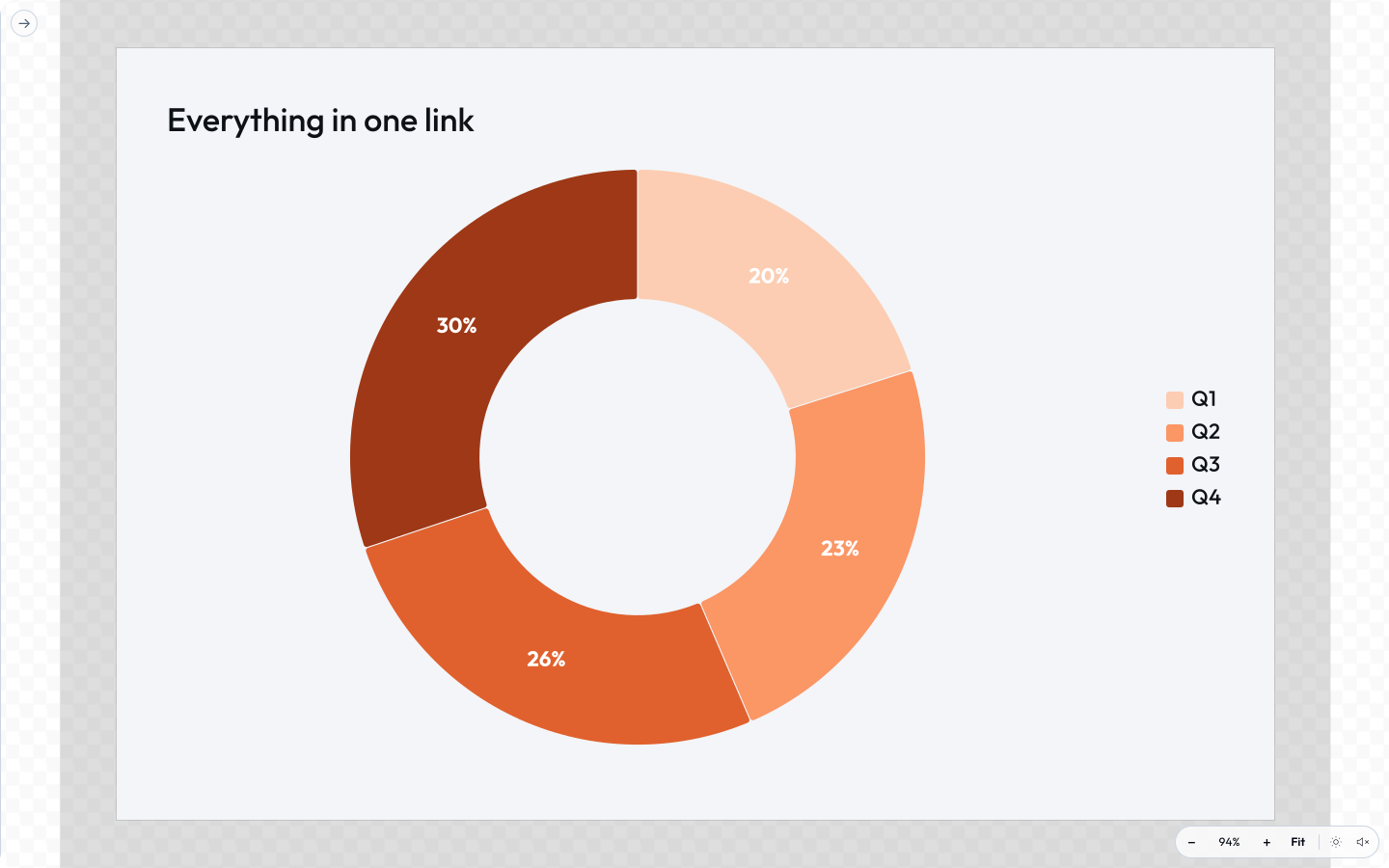
CLI usage
The CLI uses the same param names as URL mode - --key=value instead of ?key=value. format, export, and output are handled as special flags; all other params are tool inputs.
# Web equivalent: /#/tool/qr-code?url=https://suse.com&format=png&export&filename=my-qr
lolly qr-code --url=https://suse.com --format=png --export --output=my-qr.png

# Pipe SVG to another tool
lolly qr-code --url=https://suse.com --format=svg > qr.svg

# Print available inputs for a tool
lolly qr-code
Integration patterns
Shareable link
The web shell writes the current input state to the URL hash automatically as inputs change - copy from the address bar at any time.
Pre-filled embed
Embed the tool in an iframe with inputs pre-filled via URL:
<iframe src="https://brand.example.com/#/tool/qr-code?url=https://suse.com&full"
        width="900" height="700" frameborder="0"></iframe>
Tool composition (portable embed URL)
A tool can embed another tool's render with no tool-to-tool imports. The URL-mode face of this is a portable embed URL - a real-looking image URL whose query is ordinary URL-mode params:
<img src="https://lolly.tools/tool/qr-code.svg?url=https://suse.com&color=0c322c">Nothing is ever fetched from lolly.tools. A shell recognises this exact shape and renders the named tool locally, substituting the result (a placeholder pixel shows until the local render resolves). Anything that isn't exactly this grammar is treated as an ordinary image - that strict match is the security boundary.
The path extension is the author's fidelity choice. Compose any tool's render: an SVG child stays a true vector when the parent exports to SVG or PDF and rasterises crisply for PNG; raster children (png, jpg/jpeg, webp) embed as images. (pdf appears in the grammar but is not inlined as a child format.)
This is the URL-mode surface of composition. The declarative form - a manifest composes: [{ id, tool, inputs, format? }] block resolved by the engine and placed in the template as {{asset <id>}} - is not a URL param; see the authoring guide. Either form requires the tool to declare the compose capability. event-name-badge composes qr-code as SVG today.
Automation / CI
Call the CLI in a build pipeline to generate assets on demand:
lolly qr-code \
  --url=https://suse.com/product/${SLUG} \
  --color=#0c322c \
  --format=svg \
  --export \
  --output=./dist/qr-${SLUG}.svg