Search
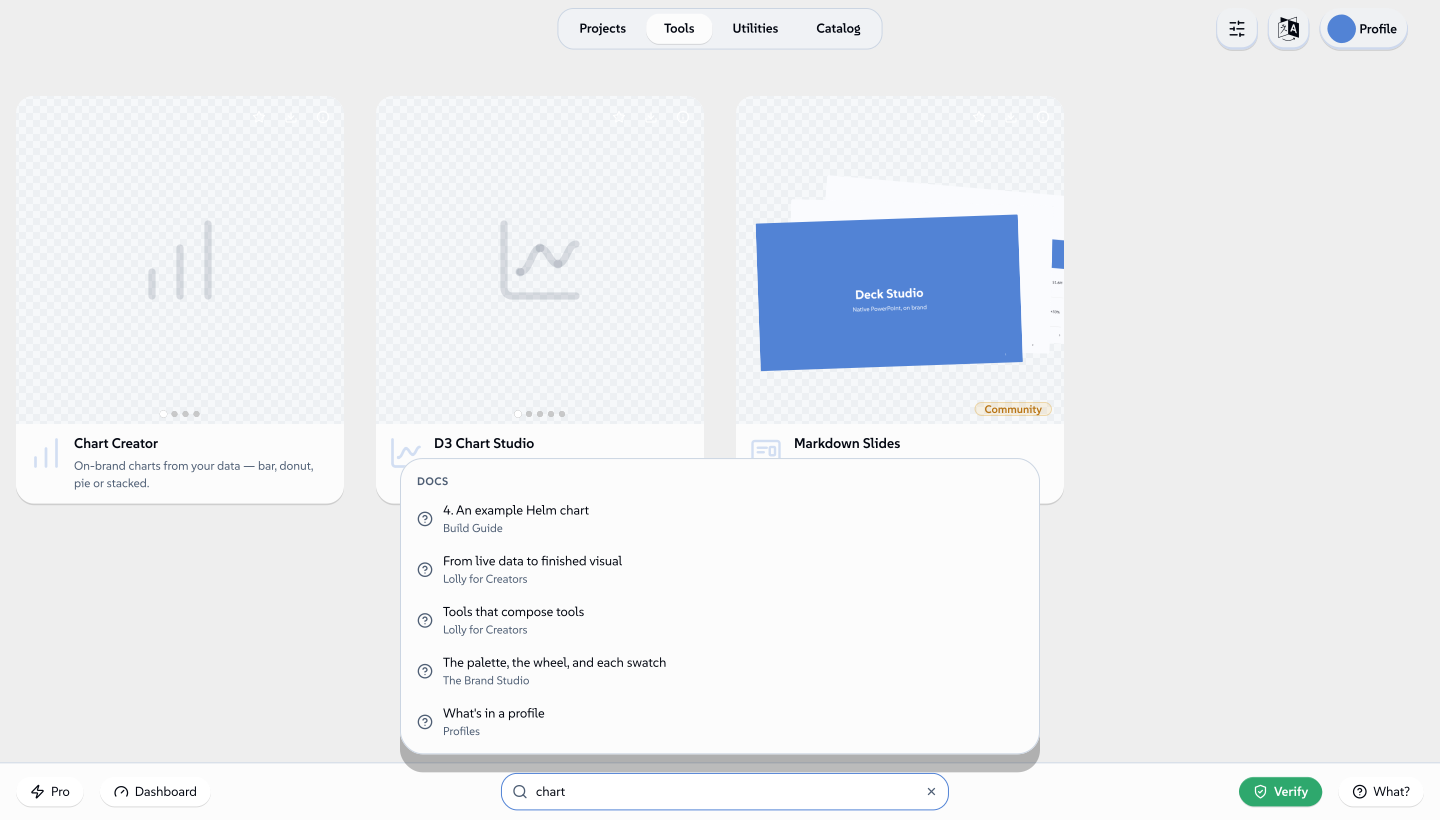
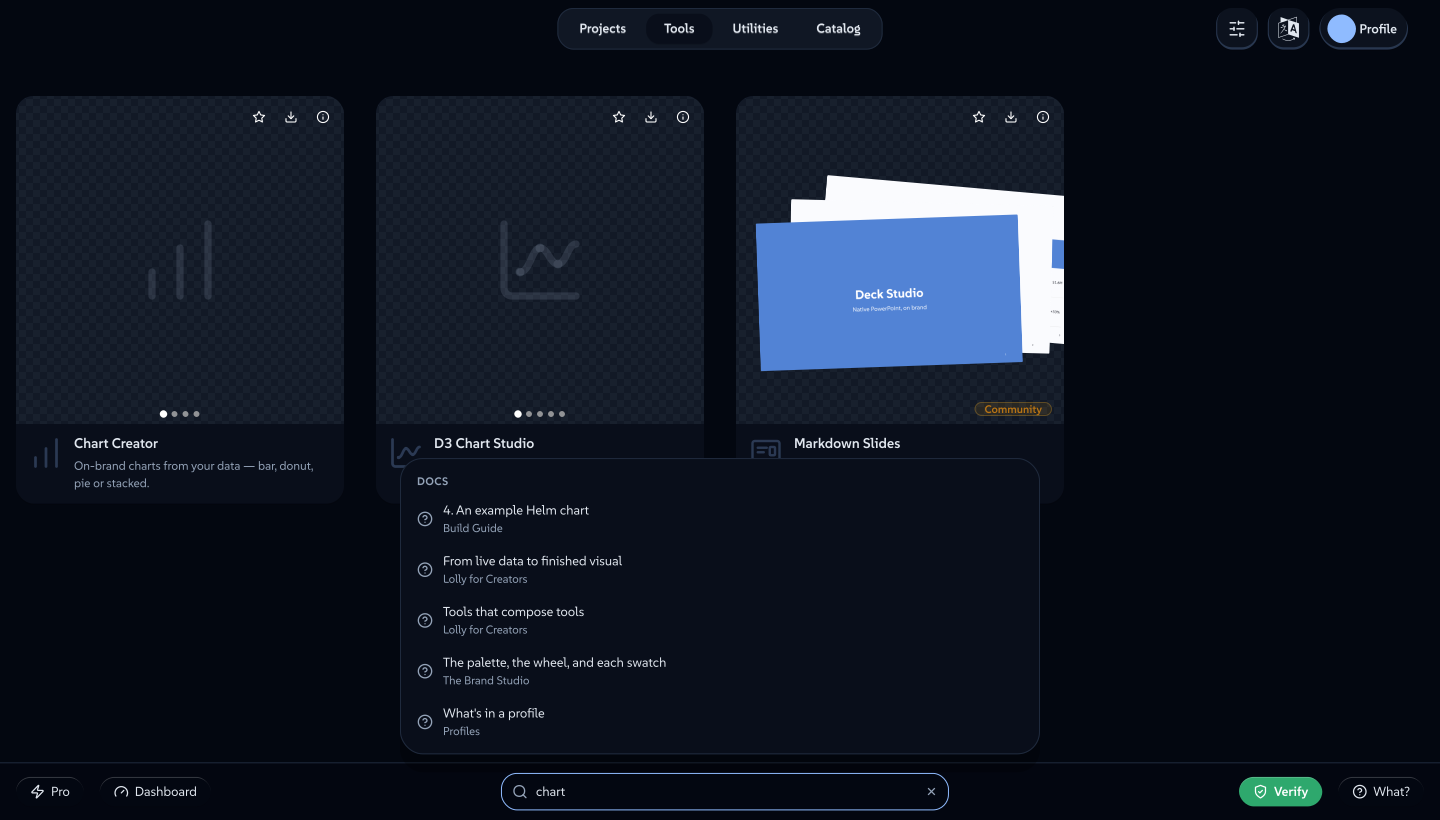
One search field, always in the same place at the bottom of the screen, that reaches your tools, your saved work, the catalogue and your own settings. Type from wherever you happen to be: either the list already in front of you narrows, or a small panel opens above the field with what matched.
Where it lives
The field sits in the middle of the bar fixed to the bottom of the window, the same bar that carries the Dashboard and Verify links.
It's one field for the whole app rather than a different box on every screen, and it follows you: it shows on the Tools gallery, Utilities, the Catalogue, Projects, the Dashboard and Profile.
 ditandatangani oleh Lollyvektor SVGPeriksa sendiriAmbil file bertanda tangan17 paths943 nodes20 groups25 KB
 ditandatangani oleh Lollyvektor SVGPeriksa sendiriAmbil file bertanda tangan17 paths943 nodes20 groups25 KB


It doesn't show everywhere. Once you're inside a tool's own canvas, Batch mode, Verify, Convert, the spreadsheet, the Colour Lab, the PDF tool, Multi-edit, the Design System studio, the component library or Script audio, the bar is gone and the shortcut below does nothing - those surfaces keep their own chrome for now. That's a narrower gap than the list makes it sound: every one of those except Multi-edit is still a destination you can search your way to, from any screen that does show the bar (they're in the Places group below). Multi-edit is the one place search doesn't know about yet.
What it finds
A match is sorted into groups, always shown in the same order:
- Tools and Utilities - by name, description and tag. Matching folds accents and case (typing "cafe" finds something named "Café"), and a name stays findable by its original English word even when you're using the app in another language.
- Projects - your saved sessions, by their name, their filename and the tool that made them, and your folders by name. It matches the session's own label, not anything inside it: it can't find a session by a word you typed into one of its fields.
- Catalogue - the design system's images, logos, audio and fonts, and anything you've uploaded yourself, by name, id, tag, category and format. Again, this is metadata, not contents: it can't find an image by what's actually in the picture.
- Settings - every settings section, the four accessibility preferences and the feature flags, matched on their names and on the words people actually search for ("dark mode", "calm", "storage").
- Places - the app's own destinations, most of which don't carry the bar themselves: Verify, Convert, the spreadsheet, the Colour Lab, the PDF tool, the Design System studio, the component library, Script audio and Batch mode. Typing "verify" or "oklch" lands you there directly.
- Docs - this site: every published page and heading.
What happens with a match depends on where you're standing. On the Tools gallery, Utilities and the Catalogue, the grid you're already looking at filters itself, exactly as it always has - that grid is the result, so its own group is left out of the floating panel. On Projects, the Dashboard and Profile, the screen behind never changes shape while you type: everything, including your own projects and your own settings, shows in the panel instead, so nothing you own can look like it quietly disappeared. Inside the Tools, Utilities, Projects and Catalogue groups, a "See all in ..." row hands off to a proper results view when a handful of matches isn't enough; Settings, Places and Docs just end.
The panel itself floats centred over the whole window, not tucked under the field, so it reads as one thing with the bar beneath it rather than a dropdown off one corner.
 ditandatangani oleh Lollyvektor SVGPeriksa sendiriAmbil file bertanda tangan152 paths~23k nodes199 groups3 images532 KB
 ditandatangani oleh Lollyvektor SVGPeriksa sendiriAmbil file bertanda tangan152 paths~23k nodes199 groups3 images532 KB


Keyboard
Press Control-Space from any screen that shows the bar and it jumps straight to the field. (Cmd-Space is quietly wired in too, for anyone whose Mac muscle memory reaches for it, but it's never the one advertised: on an unmodified Mac the OS keeps that combination for Spotlight before the browser ever sees it, so Ctrl-Space is the one that reliably lands, everywhere.) A small ⌃␣ chip sits inside the empty field as the reminder, on a wide enough screen with a mouse or trackpad.
Once the panel is open: the arrow keys walk every row across every group, Enter opens whichever is highlighted (Cmd/Ctrl-Enter opens it in a new tab instead), and Escape backs out one step at a time - first the panel closes, then a second press clears what you typed, then a third leaves the field.
What it doesn't do
- It searches names, labels and tags, never contents. It won't find a session or an asset by something inside it, only by what it's called.
- Results only navigate. Nothing in the panel deletes, renames or flips a setting on your behalf - it takes you to the place you'd do that yourself.
- No history and nothing shown before you start typing. Below two characters the panel stays closed.
- Matching is exact substrings, folded for accents and case, not fuzzy - it won't correct a typo or guess at a word you didn't type.
- It's answered entirely on your device, from data already there. The one exception is Docs: the first time you search, it quietly fetches this documentation site's own search index, the same plain file its own on-page search already uses, so page and heading titles are searchable too. What you type is never part of that fetch, only matched locally once the file is in; offline, that one group just doesn't appear, without complaint.
Related: Your favourites for keeping the handful you use where you can see them. Using Lolly for the gallery, Projects and the Catalogue that search reaches into. Privacy for what stays on your device.