品牌工作室
品牌工作室(位于 #/start)是你塑造品牌的唯一场所——它的徽标、颜色、字体、其余的令牌,以及它所保留的文件。在这里设置一次,之后每个工具、每个页面和每一次导出都会从结构上遵循它,而不是靠审核把关。
你所做的更改会在整个应用中实时预览,因此在真正提交之前,你就能看到一个颜色或一款字体落地到各处的效果。这一切都在设备端完成:你的品牌永远不会离开你的机器,并且它只需一个品牌包文件即可流转。
这里是编辑器,仪表盘是镜像。 仪表盘(
#/d)上的“设计系统”标签页只是只读地展示你的品牌;你在这里(#/start)编辑它。之后如果想更改一个颜色,请回到品牌工作室。
五个步骤
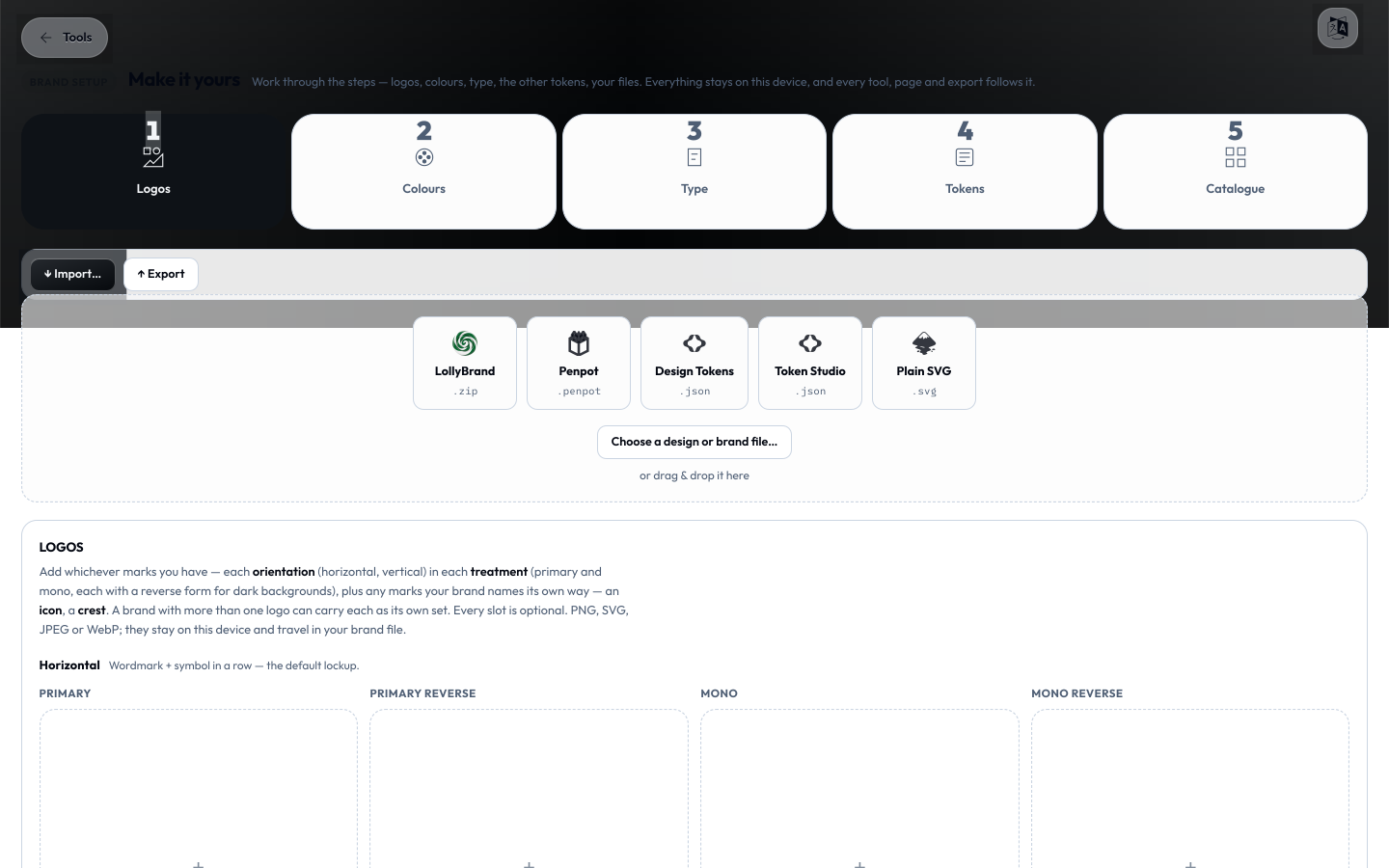
工作室是一个五个标签页的编辑器。可以从左到右依次操作——也可以直接跳到任意一个标签页:
- 徽标——你的标志,涵盖每一种方向与处理方式。
- 颜色——一个主色即可推导出一整套无障碍调色板;在此基础上进一步调整、生成和添加。
- 字体——任意 Google Font,下载到本设备。
- 令牌——圆角、间距、阴影,以及系统的其余部分。
- 目录——你的品牌所保留的图片、音频与动态文件。
一旦你做出更改,保存并继续按钮就会出现,并带你进入下一步(在最后一步会显示为保存并完成)。下一个标签页会轻轻亮起,作为提示。你不必按顺序操作——每一步都是可选且相互独立的。
可以用 #/start?tab=<key> 直接深链到某个标签页,其中的键值为 logos、color(注意 URL 中使用的是美式拼写)、type、tokens 和 catalogue。
徽标
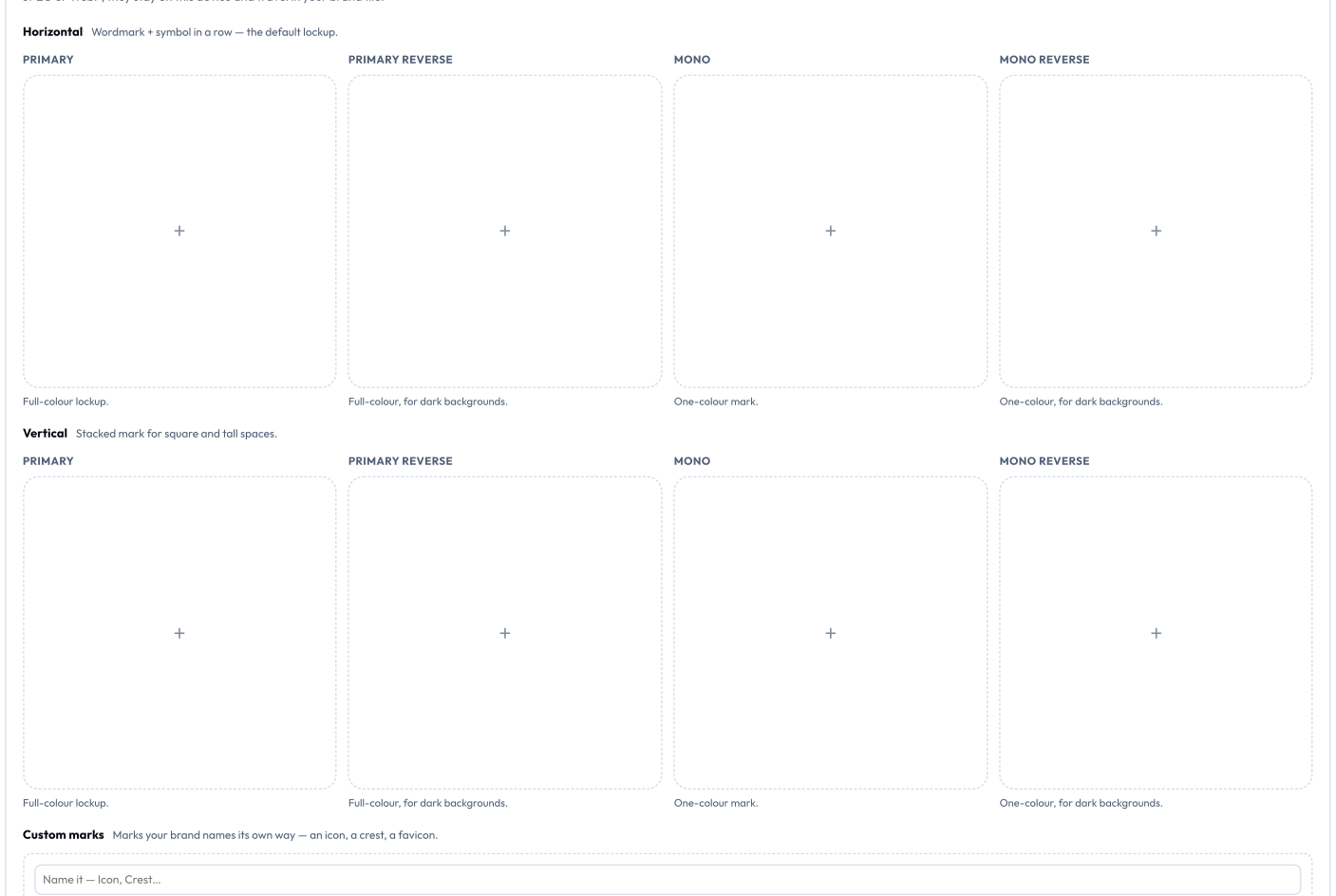
每一个品牌标志在这里都有属于自己的位置——一个由方向 × 处理方式组成的插槽网格:
- 方向: 横向(字标 + 图形符号并排)与纵向(堆叠排列,适用于方形和竖长空间)。
- 处理方式: 主色版、主色反白版(用于深色背景)、单色版(单一颜色)与单色反白版。
一共是八个可选插槽。点击一个插槽即可添加 PNG、SVG、JPEG 或 WebP 文件;点击一个已填充的插槽即可替换它。每个插槽都是可选的,且一切都保留在本设备上。
- 自定义标志——在自定义标志下,添加你的品牌以自己方式命名的标志(图标、徽章、favicon);为它命名并选择一个文件。
- 更多身份——子品牌、产品或活动都可以拥有自己完整的一套标志。使用+ 添加另一个标志并为它命名;你的主要标志集就叫作“你的标志”。
- 上传一个 SVG,Lolly 会读取它的颜色。 在全新安装时,它会悄悄地用标志中的颜色设置你的主色。在已有品牌上,它会在颜色标签页把这个颜色作为建议提供给你——“在你的标志中发现”。
颜色
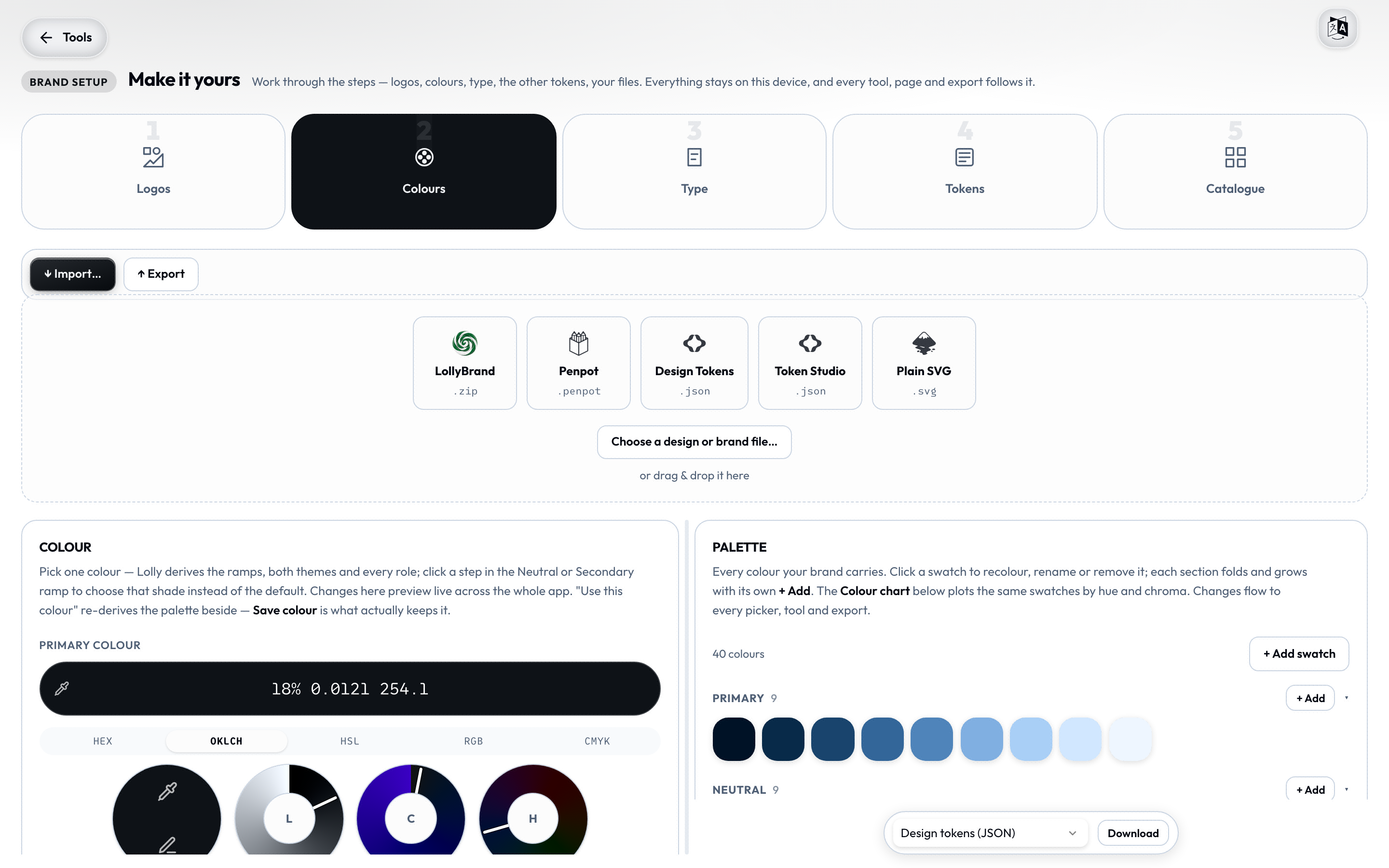
内容最丰富的一步。左侧面板负责推导与生成;右侧面板是你的实时调色板。拖动分隔线即可调整大小。
一个颜色,一整套调色板
选择一个主色,Lolly 就会推导出完整的调色板——明暗表面、文字、强调色,以及完整的深浅色阶——使用的是引擎在各处统一采用的同一套感知色彩数学(OKLCH)。可以调整推导方式:
- 配色方案——单色、互补色、类似色或三角配色——决定辅助色与主色之间的关系。
- 色阶数——一个从 3 到 20 的滑块(默认 5),控制每条色阶生成多少级。
- 微调(折叠)——UI 强度(柔和 / 浓郁)、对比度(舒适 / 高)与品牌色上的文字(自动 / 浅色 / 深色)。
有两个重要的按钮,它们之间的区别很重要:
- 使用此颜色会把调色板重新推导为一个实时草稿——应用界面会更新以便你查看效果,但此时还没有任何内容被保存。
- 保存颜色才会真正把它保留下来。
这个标签页上的一切在保存之前都只是草稿,因此可以放心尝试;只有保存颜色才会把它写入你的品牌。(其他标签页——徽标、字体、令牌、调色板编辑——都是立即保存的。)
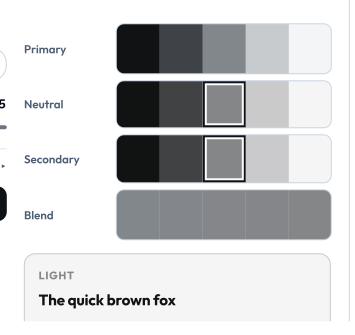
主色下方,你会看到实时的主色 / 中性色 / 辅助色 / 混合色色阶,以及带有 WCAG 对比度的浅色/深色样本卡片。点击中性色或辅助色色阶中的某一级,即可选用该色阶而不是推导出的默认值。
搭建你的调色板(配色生成器)

在搭建你的调色板下,可以从主色生成与之搭配的强调色。选择一种配色关系——互补色、邻近色、三角配色或四角配色——每个候选颜色都会自动生成一个易读的名称,并配有一个+ 添加按钮。添加的颜色会立即进入你的调色板。“你的调色板,实际应用”会在真实图稿上预览这些颜色。
调色板、色轮与每一个色板
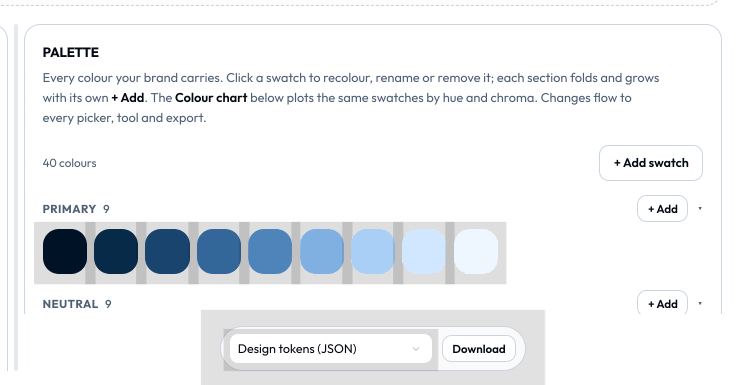
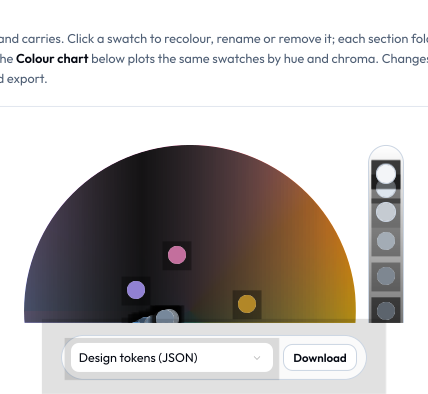
右侧面板列出你的品牌拥有的每一个颜色,按分组排列(主色、中性色、辅助色、光谱色、自定义、角色),每个分组都可折叠,并各自带有+ 添加。打开色彩图表即可看到 OKLCH 色轮——拖动一个圆点即可重新上色,点击一个圆点即可编辑,点击空白处即可新建一个色板。
点击任意色板即可打开它的编辑器:
- 重命名它。
- 按数值设置——以 Hex、RGB、RGBA、HSL、OKLCH 或 CMYK 输入一个颜色。(输入一个 CMYK 数值,它还会同时成为该色板的印刷替代色——见下文。)
- 存储格式——选择该色板的持久化方式:LCH(默认——感知均匀、广色域,是编辑时的最佳选择)、Hex、RGB 或 HSL。当你需要锁定一个精确的历史 Hex 值,或匹配某个 sRGB 数值时,可以覆盖这一设置。
- 印刷替代色(折叠)——锁定该颜色的印刷表现:
- CMYK——勾选后,可以用精确的油墨数值(C/M/Y/K,0–100)覆盖自动的 sRGB→CMYK 转换。
- 专色——勾选后,可以把该色板锁定为一个专色;为它设置一个名称(例如
PANTONE 186 C)和可选的色卡。
当你导出 CMYK PDF 或 TIFF 时,印刷厂使用的正是这些印刷锁定设置——见导出。
删除一个色板是安全的: 推导出的色阶级次和主题角色只会被隐藏(底层令牌依然能正常解析,因此不会影响下游任何内容),而你自己添加的颜色则会被彻底删除。
渐变
一个可选的渐变面板,可以从你的调色板中构建用于背景和强调色的混合色令牌。如果你的品牌不使用渐变,完全可以跳过这一部分。每个渐变都有一个预览、具名的节点(2 到 8 个)和一个角度。关键行为是:节点引用色板,因此重新为该色板上色,渐变也会随之变化。插值计算在 OKLCH 中进行,以获得干净的混合效果。删除一个节点即可缩短渐变。
把调色板带到别处
调色板面板底部的悬浮胶囊按钮,可以把整套调色板下载为设计令牌(JSON)、CSS 变量、CSS 类、GIMP 调色板(.gpl)或 Adobe Swatch Exchange(.ase)——让品牌直接进入 Illustrator、Figma、GIMP,或某份样式表。(你也可以从目录视图下载调色板。)
字体
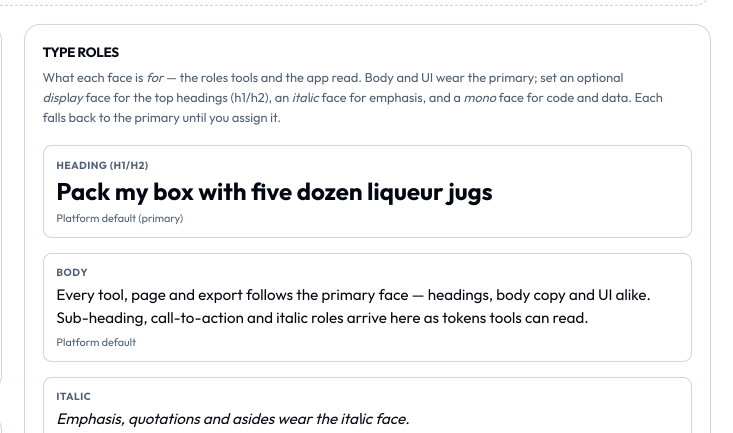
添加任意 Google Font,它就会下载到本设备——在应用、你的工具,以及每一次导出中渲染,永久离线可用,并随你的品牌包一同携带。渲染时不会再去获取任何内容。
搜索一个字体族(Inter、Fraunces、Space Grotesk……),然后点击添加字体。列表中的每种字体都可以承担一个角色:
- 主字体——你的主要品牌与正文字体(设为主字体)。
- 代码——用于代码和数据的可选等宽字体(用作代码字体)。
字体角色面板会展示标题、正文和代码的实时样张,让你看到每款字体的实际效果。Google Fonts 上的所有字体都采用开放许可(OFL/Apache/UFL)发布。
令牌
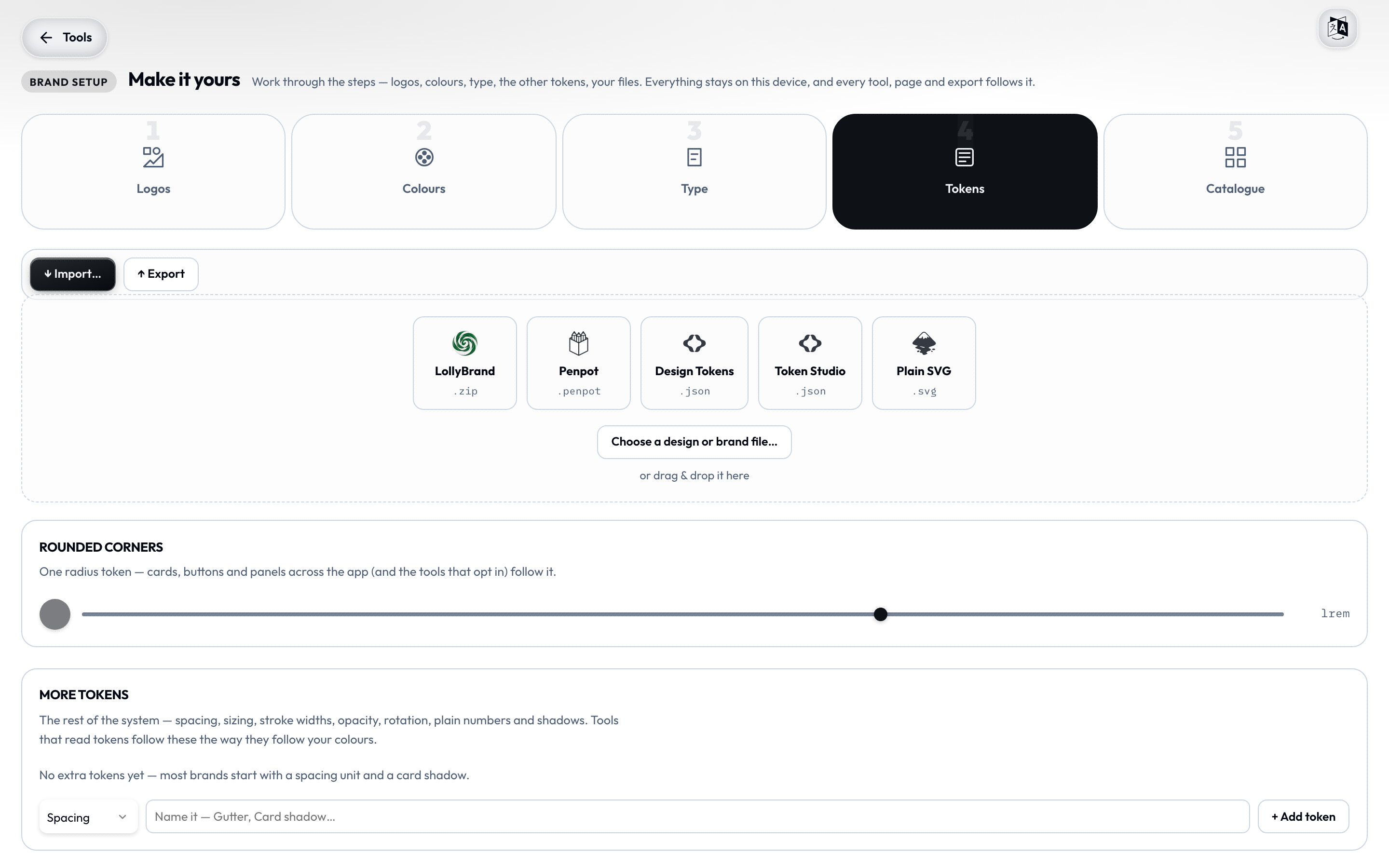
设计系统的其余部分,无需接触代码即可编辑:
- 圆角——一个单一的圆角半径滑块(0 到 1.5rem),应用中的卡片、按钮和面板都会遵循它。
- 更多令牌——添加和编辑间距、尺寸、描边宽度、不透明度、旋转、纯数字,以及阴影。选择一种类型,为它命名(例如 Gutter、Card shadow……),然后设置它的数值。这些都以标准设计令牌(DTCG)的形式存储,并随你的品牌一同流转。
目录
把徽标以外、你的品牌所保留的文件都放到这里:矢量、图片、音频与动态(视频、Lottie、动画)素材。它们会进入你的目录,按板块归类,并在每个工具的素材选择器中随时可用。一切都保留在本设备上。
把品牌迁移到另一台设备

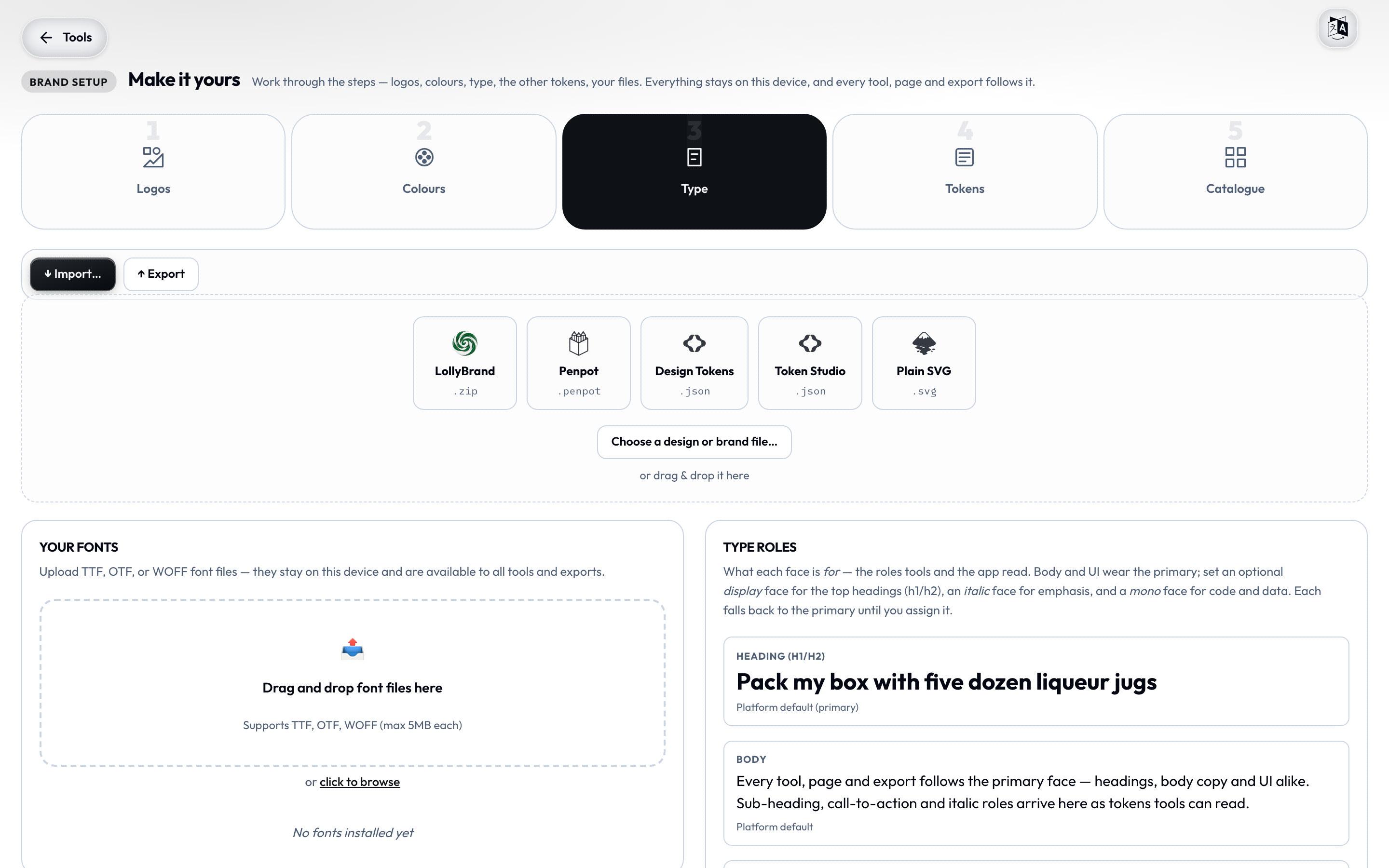
顶部操作栏中的导出按钮会生成一个 LollyBrand-…zip 文件——包含你的令牌、字体、徽标和主题偏好设置,并附带一份完整性清单。导入…按钮(或直接把文件拖放到工作室中)可以接受:
- 一个 LollyBrand 包(
.zip)——一步安装; - 一个 Penpot 导出文件(
.penpot)——引入其设计令牌; - 一个设计令牌文件(
.json)——W3C DTCG 或 Tokens Studio 格式; - 一个纯 SVG(
.svg)——Lolly 会扫描它的颜色,让你选择保留哪些,第一个会成为你的主色。
这就是同事把品牌交给你、或是你把品牌带到第二个安装实例的方式——无需账户,无需云端。若想改用命令行导入品牌,请参见 ingest:brand。
当品牌被锁定时
有些构建版本自带一个锁定的品牌——它的颜色、字体和令牌就是所有工具和导出所使用的版本,没有可更改的余地。这种情况下,工作室会被替换为一段简短说明,告知你这个构建版本自带固定品牌,编辑功能已关闭。这是刻意为之的设计:这正是一个组织确保一切始终保持在品牌规范内的方式。