The sequence editor
Sequence Studio puts a timeline under the free canvas: every box can start at a moment, run for a length, and animate in and out. Using Lolly covers the shape of the timeline - the magnetic sequence row, the free overlay lanes, the Always on strip, transitions and rendering. This page is about the four things that decide whether editing in time feels predictable: what a canvas click edits, seeing what is about to arrive or leave, cutting a clip, and trimming one.
Everything here happens on your device, and none of it changes what a render produces. The chrome described below - ghosts, badges, banners, outlines - lives outside the exported node, so a file exported with onion skin on is byte-identical to the same file exported with it off.
 موقَّع من Lollyمتجه SVGتحقق بنفسكاحصل على الملف الموقَّع72 paths~5.6k nodes113 groups122 KB
 موقَّع من Lollyمتجه SVGتحقق بنفسكاحصل على الملف الموقَّع72 paths~5.6k nodes113 groups122 KB


The one rule
A timed canvas is a window onto one instant. One sentence governs everything you can touch, and it is written into the editor's own source at shells/web/src/views/free-canvas.ts so the code and this page cannot say different things:
"The canvas edits exactly what the canvas shows at the playhead. Moving the playhead never changes the selection; selecting in the timeline moves the playhead so the selection stays live; when a selection is nevertheless off-playhead, the canvas says so and offers to reconcile. The timeline inspector and the sidebar are the precision fallbacks and are never gated by time."
Read the three clauses as three promises.
Moving the playhead never changes what is selected. Scrubbing is looking, not choosing. This is the direction that goes wrong in other editors: when time drives selection, you type a value into a panel and it lands on whichever clip happened to be under the playhead rather than the one you picked.
Selecting in the timeline moves the playhead. Click a clip's bar and the playhead steps inside it, so the thing you just selected is the thing on screen. It only moves when it has to: never while playing, never for an Always on box (which has no time of its own), and never when the playhead is already inside the clip.
An off-playhead selection says so. Selection can still end up pointing at something the canvas is not showing - you selected a clip, then scrubbed away. Rather than leave editing furniture floating over nothing, the canvas takes the outline, the eight resize handles, the rotate handle and the contextual bar down, and raises a small banner with a Go to it button that seeks to the clip's start. The banner is suppressed during playback, where scenes coming and going is the point.
While a selection is off-playhead the keyboard refuses every key that would change the model - the arrows, Delete, duplicate, group, z-order, and starting a text edit. Escape, Tab and Select all keep working. Nothing is silently dropped: either the edit lands on what you can see, or it does not happen.
The fallbacks are never gated. The timeline's own inspector (Length, Trim in, Speed, the two transitions, Mute) and the tool sidebar edit the selected clip whatever the playhead is doing. They are the precision route, and the accessible one.
 موقَّع من Lollyمتجه SVGتحقق بنفسكاحصل على الملف الموقَّع16 paths~1.0k nodes31 groups28 KB
 موقَّع من Lollyمتجه SVGتحقق بنفسكاحصل على الملف الموقَّع16 paths~1.0k nodes31 groups27 KB


What a click on the canvas hits
Clips that are not live at the playhead are not painted, and a click falls through them to the topmost visible box underneath - the same resolution a click already uses for a stack of overlapping boxes, so it needs no explanation in the moment and produces no interruption. Ghosted onion-skin frames are drawn in a layer that ignores the pointer entirely, so they can never be clicked either.
The one state that does get words is the stuck one: a selection that is off-playhead, which is exactly the case you cannot reason your way out of by clicking somewhere else.
 موقَّع من Lollyمتجه SVGتحقق بنفسكاحصل على الملف الموقَّع14 paths825 nodes28 groups23 KB
 موقَّع من Lollyمتجه SVGتحقق بنفسكاحصل على الملف الموقَّع14 paths812 nodes28 groups23 KB


Onion skin
Animators want to see the frame before and the frame after. Onion skin shows the neighbouring clips as ghosts over the live one.
It is off by default and stays off until you turn it on, and the preference is remembered on this device. That is not caution for its own sake. No mainstream video editor ghosts adjacent clips, and the reason is visible the moment you try it: a Lolly scene is usually an opaque, full-frame, brand-coloured composition that entirely replaces its neighbour, so laying two of them over each other at a third opacity produces colour mud and hides the one thing you are judging.
- The Onion skin button in the timeline's tool bar toggles it.
Odoes the same from the keyboard. - Long-press the button, right-click it, or press
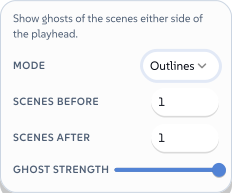
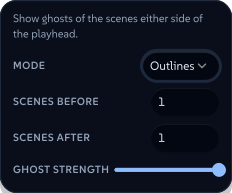
Shift+Ofor its options: the mode, how many clips to ghost before and after (up to two each, independently), and the strength.
 موقَّع من Lollyمتجه SVGتحقق بنفسكاحصل على الملف الموقَّع12 paths~2.3k nodes20 groups1 image50 KB
 موقَّع من Lollyمتجه SVGتحقق بنفسكاحصل على الملف الموقَّع12 paths~2.3k nodes20 groups1 image50 KB


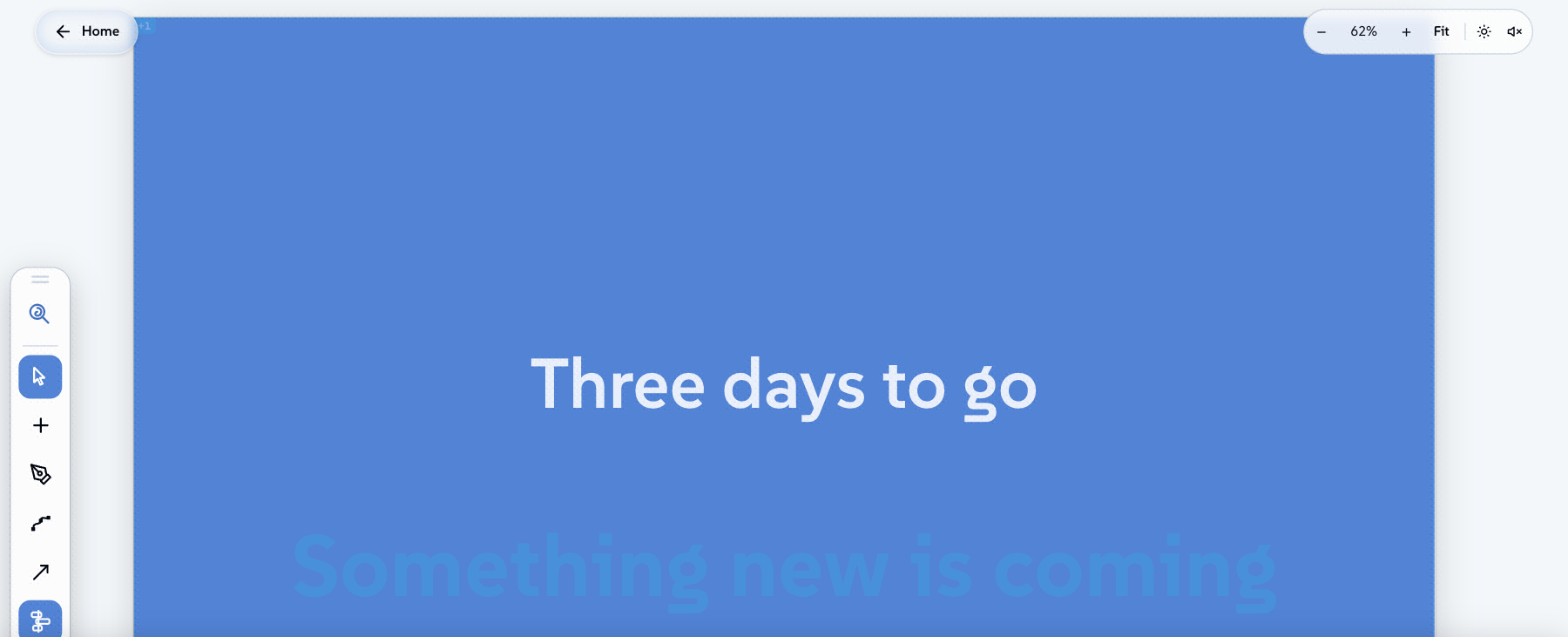
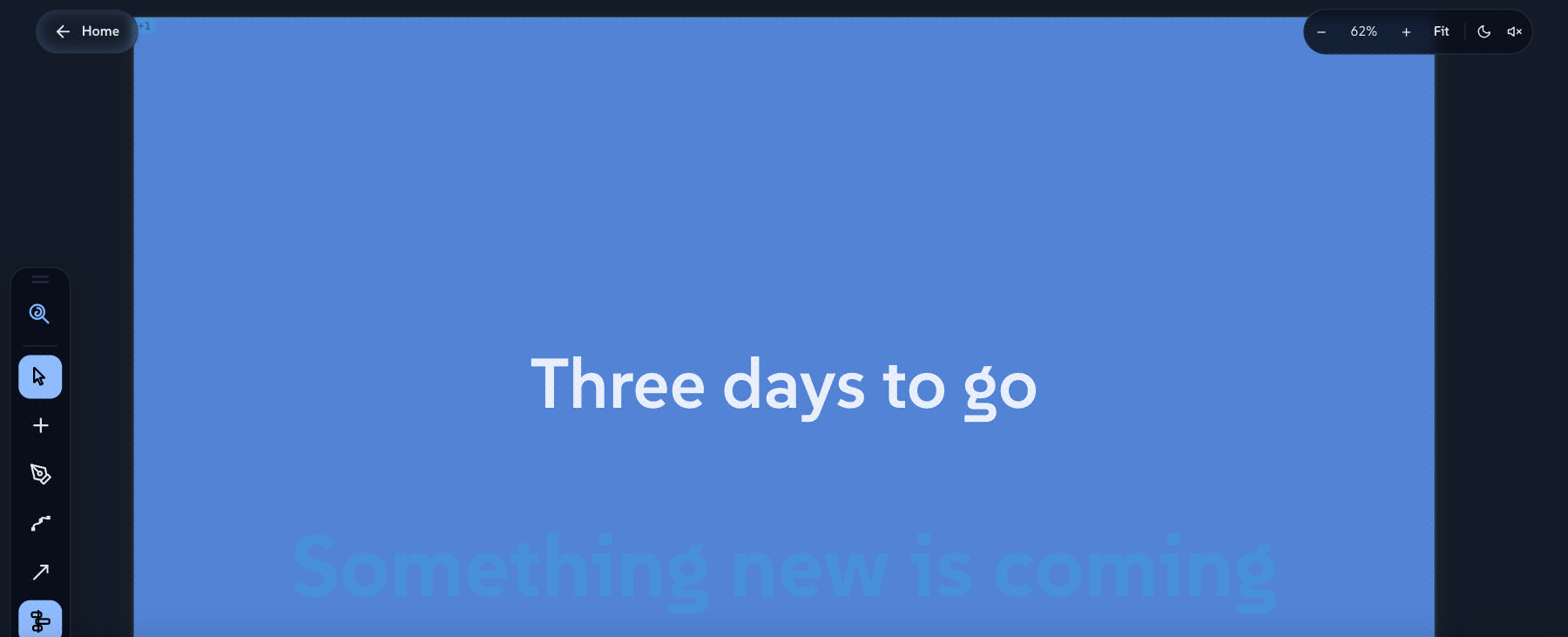
- Outlines is the default mode - each neighbour as a plain rectangle where its boxes sit. It stays readable over an opaque scene, which a filled ghost cannot. Filled adds each ghost's own colour and picture, for the animation-style work that wants it.
- Past clips are drawn warm, future clips cool blue. Colour is never the only signal: each ghost carries a small
-1/+2chip in its corner saying how far away in the sequence it is, so the direction survives any kind of colour vision. With Hide colourful previews on (see Inclusive Design) filled mode falls back to outlines.
 موقَّع من LollyPNGتحقق بنفسكاحصل على الملف الموقَّعبكسلات لا أشكال151 KB
 موقَّع من LollyPNGتحقق بنفسكاحصل على الملف الموقَّعبكسلات لا أشكال142 KB


Onion skin cannot reach a file. The ghosts are drawn in the editor's overlay layer, which is a sibling of the exported canvas rather than a part of it, and they are additionally tagged so the export path strips them before any format is written. They never set a class or a style on a real box. An export taken with ghosts on screen is the same bytes as one taken without.
Splitting a clip
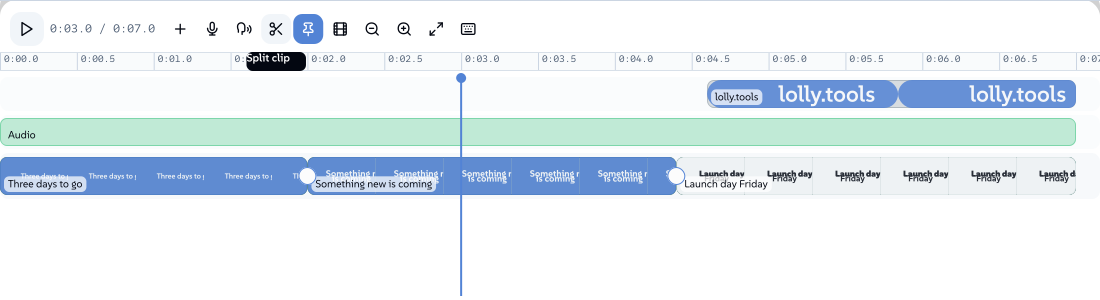
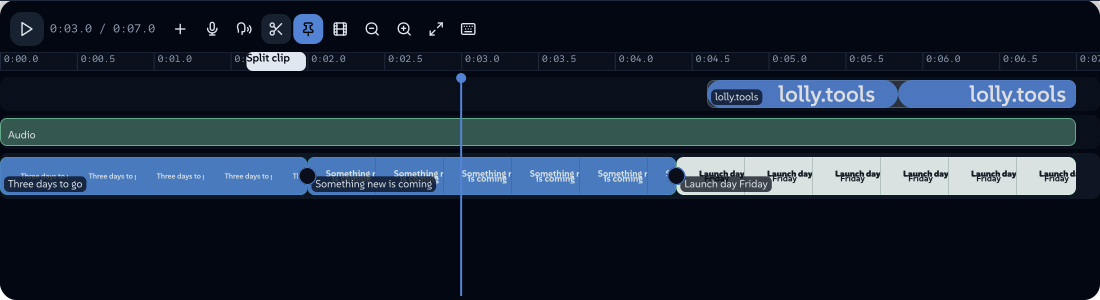
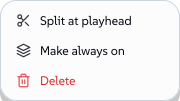
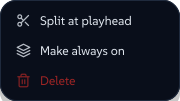
Split at playhead cuts one clip into two at the current instant. The blade is in the tool bar, S does it from the keyboard, and it is in a clip's right-click menu.
The button says what it will cut before you press it. It reads Split clip when the playhead is inside one, Split 3 clips when a selection spans it, and Split at playhead - greyed out - when there is nothing to cut. A refusal you can see beforehand beats a refusal announced afterwards.
 موقَّع من Lollyمتجه SVGتحقق بنفسكاحصل على الملف الموقَّع73 paths~5.8k nodes114 groups126 KB
 موقَّع من Lollyمتجه SVGتحقق بنفسكاحصل على الملف الموقَّع73 paths~5.8k nodes114 groups126 KB


The scope resolves in one order, everywhere:
- every selected clip the playhead is inside, so a deliberate multi-selection cuts through all of it in one press;
- failing that, the sequence clip under the playhead - the "just cut here" case, which should not need selecting anything first;
- failing that, nothing is written and the panel says why.
Shift+S (or Shift-clicking the blade) is the wider variant: every timed clip the playhead is inside, on every lane, ignoring the selection. Whichever route you take, the whole cut is a single undo step.
The cut snaps to clip edges and whole seconds like every other timeline gesture, so pressing it twice at the same spot lands exactly on the existing cut and does nothing at all - no write, no undo entry.
Through edits, and Join
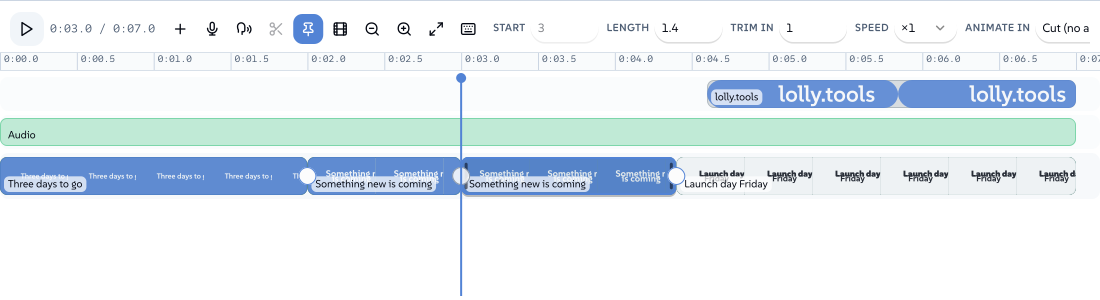
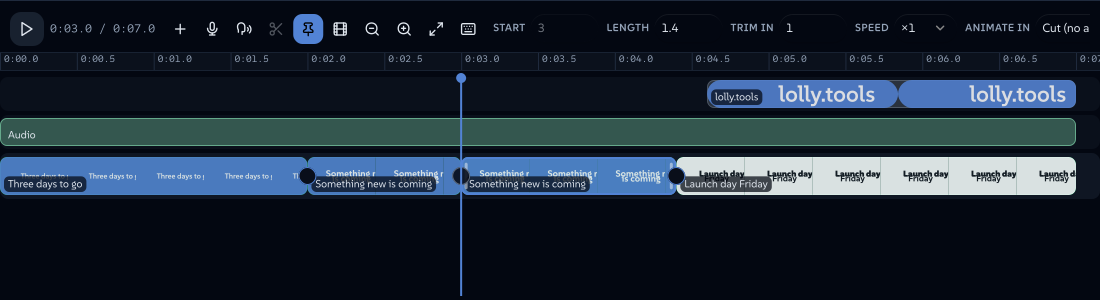
A cut you have not acted on yet is a through edit: the two halves still run continuously, and the sequence plays as if the cut were not there. Those seams are marked with a hairline rather than left to look like every other edit, so at a glance you can tell which cuts are decisions and which are just "I cut here and then changed my mind".
 موقَّع من Lollyمتجه SVGتحقق بنفسكاحصل على الملف الموقَّع93 paths~7.9k nodes150 groups2 images168 KB
 موقَّع من Lollyمتجه SVGتحقق بنفسكاحصل على الملف الموقَّع93 paths~7.9k nodes150 groups2 images168 KB


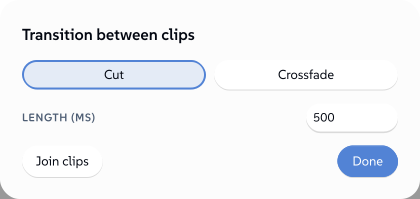
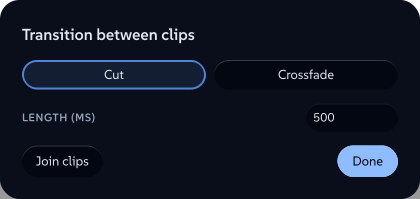
Click the seam and the transition dialog offers Join clips alongside Cut and Crossfade. Join is also in a clip's right-click menu, and it works from either side - select one half, join, and the two become one clip again with the second half's ending restored. It is only offered where it is real: a seam whose sides have been trimmed apart, sped up differently, or given a transition is a decision, and it gets no Join.
 موقَّع من Lollyمتجه SVGتحقق بنفسكاحصل على الملف الموقَّع12 paths~1.5k nodes14 groups34 KB
 موقَّع من Lollyمتجه SVGتحقق بنفسكاحصل على الملف الموقَّع12 paths~1.5k nodes14 groups34 KB


Detaching a clip's audio
Detach audio pulls a video clip's sound onto its own overlay lane, where it can be trimmed, moved and mixed on its own. It is in the clip's right-click menu and on Shift+D.
The two halves stay linked, and the link is written on both of them:
- the picture is muted and carries a chain mark saying where its sound went;
- the sound carries the same mark back;
- selecting either selects both, so they move together by default. Alt-click selects just the one you clicked.
- Re-attach audio puts it back, from either side, un-muting the picture and removing the detached sound.
This is deliberately not the one-way detach some editors ship, where the only way to resync is Undo. A link that survives being split - split the muted picture and both halves still name the sound - is what makes detaching a safe thing to try.
Detach is only offered where it means something: the tool has to declare the field that stores the link and have an audio clip kind to create, and the clip has to be a video that is not already linked.
 موقَّع من Lollyمتجه SVGتحقق بنفسكاحصل على الملف الموقَّع11 paths882 nodes11 groups20 KB
 موقَّع من Lollyمتجه SVGتحقق بنفسكاحصل على الملف الموقَّع11 paths882 nodes11 groups20 KB


Trimming
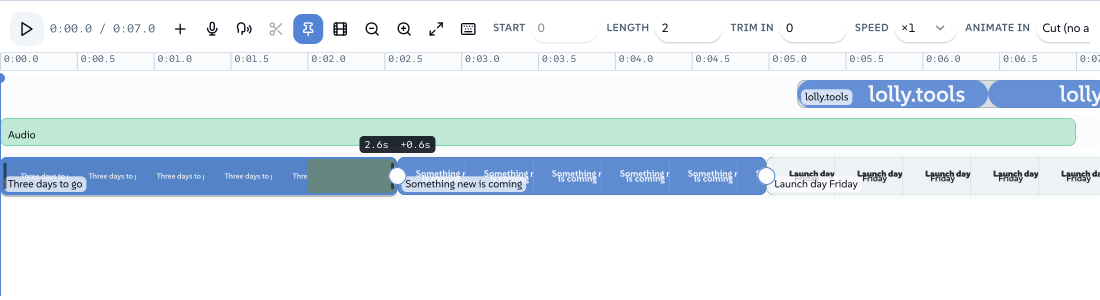
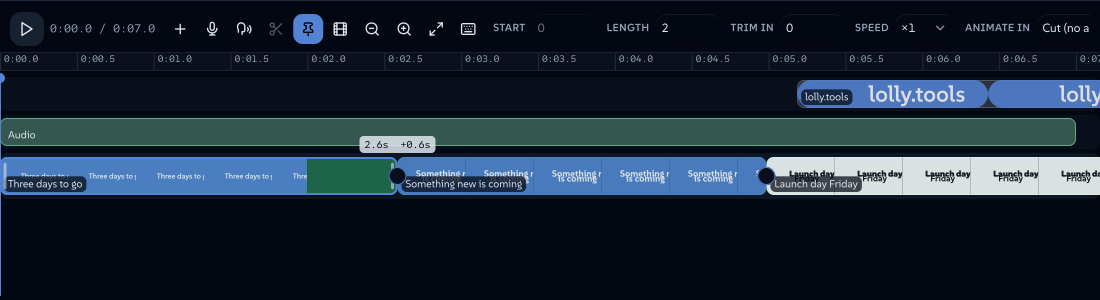
Drag either end of a clip to trim it. The grip is a narrow bar, but the area that responds is wider than it looks - and wider again for a finger or a pen, where it is at least the 24px that the accessibility guidelines ask of any target. A clip too narrow to carry two grips without swallowing its own middle offers neither, and says so in its tooltip: zoom in, or use the inspector.
While you drag:
- the edge lights up, and a readout at the dragged end shows the clip's new length and the signed change (
4.2s +0.6s); - a ghost extent shows how much source is still reachable past the edge;
- the edge turns to a limit state the moment you ask for more than the file has. Before this, dragging past the end of the media simply stopped with no explanation;
- on the sequence row the clips downstream move as you drag, not when you release, so you can see the ripple you are causing;
- hold Alt to override snapping mid-drag.
Nothing is written until you let go: one drag is one undo step.
 موقَّع من Lollyمتجه SVGتحقق بنفسكاحصل على الملف الموقَّع89 paths~6.9k nodes163 groups2 images150 KB
 موقَّع من Lollyمتجه SVGتحقق بنفسكاحصل على الملف الموقَّع89 paths~6.9k nodes163 groups2 images150 KB


Trimming from the keyboard
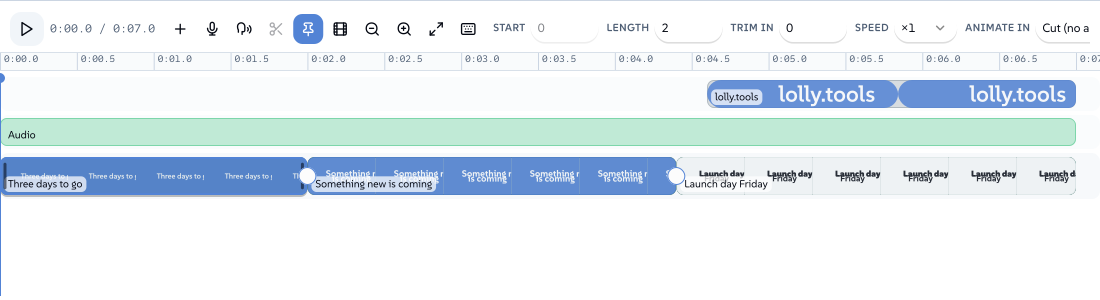
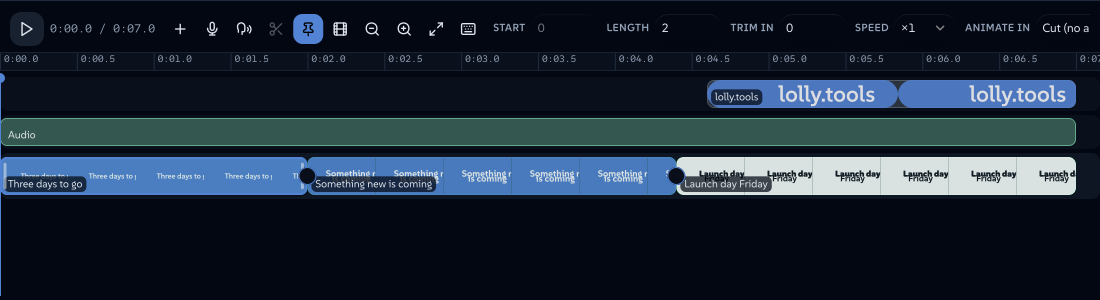
Every trim is reachable without a pointer, which is also the fastest route once you know it.
| Key | What it does |
|---|---|
[ / ] | Aim at the in edge or the out edge of the selected clip |
, / . | Nudge that edge one frame earlier or later (hold Shift for ten) |
E | Pull that edge to the playhead |
Esc | Let the edge go (then a live recording, then close the panel) |
Each press is one write and one undo step.
 موقَّع من Lollyمتجه SVGتحقق بنفسكاحصل على الملف الموقَّع88 paths~6.7k nodes139 groups2 images145 KB
 موقَّع من Lollyمتجه SVGتحقق بنفسكاحصل على الملف الموقَّع88 paths~6.7k nodes139 groups2 images146 KB


The shortcut sheet
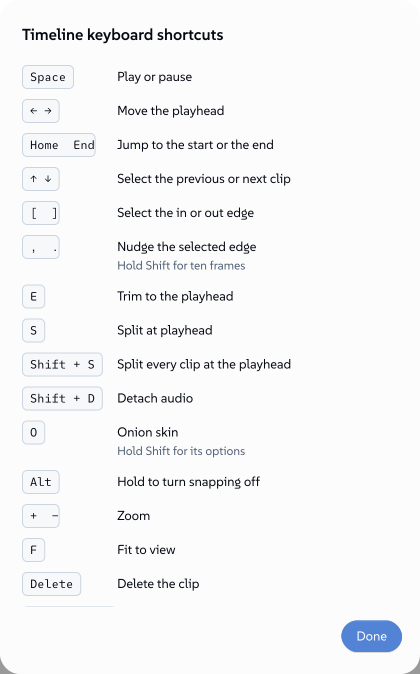
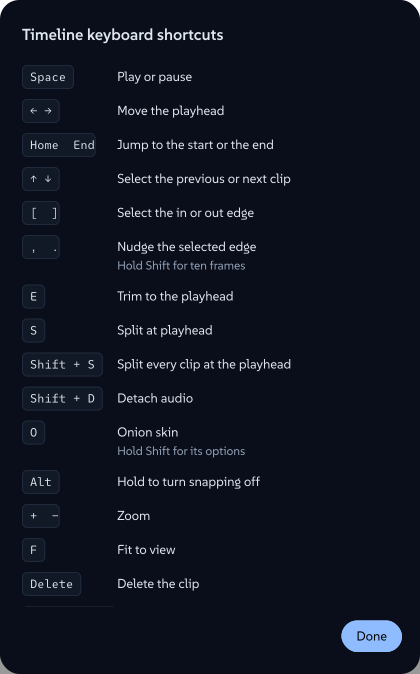
Every shortcut the timeline binds is a bare letter or a punctuation key. That is not a style choice: the familiar editor chords (Ctrl/Cmd+B, Ctrl/Cmd+K) collide with browser bindings that a web page cannot reliably take over, and a shortcut that silently does nothing is worse than one you have to learn.
So the list is printed in the app. Press ? with the timeline focused, or click the keyboard button at the end of the tool bar, and every key the panel handles is listed with what it does. The sheet is generated from the same list the key handler is written against, so it cannot fall out of date. Escape closes it and puts focus back where you were.
 موقَّع من Lollyمتجه SVGتحقق بنفسكاحصل على الملف الموقَّع37 paths~9.3k nodes76 groups178 KB
 موقَّع من Lollyمتجه SVGتحقق بنفسكاحصل على الملف الموقَّع37 paths~9.3k nodes76 groups178 KB

