
This guide covers the optional organisation service. Configuration, console and API paths refer to your Lolly Work instance. The packaged console keeps its release-matched copy of this guide.
A template gives a programme a ready piece to finish, such as a product data sheet where a reseller adds only their price. Partners find it on their home, under From and your workspace's name, and in the tool's Start chooser, and Use opens the template. Only what the template leaves open is offered; everything else is simply not there, with no note about why.
 signed by Lolly Demovector SVG10 paths130 nodes66 groups3 images181 KBCheck it yourselfScarica il file firmato
 signed by Lolly Demovector SVG10 paths130 nodes66 groups3 images182 KBCheck it yourselfScarica il file firmato


This page is part of Run a partner programme.
Publish a template
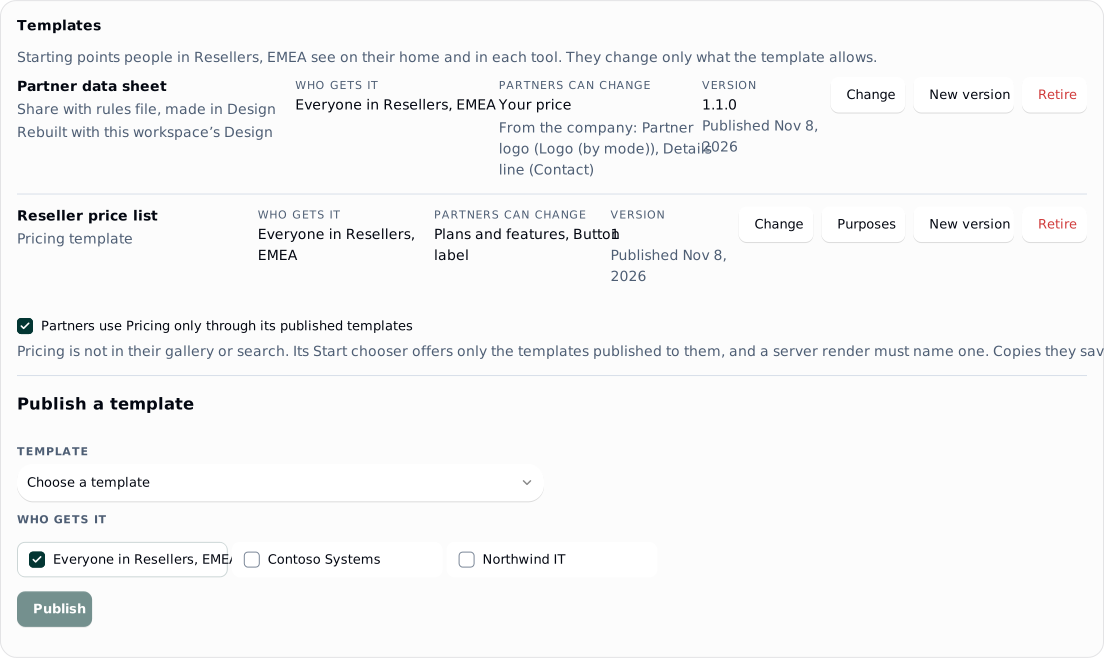
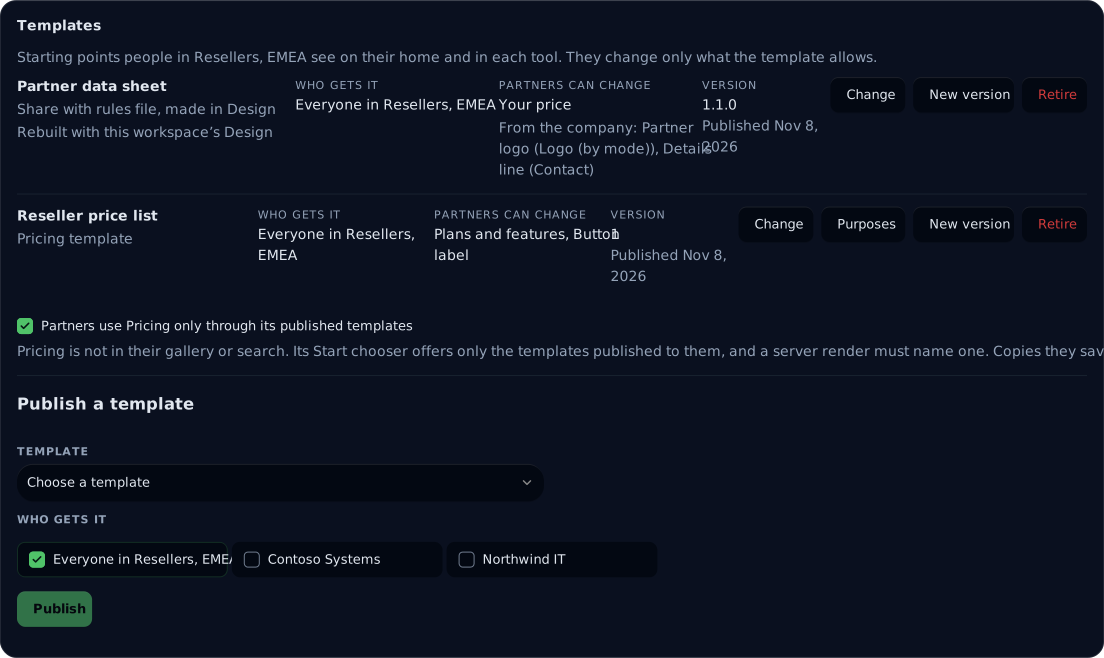
Someone draws each template: your brand team, or a designer in your own team, depending on how your organisation works. Publish it from the programme's Templates card, choose who gets it and untick what partners may not change. Anyone with programme.manage can publish, without joining the programme. There are two kinds:
- A template of one of your tools. Save a template in the tool and submit it to the catalog, then choose it under Publish a template. Submitting needs
catalog.submit, which authors and admins have; a programme manager without it asks a colleague on the brand team to submit the template, then publishes it from the card. Untick what partners may not change. The card counts what stays open, for example "Partners can change 1 of 9 inputs". With every input ticked there are no rules and partners can change everything. Colourway and mode sits below the inputs and starts ticked: partners may pick another of your brand's colourways and switch between light and dark, which moves every colour the tool takes from the design system. Untick it to keep the template's own. - A Share with rules file. Make it in Design with Share with rules, download the
.lollyfile and upload it under Publish a template. The designer's own rules travel with the file: partners change only the objects the designer chose, plus the colourway and mode, which Design's rules leave open. Work keeps only the file's data and builds the tool again with this workspace's own Design, so no code from the file ever runs. A file made with another version of Lolly is rebuilt the same way, and its row says "Rebuilt with this workspace's Design". Files made from a tool other than Design are not taken yet.
Who gets it can be the whole programme, one of its companies, or several programmes. Share the logos and pictures a template uses with the programme first (Shared assets and licences): without them, a template is incomplete for partners.
Take inputs from the company
Under Change on the template's row, Takes from the company fills an input from each company's details, such as its logo or its contact line, so partners never type them. A picture input can take the logo by mode, the logo for light surfaces, the logo for dark surfaces or the mark. A text, long text or link input can take the company name, the website, the contact line, the contact email, the phone, the address, the currency or the tax note. A row with bindings reads "From the company:" followed by the inputs.
- Fixed for partners. An input the template takes from the company, and leaves out of what partners may change, is locked to the company's value. A Share with rules file locks every input it takes from the company. A locked input is not offered to partners at all.
- Logo by mode. The logo by mode is the light-surface logo in light mode and the dark-surface logo in dark mode, and follows the piece when the mode changes. A company with only one of the two gets that one in both.
- New work only. A piece starts from these values. A file already exported keeps what it was made with.
Which company a person's values come from, and the order a value is chosen in, are in Company details in templates.
What a partner sees in a template
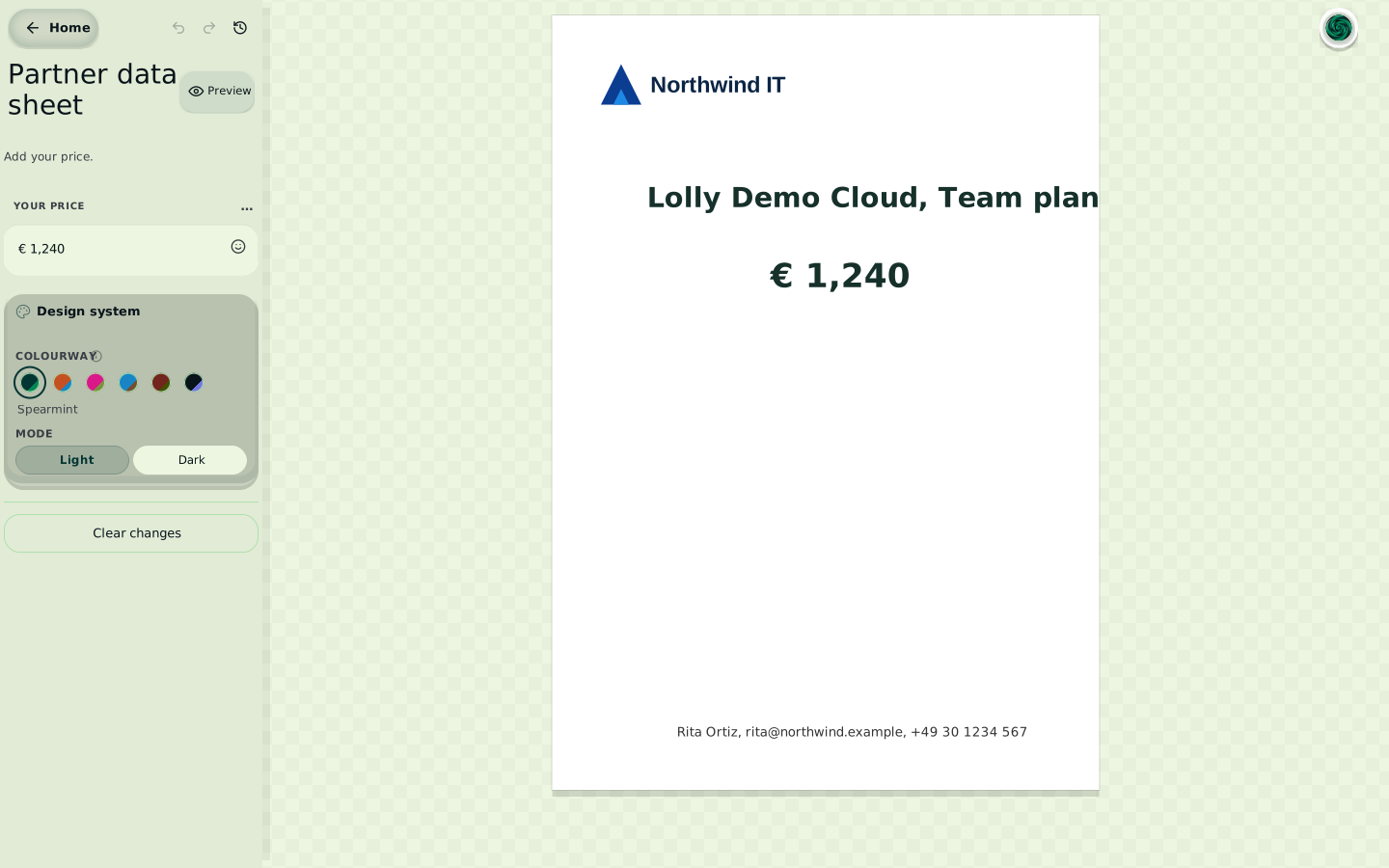
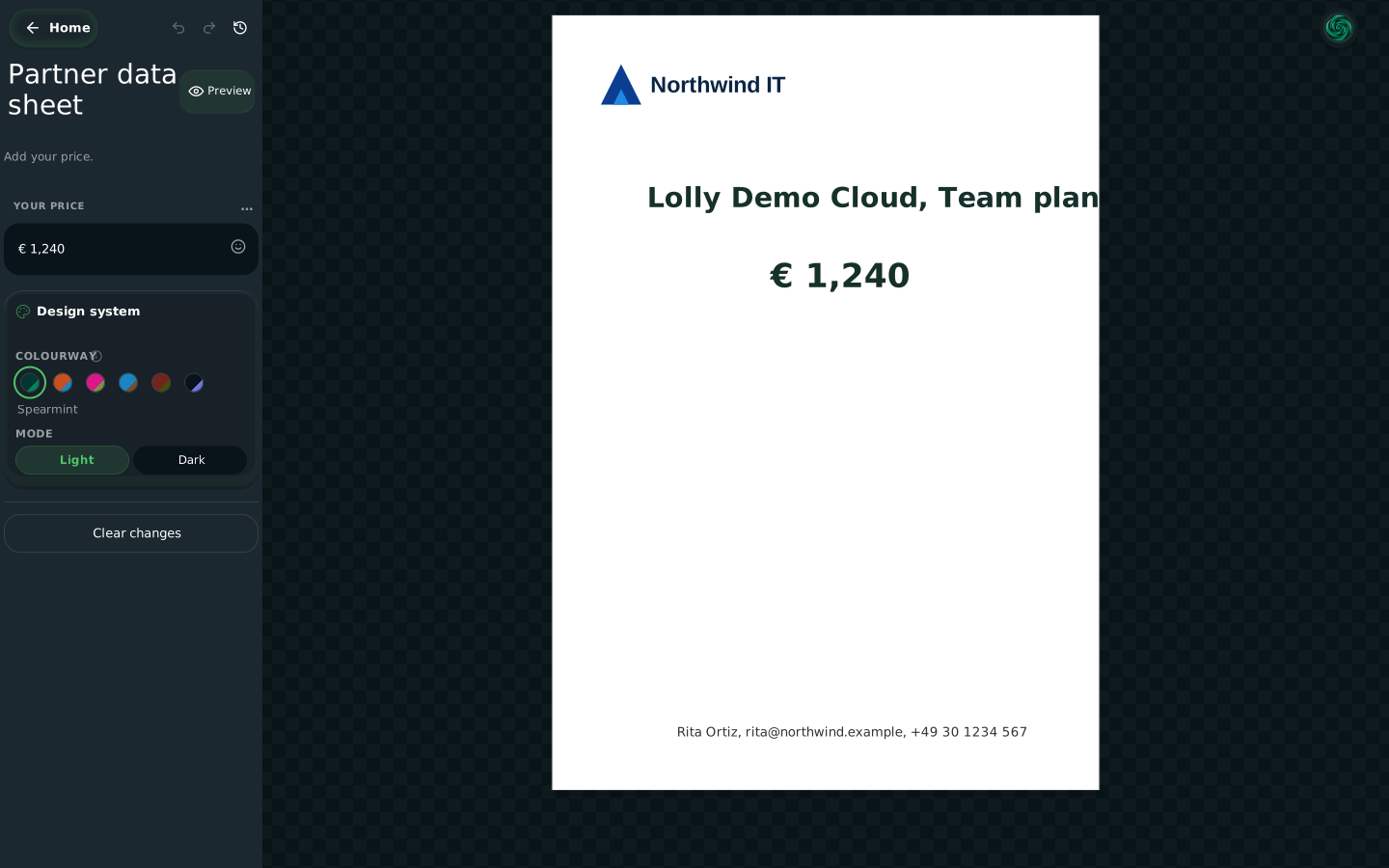
In a template, the inputs she may change are the only controls shown. Northwind IT's logo and details are already in place, and a logo the template takes by mode follows the piece between light and dark.
 signed by Lolly Demovector SVG83 paths636 nodes119 groups6 images240 KBCheck it yourselfScarica il file firmato
 signed by Lolly Demovector SVG83 paths636 nodes119 groups6 images240 KBCheck it yourselfScarica il file firmato


Keep a tool to its templates
When people in the programme can also open the template's tool on its own, the row says so. They could then make the same piece outside the template's rules. To keep them inside, turn on the switch under the row, for example Partners use Pricing only through its published templates. It is off by default and set per programme and per tool. When it is on, the tool leaves their gallery and search, its Start chooser offers only the templates published to them, with no blank canvas, and a server render must name one of those templates. Copies they saved before keep opening. If any of a person's programmes turns it on, the tool is templates only for that person, and Preview says which programme turned the switch on.
New versions and retiring
A new version of a template. Press New version on the template's row. Partners who saved a copy see New version on its card. One tap brings in what the template fixes and keeps what they changed. A copy made from a Share with rules file opens on the newest version with their entries kept.
Retiring a template. Retire takes a template off partners' homes and choosers at once. Copies already made keep working; give a replacement and those copies offer the replacement. Publish again brings a retired template back. To stop a template everywhere straight away, revoke it in the catalog.
Published as your own
When someone with catalog.edit publishes a template whose source is your workspace's own work, Lolly Work records the workspace's owner-published mark on it, with the default terms. Partners then read "Owner-published, not an open licence" in the template's details (Shared assets and licences). The rest of the rules for the mark are in Templates.
Worked example: Northwind IT
The worked example on Run a partner programme follows Northwind IT, a reseller in Resellers, EMEA, through every subject. Its fourth step happens here.
4. Publish the data sheet
Console. The brand team saves the data sheet with Share with rules in Lolly Design, leaving three things open: the price, the partner logo and the details line. On the programme's Templates card, choose Publish a template, upload the .lolly file and choose Everyone in Resellers, EMEA. Then press Change on its row, and under Takes from the company set Partner logo to Logo (by mode) and Details line to Contact. Press Save.
lw. The upload prints the template's id, such as inst/7f3a…:
lw templates upload resellers-emea product-data-sheet.lolly --groups programme-resellers-emea
lw templates set resellers-emea inst/7f3a… --bindings logo=logo,details=contact
Rita is not in yet. When she is, the logo and the details line fill themselves from Northwind IT's details and are not offered to her. She types only the price, and may switch the colourway and between light and dark, which a Share with rules file leaves open.
Next: 5. Check what Northwind IT gets.
Every option
- Publishing, the two kinds and templates only: Templates
- New versions and retiring: New versions and retiring
- What a server render refuses, and with which code: Rules on the server
- Bindings, the order a value comes from and which company: Company details in templates
- Templates an agent can ask for by purpose: Templates by purpose
- One approval for every variant of a template: Partner approvals