This guide covers the optional organisation service. Configuration, console and API paths refer to your Lolly Work instance. The packaged console keeps its release-matched copy of this guide.
Each partner company in a programme has a page of its own: its details, its logos for light and dark surfaces and, when the company has rules of its own for its logo, a partner kit. The brand team sets the company up once, and its details and logos then go on every piece its people and agents make from a template that takes them. Each file records the company it was made for.
 signed by Lolly Demovector SVG28 paths264 nodes128 groups198 KBCheck it yourselfScarica il file firmato
 signed by Lolly Demovector SVG28 paths264 nodes128 groups198 KBCheck it yourselfScarica il file firmato


This page is part of Run a partner programme. Your design system leads every piece, and the company's mark goes into the artwork as a picture.
Add a company and its details
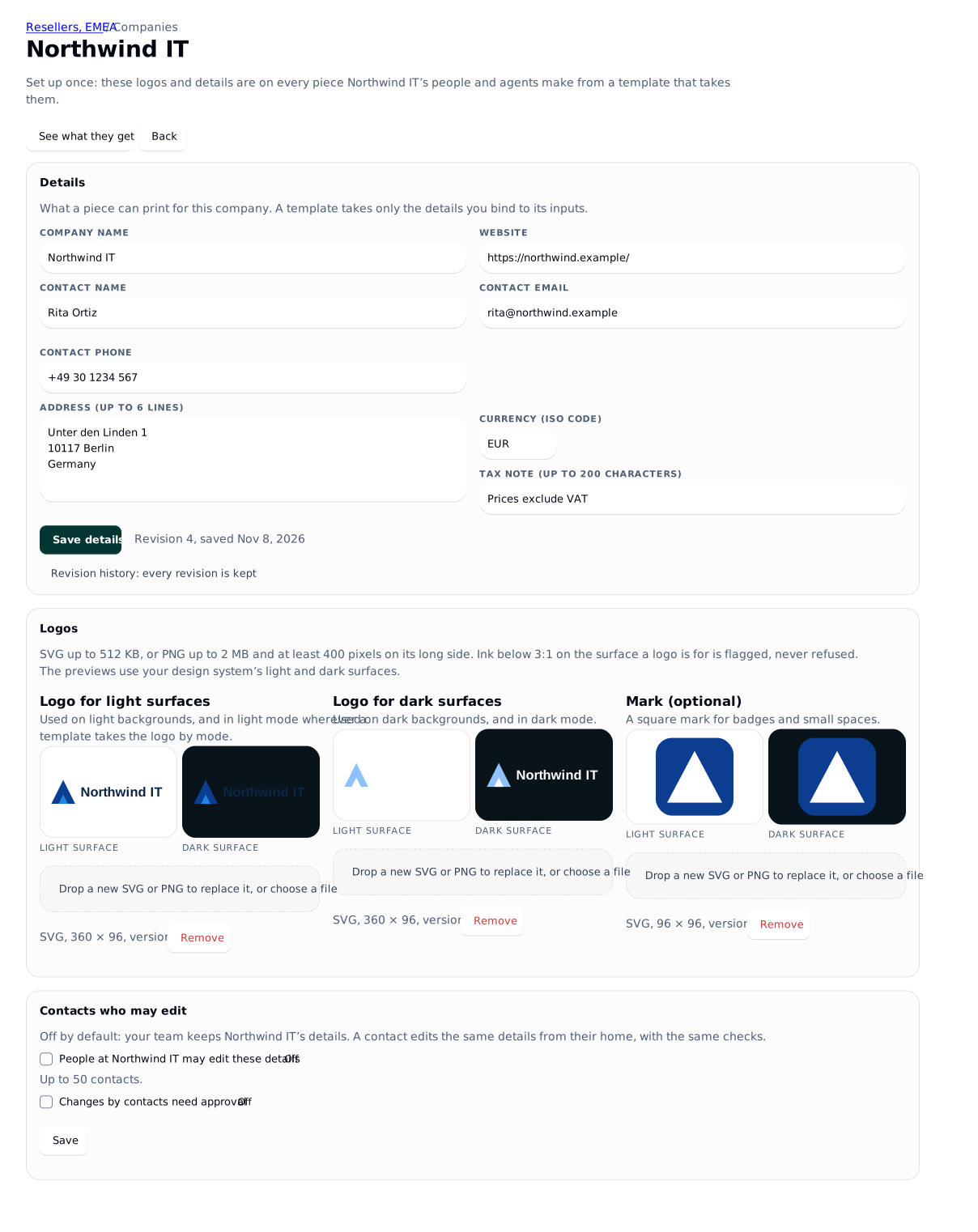
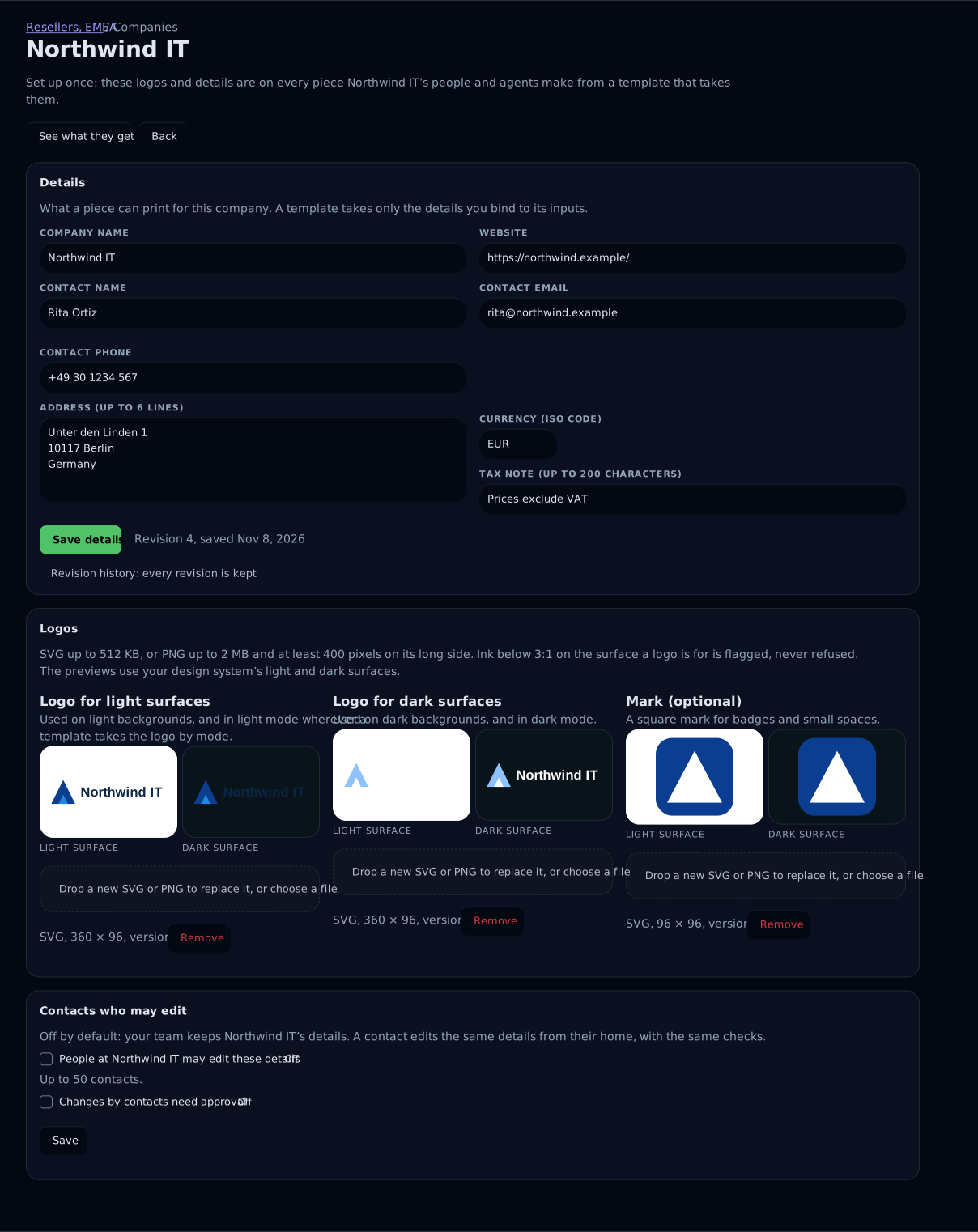
Under Companies on the programme's page, add each partner organisation. On the company's page, fill in its details (website, contact, address, currency and a tax note) and upload its logo for light surfaces, its logo for dark surfaces and an optional square mark. Lolly Work checks each logo and flags one that is hard to see on your design system's surfaces. You can let named contacts at the company edit the details themselves, and you can ask for approval of their changes. Both are off by default. When the company has rules of its own for its logo, such as clear space and a minimum size, keep them on the company page's Partner kit card.
- Details. Save details saves them as a numbered revision, and Revision history keeps every revision.
- Logos. Each logo is previewed on both of your design system's surfaces, light and dark, which shows why a company needs a version for each: a logo made for light surfaces looks faint on the dark preview. A replaced logo becomes the next version of the same asset, and only that company's people and agent tokens receive its logos.
- Checks on every logo. An SVG with active content, such as a script, or with a reference to another file is refused rather than quietly cleaned. Four things are flagged and never refused: no transparent background, an SVG that only wraps a picture, parts that cleaning removed and ink below a 3:1 contrast on the surface the logo is for.
The file types, sizes and field lengths are in Company details and logos.
Contacts who may edit
Contacts who may edit is off by default: your team keeps the company's details. Tick People at Northwind IT may edit these details, then tick the contacts, up to 50, among the company's people who already sign in. Each of them gets Edit on their company card, with the same fields and checks and the two logos; the mark stays with your team. A contact cannot rename the company. A contact's change applies at once. To review contact changes first, turn on Changes by contacts need approval (Partner approvals).
What partners see of their company
 signed by Lolly Demovector SVG5 paths25 nodes31 groups164 KBCheck it yourselfScarica il file firmato
 signed by Lolly Demovector SVG5 paths25 nodes31 groups164 KBCheck it yourselfScarica il file firmato


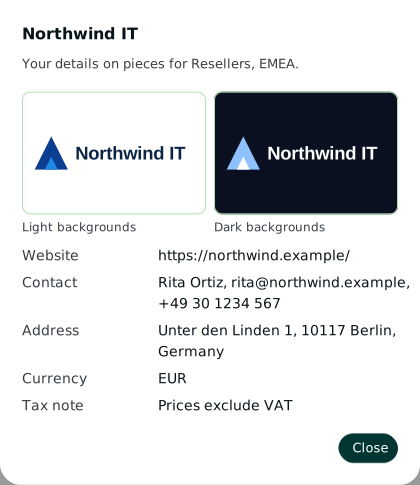
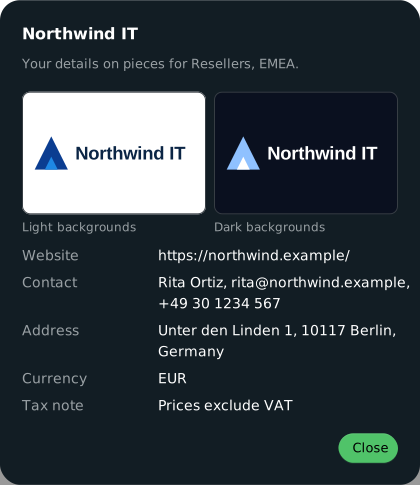
A partner in one company sees their company's card first on their home, once the company has details or when they may edit them: the logo on your design system's surface and "Your details are on every piece". Details shows both logos on light and dark backgrounds, then the website, contact, address, currency and tax note. A named contact also gets Edit, with the limits listed. When an end date applies to the person, the card adds "Your access through Resellers, EMEA ends on 21 November 2026", in UTC and in the reader's own date order. Nothing on the card mentions a rule or a policy.
A template takes the company's details where its inputs are bound to them, so partners never type their own logo or contact line (Partner templates).
Change a company's details
Change them on the company's page and press Save details. Every revision is kept. New pieces take the new details, and a file already made keeps the details it was made with, along with the revision it records. A contact who may edit makes the same change from their home.
Keep a company's partner kit
A partner kit holds a company's own logo rules for use inside your work: its logos for light and dark surfaces and its mark, up to 12 colours in named roles, and optional rules for clear space, minimum size and allowed treatments. Lolly Work keeps one kit for each company, as a file only that company's people and agents receive; a change is a new revision.
The Partner kit card on the company page, after Logos, keeps the kit in the console. Import takes a tokens file or a .lolly share, dropped or chosen, and Make from the logos reads colours from the company's SVG logos. An import is a proposal, and nothing is stored until Save. You edit the label and the colours' names and roles, and type the placement rules: clear space in mark heights, a minimum size in px and mm, and the allowed treatments. Lolly offers no defaults, and an empty field stores no rule. The logo pins are read only.
- Import a starting point from the company's tokens file (DTCG, Tokens Studio or Penpot), from a
.lollyshare, or from the inks of the company's SVG logos. An import proposes logos and colours only and stores nothing: Lolly does not know a partner's rules, so a person types clear space, minimum size and treatments. Whether your brand team or the partner's own designer does that depends on how you work together. - Roles and treatments. A colour's role is primary, secondary, accent, text or surface. The treatments are colour, mono, reverse and on-photo, and Lolly does not measure reverse.
- The logos a kit pins must be the company's own logos from its page, pinned by version.
- Who edits. Anyone with
programme.manage, and a contact who may edit the company's details. While contact changes need approval, a contact may change the kit only when kit review is on. - Kit review, off by default. Kit changes apply at once until you turn on Kit changes need approval on the card (Partner approvals).
- Ending. Ending a partnership retires the kit, Reopen brings back the revision it retired, and deleting the company deletes the kit. With the licence gate on, a kit counts as the company's own file.
From a terminal, lw companies kit show|import|set|remove does the same.
Kit limits
| Limit | Value |
|---|---|
| Colours | Up to 12, and 64 KB for the whole kit |
| Colour name, label, source file name | 60, 120 and 200 characters |
| Clear space | Up to 4 mark heights |
| Minimum size | Up to 10,000 px and 1,000 mm |
| Tokens file to import | Up to 2 MB, or an archive of up to 512 JSON parts |
.lolly share to import | Up to 32 MB |
| SVG logo read for its colours | Up to 512 KB each |
All limits on the card lists every limit the server enforces.
In the app. A partner in a company with a kit starts new work with the kit attached. The tool's Design system section, or Lolly Design's inspector, reads "Partner kit: Northwind IT · revision 2", with Detach, and a piece without the kit offers "Attach Northwind IT's kit". The colour field offers the kit's colours in a group under the company's name, and the picture picker offers the kit's logos first. Lolly Design's checks and Before you export point out a mark smaller than the kit allows, a mark inside another mark's clear space and a treatment the kit does not allow, for example "Northwind IT's mark is 48 px high; the kit asks for at least 96 px.", with one sentence for each thing they could not measure. A finding is for review and never blocks an export. The kit is never a design system: your brand still leads, and the app's look stays the same.
Lockups
Lolly does not generate a lockup from two marks for a "with", "in partnership with" or "by" arrangement. Add a finished lockup as a custom mark (Place a partner's mark).
What a co-branded file records
When Rita exports, the export panel's Design system card shows what the file records, such as "Records: Lolly Demo · Colourway: Spearmint · Partner: Northwind IT (Resellers, EMEA)". Anyone who checks the file in Lolly Verify reads "Northwind IT, Resellers, EMEA programme, details revision 3" as its Partner fact. The partner record is about the company, never Rita: it holds no person, contact details, address or currency.
 signed by Lolly Demovector SVG5 paths40 nodes12 groups1 image163 KBCheck it yourselfScarica il file firmato
 signed by Lolly Demovector SVG5 paths40 nodes12 groups1 image163 KBCheck it yourselfScarica il file firmato


| Where | What is written |
|---|---|
| Content Credential | partnerCompany, partnerCompanyLabel, partnerProfileRevision, partnerProgramme and partnerProgrammeLabel, plus partnerKit and partnerKitRevision when a partner kit is attached, and nothing more |
| XMP and SVG metadata | The same keys, as lolly:PartnerCompany, lolly:PartnerKit and so on |
| PDF keywords | "Partner: Northwind IT" |
| The export panel's Design system card | "Records: Lolly Demo · Colourway: Spearmint · Partner: Northwind IT (Resellers, EMEA)", and with a kit attached ", kit revision 2" after the partner |
| Lolly Verify | A Partner fact: "Northwind IT, Resellers, EMEA programme, details revision 3", and with a kit ", kit revision 2" |
A kit is recorded by its id and revision only: never its colours, rules or files. A file a partner's agent makes over the API or MCP records the same keys as a file made in the app. Every place the record is written, and who records no company, is in The partner record in files.
Worked example: Northwind IT
The worked example on Run a partner programme follows Northwind IT, a reseller in Resellers, EMEA, through every subject. Its third step happens here.
3. Add Northwind IT and its details
Console. Under Companies, add "Northwind IT" and open the company. Fill in the website, the contact (Rita Ortiz, her email and phone), the address, the currency EUR and the tax note "Prices exclude VAT", then press Save details. Under Logos, upload the logo for light surfaces, the logo for dark surfaces and the square mark Northwind IT sent. Leave Contacts who may edit off for now.
lw.
lw companies add resellers-emea northwind-it --name "Northwind IT"
lw companies profile set resellers-emea northwind-it --field website=https://northwind.example/ \
    --field contact.name="Rita Ortiz" --field contact.email=rita@northwind.example \
    --field contact.phone="+49 30 1234 567" --field address="Unter den Linden 1, 10117 Berlin" \
    --field currency=EUR --field taxNote="Prices exclude VAT"
lw companies profile logo resellers-emea northwind-it light ./northwind-light.svg
lw companies profile logo resellers-emea northwind-it dark ./northwind-dark.svg
lw companies profile logo resellers-emea northwind-it mark ./northwind-mark.svg
Step 3 with the API
PUT /api/v1/programmes/resellers-emea/companies/northwind-it/profile
{
  "website": "https://northwind.example/",
  "contact": { "name": "Rita Ortiz", "email": "rita@northwind.example", "phone": "+49 30 1234 567" },
  "address": "Unter den Linden 1\n10117 Berlin\nGermany",
  "currency": "EUR",
  "taxNote": "Prices exclude VAT"
}
The answer is 200 with company, programme, revision (1 after the first save), profile, the logos and the limits the server enforces. Each logo goes up on its own, POST .../profile/logo?surface=light with the SVG or PNG as the body, and each upload is the next revision, so the three logos bring Northwind IT to revision 4.
Each logo is previewed on both surfaces, which is why Northwind IT sends one for light surfaces and one for dark: the light-surface logo looks faint on the dark preview. Rita still sees nothing, but every piece she makes from now on can carry these details.
Next: 4. Publish the data sheet.
Every option
- Company details, logos and their limits: Company details and logos
- Contacts who may edit: Contacts who may edit
- Partner kits: Partner kits
- What partners see: What partners see of their company
- The record in files: The partner record in files
- Co-branding outside a programme: Working with partners