A sponsor's logo on an event poster, a reseller's offer under the maker's name, a joint announcement, a case study written with a supplier: many pieces carry two brands. This page is for both sides.
Two words mean the same thing everywhere on this page. The lead brand is the brand whose design system a piece is made in, and the partner is the other brand on the piece. Either side can make the piece. Brand architectures shows how co-branding relates to the other ways organisations arrange their brands.
How Lolly handles two brands today
- One design system draws each piece. The lead brand's colours, type and house rules apply. The partner's mark goes in as artwork: a picture from Assets, or a custom mark kept in a design system.
- A brand travels as a file. A design-system file (
.lolly) carries tokens, fonts and logos. A reusable tool made with Share with rules carries one finished layout with the inputs you allow. Brand skills travel as files of their own. - A brand can also have an address. A brand page publishes logos, colours, type and rules for a partner to read, with tokens and skills for their tools.
- Lolly checks the lead brand's rules only. It does not know the partner's rules, such as clear space or minimum size, so check those against the partner's own guidelines. In a Lolly Work partner programme, a company's partner kit holds its rules, and Lolly Design checks the company's marks against the kit.
- A whole programme of partners runs on Lolly Work. When resellers, distributors or other partners make pieces in your brand on your own Lolly Work, a partner programme gives each partner company only the tools, files and templates you choose, keeps the company's logos and details, fills them into your templates and records the company in each file. Run a partner programme is the guide for the team that runs one.
Share your brand with a partner
Choose what to send
| Send | How | The partner gets | Suits |
|---|---|---|---|
| A design-system file | Export in the bar at the top of Lolly Design System Setup | Your tokens, fonts, logos and theme preference, as a design system they can switch to | A partner who makes many pieces in your brand |
| A reusable tool | In Lolly Design, Share with rules (Share a design with rules) | One finished layout with the inputs you allow, such as their name and their logo. The file carries the resolved colours, fonts and images, so their own design system cannot restyle the fixed artwork | A co-branded flyer, badge or banner that each partner fills in |
| Brand skills | The Skills room: Download skill (.zip) or Copy as one file | Your written standards, for their people and their agents | Either of the above, when an agent does some of the work |
| A brand page | Publish a brand page in Lolly Design System Setup, or lolly system publish, writes a folder you host (Brand pages) | Your current logos, colours, type and rules at one address, with tokens and skills for their tools. Logos and font files appear when their rights allow, and the page lists what it held back | Sharing with people you do not send files to |
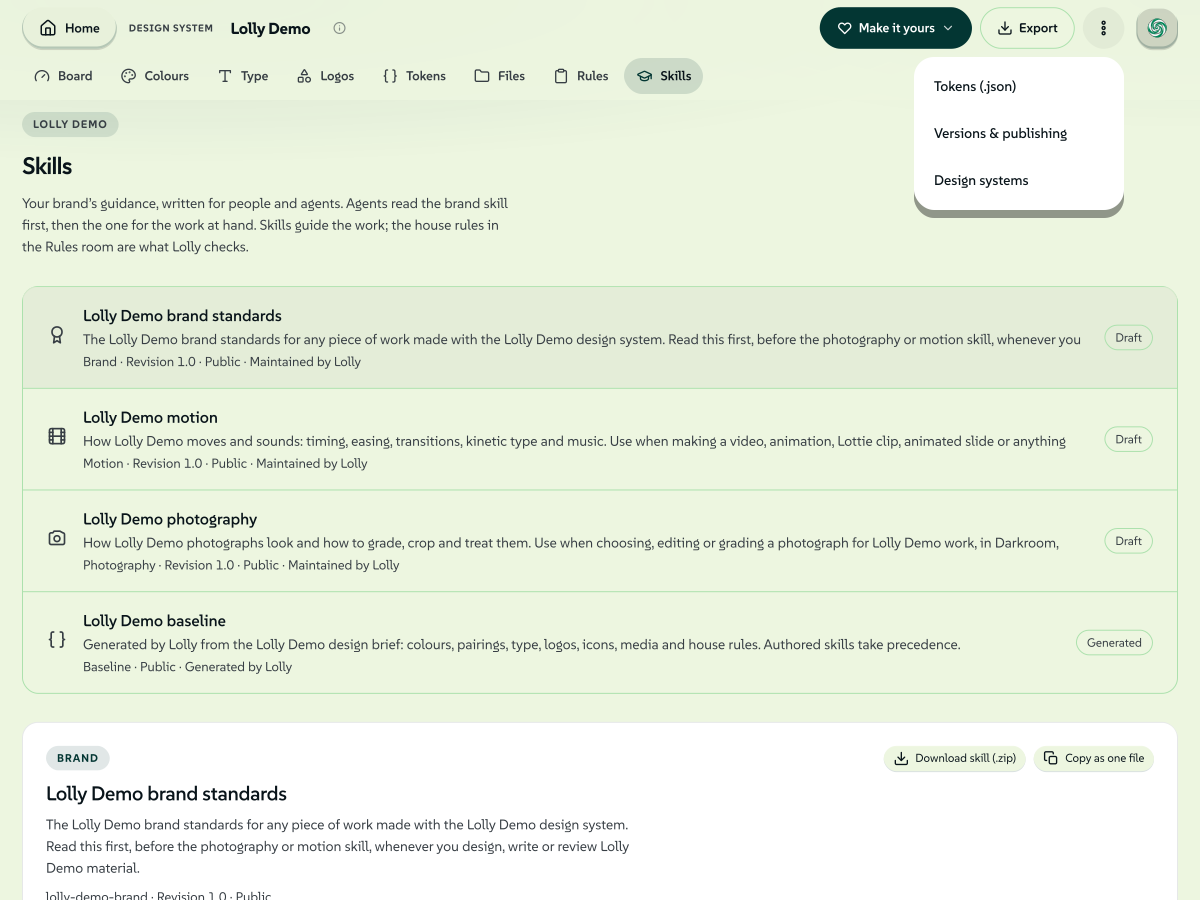
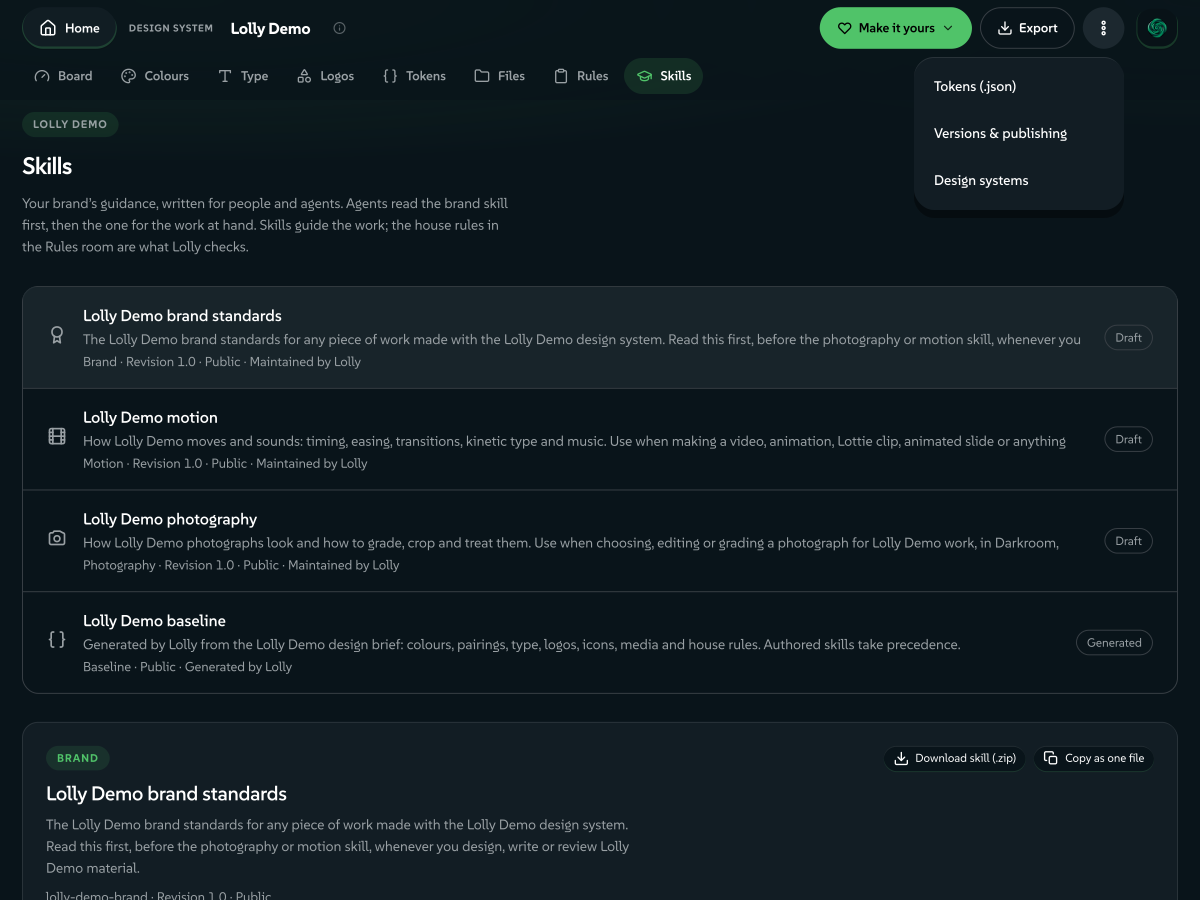
| Tokens | Tokens (.json) in the studio's More menu | The plain design-tokens document, with no fonts or logos | A partner's own design tools or build |
 signed by Lollyvector SVG117 paths~35k nodes148 groups434 KBCheck it yourselfGet the signed file
 signed by Lollyvector SVG117 paths~35k nodes148 groups435 KBCheck it yourselfGet the signed file


Fonts you added travel inside a design-system file, so check that their licences let you pass the files on.
A reusable tool asks you to confirm before it includes an image whose licence holds it back (Preview and share).
Make a co-branded template
A reusable tool keeps every partner's pieces in your layout, because a partner changes only what you allow.
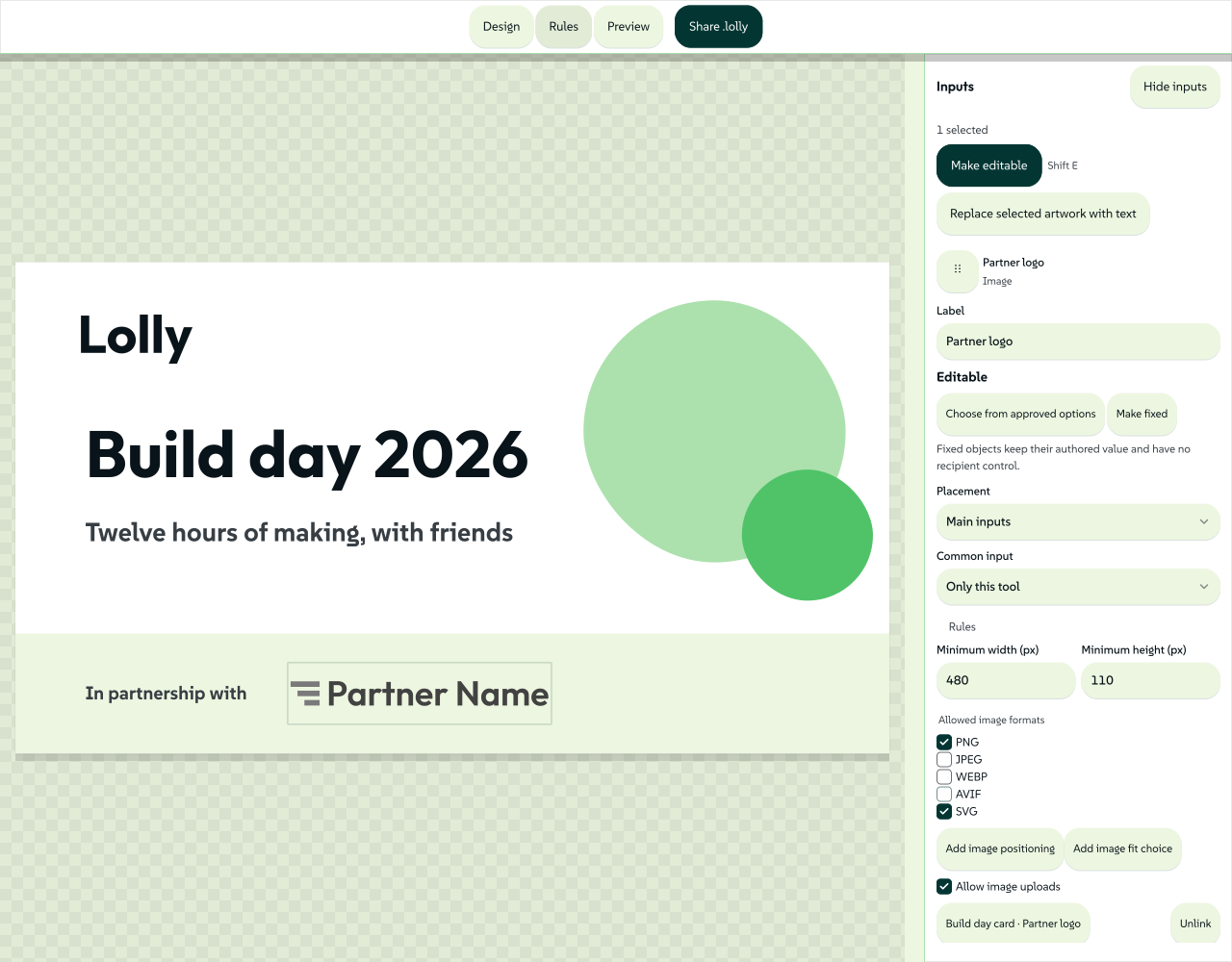
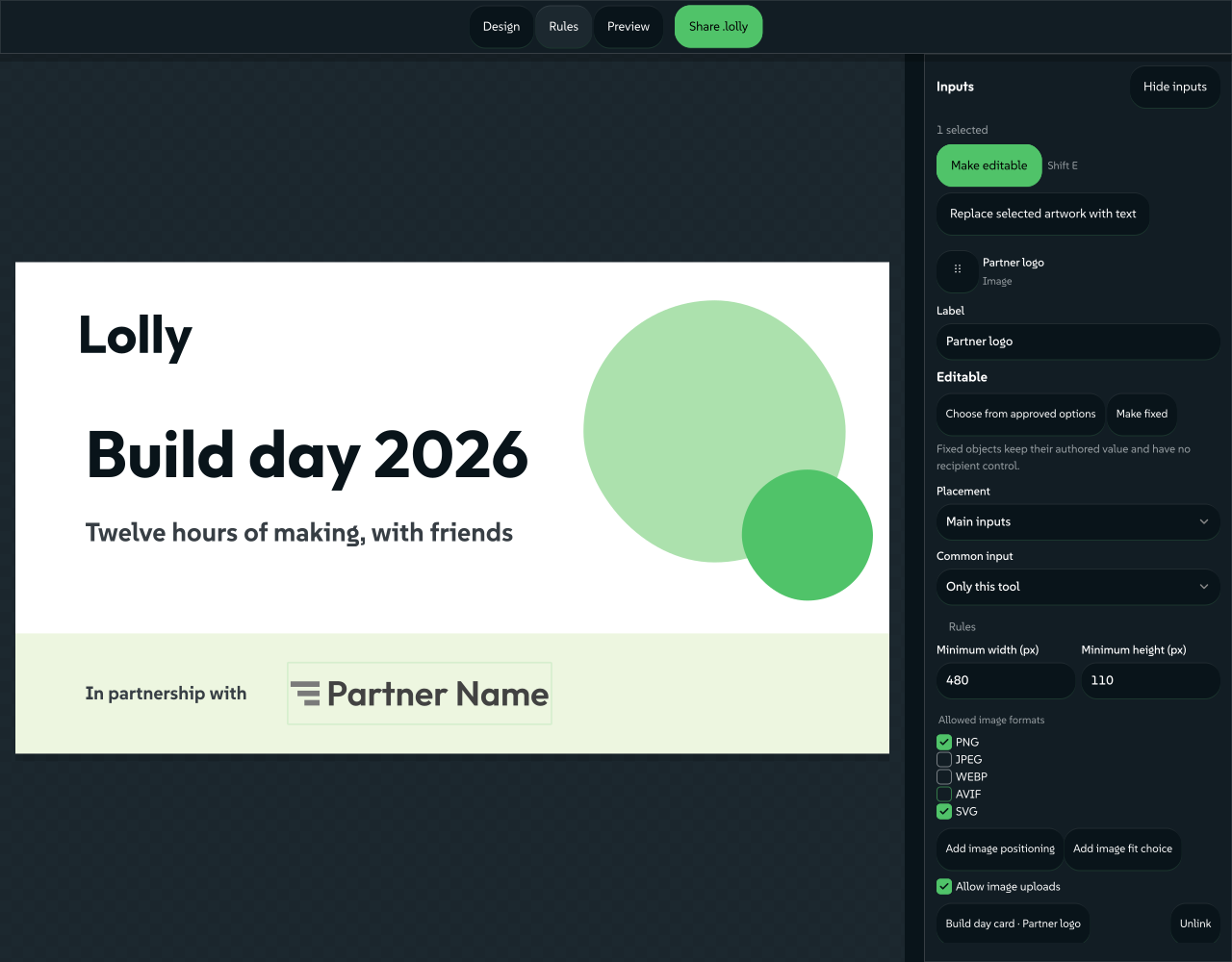
- In Lolly Design, make the piece in your design system. Draw an image box where the partner's logo goes, and leave the space around the box that the layout needs.
- Choose Share with rules from the File menu. Select the image box and choose Make editable. In its Rules, allow replacement uploads, set a minimum pixel size and the upload formats you accept (SVG where you can). Set the box's own Image fit to Contain (fit inside), which keeps a wide or a tall logo inside the box.
- Make the partner's name or offer editable too, with a character limit.
- Press Preview and try a very wide logo, a very tall one and a long name.
- Choose Share .lolly, and write instructions for the partner: which version of their logo to upload, such as the full-colour horizontal logo for a light background.
 signed by Lollyvector SVG67 paths~12k nodes91 groups5 images151 KBCheck it yourselfGet the signed file
 signed by Lollyvector SVG67 paths~12k nodes91 groups5 images150 KBCheck it yourselfGet the signed file


The partner drops the file into Lolly, reviews the trust prompt, fills in the inputs and downloads the formats you allowed (Use the finished tool). Lolly keeps the logo inside the box you drew. It does not read the partner's own clear-space rule, so the space you leave around the box is the space the logo gets.
Hand your brand skills to an agent
Skills are guidance for people and agents; the house rules are what Lolly checks.
- In Lolly Design System Setup, open the Skills room (
#/start?area=skills), choose a skill and press Download skill (.zip). The folder's catalog links point at your Lolly, and itslolly.jsonrecords where the copy came from. Copy as one file puts the same text on the clipboard for a chat window. - From a terminal,
lolly system skill <name> --into=<dir>writes the same folder (In a folder for a local agent tool). - A skill marked
internalis listed on your own machine as well aspublicones, so choose which to send (Public and internal skills). - A design system without skills of its own has a baseline that Lolly writes from its tokens and house rules, and the room lists the baseline too.
- A copy does not update itself. When you publish a new revision of a skill, send the folder again.
Work in a brand you were given
For the partner who receives a design-system file. When the lead brand runs a partner programme on its own Lolly Work, you sign in there instead: your home opens on your company card and the templates published to you (What partners see).
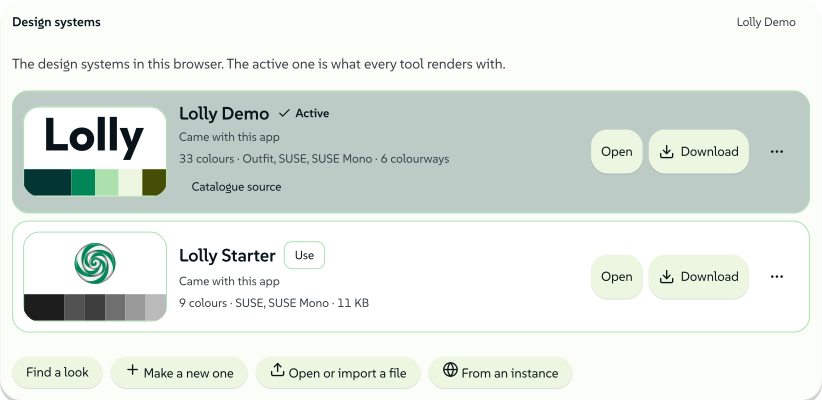
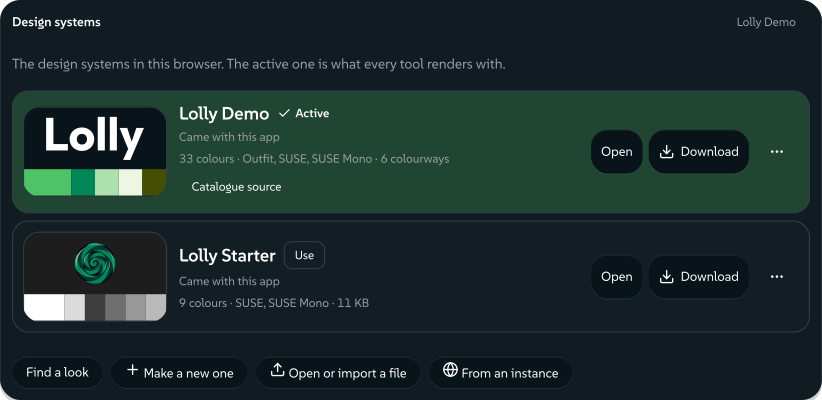
- Open the file. Drop the file on Lolly or press Open; Add from… in Lolly Design System Setup takes the file too. The preview lists what the file holds before anything is written. A design-system file adds a separate design system under the lead brand's name and makes it active, and your own design system stays on the device. A file that instead connects the app to the lead brand's own Lolly lists the effects on your whole device first; Use Lolly at your organisation covers that kind of file.
- Look round the brand. In Lolly Design System Setup, the Board shows what the design system holds, Logos has its marks and Rules lists the house rules Lolly checks. Skills shows the baseline Lolly writes from the tokens and rules; the lead brand's own skills arrive as separate files, if they send them.
- Switch between brands. Settings → Preferences → Design systems switches the design system for the whole device, and Settings → Design system has a strip of covers to switch from. Finish one brand's piece before you switch.
- Place your own mark. Upload your logo to Assets, where it is offered in every design system, or add it as a custom mark in the lead brand's design system (Logos room, Custom marks), where it travels in that design system's file. A design system that shows a lock is read-only, so use Assets there. Place a partner's mark has the checks.
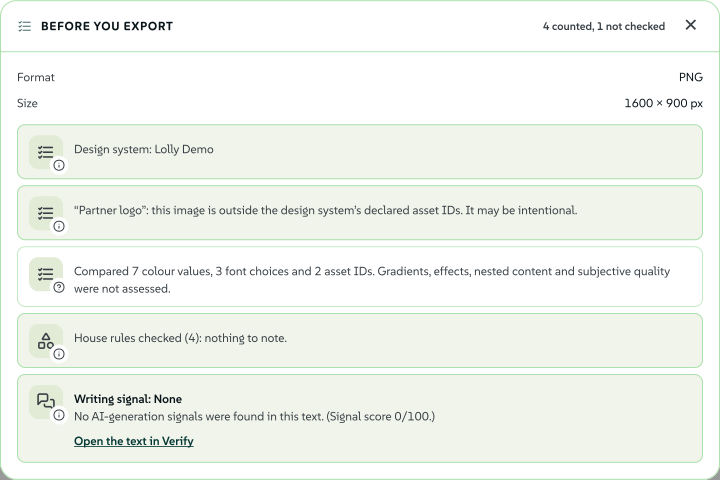
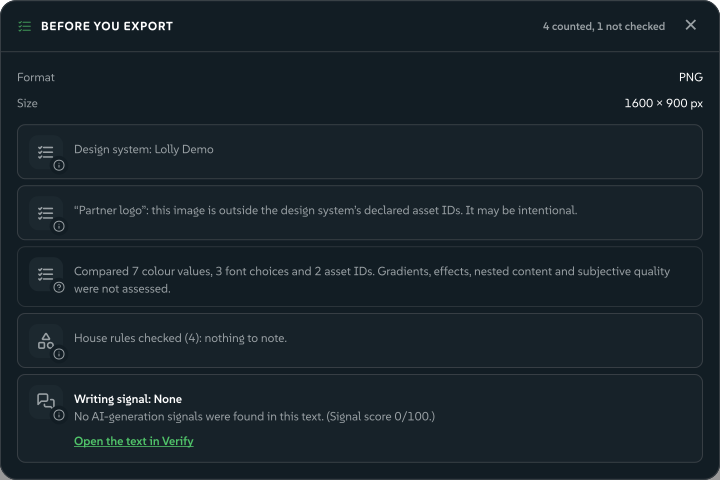
- Check before you export. In Lolly Design, the export panel's Before you export card lists findings against the lead brand's house rules, layer by layer (Before you export). The Design system card shows the design system the file records.
- Send the work back. Send the exported file, or the editable design as a
.lolly(Sharing your work). A design opens in whichever design system is active, so the lead brand opens yours with their own design system active.
A design-system file is a copy of the brand as it was on the day it was exported, and nothing updates the copy.
When the lead brand sends a newer file, open the new file the same way. Then check which design system is active in Settings → Preferences → Design systems, and remove the older copy there when you have finished with the older one.
 signed by Lollyvector SVG74 paths~7.6k nodes76 groups109 KBCheck it yourselfGet the signed file
 signed by Lollyvector SVG74 paths~7.6k nodes76 groups110 KBCheck it yourselfGet the signed file


Place a partner's mark
| Way | Steps | Best for |
|---|---|---|
| A picture in Assets | Drop the file on the upload area in Assets, then choose it in a tool's image field, or in Lolly Design with Image from the rail's add menu | One-off pieces. An upload belongs to the device, so it is offered whichever design system is active |
| A custom mark | Logos room, Custom marks: type a name for the mark, then Choose file… | A partner you work with often. The mark belongs to the design system and travels in its file |
| A finished lockup | Make the lockup from both marks in your drawing tool, then add it as a custom mark | A "with" or "in partnership with" lockup used again and again |
- The right file. Use the file the partner supplied, an SVG where there is one. A logo copied from a web page or a slide blurs when printed.
- The right version for the background. Use a reverse or a one-colour version on a dark or busy background, when the partner's guidelines offer one.
- Proportions. Set the image box's Image fit to Contain (fit inside), and the mark is never stretched.
- Clear space and size. Leave the space the partner's guidelines ask for around the mark, and keep the mark above their minimum size. Lolly measures neither.
- Which brand leads. Size the two marks to follow both brands' guidelines on which one leads.
- Rights. Lolly shows the licence recorded for a catalogue asset. A file you upload yourself has no licence record, and its details read Licence not recorded, so keep the partner's permission to use their mark with your own records (Creative rights and credits).
 signed by Lollyvector SVG43 paths~9.7k nodes48 groups115 KBCheck it yourselfGet the signed file
 signed by Lollyvector SVG43 paths~9.7k nodes48 groups115 KBCheck it yourselfGet the signed file


An export's design-system record gives the lead brand's design system and colourway. It does not record the partner's brand, except in a Lolly Work partner programme, where it also gives the partner company and programme the piece was made for.
Give each brand's skills to an agent
When an agent does the work, give the agent the lead brand's skills and the partner's skills as they are, and tell the agent which brand leads. Each brand's skills keep their own names and ids. Lolly does not merge two brands' skills or decide which brand wins.
Sponsor and event logo walls
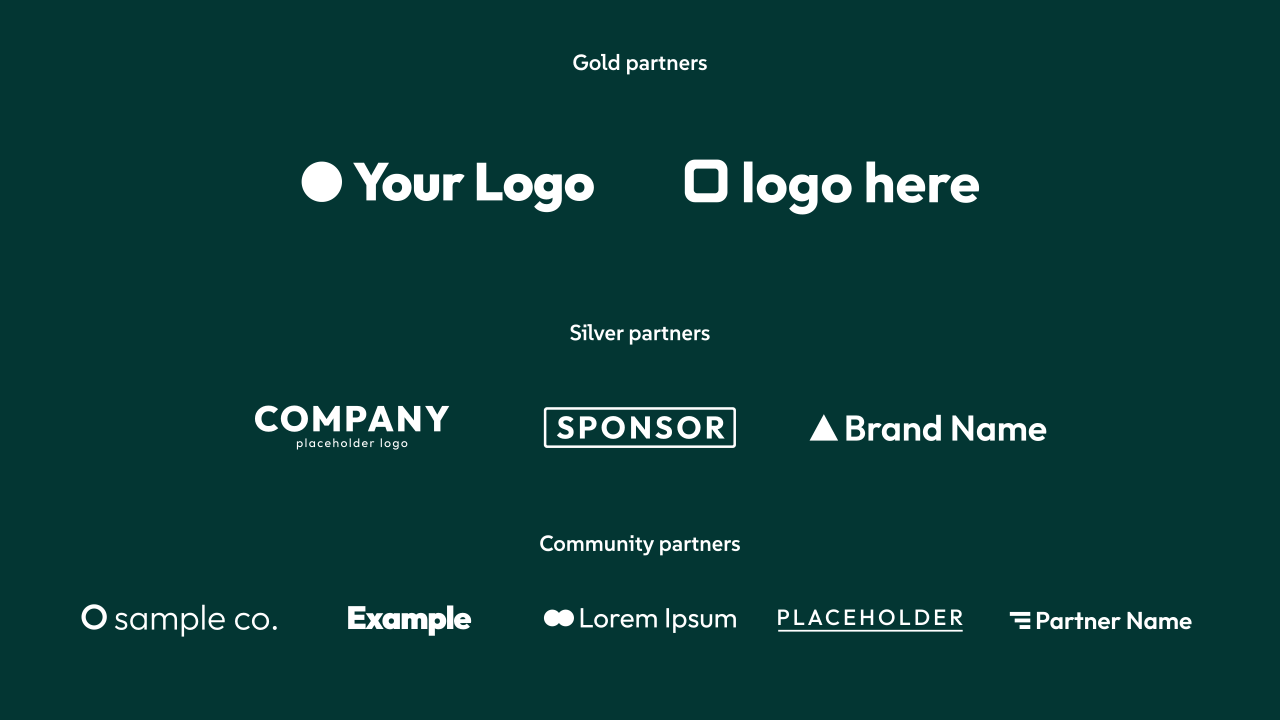
The Lolly Logo Wall tool arranges a pile of logos into an even grid, for a sponsor board, a partner slide or a press backdrop. At an event the host is usually the lead brand: the wall is made in the host's design system, and each sponsor's logo sits on the wall as artwork.
 signed by Lollyvector SVG23 paths~3.5k nodes21 groups40 KBCheck it yourselfGet the signed fileTry it in the app


- Open Lolly Logo Wall and drop the logos on Logos. Each logo gets its own set of controls.
- Give each logo a Tier, such as "Gold partners". Each tier gets its own rows, in the order the tiers first appear, under its own heading; Tier headings turns the headings off. With Tier sizes on Step down, each lower tier fits one more logo per row, so higher tiers read larger. Presence and Size % still nudge one logo within its tier.
- Leave Balance sizes on. Lolly Logo Wall sizes each logo by its optical weight, so a heavy logo shrinks and a light one grows and each tier reads evenly.
- Trim margins crops each logo to its artwork. Turn the option off when a logo's file already includes the clear space its owner asks for.
- Remove white backgrounds clears the white box that a logo copied from a slide often arrives in.
- Set Columns, spacing and padding under Layout. The Background starts as your design system's surface colour.
- For a one-colour wall, turn on Render all as vector and choose the Ink colour, or set one logo's Filter to Greyscale. Use a one-colour version only where each sponsor's guidelines allow one.
- For a press backdrop, choose Grid, Brick or Checker under Step & repeat, and set the number of Rows.
Export the wall as PNG, SVG, PDF or a CMYK PDF for print. Set another size and shape in the export panel, such as a tall 1080 x 1920 story or an A4 page, and the canvas shows the wall laid out again to fill that shape, with fewer or more logos in each row. The export is the wall on the canvas. To put the wall on a poster, choose Image from the rail's add menu in Lolly Design, draw a frame and pick Lolly Logo Wall on the picker's Tools tab (Tools inside a design). For captions between the logos, a Dynamic layout set to grid in Lolly Design holds one image box per logo (Layout in Lolly Design).
In a terminal, lolly run logo-wall logos/*.png --output=wall.svg builds the wall from a folder of pictures, and a CSV with logo and tier columns builds a tiered wall. SVG and PNG need no browser (A sponsor wall with tiers).
When a sponsor publishes a brand page, lolly run logo-wall --logos-from=<address or folder> takes their current logo for the surface and prints what their page says about use. Repeat the flag for each sponsor.
Lolly Logo Wall does not know any sponsor's rules. Tiers and Presence set sizes relative to each other, not a sponsor's minimum size, and nothing checks the clear space between neighbours. Check the finished wall against each sponsor's guidelines at the size it will be printed or shown.
What Lolly does not do yet
- A piece is drawn in one design system. The partner's colours, type and rules are not a design system inside the piece, and the partner's mark is a picture.
- Outside a Lolly Work partner programme, partner rules are not held or checked in the app: clear space, minimum size and allowed treatments such as one colour or reverse.
- A partner kit, a light pack that holds a partner's logos, colours and rules for use inside another brand's work, reaches the app only through a Lolly Work partner programme. Elsewhere, the kit's check runs from a terminal:
lolly check --kit=<file>measures a Lolly Design document's partner marks (Check the recreation). - Lolly does not generate a lockup from two marks for a "with", "in partnership with" or "by" arrangement. Add a finished lockup as a custom mark.
- One design system is active for the whole device, so two brands cannot be open side by side.
- A design-system file exported from the app does not carry brand skills, so send those as files of their own.
- A logo taken from a brand page is a picture in its row, and the row does not remember the page. Nothing shows who published a page, so check the address yourself.
- The hosted web app cannot fetch another brand's page, because its Content Security Policy allows named hosts only. Take the logo in a terminal, or save the file and add the file in Assets.
Where to go next
- Brand architectures: co-branding, white label and the other arrangements, with what to do in Lolly for each.
- Run a partner programme: what partners get on your Lolly Work, and how to set up and run a programme.
- Share a design with rules: reusable tools with a fixed layout and the inputs you choose.
- Brand skills: how skills are written, read and handed to an agent.
- Lolly Design System Setup: logos, custom marks, and moving a design system between devices.
- Brand pages: publish your brand at one address, and take a partner's logo from theirs.
- Creative rights and credits: what Lolly records about the works it draws.