
You have made something and it needs to leave Lolly: a PNG for a chat, a PDF for the printer, a deck a colleague will keep editing. Press Export, the left half of the Export | Save pill. Choose a format beside the file name, then press Download. The file is made on your device.
What you see on the canvas is what the file contains. The format menu lists only what this tool can make in this browser.
For most jobs, one of three formats is right:
| For | Choose | Because |
|---|---|---|
| A screen, a message or a slide | PNG | Every app opens it, and it keeps a transparent background when the tool offers one |
| A finished page, or anything printed | A true page size that prints as it looks; Print PDF, where a tool offers it, is the CMYK version for a press | |
| Artwork that must stay sharp at any size | SVG | Vector shapes, crisp from a badge to a banner |
Before you send it, open it on the screen it was made for, or print it at its real size.
Approvals and delivery with Lolly Work (optional)
An organisation that runs Lolly Work can govern which formats and export settings its members see. Where approval is required, Request approval stands in for Download. Follow the policy your instance shows.
Lolly Work can also deliver a file to configured S3, WebDAV and HTTP destinations, with approval steps, delivery receipts and an audit record. Submitting a file for that workflow sends it to the organisation's service; an ordinary download stays on your device. Personal Send destinations and organisation delivery are configured separately.
Operators set this up with the organisation delivery guide. For queued server renders and batches, see CLI batch and automation.
How export works
When you export, the tool's canvas is rendered to the format you chose and handed to you as a download, or put on your clipboard.
Three paths produce a file. Most tools render the canvas. Text and data formats (HTML, Markdown, TXT, JSON, CSV, ICS, VCF) are generated from the tool's content rather than drawn from the picture. Privacy utilities such as Strip Hidden Data transform the file you picked, on your device, and hand it back with no canvas, watermark or added metadata, because it is already your own file.


The export panel offers these actions. A tool's author picks which appear; the default set is Copy, Download and Save.
- Download saves the file. If you cannot find it afterwards, see Find a file you downloaded.
- Copy puts the image on your clipboard, ready to paste into a chat, an email or a document. Where a browser cannot copy images, it downloads instead and tells you.
- Save keeps the current design in Projects in one click and never downloads a file. Save as, beside Download, asks where (see Saving and continuing).
- Share opens the Share dialog: a link that reproduces the design, the on-visit toggles (fullscreen, export panel, download or copy on open) and an optional Shortest link that packs the whole state into a compact token (see URL Mode).
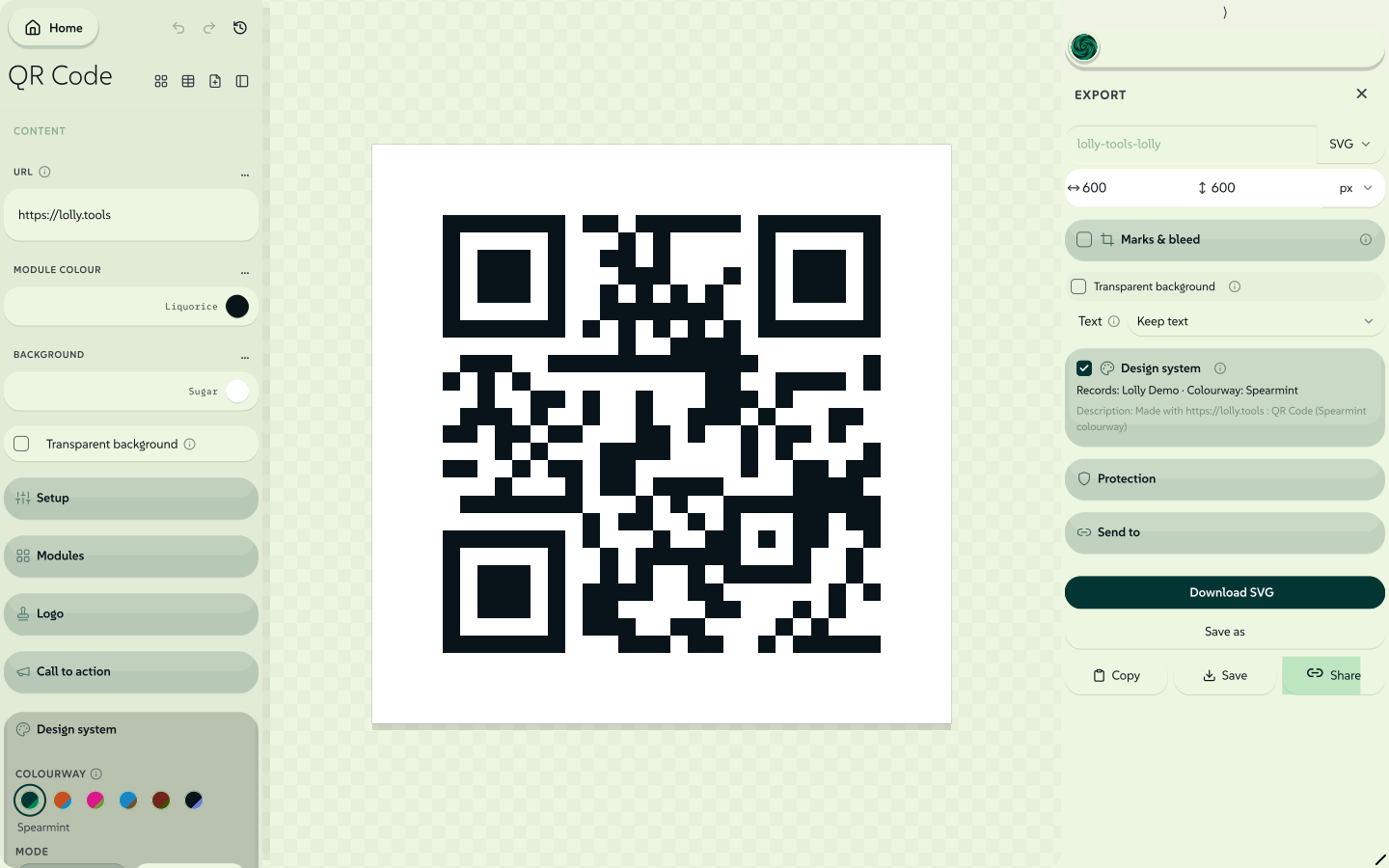 signed by Lollyvector SVG214 paths~13k nodes268 groups3 images233 KBCheck it yourselfGet the signed file
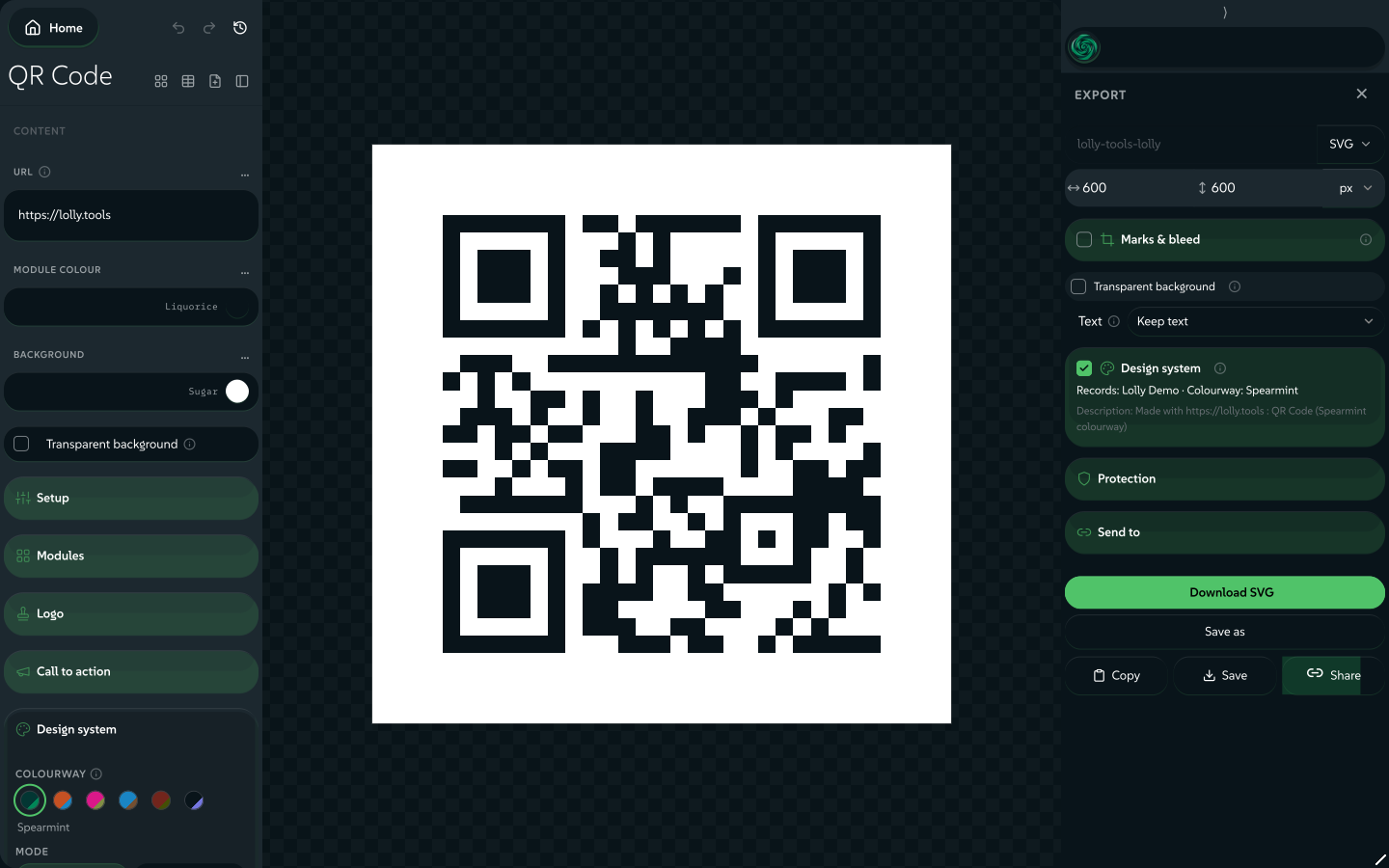 signed by Lollyvector SVG214 paths~13k nodes268 groups3 images234 KBCheck it yourselfGet the signed file


When a design embeds another tool's render, such as a Design image box holding a QR Code link, the nested render is drawn into the parent's export. It stays true vector in SVG and PDF and rasterises crisply in PNG, JPG and WebP. The embedded render gets no watermark and no provenance of its own; only the finished file does. HTML, Markdown and TXT exports cannot hold a composed render.
Pick a format
The file name and the format menu sit together as one name.format pair, below Download.
 signed by Lollyvector SVG13 paths457 nodes7 groups9 KBCheck it yourselfGet the signed file
 signed by Lollyvector SVG13 paths457 nodes7 groups9 KBCheck it yourselfGet the signed file


Start from where the file is going. Each card lists the formats that suit that destination; a tool shows only the ones it can make.
-
Screen and web
A chat, a slide, a website or a social post.
- PNG
- JPG
- WebP
- AVIF
- SVG
-
Print and cutting
A printer, a press or a cutting machine.
- Print PDF
- Print TIFF
- EPS
- DXF
-
Edit in another app
Someone keeps working on the content.
- PowerPoint
- Penpot
- Word
- OpenDocument
- InDesign IDML
- EMF
-
Motion
A video, a looping image or an animation.
- MP4
- WebM
- GIF
- APNG
- Animated WebP
- Animated SVG
- dotLottie
-
Sound
A voice take, a song or a soundtrack.
- MP3
- WAV
- M4A
- Opus
-
Text, data and packages
An email, a calendar, a spreadsheet or a course.
- HTML
- Markdown
- CSV
- JSON
- ICS
- VCF
- SRT
- VTT
- ZIP
- SCORM
A tool lists only the formats it can make, and only the ones this browser can produce.
Six destinations and the formats that suit each one.
signed by Lollyexporting-format-chooser.htmlHTMLpixels, not shapes9 KBAI editedgenerated by Claude Opus 5.5Check it yourselfGet the signed fileA wordmark set in your design system's face exports as SVG with every letter as an outlined path, so one file stays crisp at business-card size and at building-wrap size.
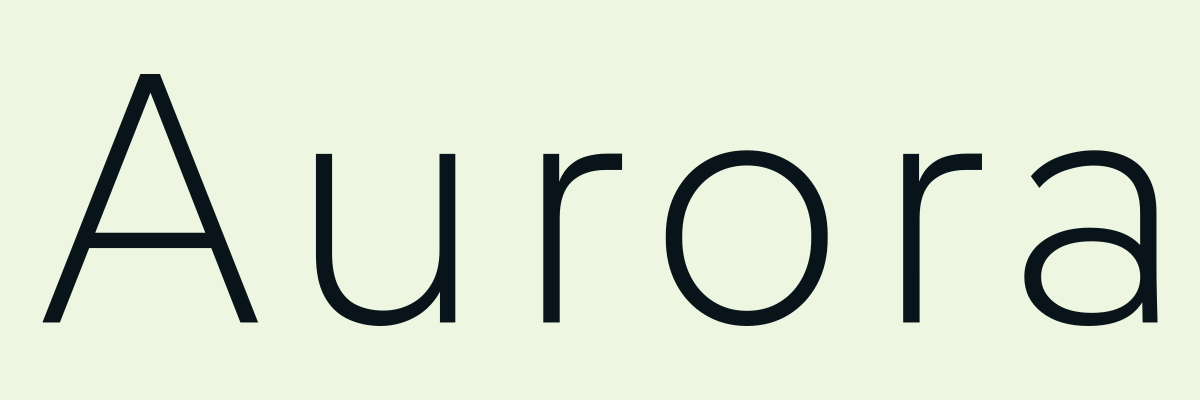 signed by Lollyvector SVG1 path130 nodes4 groups5 KBCheck it yourselfGet the signed file

Every format and what it is for
| You want | Use | Why |
|---|---|---|
| Crisp logos or artwork that scales | SVG | Vector: scalable, small and editable; an effect the vector export cannot draw is embedded as an image |
| Vector for Office and Windows apps | EMF | Pastes as editable vector into PowerPoint and Word, with live text; Google Drive opens it in Google Drawings |
| Vector for print and design apps | EPS, or EPS (CMYK) | PostScript vector for Illustrator and press workflows |
| Vector for cutting machines | DXF | Laser cutters, vinyl plotters and CNC: outline paths in millimetres |
| An editable slide deck | PowerPoint (PPTX) | Native editable text and shapes, with images and vectors kept extractable |
| An editable text document | Word (DOCX) or OpenDocument (ODT) | Real paragraphs and headings a word processor can keep editing (Doc Studio) |
| A layout for InDesign | InDesign IDML (static subset) | Text, rectangles, ovals and images, one spread per artboard (Design) |
| An editable Penpot document | Penpot | Boards, shapes, text and linked tokens |
| A photo or general-purpose image | PNG (lossless) or JPG (smaller) | Universal raster |
| Smaller modern images | WebP or AVIF | Better compression, with transparency |
| PDF, or Print PDF (CMYK) | True page size; CMYK for a press | |
| Print raster for a press | Print TIFF (CMYK) | DeviceCMYK pixels for a RIP |
| Animated for the web | GIF | Plays everywhere; larger files |
| Animated with full colour and real transparency | APNG | Animated PNG: no palette limit |
| Animated, smallest file | Animated WebP | Full colour and transparency, smaller than GIF or APNG |
| Animated vector that scales | Animated SVG | Self-contained; loops in a browser or an <img>, at any size (Lottie Ad) |
| An animation that stays editable | dotLottie | Shapes, paths and outer transform keys from Design's timeline |
| A Premiere hand-off | Premiere XML + media | Timed clips and original media for Premiere (Design) |
| Video for social and sharing | MP4 or WebM | Best quality for the file size (see Video) |
| Captions | SRT or VTT | Timed text for a video player (Captions, Audiogram and Record) |
| A training course | SCORM (LMS) | A versioned website, SCORM or xAPI package (see SCORM) |
| Rich text or an email signature | HTML | Pastes formatted into mail clients |
| Plain content | MD or TXT | Text only |
| A calendar event | ICS | Imports into any calendar app |
| A contact card | VCF | Imports into address books |
| Structured data to re-import | JSON or CSV | Round-trips the tool's content |
| A favicon | ICO | Multi-size site icon; ZIP bundles several formats |
Transparency
Tools that support it offer a transparent background toggle, such as No BG. PNG, WebP, AVIF, SVG, APNG and Animated WebP keep transparency, and GIF keeps a hard edge. JPG and PDF are always opaque. TIFF flattens onto white, or onto black on the HDR path described under HDR.
Size and print units
Exports use the tool's native pixel size unless the tool offers dimensions. Then you set width, height and a unit:
- px (the default) is exact pixels.
- mm, cm, in, pt and pc are physical sizes. With a physical unit you also set DPI (300 by default). A PDF becomes a true page at that size, a raster gets the pixel count for that DPI and records the resolution, and an SVG keeps the physical unit with a pixel viewBox.
For a higher-resolution raster, enter a larger width and height, or choose a physical unit and raise the DPI (pixels = size × DPI). Width 210, height 297 and unit mm make an A4 page.
 signed by Lollyvector SVG12 paths408 nodes16 groups1 image11 KBCheck it yourselfGet the signed file
 signed by Lollyvector SVG12 paths408 nodes16 groups1 image11 KBCheck it yourselfGet the signed file


Stills from a timed composition
A timed composition, such as a Sequence timeline in Design, moves, so a still export has to pick a moment: the frame at the playhead. Park the playhead where you want the picture and export.
For more than one moment, the Frames field appears beside the output size. It shows only for a timed composition and a still format (PNG, JPG, WebP, SVG or PDF). Leave it at 1 for the playhead frame. Raise it and you get that many stills, spread evenly across the whole sequence:
- PNG, JPG, WebP and SVG come back as one ZIP:
<name>-01.png,-02.pngand so on. - PDF comes back as one document with that many pages.
Each still comes from the middle of its slice of the timeline, so the first frame is never a half-faded entrance and the last is never the empty moment after every clip has ended.
PNG, JPG, WebP and SVG come back as numbered files in one ZIP; PDF comes back as four pages.
Frames: 4 cuts the sequence into four equal slices and takes the middle of each.
signed by Lollyexporting-contact-sheet.htmlHTMLpixels, not shapes7 KBAI editedgenerated by Claude Opus 5.5Check it yourselfGet the signed fileUse it for a storyboard, a review contact sheet or a social carousel cut from a video edit. The count is capped at 64, and anything else typed into the field falls back to 1. Each frame is an ordinary still, so credentials, the Imprint, physical units and DPI behave as they do for one export. An export link, the CLI and MCP ask for the same sheet with cuts= (see Contact sheets).
Many files at once
Lolly has three ways to work at volume, each for a different job:
A table becomes one document
A tool with a table input, such as Battlecards, turns every row into a page. Paste a table from your spreadsheet and get one PDF. Fix rows in the spreadsheet and paste again.
A CSV becomes one file per row
Batch (#/batch) takes a CSV and renders one export for each row: name badges or certificates, one file each, delivered in a ZIP. See Batch.
Several designs get one edit
Multi-edit opens several saved sessions side by side for the same touch-up across different designs. See Multi-edit.
From Projects, Render folder exports every saved session in a folder and its sub-folders as one nested ZIP, and Render selection does the same for any multi-selection; one saved session renders to its own file. A saved session can also be shared again as a tool link from Projects, which reopens it with the same settings.
Files that stay editable elsewhere
Some formats hand your work to another application as editable content rather than a picture.
PowerPoint (PPTX)
Design, Markdown Slides, Booklet, Doc Studio, Chart, Diagrams, Flow Chart and Agenda export a PowerPoint deck, one slide per page. Each page is taken apart into native objects, so a colleague can edit the deck and take assets out of it:
- Text becomes editable PowerPoint text boxes with the layout's font size, colour, weight, italics and alignment.
- Vectors such as logos and icons are embedded as SVG pictures; they stay crisp, and PowerPoint can Convert to Shape on them.
- Images come through at native resolution as their own pictures. A cropped hero keeps the full image behind the crop, and any filter or blend on it is baked in.
- Backgrounds, borders and rules become rectangle and line shapes.
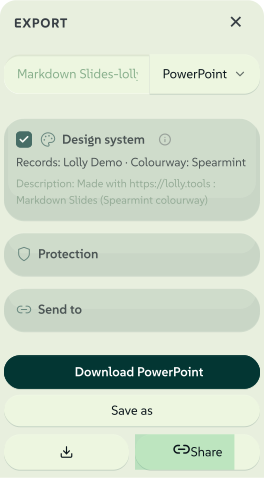 signed by Lollyvector SVG47 paths~4.9k nodes49 groups1 image65 KBCheck it yourselfGet the signed file
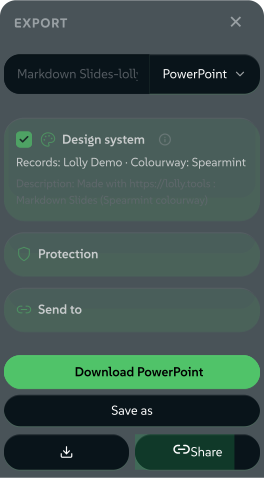 signed by Lollyvector SVG47 paths~4.9k nodes49 groups1 image65 KBCheck it yourselfGet the signed file


Layout is approximate; the aim is reusable content. Anything the walker cannot express natively, such as a complex filtered or masked region, is embedded as a picture so nothing is lost. A deck has one slide size, taken from the first page.
PowerPoint is also a way in: Rebrand a deck moves a deck onto your design system, and Import a design opens one in Design.
Penpot
Most tools that export SVG also export a Penpot file (.penpot), ready to keep editing in Penpot.
| What you made | In Penpot |
|---|---|
| Text | Editable text objects: fix a typo or restyle |
| Shapes, paths, gradients and images | Their own editable vector shapes |
| A colour or font from a design-system token | A live token link: edit the token and every shape that inherits it follows |
| The whole design | A reusable component in the Assets panel |
| A complex illustration or live canvas | Embedded on its own as an image, the editable content around it untouched |
From Design, each frame becomes a Penpot board. The design system's colours and typographies land in the Assets panel and its full token set in the Tokens panel. Penpot keeps its own copy from there: a token edited in Penpot comes back through the import in Design System Setup.
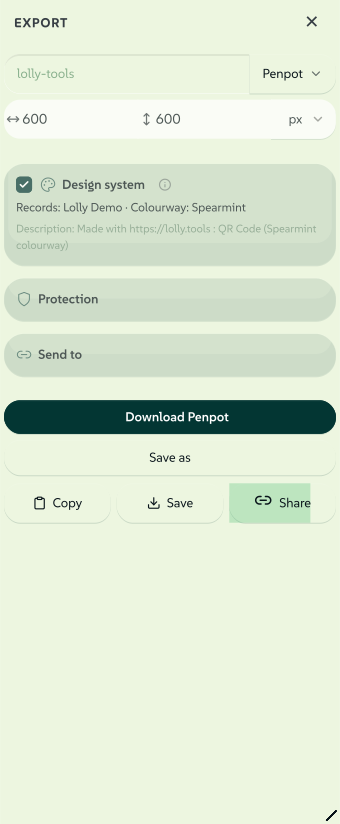 signed by Lollyvector SVG61 paths~4.9k nodes66 groups2 images72 KBCheck it yourselfGet the signed file
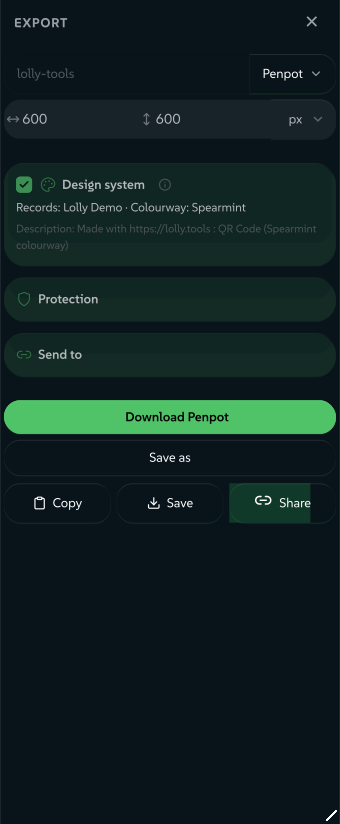 signed by Lollyvector SVG61 paths~4.9k nodes66 groups2 images72 KBCheck it yourselfGet the signed file


To open the file, start Penpot, pick a project and choose Import. Signed in to Penpot from the export panel, Send to Penpot does that step for you.
Word, OpenDocument and InDesign
Doc Studio exports Word (DOCX) and OpenDocument (ODT) with real paragraphs and headings.
Design exports InDesign IDML (static subset): text, rectangles, ovals and PNG or JPEG images, one spread per artboard. Supported inline formatting stays editable, images travel in Links and coordinates become InDesign points. Relinking, font substitution and changed wrapping may need attention. Effects, animation, composed stories and unsupported geometry stop the export with a report that lists them. IDML does not preserve the original document, so send PDF for finished artwork.
Timelines: dotLottie and Premiere
From Design's timeline, dotLottie writes an animation that stays editable in Lottie tools; Lottie animations lists what it keeps. Premiere XML + media packages timed clips and their original media for Premiere; see Premiere XML exchange.
SCORM (course packages)
Course export is off until you turn on Training and courses under Settings → Preferences → Feature flags.
Then choose Export course from a supported tool, a project folder or a selection. In Design, choosing SCORM (LMS) and Download opens the same course workflow. Lolly saves the work, lets you review the course content and order, then opens the module and its export dialog.
- Choose a rendition for each source: still pages, motion as video, audio or a downloadable resource. Add lesson text and reading alternatives in the module.
- Preview the learner player and review descriptions and captions. Motion is included as video, including silent animation.
- Choose Website, SCORM 1.2, SCORM 2004 4th Edition or an experimental xAPI target. Check the content and ZIP size, then save and download the checked version.
- Completion requires acknowledging every required lesson and choosing Finish.
 signed by Lollyvector SVG87 paths~7.8k nodes95 groups4 images110 KBCheck it yourselfGet the signed file
 signed by Lollyvector SVG87 paths~7.8k nodes95 groups4 images110 KBCheck it yourselfGet the signed file


The package holds its finished content and needs no Lolly account. Put a Website ZIP on an HTTP(S) host; import an LMS ZIP unchanged. Test the destination before you share the course. For a course built from several saved creations, see Create a training course.
DXF (cut files)
Asset Export, Diagrams, Growth, Logo Wall, QR Code, Street Map, Wayfinding and Wordmark export DXF, the AutoCAD R12 interchange format that laser cutters, vinyl plotters and CNC software read. Geometry is written as outline paths in millimetres, text is outlined and colour maps to the nearest AutoCAD Color Index, which usually drives the cutter's operation. DXF is line art only: a photographic or filtered region has no cut path and is dropped, with a warning. Use SVG or PDF to keep raster content.
Street Map is the clearest case. The whole design is already strokes, so every road and canal becomes a cut path.
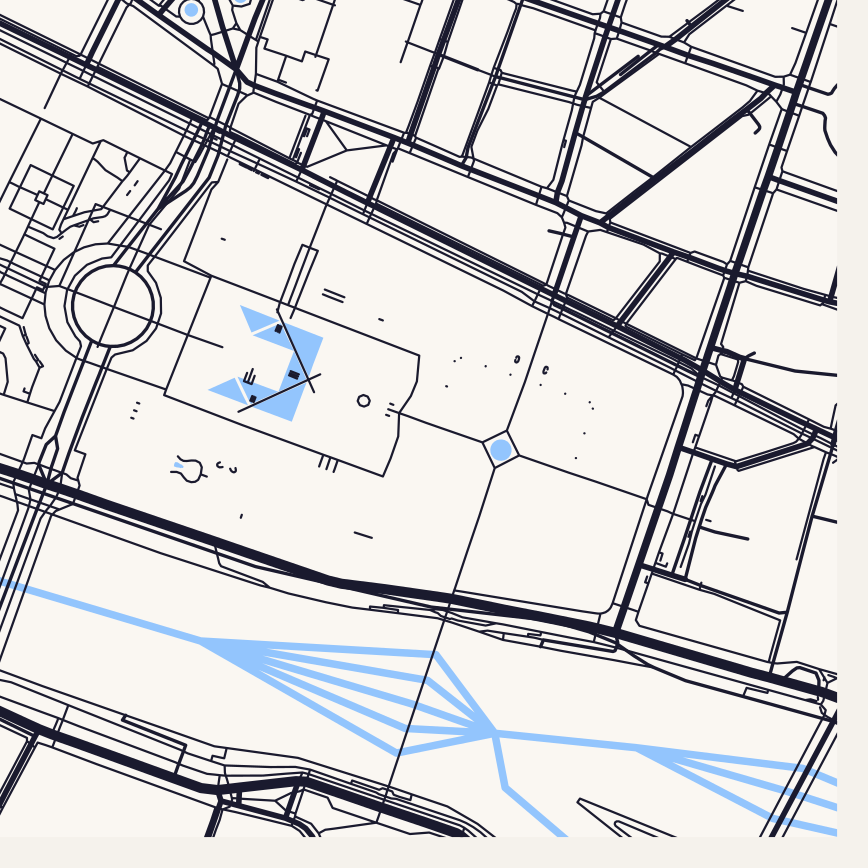 signed by Lollyvector SVG7 paths~35k nodes7 groups431 KBCheck it yourselfGet the signed file
Scroll, and the camera pulls back through the actual geometry: seven paths, no pixels anywhere, every stroke hairline-crisp at any zoom. That is the same file a cutter reads.
Print PDF writes CMYK against a named press condition, Coated FOGRA39 by default. Brand swatches with measured ink values convert exactly; other colours use a standard device conversion. Print TIFF writes DeviceCMYK pixels for a RIP and records the same press condition in its TIFF metadata. The Colour profile control drives both; Colour profiles has the detail.
Print marks & bleed has its own card on the print formats: the bleed in millimetres plus Crop, Registration, Bleed, Colour bars and Stamp details.
Some tools build a multi-page PDF: a cover, content that flows onto as many pages as it needs and a back page, as in the Booklet tool. Each page is a true portrait PDF page in A4, US Letter or A5, and you can force any block onto a new page. These are RGB documents without crop or bleed marks, which belong to the single-page Print PDF. A Design PDF can also be a Notes handout: a portrait page for each slide with its speaker notes underneath.
Before you export. A Before you export card at the foot of the panel says what a print shop is about to see: format, size and bleed, trim and bleed areas, ink coverage, plate counts and page count, with a verdict beside its heading. It never blocks an export. Design always shows the card with its own checks, including the design system's house rules layer by layer and the writing signal for the document's text (Before you export), and adds these print checks when Print preflight is on. In other tools, turn on Print preflight under Settings → Preferences → Feature flags; it is off by default, and a Lolly Work deployment can turn it on for its members.
After you export. Once the file is ready, Lolly reads it back and compares it with what you chose: format, pixel or page size, clip length, a transparent background, CMYK colour, HDR, Content Credentials and a PDF or ZIP password. Anything that differs is written on the export card. Each measurement comes from the file, never from the setting, and a property the file cannot answer is not counted as a match. The command line writes the full comparison with --export-report (see Render with the CLI).
Design's inspector checks and the brand comparison in Design System Setup are separate checks: they look at the design, while these two cards look at the file.
Cost from a rate card
Below preflight, a cost card turns the same counts into money, using only prices someone supplied. It reads those counts even when the preflight card itself is off. It needs two things: a job a price list can price (plates, sheets, area, pages, variant rows or output files, so a plain logo PNG never shows it) and a rate card, a JSON price list from your printer. A default build carries none and has no in-app way to load one. A rate card arrives as a catalogue asset a deployment ships, or through the optional rate-card extension a self-hoster or control plane switches on. With no rate card, nothing is shown.
Every figure is a rate you supplied times a quantity Lolly counted, such as 4 plate × €35.00, and the total carries its source: the issuer on the card and the date its rates are from. There is no default currency and no placeholder price. What the file says about itself stays reported speech: "The file says: … Lolly has not verified this."
When a figure cannot be worked out, the table is withdrawn rather than filled in:
- Lines the card does not price mean no total at all, only a headline saying how many are unpriced.
- A quantity that is a ceiling carries "up to" into its subtotal.
- Rates past their valid-until date show counts only until you press Use these rates anyway; the expiry date then rides with the figure.
- Opened through a link, money stays hidden until you ask for it on this device. The CLI takes
--rate-card=<file.json>as a local file and never as a link parameter.
The card is stripped from every export stage, so it never changes the file. It is arithmetic, not a quote; only your printer can quote.
Motion and sound
Video
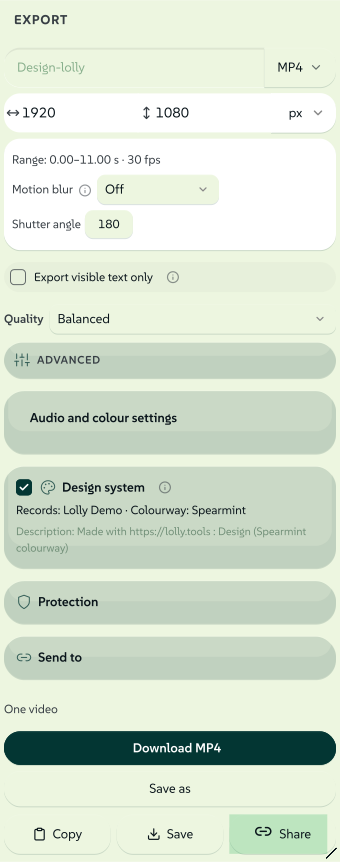
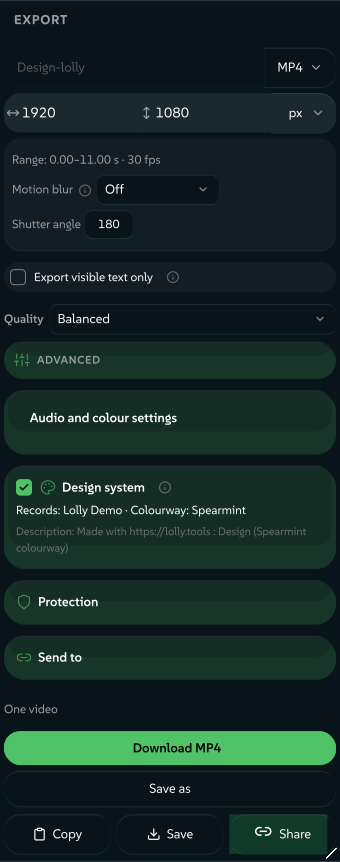
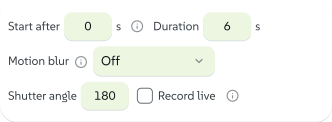
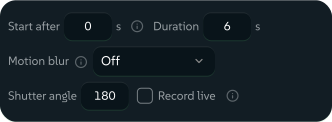
Animated tools export MP4 and WebM. The picker shows only the containers this browser can make, and a shared ?format= link that asks for one it cannot make falls back to the other, with a matching file name. Animated tools also offer Start after, which holds the canvas still for a moment so animations and fonts settle before recording, and Duration, the length of the finished clip. Motion blur (Off, Draft quality, Standard or High, with a Shutter angle) blurs fast movement at the cost of render time. Where the browser supports it, Record live records the on-screen preview in real time through a screen share instead.
 signed by Lollyvector SVG21 paths~1.5k nodes28 groups1 image26 KBCheck it yourselfGet the signed file
 signed by Lollyvector SVG21 paths~1.5k nodes28 groups1 image24 KBCheck it yourselfGet the signed file


Quality chooses Smaller file, Balanced or Best quality. Advanced opens Codec, Frame rate, Rate mode and Hardware acceleration. Where a tool has captions, Captions chooses an Embedded track or a Sidecar .vtt + .srt beside the video. A link carries the quality, codec, frame rate, duration and start delay as vq, codec, fps, seconds and wait (URL parameters).
Video exports keep their sound. A tool can lay a music bed under the clip: an audio asset looped or trimmed to the clip length, with fades, volume and ducking under the footage's own sound. The recording tools carry their live audio through to the file.
A Design deck that stays a click deck can still leave as a video. Export slides as video in the Present menu opens the export sheet on MP4. Each slide plays for its own dwell, or for the export sheet's Duration when it has none, and the deck's slide transition plays between them as a dissolve. The document itself does not change.
Animated images
GIF plays everywhere and suits chat and email; it is larger and has fewer colours than video. APNG and Animated WebP keep full colour and transparency. Lottie Ad also exports Animated SVG: vector frames with embedded CSS keyframes, so it scales to any size and loops in a browser tab or an <img> with no codec. Its text is outlined, and it uses a lower default frame rate because each frame is heavier than a bitmap. All of these are silent.
Audio
Some tools export sound on its own. Voice Recorder captures a microphone take with a live level meter and saves it as MP3, WAV, M4A (AAC) or Opus (WebM), encoded on your device. wav, mp3, m4a and opus are ordinary format ids, so an audio export is as shareable and scriptable as a PNG.
The asset picker accepts a wide range of audio for a music bed, from MP3 and FLAC to MIDI and tracker modules; Formats lists them. A Rondocode song plays at whatever length its clip asks for.
Colour and HDR
Lolly reads every modern CSS colour, does its colour maths perceptually and writes each file in a space a reader can open: sRGB for screens, CMYK for print and Rec.2100 PQ for HDR. Colour in the engine explains how. A Design document set to Wide colour / HDR follows its own rules, described in Wide colour and HDR editing.
Colour profiles
Exports are tagged with a colour profile, so colour-managed apps such as print shops, Photoshop and browsers read the colours as you saw them. This happens automatically; thumbnails and previews skip the tag to stay small.
- PNG and JPG carry an embedded sRGB ICC profile, the space the preview is drawn in. The pixels are tagged, not re-encoded.
- Print PDF (CMYK) declares its press condition in its OutputIntent, telling a print shop how its CMYK inks are meant to be read.
- Print TIFF (CMYK) writes untagged DeviceCMYK pixels and records the press condition in its TIFF metadata. A TIFF cannot embed a press profile, so an Embed row records only that profile's name.
- TIFF (RGB) is the uncompressed sRGB sibling for archive or an editor round trip. It flattens transparency onto white. Both TIFFs are desktop-only, because browsers cannot preview a TIFF.
- SVG, EMF, EPS and DXF are vectors with no embedded profile: SVG's colours are sRGB, EMF and EPS use device RGB, EPS (CMYK) writes DeviceCMYK and DXF uses the AutoCAD Color Index. SVG, EPS and DXF outline text to paths. EMF keeps text live and editable in Office and Google Slides, falling back to outlines only for runs the format cannot express; the export panel's Outline fonts option forces paths everywhere. SVG also reproduces CSS box shadows, inside and out.
PDF/X-4 and your own press profile
No CMYK profile ships with Lolly. A named press condition writes the output intent without claiming PDF/X-4 conformance, because PDF/X-4 wants the profile embedded.
Load a CMYK profile of your own and choose its Embed row in the Colour profile control. It is embedded as the file's DestOutputProfile, and the PDF claims PDF/X-4 whenever the rest of the file allows. The press condition it declares is read off that profile: a registered name where the profile proves one, or Custom under the profile's own name.
Three things withhold the claim while keeping the output intent: RGB artwork the CMYK pass could not convert, the prov proof-margin credit text (drawn in a standard font that is not embedded) and a Strong password, since PDF/X-4 forbids encryption. Every PDF also carries PDF/X-4 metadata: page boxes, XMP, a document ID and an sRGB output intent with its profile.
HDR (bright colours)
This is the export panel's HDR card, which brightens ordinary artwork for HDR screens. Keeping HDR originals through editing is a different feature: Wide colour and HDR editing.
An ordinary export is sRGB: a saturated brand colour is as bright as the screen's normal white. An HDR display has headroom above that. The HDR card boosts your brand colours and white text toward peak brightness, while dark areas stay dark and give the glow its contrast.
 signed by Lollyvector SVG15 paths572 nodes29 groups1 image13 KBCheck it yourselfGet the signed file
 signed by Lollyvector SVG15 paths572 nodes29 groups1 image13 KBCheck it yourselfGet the signed file


- Formats. PNG, JPG, AVIF and TIFF. WebP is 8-bit with no working HDR decode path, and vectors and PDF have no HDR model.
- Off by default, because it changes the pixels. Tick the card, or pass
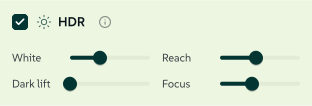
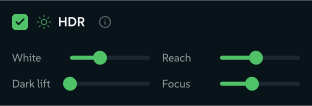
hdr=1in a share link. - The dials. White (the peak-brightness ceiling, 400 to 2000 nits), Reach (how far down the tones the glow spreads), Dark lift (how much the darks brighten;
0keeps them dark) and Focus (how much colour richness the boost keeps). They travel as one value:hdr=1600-60-0-50is White 1600, Reach 60, Dark lift 0 and Focus 50. - What is written. PNG gets 16-bit Rec.2100 PQ with a
cICPchunk. JPG is an ISO 21496-1 gain-map JPEG: an ordinary SDR picture plus an appended gain map. AVIF gets a rewrittencolrbox. TIFF gets PQ pixels with a generated ICC v4 profile carrying acicptag, and flattens onto black, because white is the 10,000-nit code in PQ and would ring every edge with a halo. The boost follows perceptual (OKLab) lightness and keeps hue, so a brand green gets brighter, not minty. - Where the glow shows. Colour-managed viewers on an HDR display: Preview, Quick Look and Safari on Apple devices, or Chrome on an HDR monitor. An SDR screen shows a normal image.
- Before you ship. Many platforms re-encode uploads and strip the HDR signal, which can leave the image dark or washed out. Use HDR where you control the destination, such as your own site, a video wall or a deck on a bright panel.
- From the terminal.
--hdr=1with--export=pngor--export=jpgwrites the same PNG and gain-map JPEG on the CLI, from the same engine encoders, with no browser in the path. AVIF and TIFF stay web exports for now.
What travels with your file
A finished file can carry several records beside the picture. Some ride beside the pixels and disappear when the file is re-saved or stripped; two marks live in the pixels themselves.
Signed with the file
Tamper-evident. Lost when the file is re-saved or stripped.
- Content CredentialsOn
c2pa=off - Source creditsWith the credential
Beside the pixels
Written into the file's metadata fields. Lost when the file is re-saved or stripped.
- Provenance metadataWhere the format has fields
- Design-system recordOn
_madewith=0 - LicenceAll rights reserved
licence=
In the pixels
Drawn into the picture itself. The Imprint and the Durable credential ride in raster images and outlast recompression, as a hint rather than proof.
- Lolly ImprintOn
imprint=0 - Durable credentialOff
durable=1 - Visible watermarkExperimental tools only
Where each record lives, whether it is on by default and which link parameter controls each one.
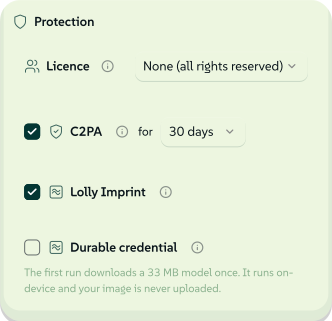
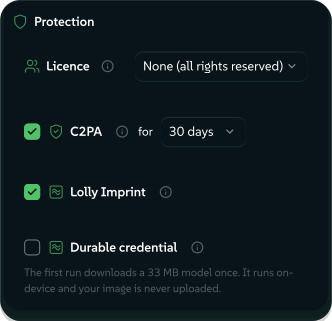
signed by Lollyexporting-what-travels.htmlHTMLpixels, not shapes8 KBAI editedgenerated by Claude Opus 5.5Check it yourselfGet the signed fileThe export panel folds Licence, Source credits, Password protect, C2PA Credentials, the Lolly Imprint and the Durable credential into one Content protection group that shows only the cards the chosen format can use. It opens by itself when a link or document already declares a licence, or when a source needs a decision from you. The Design system card stays outside the group, in view on every export.
 signed by Lollyvector SVG33 paths~3.8k nodes44 groups4 images52 KBCheck it yourselfGet the signed file
 signed by Lollyvector SVG33 paths~3.8k nodes44 groups4 images52 KBCheck it yourselfGet the signed file


Provenance & watermark
Where the format has the fields, exports carry provenance metadata: the software, the source, the tool's name and your profile credit line, written into PNG iTXt, JPEG EXIF, PDF info, SVG <metadata> or a GIF comment. It records authorship only, and nothing is uploaded. Experimental tools also stamp a visible watermark, applied by the host so editing the tool cannot remove the mark.
The Lolly Imprint is an invisible pixel watermark, on by default. The credential and metadata travel beside the pixels and are lost to a re-save, a screenshot or a metadata strip. The Imprint lives in the pixels and outlasts recompression, so a copy can still be recognised as Lolly-made. It is a hint rather than a cryptographic guarantee, and it carries no personal data. It rides in JPEG XL, PNG, JPG, WebP, AVIF, TIFF and BMP, and in the rasters Lolly renders into a PDF or PPTX, never in an image you embedded. Untick Lolly Imprint or pass imprint=0 to leave the Imprint out. AVIF survival through re-encoding is not calibrated yet. Verify detects it on your device; see The Lolly Imprint.
The Durable credential writes Lolly's id into the pixels with an on-device neural model in the TrustMark format, so the "made with Lolly" link outlasts a metadata strip and a re-encode and can be read by TrustMark-aware tools. It is off by default, because it costs a neural pass per export and a one-time model download. It covers PNG, JPG, WebP, AVIF and TIFF; tick it in the panel or pass durable=1. The desktop and mobile apps hide the card, because they have no origin to fetch the model from offline.
Licence. Choose how others may use your work: None (all rights reserved) by default, CC0 1.0, the Public Domain Mark 1.0, or a Creative Commons 4.0 licence (BY, BY-SA, BY-NC, BY-NC-SA, BY-ND, BY-NC-ND). The licence name and a link to its deed go into the file's licence metadata (EXIF, XMP and RIFF where the format has them) and its Content Credential. The choice is saved with the document and travels in a link as licence=. Lolly writes the licence you chose; it does not check or enforce the terms. A tool with its own licence field, such as Claim, keeps that field instead.
The design-system record
An export records the design system that made the file: its name, the published version it was drawn from (when that is not the working version) and the colourway it was drawn in. Any other theme choice a design system declares, such as a density, is recorded the same way. The light or dark choice is left out, because the picture already shows which one was used.
You see the record before anything is written. The Design system card, ticked by default, shows the exact words the file will carry, such as Records: Acme · Colourway: Beach, and the description as it will read. A design system's name is whatever its owners typed, so the card shows it as written. Untick the card to leave the record out of that export. Design's document panel lists the same words under Embedded in exports.
The description gives the colourway beside the tool. With the card ticked, "Made with https://lolly.tools : Chart" becomes "Made with https://lolly.tools : Chart (Beach colourway)". The design system's own name stays in the record, not the description. A description with no tool name, or one a tool writes from its own inputs, is left as it is. A tool that ignores colourways through tokenAxes records none, and the PDF proof credit (the prov print mark) follows the same rule.
Brand skills that guided an agent. When an agent made the piece and named the brand skills it read and followed, the record also lists each skill with its revision, such as Guided by: acme-brand 1.0. The words mean that the skill guided the work. They are not a check: Lolly does not test the piece against a skill. Only the agent's own statement adds the list, which today means the brandSkills argument of the MCP server's lolly_render, so a piece made in the app or from a share link carries none. The Content Credential holds the list as brandSkills, one JSON value with each skill's id, name, revision and SHA-256 hash. The XMP packet and the SVG metadata hold the same value as lolly:BrandSkills, a PDF written from the record gains one keyword per skill and the description stays as it was. An internal skill is recorded by its id, name, revision and hash, never by its text. The same switches leave the list out with the rest of the record: the Design system card, _madewith=0, --no-madewith and madeWith: false. When the MCP server draws the file in a browser (a PDF, a JPEG and the other formats its browser-free path cannot write), the file's own metadata holds no list and only a Content Credential can hold one. Pass c2pa to keep the record; without a credential the render warns that the brand skills were not recorded.
Reading the record back. Verify lists the record as Design system in a file's credential details and any brand skills as Guided by. Recreate with these settings reopens the tool in the recorded version and colourway. The link opens with the recorded design system when this device holds one with the same id and name; otherwise it opens with your active design system.
What is written where, and which runs leave the record out
| Where | What is written |
|---|---|
| Content Credential | designSystem (the id), designSystemLabel, designVersion and themes in the tools.lolly.export assertion, each a plain text value; themes is a JSON list of the choices |
| PNG, JPEG, WebP and JXL | The same four values as lolly: properties of the file's XMP packet, in the namespace https://lolly.tools/ns/export/1.0/ |
| SVG | The same lolly: properties inside the <metadata> block |
| Keywords such as Design system: Acme and Colourway: Beach | |
| Every format with a description field | The description, with the colourway beside the tool |
The card appears only when there is something to record and the format can hold the record. CSV, JSON, a calendar file and other text or data formats hold no metadata, and EPS, EMF, DXF and BMP have no field for the record. HTML, Markdown and CSS hold the record only in their Content Credential, so for them the card shows no description line and hides while C2PA Credentials is off. A field the design system does not give stays out of the file.
A share link turns the record off with _madewith=0 (URL parameters); the command line takes --no-madewith, the MCP server's lolly_render takes madeWith: false, and the terminal app's export panel has a Design system row. The command line prints the words a finished file carries on standard error, for a tool render and for each file lolly run exports from a saved Design session, and an MCP render prints them beside the file, both read back from the file. A PNG the command line draws without a browser carries no file metadata, so its record travels in the credential alone. On-device utilities add no metadata at all.
Runs with no Design system card leave the record out: a Batch run, a folder exported from Projects and a 3D collection export, and in the terminal app a CSV batch, a Projects folder or selection export and the render-everything view. Export one file from the tool to record the design system.
Content Credentials (C2PA)
Exports can carry Content Credentials: a signed C2PA manifest that records what made the file, when and where, bound to a hash of the file's bytes so any later edit is detectable. The specification is published by the C2PA, and Lolly writes standard manifests that any C2PA reader can inspect.
 signed by Lollyvector SVG8 paths348 nodes14 groups2 images10 KBCheck it yourselfGet the signed file
 signed by Lollyvector SVG8 paths348 nodes14 groups2 images10 KBCheck it yourselfGet the signed file


- On by default. The C2PA Credentials card comes pre-selected for nearly every tool. Untick it for one export, or pass
c2pa=offin a link. A tool can opt out in its manifest. - Formats. PDF (RGB and Print), PNG and APNG, JPG, GIF, SVG, TIFF (RGB and Print), WebP (still and animated), AVIF, MP4, WebM, the audio containers MP3, WAV, M4A, OGG/Opus and FLAC, and HTML, Markdown and CSS. A ZIP stamps each supported member, which is how an Animated SVG gets one. MP4, AVIF and M4A use the standard BMFF binding and MP3 its ID3v2 mapping, so
c2patooland other readers verify them. WebM and OGG/Opus have no standard mapping yet, so Lolly carries the manifest as a Matroska attachment and an OpusTags field, which Lolly's own verifier checks. ICO, EPS, EMF, DXF, BMP, PPTX, the Office formats and the other text and data formats have no C2PA container. - What it records. The tool and app that made the file, the signing time, the shell that exported it, the design system and colourway while the Design system card is ticked, and fingerprints of active inputs. Input text, profile-bound fields, inactive controls, browser versions and operating-system details are left out. Your name and email appear as the author only when Use my details to create is on under Settings → Preferences → Your details. Sources an export places travel as ingredients: credited works such as emoji, and Rondocode songs in a video or audio export.
- What recipients see. C2PA tools such as Adobe apps,
c2patooland contentcredentials.org/verify read the manifest and show the claim. Lolly signs with a key made on your device, not a certificate from a trust list, so viewers report an unverified credential: the structure and tamper evidence are real, the signer is not vouched for. To change that, enrol a verified identity under Settings → Preferences → Content Credentials; see Content Credentials Identity. - Checking a file. Drop any file on Verify, or run
lolly validate <file>, for an on-device report that leads with whether Lolly made the file and whether it has changed since. Verify also looks beyond the credential; see What Verify checks. - Privacy. The signing key is made for the export and never leaves your device, and the claim holds only what the provenance metadata already carries. Privacy utilities that transform your own files add no credential, and Strip Hidden Data removes a C2PA manifest like any other metadata. The Rondocode utility makes new audio, so it signs what it writes (Rondocode songs).
- Interactions. A password-protected PDF cannot carry Content Credentials, at either tier. The credential is added last, over the finished bytes, after DPI, EXIF, colour profile, PDF/X metadata and print marks.
Source credits
An export that places someone else's work records that source in the credential. An emoji drawn from the chosen emoji set is the everyday case: the work, its creator, the licence, where the exact bytes came from and what changed all travel with the file. Text in a tool whose template is an SVG keeps the system's own emoji, so nothing is credited there. The Source credits row says what the sources ask of the delivery before you download, and after the download it reads the delivered bytes back before it says the credits are in the file. A licence that asks you to choose, such as a recoloured CC BY-SA glyph you are about to share, gets a card with the options; the download is never blocked. Creative rights and credits has the wording, the reviewed licences and what stays yours.
Password protection
Two kinds of lock, both made on your device. The export panel's Password protect card drives both.
 signed by Lollyvector SVG11 paths~2.8k nodes11 groups1 image35 KBCheck it yourselfGet the signed file
 signed by Lollyvector SVG11 paths~2.8k nodes11 groups1 image35 KBCheck it yourselfGet the signed file


A PDF open-password has two tiers once you type a password:
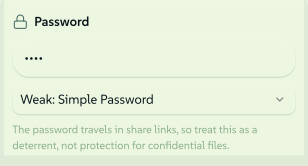
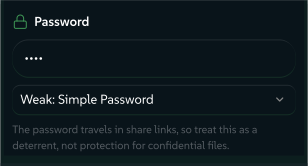
- Weak: 40-bit RC4, a deterrent rather than protection. Its password can travel in a share link, in clear text. RGB
pdfonly. - Strong: AES-256 (PDF 2.0). Typed at export and never put in a link. It also applies to Print PDFs and to each PDF inside a batch ZIP. A Strong-locked Print PDF keeps its CMYK, marks and output intent but drops the PDF/X-4 claim.
A locked ZIP covers a ZIP export, a folder download from Projects or a batch, with one password at two tiers: Weak (ZipCrypto, a deterrent; it can travel in a ?password= link) or Strong (AES-256, typed at export, never in a link). The password protects every member, and any PDF inside is also locked with AES-256 on its own, so it stays locked after the ZIP is unpacked. The prompt appears when the download starts; a blank password means no lock.
A password-gated share link asks the recipient for a password before it opens. The whole link state is encrypted with AES-256 under a key derived from the password (PBKDF2), so only ciphertext travels and decryption happens in the recipient's browser. The server that serves the link never sees the password or the design. Turn it on in the Share dialog. An encrypted link opens only in Lolly, never as an embedded image. See URL Mode.
On a phone
The export controls sit behind the floating Export button, which opens the Export sheet: the same formats, size, copy, download and share, sized for touch.
Format ids for links and the CLI
These are the values for the URL format= parameter and the CLI --export= flag (see URL parameters and CLI). A tool's menu shows only the formats that tool can make, so it is always shorter than this list.
| Kind | Ids |
|---|---|
| Raster | png · jpg/jpeg · webp · avif · jxl · jxl-lossless · tiff (RGB TIFF) · cmyk-tiff (Print TIFF) · bmp · ico |
| Vector | svg · svgz (gzipped SVG) · emf · wmf · eps · eps-cmyk (EPS CMYK) · dxf (cut file) |
| Page and document | pdf · pdf-cmyk (Print PDF) · pptx (PowerPoint) · docx (Word) · odt (OpenDocument Text) · idml (InDesign) · penpot (Penpot design file) · scorm (course package, a ZIP) |
| Motion | gif · apng (Animated PNG) · webp-anim (Animated WebP) · svg-anim (Animated SVG) · webm · mp4 · lottie (dotLottie) · premiere-xml (Premiere XML + media) |
| Audio | wav · mp3 · m4a · aac · opus · ogg · flac |
| Text and data | html · md · txt · json · csv · ics · vcf · srt · vtt · css · scss · gpl (GIMP palette) |
| Bundles and packages | zip · rpm and tar.gz (the render sealed into a Linux package) |
A few ids come from a tool's own export code: ase (Adobe Swatch Exchange, from Palette Lab) and exr and hdr (high-dynamic-range rasters, from Darkroom). Convert Font writes ttf, otf and woff from a font file you supply, so a bare link has nothing for it to render.