
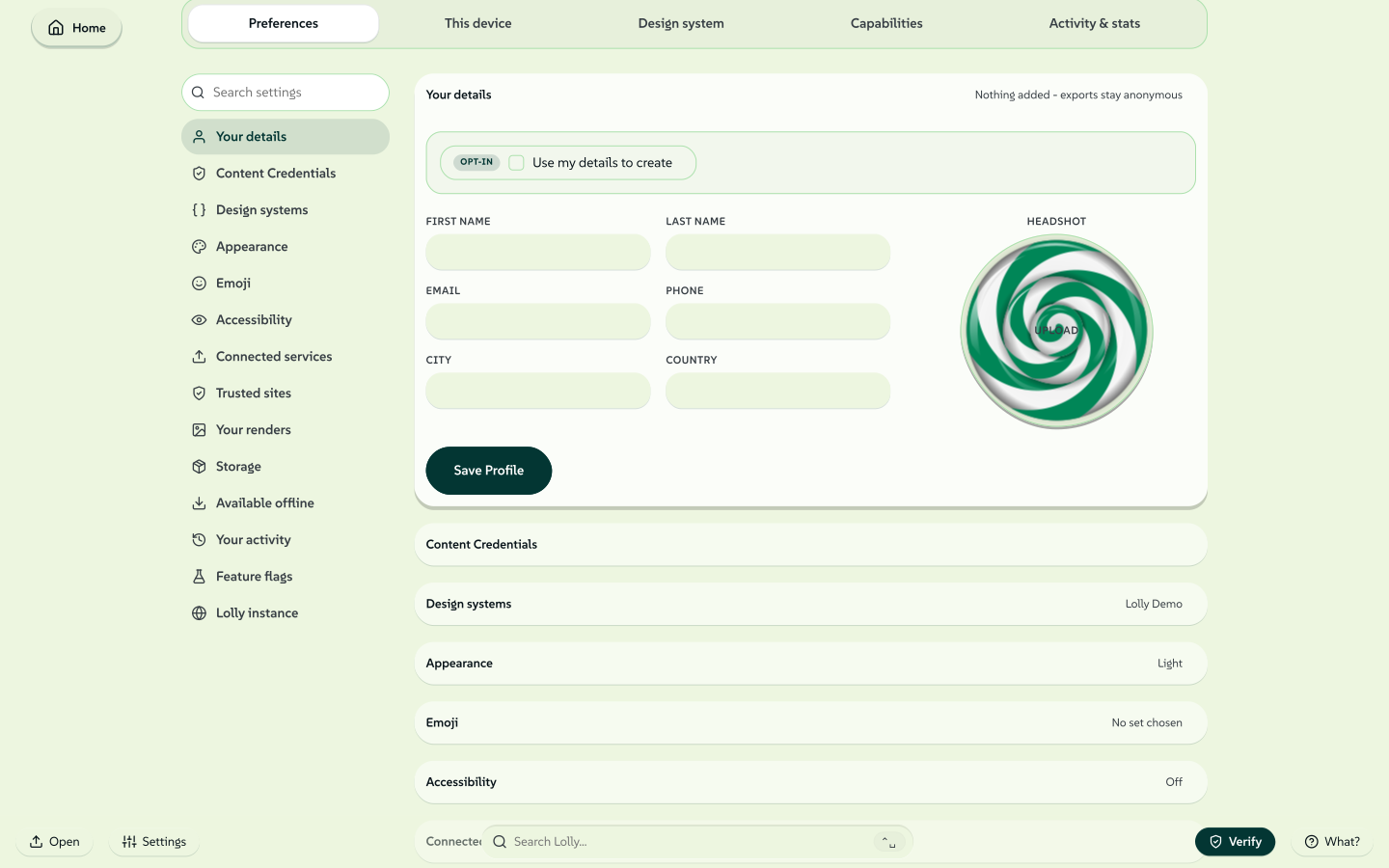
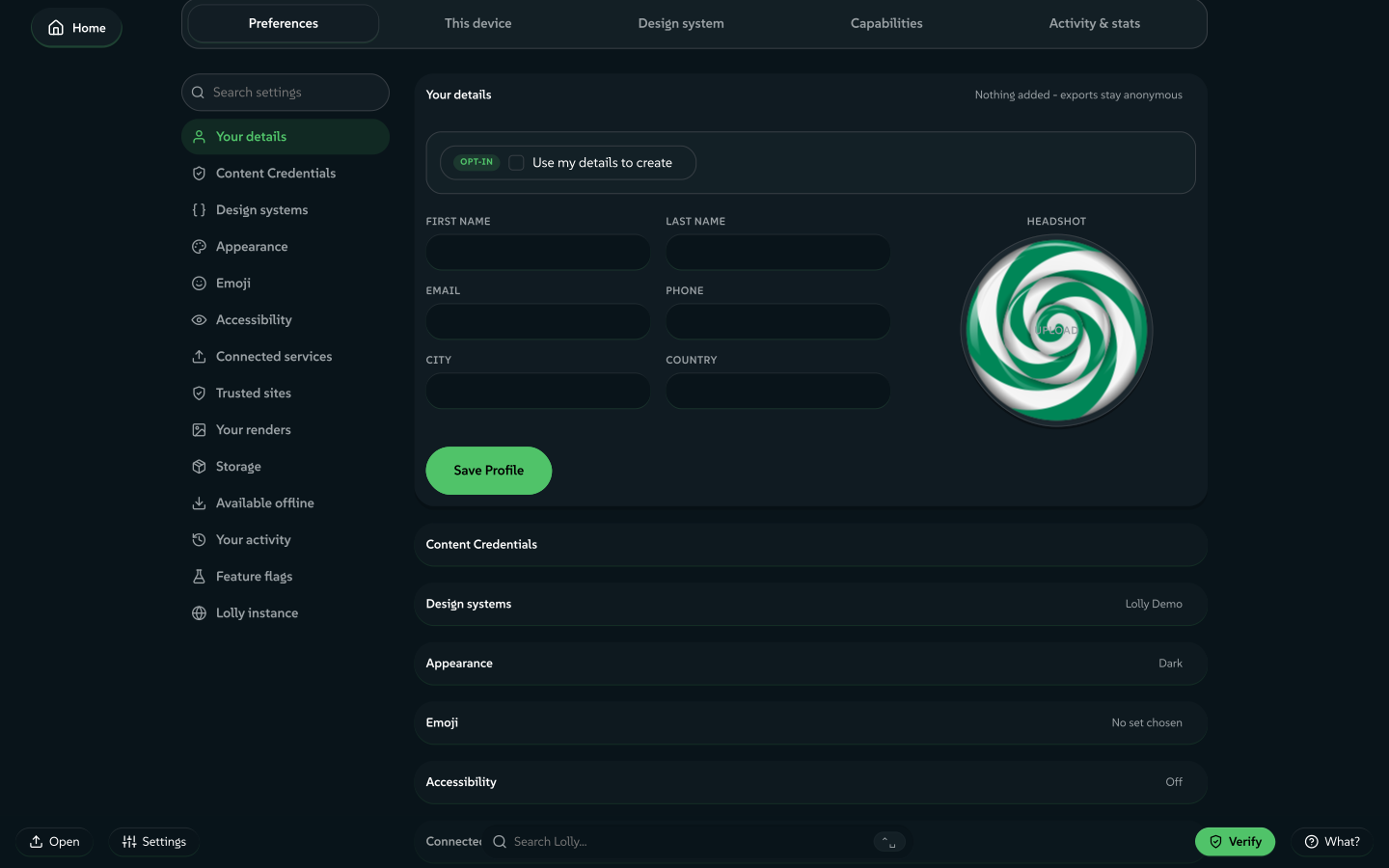
Set your name, contact details and headshot once, and every tool built to use them fills them in for you: an email signature, a badge, a speaker card. That small record is your profile, and it lives on your device.
Your profile also holds what you build up while you work: saved sessions, uploaded images and your local activity tally. You manage it under Settings → Preferences; tools only ever read the fields they were built to pre-fill. Standalone use needs no account, and optional Sync, sharing and organisation services each have their own data flows, described below.
What's in a profile
| Part | What it is |
|---|---|
| Name | First and last name. |
| Contact | Email and phone. |
| Location | City and country. |
| Headshot | An optional photo, cropped to a square and kept as a local image, for tools such as email signatures, quote cards and org charts. |
| Use my details to create | One opt-in switch (it reads Using my details once on). It decides whether your details travel as the author credit in exported files and on Batch runs. It does not affect pre-fill; see How tools use your profile. |
| Preferences | Your theme, your accessibility settings and which parts of the app you turned on in Feature flags. |
| Your work | Saved sessions with their thumbnails, organised in Projects, your uploaded images and your local activity stats. |
None of it is required. A blank profile works; fill in only what saves you typing.
 signed by Lollyvector SVG141 paths~19k nodes253 groups1 image260 KBCheck it yourselfGet the signed file
 signed by Lollyvector SVG141 paths~19k nodes253 groups1 image260 KBCheck it yourselfGet the signed file


Settings maps everything else under Preferences, from appearance and emoji to storage and offline downloads.
You, a team or a role
The word "profile" suggests one fixed person. In Lolly it is closer to a creating context: who you are while you make this thing. It can take three shapes, and Lolly handles each the same way.
As yourself
The default. Your name, your email, your headshot. Set it once and your signature, badge and conference lockup fill themselves in.
As a team
A team's shared name, a group inbox such as events@…, a department and the team's mark. One person sets it up and exports it, and everyone else loads the same profile, so the team's files carry consistent details. A shared kiosk or a demo laptop can run one team profile.
As a role
An event manager three days a year wants the event inbox and the event sub-brand on badges and signage, then their usual identity back. Keep that role as a saved profile file, load it for the event and set it aside afterwards.
 signed by Lollyvector SVG2 paths273 nodes7 groups1 image26 KBCheck it yourselfGet the signed file
 signed by Lollyvector SVG2 paths273 nodes7 groups1 image27 KBCheck it yourselfGet the signed file


Profiles at an organisation using Lolly Work
When you sign in to an organisation's Lolly, Lolly Work can supply verified profile fields from its identity provider and fix fields or preferences under organisation policy. A managed field is labelled in the app.
That sign-in also controls access to shared projects and assets. A team profile file is still a local file: it does not grant organisation membership or replace a work account. Use my details to create controls the credit in your exports, not the organisation's sign-in or audit records. See Privacy.
Keep several, use one
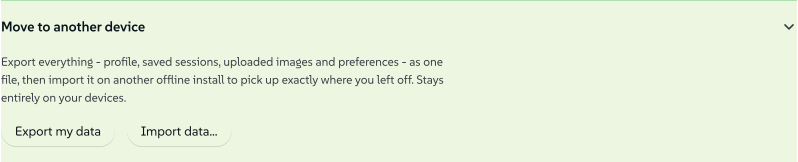
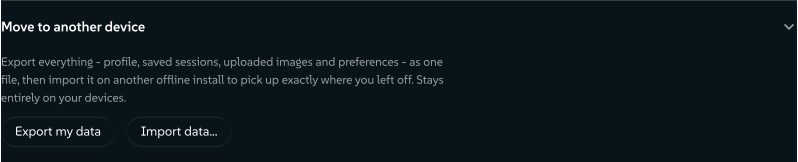
An install has one active profile at a time, and there is no in-app switcher. Instead, each profile is a portable file, the same backup file you would use to move to a new device. To step into another context:
- Export my data under Settings → Storage → Move to another device saves the current profile as one
.zip. - Clear all my data empties this install.
- Import data… loads the profile file for the context you are stepping into.
Importing without clearing first merges instead. Imported sessions and images are added; where both copies exist, the one saved more recently is kept. Folders, favourites and templates are added beside yours, and your own details stay, apart from empty fields, which take the file's values. That suits pulling one team's sessions into your own setup, but not a clean break between roles.
For two contexts at once, use a separate browser profile, a separate user account or a second installed copy of the web app: each carries its own independent Lolly profile.
 signed by Lollyvector SVG9 paths~4.9k nodes11 groups56 KBCheck it yourselfGet the signed file
 signed by Lollyvector SVG9 paths~4.9k nodes11 groups56 KBCheck it yourselfGet the signed file


Keep one file per context and name each for what it is, such as
LollyTools-events-2026.zipandLollyTools-me.zip. The file is the profile.
Move your work to another device covers what the file holds, what stays behind and the other ways to move, including Sync.
How tools use your profile
Pre-fill. A tool author marks an input as drawing from your profile (bindToProfile: "firstname", "email", "headshot" and so on). When the tool opens, that input fills from your profile, and you can override it for one session without changing the profile, unless an organisation policy locks the input. Pre-fill is a local convenience and happens whether or not Use my details is on.
Credit. When you export, your details can travel as the author credit in the file's metadata (PNG, PDF, SVG and more), so a finished file can say who made the work. Use my details to create governs this, and the author on Batch runs. With it off, the export still says it was made with Lolly, and carries no personal author or contact line.
Tool authors: see bindToProfile and host.profile.
 signed by Lollyvector SVG2 paths586 nodes5 groups10 KBCheck it yourselfGet the signed file
 signed by Lollyvector SVG2 paths586 nodes5 groups10 KBCheck it yourselfGet the signed file


Profile, design system and capabilities
Three things sit near each other in Settings and are easy to confuse:
- Profile - you, your team or the role you are in: name, contact, headshot and saved work. Personal, kept on the device and portable as a file.
- Design system - the brand: colours, fonts and settings every tool renders with. Shared and consistent rather than personal; see Design System Setup.
- Capabilities - what the app can do: the features and tools available to you.
A profile changes who a file is from; the design system changes how the file looks; capabilities are what you can make.
The word has three other meanings in Lolly. A content profile is a build setting that chooses which tools and catalogue a deployment ships; the Glossary defines the term. The profile link parameter picks a colour profile for an export, such as a CMYK press condition; see Reserved URL parameters. A verified identity is the optional signing certificate that ties your email to your signed exports, separate from these details, though Use my details to create governs whether either is embedded; see Content Credentials.
 signed by Lollyvector SVG7 paths~2.0k nodes11 groups24 KBCheck it yourselfGet the signed file
 signed by Lollyvector SVG7 paths~2.0k nodes11 groups25 KBCheck it yourselfGet the signed file


Privacy
Your personal profile is stored locally. Your details can travel in a backup or Sync copy, in content you share or export and during optional Content Credentials enrolment. On a Lolly Work instance, sign-in, shared work, telemetry policy and audit records are separate from this local profile. Settings → Preferences → Clear all my data clears this device; it does not erase copies held by your storage provider or organisation. See the Privacy Policy.