
This guide covers the optional organisation service. Configuration, console and API paths refer to your Lolly Work instance. The packaged console keeps its release-matched copy of this guide.
Once Lolly Work is installed, Customer setup at /admin#/setup takes the first owner from a fresh instance to a real owner sign-in and a downloadable, checked sample. It reads the running deployment and walks through the settings that need a restart. Tokens, tool policy, brand sources and approval chains link to their own console screens.
- 1. Deployment. Name the instance, set its public address and choose what it serves.
- 2. Identity and owner. Configure OIDC, map groups to roles and prove a real owner can sign in.
- 3. Provisioning. Optionally connect SCIM and check one account end to end.
- 4. Brand and assets. Point at your pack and connect asset sources.
- 5. Sample output. Render a checked sample and download it with its evidence.
- 6. Finish setup. See what is configured, what is proved and what is left.
The page generates a proposal, never an edit: it does not overwrite a mounted configuration file. After you apply the file and restart, the page compares the generated settings with the running instance. A configured setting is not a tested integration, so discovery, sign-in and sample results are reported separately from configuration.
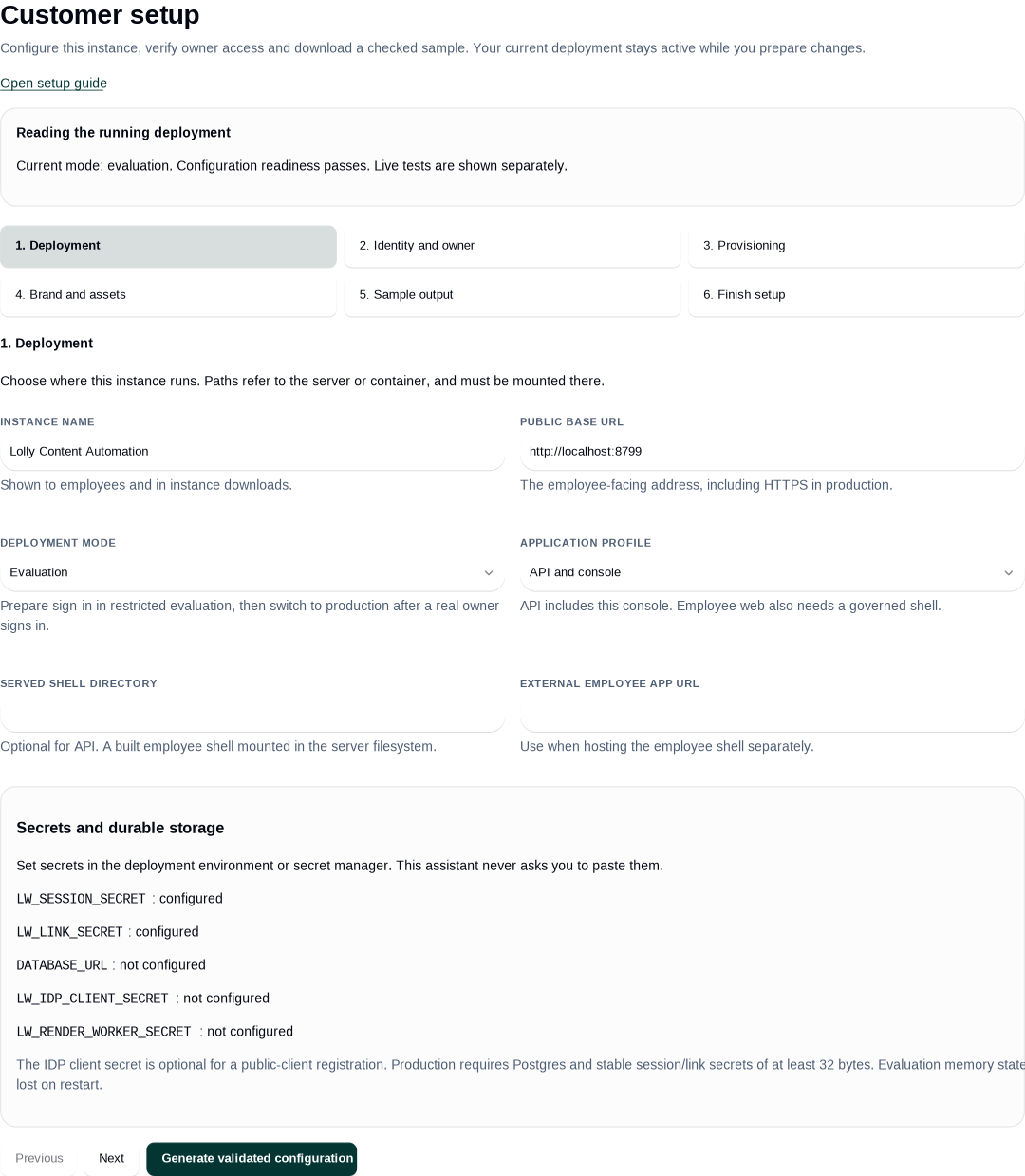 signed by Lolly Demovector SVG15 paths195 nodes65 groups2 images186 KBCheck it yourselfGet the signed file
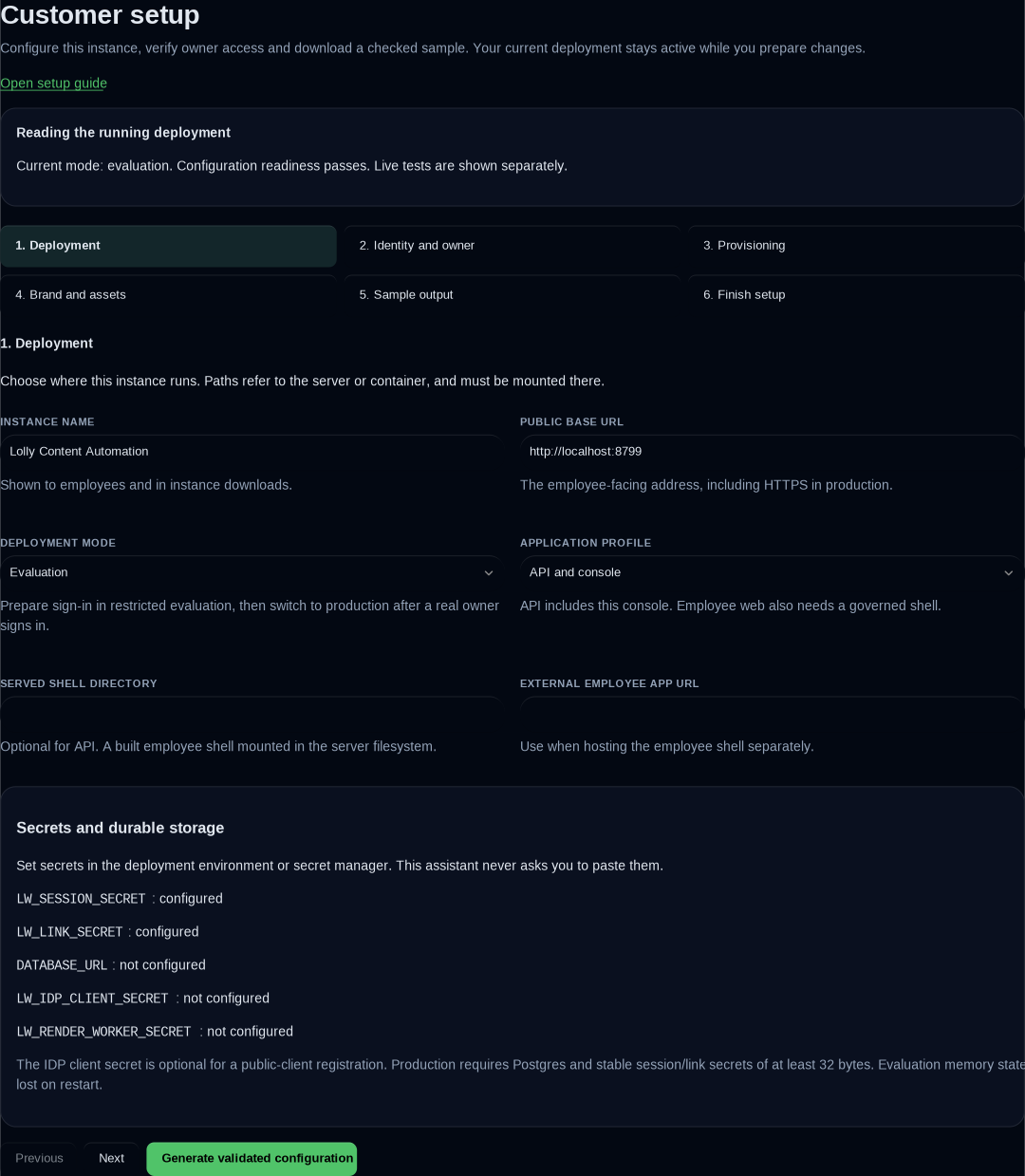 signed by Lolly Demovector SVG15 paths195 nodes65 groups2 images186 KBCheck it yourselfGet the signed file


The screenshots come from a local evaluation instance with example data; copy addresses and settings from your own running app.
Start with a reachable owner
Follow Install Lolly Work for your deployment shape. For the first setup, use restricted evaluation with a development owner, or configure OIDC and the owner mapping before the first production start.
Keep evaluation on a private host or behind an access boundary.
For an evaluation start, these are the settings that matter:
{
  "deployment": { "mode": "evaluation", "application": "api" },
  "instance": { "baseUrl": "http://localhost:8787", "pack": "./packs/demo" },
  "dev": {
    "enabled": true,
    "users": [{ "email": "setup@example.invalid", "groups": ["owner"] }]
  }
}
Merge these into your deployment source, keeping its storage, pack and other settings. Set stable LW_SESSION_SECRET and LW_LINK_SECRET in the environment from the start: a generated evaluation secret changes on restart and ends every session. Use PostgreSQL while you test identity if accounts, audit evidence and output must survive a restart.
Sign in through the development route, open the console and choose Customer setup. The page needs instance.config, normally an owner action. Production refuses development sign-in and memory storage by design, so do this stage before the production cutover.
1. Deployment
Set the instance name and public address. That address drives cookies and the OIDC callback, so use the one employees will actually visit. Production requires HTTPS without credentials, query parameters or a fragment in the address.
Choose API and console if you do not host the employee web app. Otherwise choose Employee web app and set a mounted, built web app folder or an outside web app address. The page cannot prove an exact client match: use a matching client release and test its governed path separately.
The environment panel shows whether required settings are present. Put secrets in your deployment environment or secret manager; the generated file has no secret fields and no secret values. Production needs durable PostgreSQL, current migrations and stable session and link secrets of at least 32 bytes. A worker address also needs LW_RENDER_WORKER_SECRET on both the application and the worker.
2. Identity and owner
Select OIDC, then enter the provider's issuer, the registered client ID, the sign-in button's name and the groups claim. More issuers, custom profile claims and proxy headers are in the identity reference; the assistant keeps those advanced settings.
Map your groups to roles, with one exact group name per line: a comma is part of the name. The role order is owner, admin, brand-manager, approver, author, member and viewer; the highest matching role wins. Accounts that match nothing stay members. An empty role mapping turns off that role's literal legacy group; roles left out of a hand-written configuration keep the documented legacy defaults. brand-manager has no legacy group, so only the groups you enter for it hold it (roles).
Local groups and provider groups share the mapping. Additional issuers keep subjects apart, but not group names, so use distinct provider group names if two issuers should carry different authority. Explicit deny grants still override a mapped role.
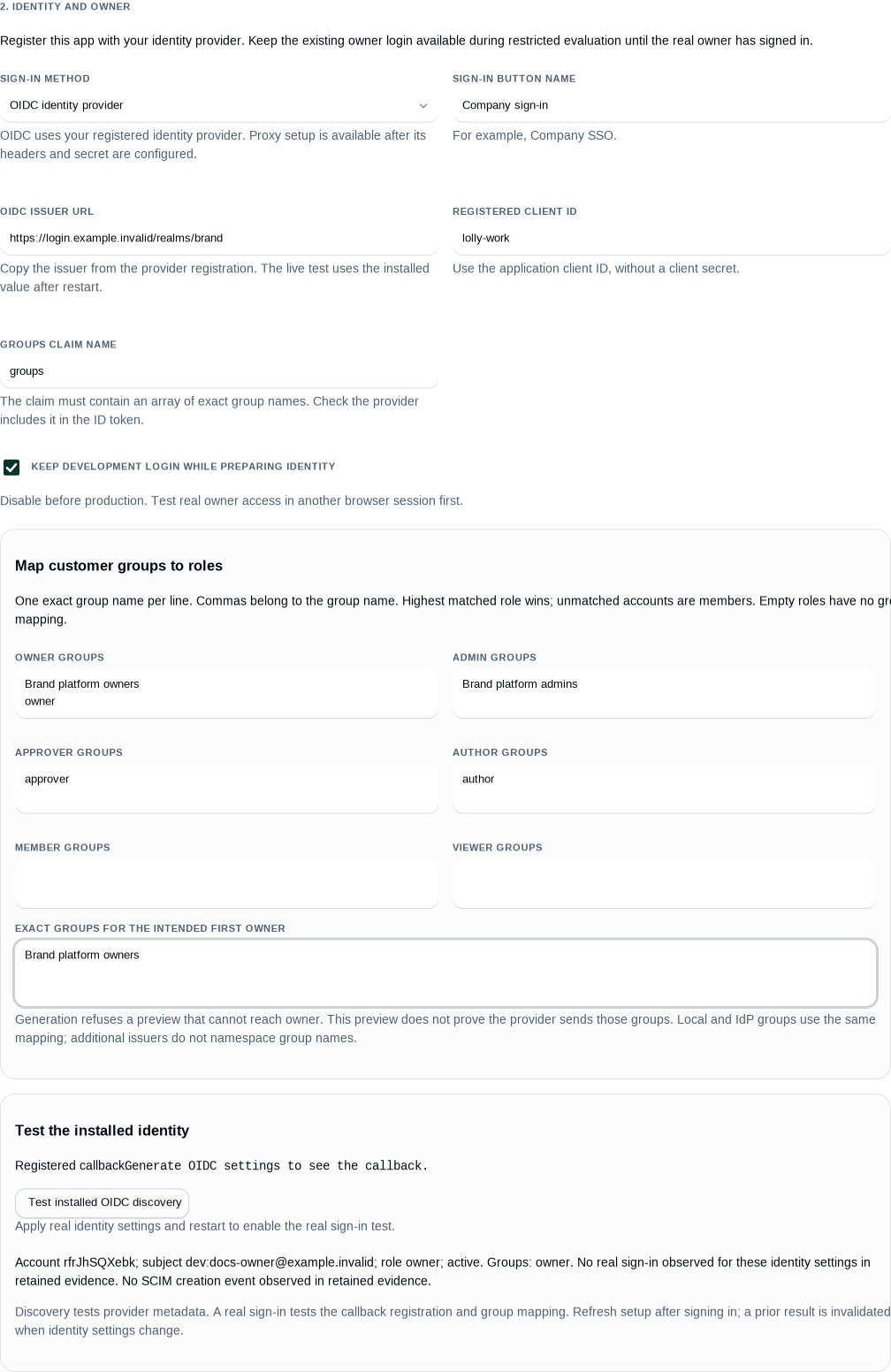 signed by Lolly Demovector SVG14 paths172 nodes79 groups1 image186 KBCheck it yourselfGet the signed file
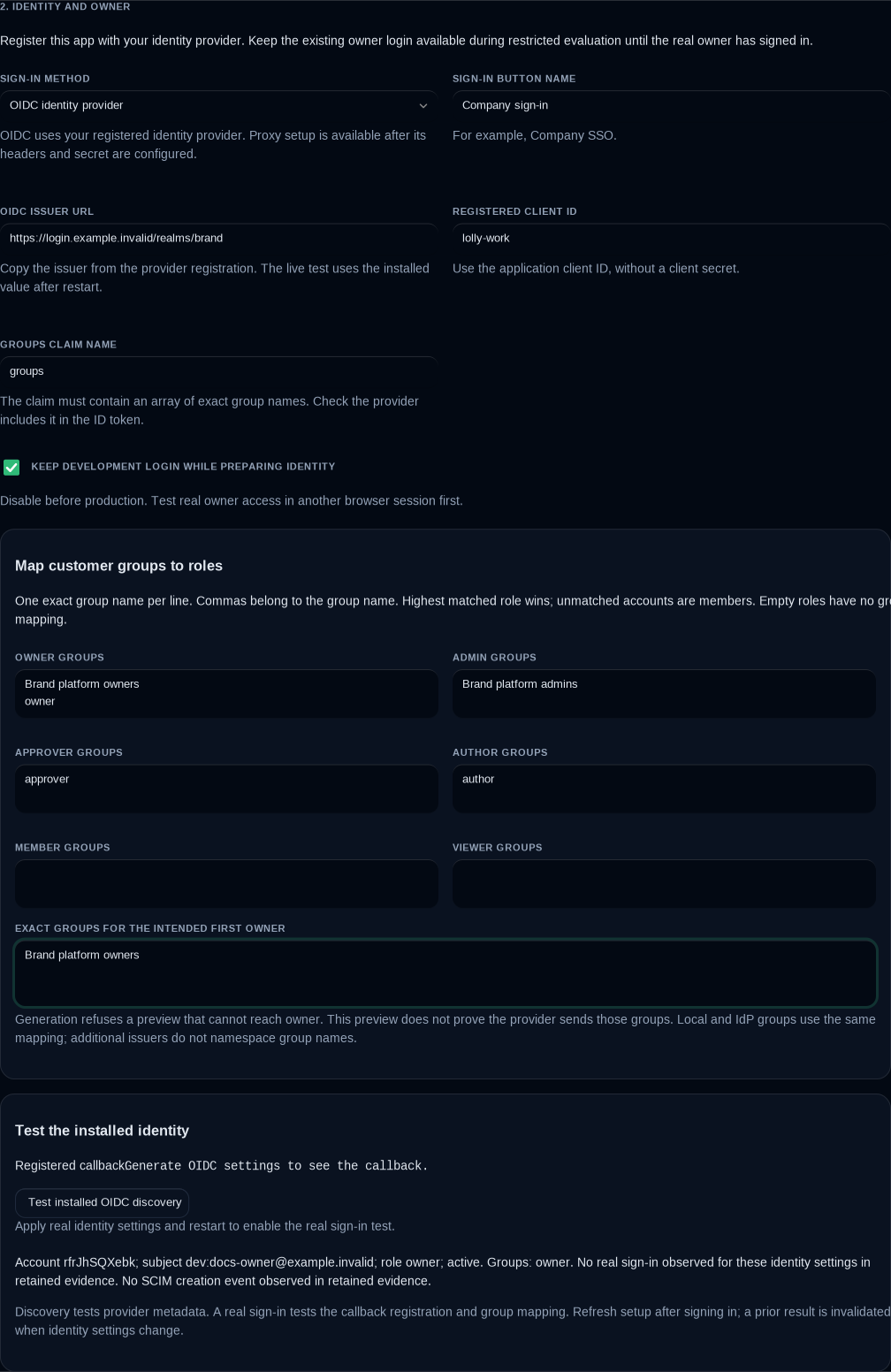 signed by Lolly Demovector SVG14 paths172 nodes79 groups1 image186 KBCheck it yourselfGet the signed file


This example prepares OIDC settings while keeping development sign-in and its starting owner group. The installed sign-in evidence below the form stays separate from the draft.
Enter the exact groups the first real owner will have. Generation refuses a preview that produces no owner or assigns a group twice. It also refuses one that removes every existing development owner while development sign-in stays on. A preview tests the strings you typed; it cannot prove the provider will send them.
Keep development sign-in during restricted evaluation. Generate and apply the OIDC settings and role mapping, restart, then register the exact callback the page shows:
https://your-work-host/api/auth/callbackRun Test installed OIDC discovery. It reads only the installed issuer, gives up after ten seconds and limits the response size. A pass proves the discovery endpoints match, not that registration or sign-in works. No raw provider error, token or secret is kept, and the audited result goes stale when identity settings change.
Use Sign in with installed identity in a separate browser session, and confirm the page reports a real sign-in with the owner role and the expected groups. The callback verifies the ID token, and the page shows the resulting account rather than raw claims or tokens. Generate the production cutover from that real owner session. While development sign-in is on, the preview refuses to remove it until this sign-in has been seen for the same installed identity settings.
3. Provisioning
SCIM is optional for the first sample. To check it end to end:
- Open Provisioning and service tokens, create a SCIM token and store it in the directory connector before you dismiss its one-time display.
- Use the provisioning address the page shows, ending in
/scim/v2. - Set the test account's
externalIdto its exact primary OIDCsub. For an additional issuer, use<issuer-id>:<sub>; proxy subjects useproxy:<user>. - Provision the account, then sign in as that person.
- In setup, enter the exact subject and choose Find provisioned account. Confirm one account ID with both SCIM creation and real sign-in evidence, its role and its groups.
- Change groups through SCIM and confirm the role and permissions change. Disable the account and check its current session loses access.
Email is never used to merge identities. If lookup finds no account, compare externalId with the provider's verified subject. Audit retention can remove old events, so a missing event does not prove the action never happened. Group changes apply on signed-in requests, and a SCIM disable also ends existing sessions.
Service tokens take scopes or a role, expire after 90 days by default, show their last use and can be revoked. Service tokens describes the credential contract.
4. Brand and assets
Set the pack path as it appears inside the running server or container, and mount or deploy the files there. Use an extracted tools/ and catalog/ tree or a supported profile source, then apply and restart before you inspect the new path. The pack carries the design system people work with; choosing and retiring design systems for the whole deployment is in design-system administration.
The installed pack card uses the installed engine to load manifests and required files without running hooks. It lists compatible tools apart from the server formats this deployment can make, and gives concrete messages for missing files, incompatible engine requirements and missing worker support.
Use Manage brand sources for reviewed source changes and Configure asset providers for outside originals.
- WebDAV and Nextcloud have a guided connection: set the folder and groups, test a paged listing and an original, then save the source disabled and enable it after a full sync.
- Google Drive adds typed folder settings and browser consent, then tests the saved source before activation. Its guide covers web-client registration, the exact redirect address, the consent audience and testing-token expiry.
- Other providers keep their advanced forms and documented consent flows. Typed forms for them, trusted central pack publication and exact release handshakes are not built yet.
Pack inspection does not test remote credentials or originals.
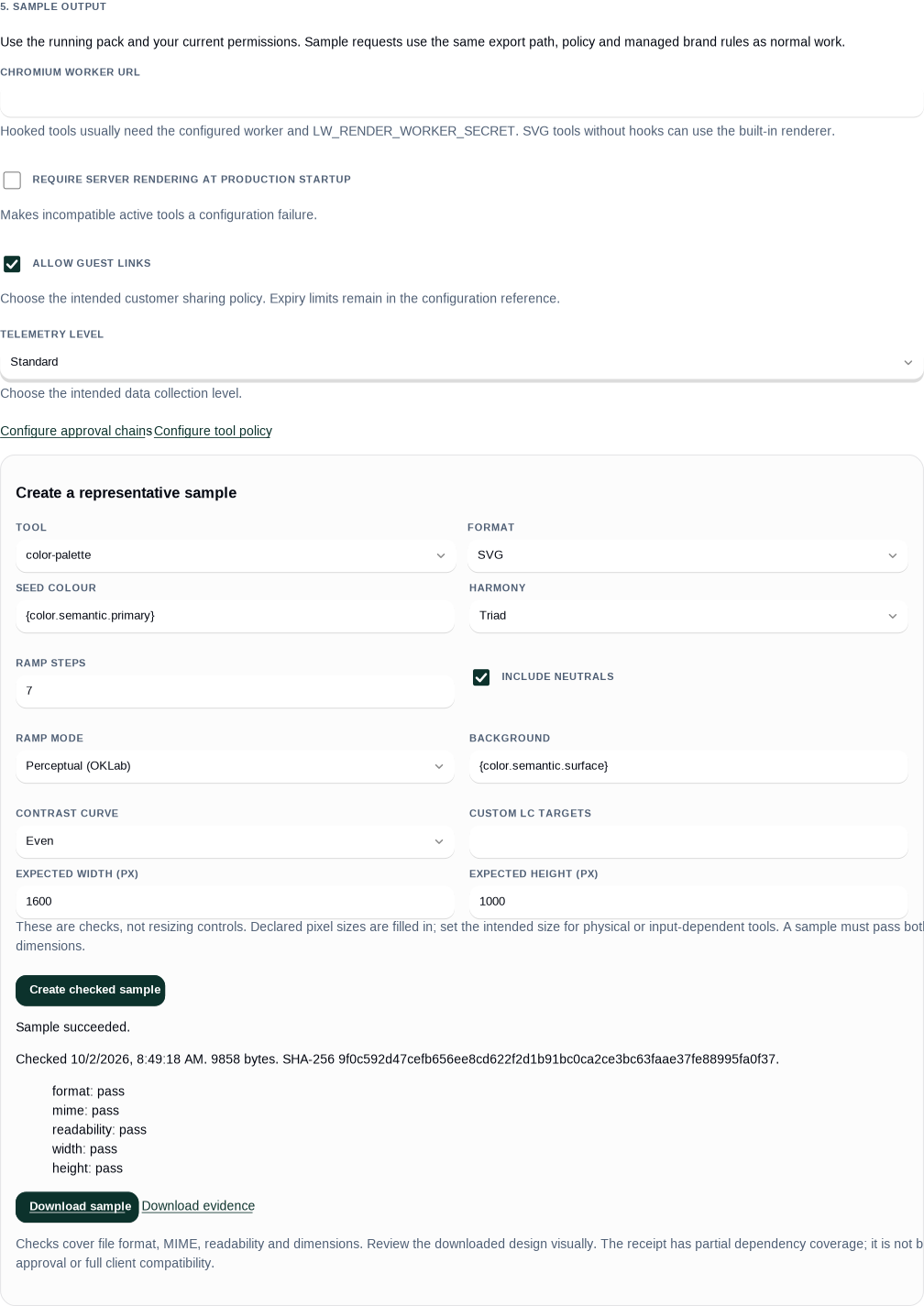
5. Sample output
Configure a Chromium worker for tools with hooks. The built-in renderer handles suitable SVG tools without one. Evaluation can explicitly allow hooks in process for a curated pack; generated production settings turn that off, so set up the isolated worker before production.
Choose the guest-link and telemetry settings you want, and set up tool policy and an approval chain through their linked screens when you need them. Stored overlay defaults are not applied the same way across clients and the server yet; use a manifest default or a governed locked preset as governance describes.
Choose an inspected tool with a governed SVG, PNG or JPG format. Simple inputs start from the engine's initial values, the current overlay limits and the managed brand choices for that format. Only edited values are sent; locked values are left to the renderer, and complex inputs use tool defaults and can be edited in the employee app. The server checks tool access, export permission, managed rules and input validity again when it runs.
Confirm Expected width (px) and Expected height (px). Declared pixel sizes are filled in; enter the intended size for physical or input-dependent tools. These fields check the output and do not resize it, and a completed guided sample needs both.
Choose Create checked sample. It submits an ordinary durable render with output-v1 verification. A successful output brings format, MIME type, readability and dimension checks, a SHA-256 receipt, Download sample and Download evidence. A failed render stays a failure, with its remedy. PDF is left out of this checked sample, because its current inspection cannot prove full readability.
Download and look at the design yourself. The checks do not prove visual brand approval, complete dependency attestation, every employee-client path or every worker format. A successful worker sample proves that request through the current renderer; the exact-release worker canary stays marked not tested.
 signed by Lolly Demovector SVG17 paths201 nodes91 groups6 images192 KBCheck it yourselfGet the signed file
 signed by Lolly Demovector SVG17 paths201 nodes91 groups6 images192 KBCheck it yourselfGet the signed file


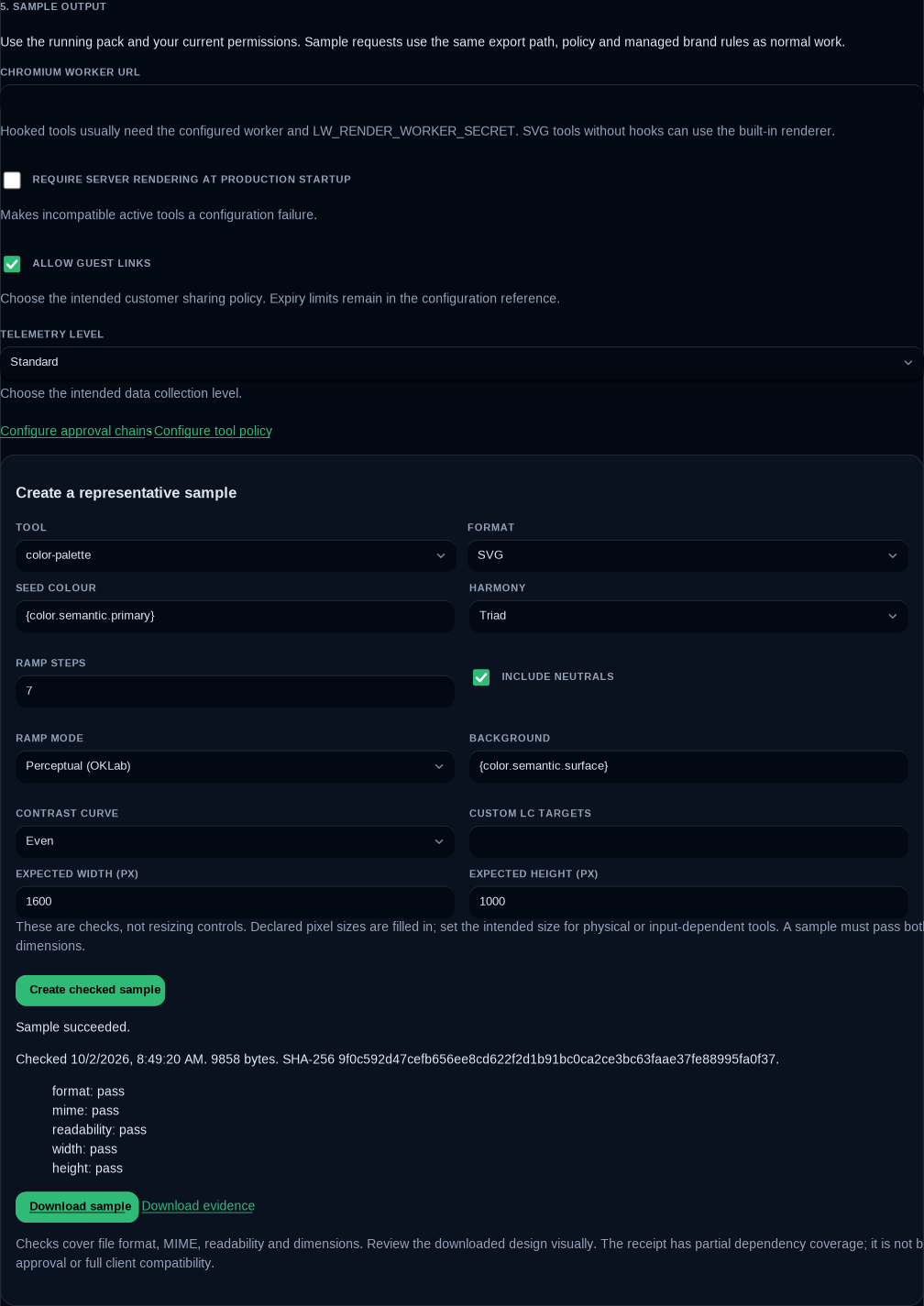
The example uses the bundled colour-palette tool and the real local renderer.
The page resumes at the last step and sample request in this browser. It stores only the step, configuration and context hashes and a render ID, never draft settings, addresses or tokens, and rereads results from the server. A changed deployment, inspected pack or governance needs a fresh sample, and so does a change of account. Polling stops after two minutes; refresh to pick up a long render.
Apply
Choose Generate validated configuration after editing. Review the patch and the exact callback, then download lolly-setup.json for an instance-file deployment or lolly-setup.helm.json for Helm. The files hold non-secret configuration; handle them as deployment files.
An instance JSON file. Run from the Lolly Work checkout:
pnpm setup:apply ./instance.json ./lolly-setup.json
pnpm setup:apply ./instance.json ./lolly-setup.json --write
The first command validates without changing anything. The second validates again, keeps unrelated settings, makes a restricted backup and replaces the source file in one step. Edit the source file before you deploy its read-only mounted copy. If the source changes during validation, or the expected-settings hash is stale or altered, the update refuses; generate the proposal again.
Helm with config inline. When config is an inline YAML object in your values file, add the overlay after your existing values so their secret and storage settings stay:
helm upgrade --install lw ./deploy/helm \
  -f ./customer-values.yaml -f ./lolly-setup.helm.json
JSON is valid YAML for Helm. Supply the intended application and worker images and secrets through the existing chart settings: the assistant does not choose or publish releases. Apply the chart to your environment and wait for the rollout. For an instance file, deploy the updated source and restart the application.
Helm with config as a string. If you pass config as a raw JSON string or with --set-file config=..., an object overlay would replace that string and lose the other settings. Download the setup file instead, apply it to your source instance.json with the two commands above, then supply the complete updated source:
helm upgrade --install lw ./deploy/helm \
-f ./customer-values.yaml --set-file config=./instance.jsonRefresh Customer setup. Generated settings are applied means the running editable settings match the generated configuration, not that every integration test passes. Run the identity and sample checks again after relevant changes.
If the browser holds a draft you have not exported, leaving the page asks whether to keep or discard the draft.
The production cutover. Use the real owner session, choose production and turn off development sign-in. Generate, apply and restart with PostgreSQL and stable secrets in place. Run pnpm check:setup against the deployed configuration and check /readyz. Keep the backup until the new deployment passes, and restore the source backup and redeploy if needed.
Moving from memory to PostgreSQL does not bring evaluation data across.
6. Finish setup
The final page shows four things separately: configuration readiness for the declared mode, an observed real owner sign-in, installed discovery and the checked sample. It lists the checks still to do and sends you to the step for each.
The guided milestone is complete when the applied deployment is configured, a real mapped owner can use it and a representative sample passes its file checks and downloads. Full acceptance also needs your provider's originals, the matching employee apps and any features you require. Approval-bound ordinary exports, central publication, high availability and unattended delivery recovery are not part of this milestone.
Troubleshooting
| Symptom | Action |
|---|---|
| Generated settings remain pending | Deploy the updated source, restart the right instance, then refresh. Compare pack paths and the public address with the generated patch. |
| No owner preview | Enter exact group names, including the intended owner's groups. Keep the starting owner group mapped while development sign-in stays on. |
| Cutover refuses | Apply identity and mapping in restricted evaluation first. Complete a real owner sign-in for those installed settings, then generate from that session. |
| Discovery fails | Check the installed issuer, the server's network access and the HTTPS endpoints. Discovery does not accept a draft address or follow redirects. |
| Sign-in returns to an error | Compare the registered callback with the exact generated address. Confirm the client ID, groups claim and the ID token's group array. |
| SCIM and sign-in show different accounts | Correct the exact externalId and subject contract. Do not merge by email. |
| No available sample format | Fix pack compatibility, worker credentials or tool format policy, then refresh after deploying. SVG without hooks can use the built-in renderer. |
| Provider consent or credential setup is unavailable | Set a stable LW_CREDENTIAL_SECRET, restart and sign in as an owner. For Google Drive, use HTTPS and register the callback shown in its guided form. |
| Google connection returns without an offline credential | Check the registered web client, consent audience, Drive read-only permission and folder access, then reconnect from the saved disabled source. See the Google Drive guide. |
| Sample cannot be queued | Use the long-running server; hosts that only run functions cannot own durable background renders. |
| Sample fails or output cannot be downloaded | Read its error, confirm current access and check worker and asset availability. Kept output downloads check permissions and integrity again. |
| A previous sample no longer appears | Configuration, pack, governance or account changed; create a new sample. Retention may also have removed its bytes. |
| Database or schema fails | Restore the database connection and run migrations. Liveness is separate from readiness. |