
Everything you make in Lolly stays in the browser or app you made it in, on that device, unless you turn on Sync. Saved work is in Projects. A downloaded file is wherever your browser or system put it, and a copy usually waits in Assets. In nine tools, work you never saved is kept as well. This page covers each of these, plus a closed tab, cleared browser data, earlier versions, deleted items and moving to another device.
| What you did | Where to look |
|---|---|
| Pressed Save as or Save | Projects |
| Pressed Download | Your browser's downloads, and a copy in Assets |
| Neither, in one of the nine tools that save as you work | Projects and History |
| Neither, in any other tool | Only the tab you worked in, until you close the tab |
| Moved it to Trash | The Trash tile in Projects, for 30 days |
Find something you saved
- Press Home at the top left of the tool.
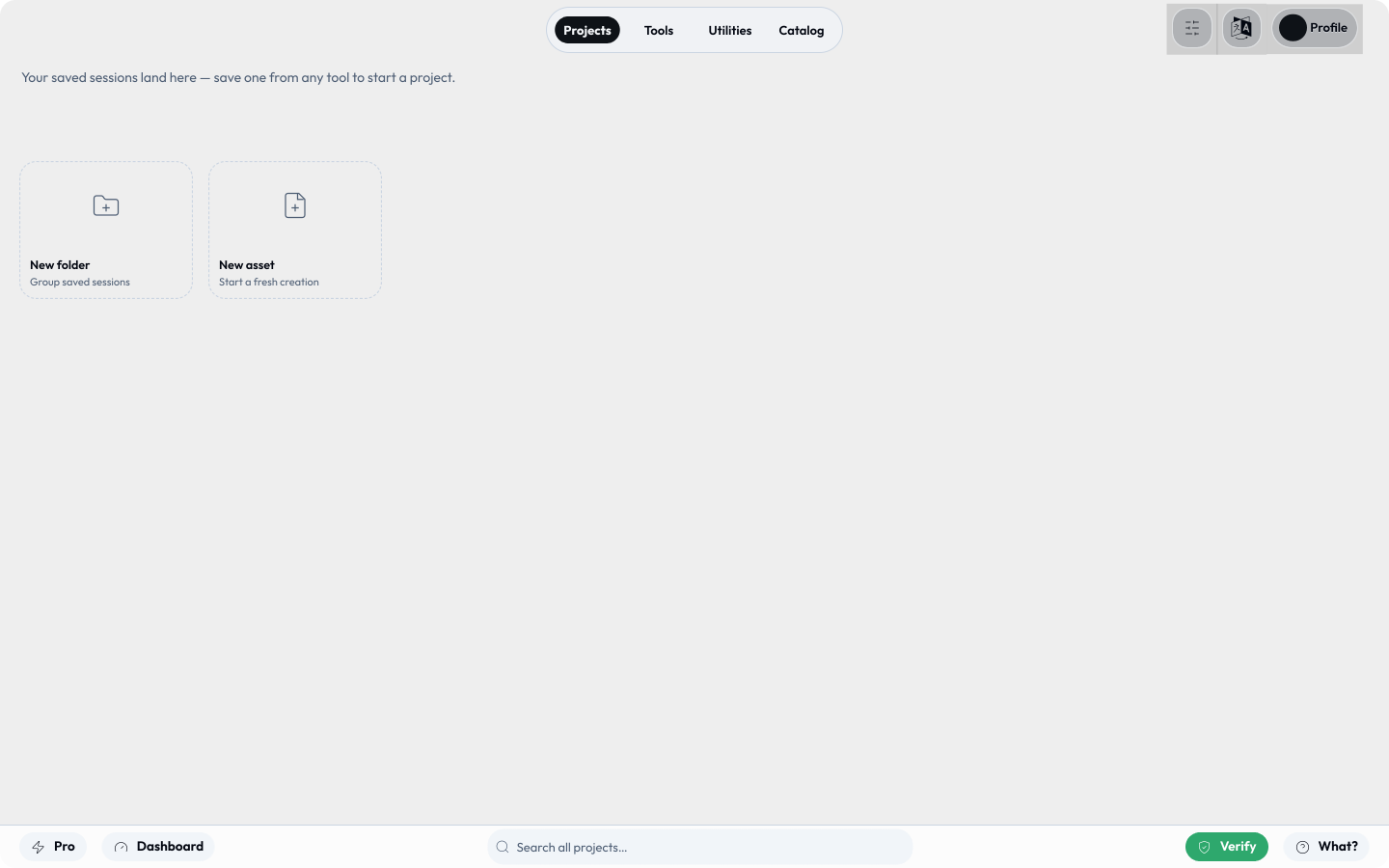
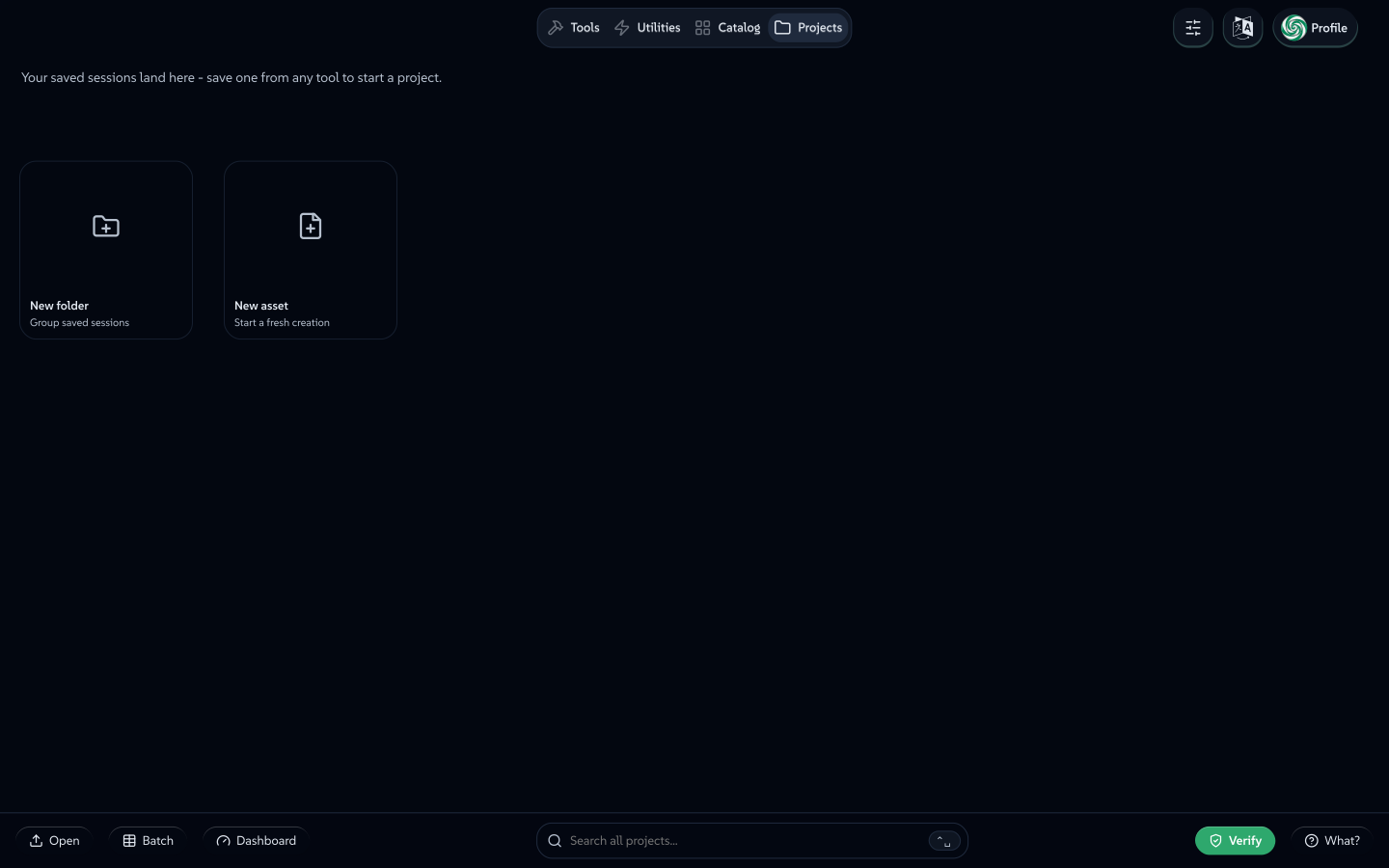
- Open the Projects tab at the top of the home screen (the folder icon on a phone).
- Look on the first screen. Work saved to My library is there, and each project is a folder. To search every folder at once, type in Search all projects… at the foot of the screen.
An item is named after the file name you typed in the export panel, or after its tool, such as QR Code, if you typed none. Open the item and every setting is back, ready to change and export again. To keep new work this way, see Saving and continuing.
- It may be in Trash: see Get back something you deleted.
- Another browser, a private window or another device starts empty, unless you use Sync or move your work.
- If you only pressed Download, see Find a file you downloaded.
Working with Projects
You can also open Projects from Settings → Storage → Saved sessions → Organise in Projects. It works like a file manager:
 signed by Lollyvector SVGCheck it yourselfGet the signed file95 paths~8.0k nodes121 groups196 KB
 signed by Lollyvector SVGCheck it yourselfGet the signed file95 paths~8.0k nodes121 groups196 KB


- Folders that nest. Group saved sessions into folders, and folders inside folders, as deep as you like. Create a folder, rename it or drag a tile onto another folder to move it; a breadcrumb walks you back up. Sessions saved without a folder appear directly at the Projects root.
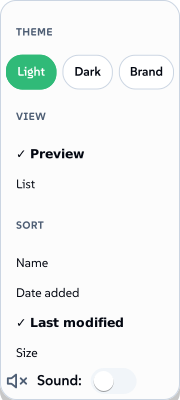
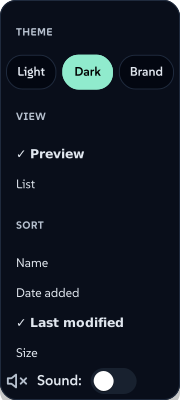
- Sort your own way. View options, the sliders button at the top right, offers Grid or List and sorts by Name, Date added, Last modified (the default), Size and, inside a folder, By tool. Folders always come first regardless of which sort is active - the sort only orders the sessions and folders within their own group.
- File new work straight in. New asset opens the shared picker. Choose Templates to start from a saved template: open it to edit, or use + Add to save a new creation immediately.
- Multi-select (desktop). Tick a tile's checkbox, drag a selection box across empty space or Shift/Cmd-click; right-click a tile for its context menu. The selection bar then offers Render selection, Move to…, New folder, Delete (which moves to Trash), Edit together for two to eight single-tool sessions, side by side under one sidebar, and Edit as sheet, which opens a selection of any size or mix as rows in the batch grid.
- Render a whole folder or selection. Render folder exports every saved session in a folder - including its sub-folders - as one nested
.zip. Render selection does the same for any multi-selection, and a single session renders straight to its own file. No Batch/Pro needed. - Jump straight to a tool's saved work. Tick one or more tools on the Tools gallery and choose View sessions from the selection bar - Projects opens showing only the sessions made with those tools, with a Clear to get back to the full view.
- Share a saved session. Right-click a session (on a phone, press the ••• on its tile) → Share link to copy a link that reopens it with the same settings; pictures from your device do not travel with a link (the full Share dialog: see Sharing your work).
- Rename or copy one. Right-click a session (on a phone, press the ••• on its tile) for Rename, Duplicate (a copy in the same folder) and Move to….
 signed by Lollyvector SVGCheck it yourselfGet the signed file11 paths~1.3k nodes22 groups19 KB
 signed by Lollyvector SVGCheck it yourselfGet the signed file11 paths~1.3k nodes22 groups19 KB


If you closed the tab or left the tool
What comes back depends on how you left and which tool you used:
- You closed the tab, or came back another time. Unsaved work is gone, except in the nine tools, which save your edits as you work: open them from Projects.
- You reloaded the page in the same tab. Your settings come back from the page address. In tools other than the nine, pictures and files you added from your device, and single-line text longer than 150 characters, do not come back, because the address does not hold them.
- You pressed Home, or the back button at the top left. If you changed something since you last saved, downloaded or copied, an Unsaved changes dialog asks whether to save first. Save & leave saves the work and takes you to Projects, or back to the project folder you opened the work from. Leave without saving leaves; in the nine tools your edits are already saved and stay in Projects. Cancel keeps you in the tool.
Lolly asks only when you press Home or the back button in a tool. Closing the tab, reloading and your browser's own Back button never ask. To be sure, press Save as, or Save in the export panel, before you leave a tool.
In tools other than the nine, press your browser's Back button straight away. The settings from the page address come back, though pictures you added from your device do not. Then press Save as and Save before you do anything else: this time Lolly does not ask before you leave.
The nine tools that save as you work
Design, Chart, QR Code, Gradient, Snippet, Flow Chart, Pricing, Wordmark and Text. The list grows as more tools gain automatic saving.
In these tools, your first change files the work in Projects as if you had saved, and later changes are kept within a few seconds. So an unsaved creation is still in Projects after you close the tab, and Leave without saving does not discard your edits. Opening the tool again from the home screen starts a new creation; open the earlier one from Projects.
This works in the web app only, not in the desktop or mobile apps, and not while you work live with someone else.
Find a file you downloaded
In a browser, Download hands the file to your browser, which saves it in its downloads folder (usually Downloads) or asks you where. Lolly is not told where the file went, so look in your browser's list of downloads.
If no file appeared, look in the export panel while you are still in the tool. Under Download, a line gives the file name and the time, with Retry download, and in Chrome, Edge and other Chromium browsers Save file… to choose a folder yourself. The line and its file last until you leave the tool, reload or export again.
Lolly also keeps two things after each download:
- A copy of the file, in Assets under Your uploads, while Save my renders to my library is on under Settings → Your renders (Settings is at the foot of the home screen). The setting starts on. A video, or a file over 50 MB, asks first, and a zip is not copied.
- The settings you used, for your last 24 downloads. Recent exports, below your saved work in Projects, reopens the tool with those settings so you can make the file again, though pictures and files you added from your device are not included. The same list is under Settings → Activity & stats → Latest exports and on the Changes tab of History. This list keeps settings, not the files.
In the desktop and mobile apps
- Desktop app: Download saves straight into a Lolly folder inside your Downloads folder, without a dialog. A message confirms the save and offers Reveal to show the file. Open Exports Folder, in the Window or Exports menu, opens the folder at any time. A file with the same name as an earlier one is saved as "name (1)".
- iPhone and iPad: the file is saved in the Files app, under Lolly, and the share sheet opens so you can send it on.
- Android: the share menu opens so you can choose where the file goes.
On iPhone, iPad and Android, a new file replaces an earlier one with the same name.
Go back to an earlier version
- During this visit: Undo steps back through your last 100 changes, until you leave the tool or reload. See Undo and redo.
- In the nine tools that save as you work: earlier versions of each creation are kept. Follow the steps below.
- Everything on the device: with Sync on, Restore an earlier copy, under Settings → Connected services, brings back one of the last seven daily copies, or the copy from before your last apply. Everything on this device then matches that copy, not just one design.
To open an earlier version in one of the nine tools:
- Press History, the clock button beside Undo and Redo. In Design, History is in the top bar; on a phone, press ••• and then History.
- Find the version by its date and time. Automatic checkpoint rows are taken as you work; Saved version rows are the times you saved.
- Press Open as a copy. The version opens as a new creation, and the one you had open stays as it was. The copy is in Projects, with "(copy)" after its name.
To keep a version by name, press Name version, type a name and press Keep milestone. Named versions are listed on the History page, under Milestones.
The History panel and the History page
The History panel also lists Recovered work rows, and Protected drafts holds your latest edits between checkpoints, with Open draft as a copy. Compare and Check assets help you choose before you open a copy. Switch This creation to All history on this device to see every creation.
Automatic checkpoints thin out with age: one a minute for the last hour, one an hour for the last day, one a day for 30 days, then one a week. Saved versions are all kept. Deleting a creation from Settings → Storage deletes its versions too.
The History page (#/history, or Open app history in the panel) covers every creation in this browser. On a computer, open the page from the clock button at the top right of the home screen or of Projects. On a phone, go to the tools gallery on the home screen, press the round logo button at the top right and choose Saved sessions, which opens History. From Projects that item does nothing yet.
- Recent lists your creations, newest first, with Resume.
- Changes puts checkpoints, downloads and Convert results on one timeline. A download has Reopen settings.
- Milestones lists named versions.
Filter by project, tool and date (behind Filters on a phone). The History page has no delete button; to remove an item, use Projects.
Move your work to another device
| To | Use |
|---|---|
| Keep your devices in step | Sync across devices, under Settings → Connected services: see Sync your devices |
| Move everything once | Export my data and Import data…, below |
| Hand over one design or one project | A .lolly file: Export, then Share, then Download .lolly; for a whole project, Download project (.lolly) in the folder's menu. Press Open on the other device. See The .lolly file |
A share link carries your settings, but not pictures or files you added from your device.
If the other device already has work, read this first. Import adds what the file holds, updates items that match and deletes no saved item. Your profile is one record, though, so the folders, favourites, templates and details on that device are replaced by the ones in the file. A saved item that was only on that device stays, at the top level of Projects. Bring it to this device, in Sync, does the same.
To move everything once:
- On the old device, open Settings → Storage and, under Move to another device, press Export my data. Lolly downloads one
.zipfile whose name starts withLollyTools-. - Carry the file across by USB, email to yourself, AirDrop or a shared folder.
- On the new device, open Settings → Storage, press Import data…, choose the file and press Import.
Sign-ins, keys and the sync passphrase stay on each device. The list of recent downloads, offline downloads and AI models do not travel by any route. Version history travels only in an Export my data file, not through Sync or a .lolly. The copies Sync keeps in your storage open only through Sync, not with Import data… or Open.
What the backup file holds
The file is named LollyTools-<First>-<Last>-<YYYY-MM-DD>-<n>.zip (the name parts come from your profile and are dropped if unset; <n> is a per-day counter so same-day exports don't collide). It contains your profile, with your folders, Trash, templates and favourites; every saved session with its thumbnail; your uploaded images, fonts, logos and the copies of your downloads; your design systems; your preferences (theme, sidebar width, local activity stats); saved versions and results from Convert; and, from the web app, the version history of your creations.
The catalogue cache isn't included - it re-downloads itself on the new device. Each part is checksummed, so a file damaged in transit is caught on import rather than restored half-broken. Saved sessions re-link to your imported images automatically. The web, desktop and mobile apps read the same file; the terminal app writes a simpler backup of its own, which this format does not read. 📦 Export my data & render everything makes the same file plus a second zip with every saved session rendered to its output. (Full format spec: Data Transfer.)
If you clear your browser data
In the web app, Lolly keeps everything in your browser's storage for this site: saved work, pictures, fonts, design systems, version history and offline downloads. Clearing this site's data in your browser removes all of that, and Lolly cannot bring any of it back. What remains is what already left the browser: files you downloaded, an Export my data file, a Sync copy and links you shared.
Press Export my data under Settings → Storage, and keep the file somewhere else.
When the app starts, Lolly asks the browser not to clear its storage when the device runs low on space. The browser decides. Under Settings → Available offline, a line starting Protected means the browser agreed; "The browser may clear downloads if the device runs low on space" means it did not, and Protect downloads asks again. If the browser did not agree, it may clear saved work as well as downloads when space runs low, so keep a recent Export my data file.
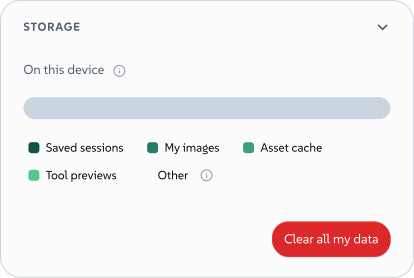
Settings → Storage shows how much space each kind of data uses. Clear cache drops downloaded catalogue files, which download again when needed. Clear all my data asks you to type a word, then removes your profile, saved sessions, uploaded images and the asset cache. Other data stays, including version history, the list of recent downloads, Convert results, design systems and downloaded AI models. To remove everything, clear this site's data in your browser.
 signed by Lollyvector SVGCheck it yourselfGet the signed file16 paths~2.7k nodes44 groups36 KB
 signed by Lollyvector SVGCheck it yourselfGet the signed file16 paths~2.7k nodes44 groups36 KB


In the desktop and mobile apps, saved sessions are files in the app's own data folder and the rest is in the app's own storage, so clearing a web browser does not touch them.
Where the desktop and mobile apps keep saved sessions
One file per saved session, in a saved-state folder:
- macOS:
~/Library/Application Support/tools.lolly.Desktop/saved-state/ - Windows:
%APPDATA%\tools.lolly.Desktop\saved-state\ - Linux:
~/.local/share/tools.lolly.Desktop/saved-state/, or the same path under$XDG_DATA_HOME - iPhone, iPad and Android: inside the app's own storage, which the Files app does not show
Pictures, design systems and the list of recent downloads stay in the app's internal storage, not in these folders. The terminal app and the command line read the same saved-state folder: see Where saved sessions live.
Get back something you deleted
In Projects, Move to Trash keeps an item for 30 days. A folder goes to Trash with everything in it, as one entry. Straight after, a message offers Undo for about ten seconds. Later:
- Open Projects and press the Trash tile. The tile appears only while Trash holds something.
- Press Restore beside the item.
Delete forever and Empty Trash remove items at once, without asking. Items older than 30 days are removed for good the next time you open Projects.
Deleting a saved session under Settings → Storage, or from a tool's list of saved sessions in the gallery (right-click the tool's card, then N saved sessions), removes the session for good, with its version history. A picture you delete from My images is removed at once, without asking.
With Sync on, Restore an earlier copy can bring back an earlier day's state of the whole device, and an Export my data file brings back what the file holds.