
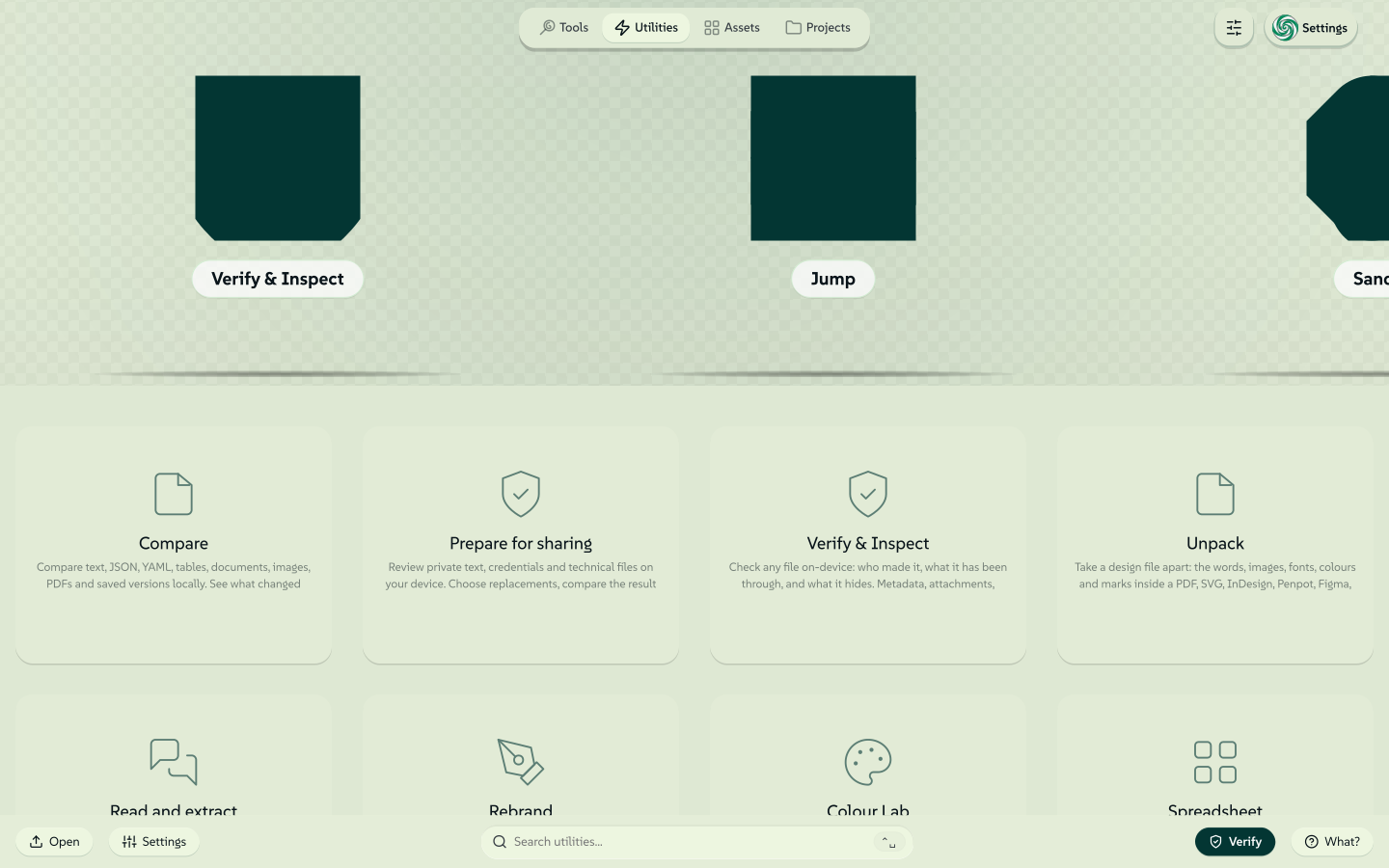
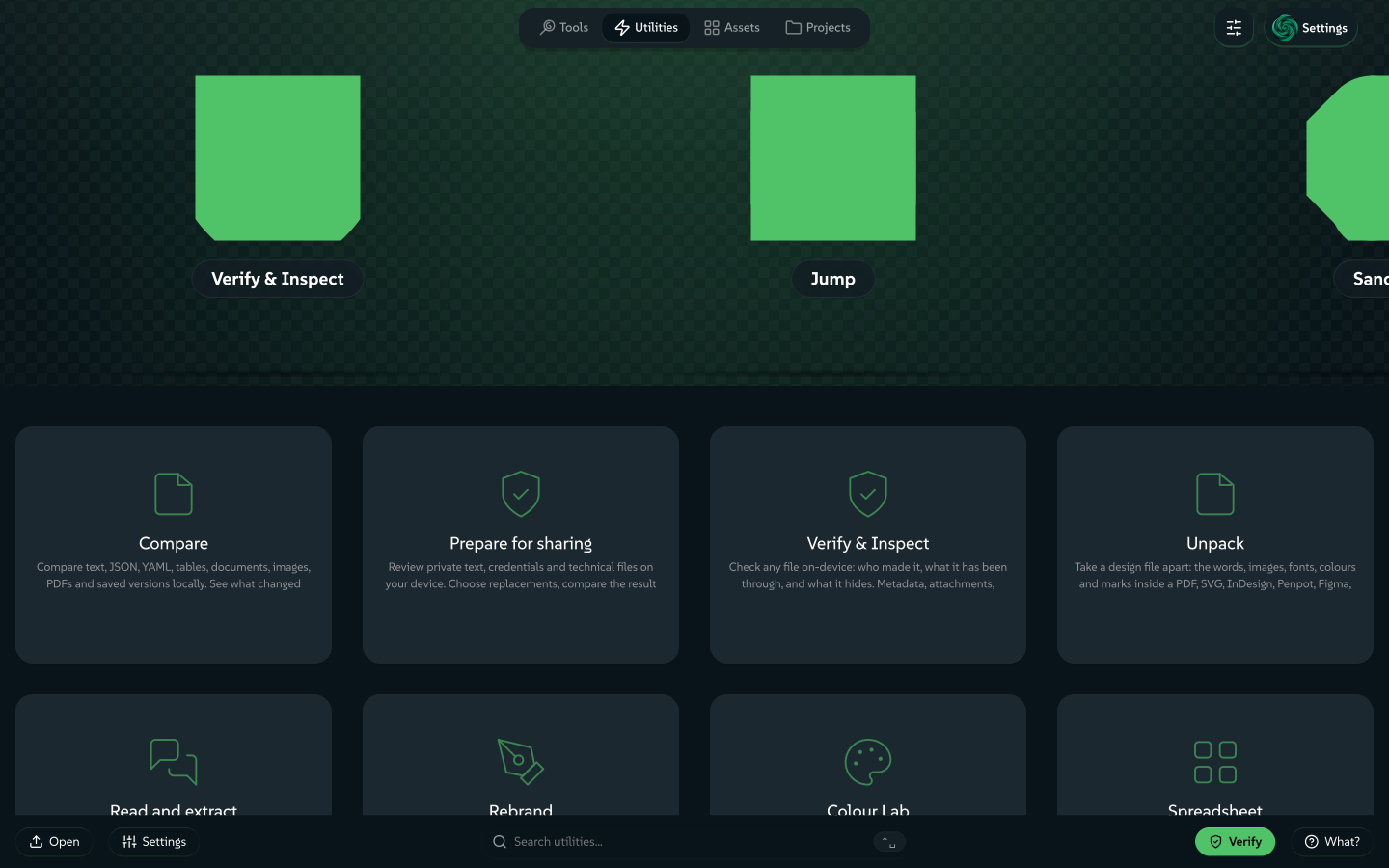
Sometimes you do not need a new design. You need a file fixed: a photo in the wrong format, a PDF that carries more than it should, or two versions of a spreadsheet to compare. The Utilities tab (#/u) collects these jobs. They work on your device, and the file you bring is not uploaded.
 signed by Lollyvector SVG124 paths~29k nodes324 groups395 KBCheck it yourselfGet the signed file
 signed by Lollyvector SVG124 paths~29k nodes324 groups396 KBCheck it yourselfGet the signed file


Find the right utility
- Share a file safely: Prepare for sharing, Strip Hidden Data and Redact.
- See what changed between two versions: Compare.
- Change a format or a size: Convert, Compress, Convert Image and Convert Font.
- Get the words or pictures out: Unpack, Text or Read and extract.
- Check where a file came from: Verify & Inspect.
- Rearrange or sign PDF pages: Pages and Sign.
- Cut or clean audio and video, or record your voice: Trim, Clean, Voice Recorder and Script audio.
- Check a colour or build a palette: Colour Lab, Contrast and Palette Lab.
- Read or fix a spreadsheet: Spreadsheet.
- Move a deck onto your design system: Rebrand and Theme swap.
- Everything else: screenshots, QR scanning, a countdown, a one-link page and more, under More utilities.
Built into the app, or a tool
Most utilities are tools. A tool keeps its inputs in the URL, so it saves sessions, reopens from a link, renders from the CLI and exports through the shared pipeline.
The rest are views: pages of the app with no manifest and no export panel. Compare, Prepare for sharing, Verify & Inspect, Unpack, Read and extract, Rebrand, Colour Lab, Spreadsheet and Script audio each have a card. Convert has none; open it from Search by typing "convert", or go to #/convert.
A view keeps no session, but it has room: it can use the app's own controls, run as a tall page and hold a 200,000-row grid or a 400-page document. It does not keep the file you drop. You take away a download or a copy: Convert keeps finished copies in Recent file operations, Prepare for sharing can Add to library and Rebrand keeps each deck as a project.
Every tile can be starred (Your favourites) and has a details dialog. A view's tile has no keep offline or saved sessions, because views ship inside the app.
Share a file safely
Prepare for sharing
Prepare for sharing (#/prepare) looks through text, JSON, YAML, HAR and ZIP files on your device and suggests what to replace before you share them. You choose the replacements, review each original beside its copy, then copy, download, send or save the result to the library.
Suggestions cover credential fields and common token shapes, email, payment-card, bank-account, phone, date, postcode, address and possible name patterns. They can be wrong, and they can miss confidential information. Keep all and Continue unchanged stay available. Add a missed exact value or a sensitive field name, edit a replacement or choose individual occurrences. Identical values share one replacement across every file in the job.
You can also start from elsewhere. Text opens the same panel for the selected input text, or all of it when nothing is selected. Files in Assets and saved file results have a Prepare for sharing action, and exported file utilities offer it for the copy.
Limits, and what is kept
Jobs accept up to 100 files, 32 MiB each and 64 MiB in total. Text inspection stops at 1 MiB per file or value. ZIP inspection has a global 300-member limit, three archive levels and a 64 MiB expansion budget. Unsupported, encrypted or malformed members are listed as uninspected and can be kept or removed. Names and archive comments are not inspected, and rebuilding removes archive comments and empty directory records. YAML aliases are inspected at their anchors, without expanding sensitive field context where an alias is used. Reports state these limits: zero suggestions does not certify that a copy holds no private data.
Working originals, replacement maps and preview content stay in memory, and clearing or leaving the view releases them. Saving a recipe keeps category choices and custom field names, without earlier text, literal rules or mappings. Add to library saves the result bytes into normal library backup and sync; it does not save the source or the map. Downloaded reports contain counts, scope IDs, hashes and limits, without filenames or private values.
In the terminal
The CLI uses the same engine, with no catalog required:
lolly prepare request.har
lolly prepare request.har --review-file=private-review.json
lolly prepare request.har --choices=private-review.json --output=prepared.har
lolly prepare one.json two.yaml --replace-all --out-dir=prepared
lolly prepare image.png --strip-hidden-data --output=prepared.png
The default JSON report never fails only because findings remain. --review-file output contains private values and editable choices bound to source hashes, so keep that file private. --recipe, --save-recipe, --rules and --report support repeated work. Files are created with owner-only permissions, and existing files are preserved. Partial delivery reports successful copies separately from failures.
In the TUI, press P from Tools, add file paths, inspect, choose replacements, review coverage with Tab and download the copies. Escape cancels.
Strip Hidden Data and Redact
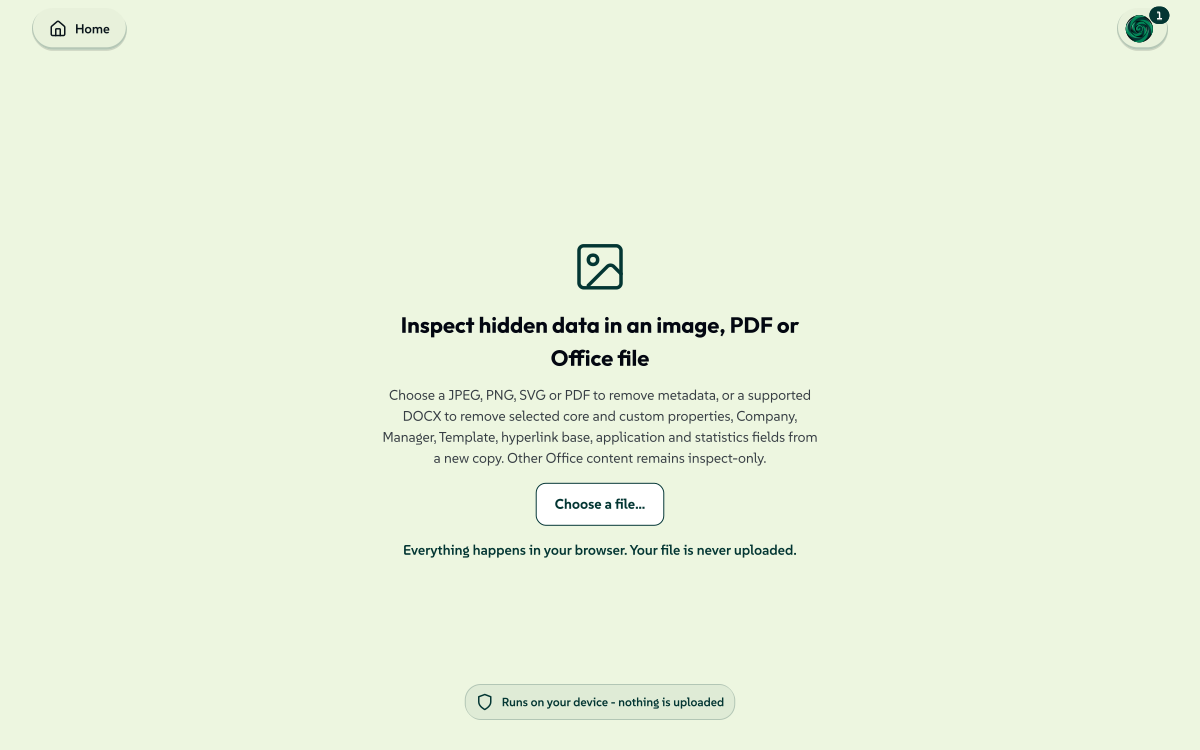
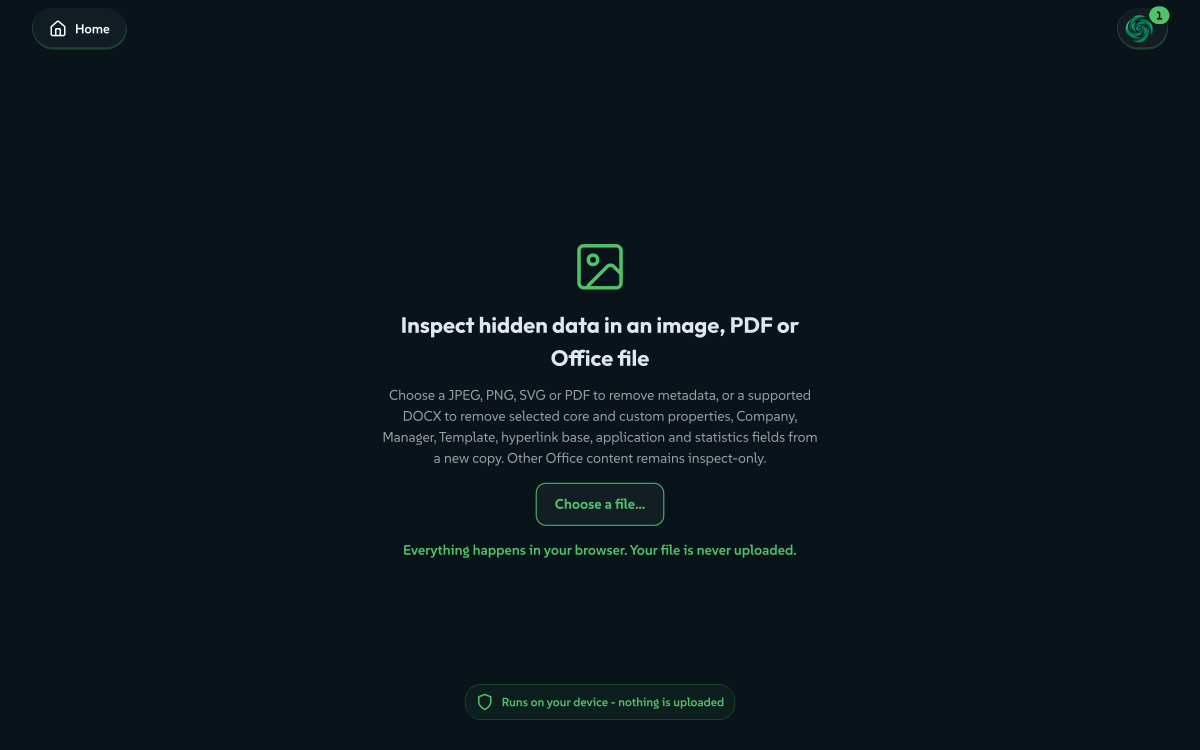
Strip Hidden Data removes selected DOCX properties, or image and PDF metadata, and lets you inspect other Office hidden content. Redact blacks out sensitive content by rebuilding the file, then checks the output before it downloads. Both are tools, so they save sessions like any other.
 signed by Lollyvector SVG66 paths~9.4k nodes47 groups143 KBCheck it yourselfGet the signed file
 signed by Lollyvector SVG66 paths~9.4k nodes47 groups143 KBCheck it yourselfGet the signed file


See what changed
Compare (#/compare) puts two versions side by side on your device. It compares text, JSON, YAML, tables (CSV, TSV or XLSX) and image or PDF-page previews. For DOCX, PPTX and PDF files it compares the extracted text. The sources stay unchanged. Compare does not merge, apply edits, save the inputs or send their contents anywhere.
The same comparison opens from Assets and from file-operation review, including a saved copy with a reselected original whose hash must match. Compare table files in Spreadsheet and Compare document text in Unpack open it too. Changed values start folded, and a downloaded report holds only the summary until you select Include source names, paths and values. The inputs never enter the address bar or a default report.
YAML structure
YAML structure compares one YAML 1.2 data document. Mapping keys match by name, whatever their order; arrays keep the selected position or stable ID rule. Strings, booleans, null and finite numbers are supported. Integers must fit JavaScript's safe integer range, and mapping keys must be unique strings. Quoted values stay strings, and dates and words such as yes and on stay strings too. Comments, quoting and formatting are outside this comparison: choose Text to review those on the same captured sources.
Tags, directives, anchors, aliases, merge keys, multiple or empty documents and unsupported values are refused with an explanation. Refused or over-budget content cannot establish equality. Each side is limited to 2 MiB of UTF-8 text, 64 nesting levels, 20,000 data and key nodes and 64 KiB per scalar, and further token and parser limits bound the work before values are built. Assets and file-operation review offer the same YAML and Text choices, and changing modes does not fetch a newer asset or change the original files.
Tables
The first row supplies column labels. Worksheets match by unique name, and columns by unique label. Row key chooses a common column, whose unique non-blank values detect moved, inserted and removed rows. Missing, duplicate or blank keys fall back visibly to row position and keep every ambiguous row. CSV and TSV keep quoted multiline cells and blank records. XLSX uses cached values, without evaluating formulas or comparing formatting. Each side is limited to 16 sheets, 10,000 rows, 256 columns and 100,000 cells, and CSV or TSV text to 2 MiB.
Documents
Document alignment uses reading position, exact text anchors or the slide IDs kept by related PowerPoint revisions. Exact text anchors detect unique moved units and pair edited gaps by position, with a visible fallback for repeated text. DOCX units are body blocks and footnotes, never invented pages or stable IDs. PPTX units include slide text, tables and speaker notes. PDF units hold each page's extracted text, and geometry may decide the reading order. Scans have no text without OCR, which Compare does not run.
Two PDFs from Assets or file-operation review keep the visual comparison by default and offer Extracted document text as an alternative. DOCX file-operation review compares supported document properties by default, so metadata cleanup stays visible; its DOCX comparison control also offers Extracted document text, including for documents whose properties are inspect-only. Text review does not compare document properties.
Office and PDF files are limited to 32 MiB per side. Office archives must fit 8 MiB per part, 64 MiB expanded and 4,096 archive entries. Document text is limited to 2,000 blocks, 200 slides, 64 PDF pages and 2 MiB per side. Skipped or unread content is reported as partial, and matching kept text cannot establish full equality. Appearance, formulas, drawings, charts and asset dependencies are outside content comparison.
Change a format or a size
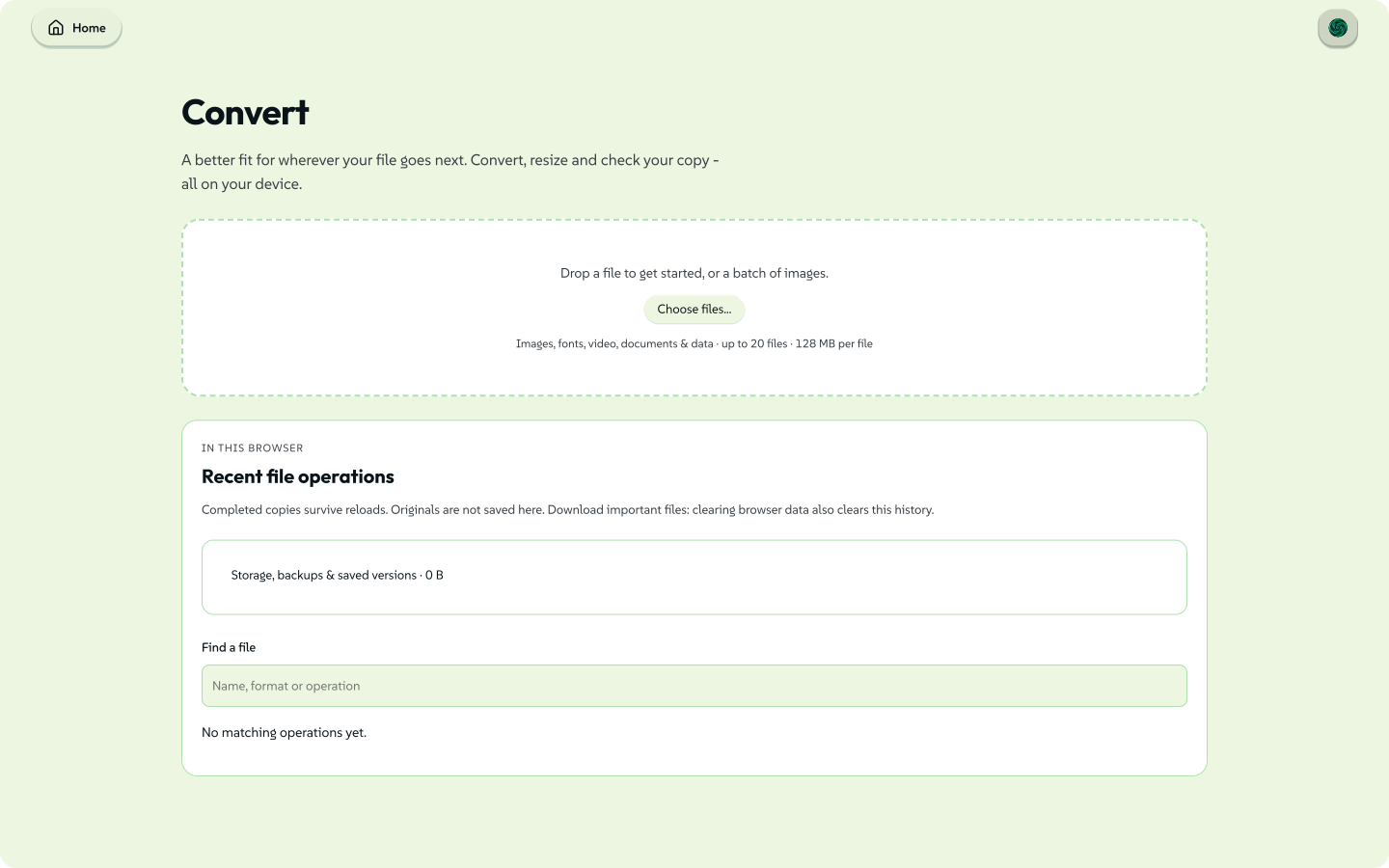
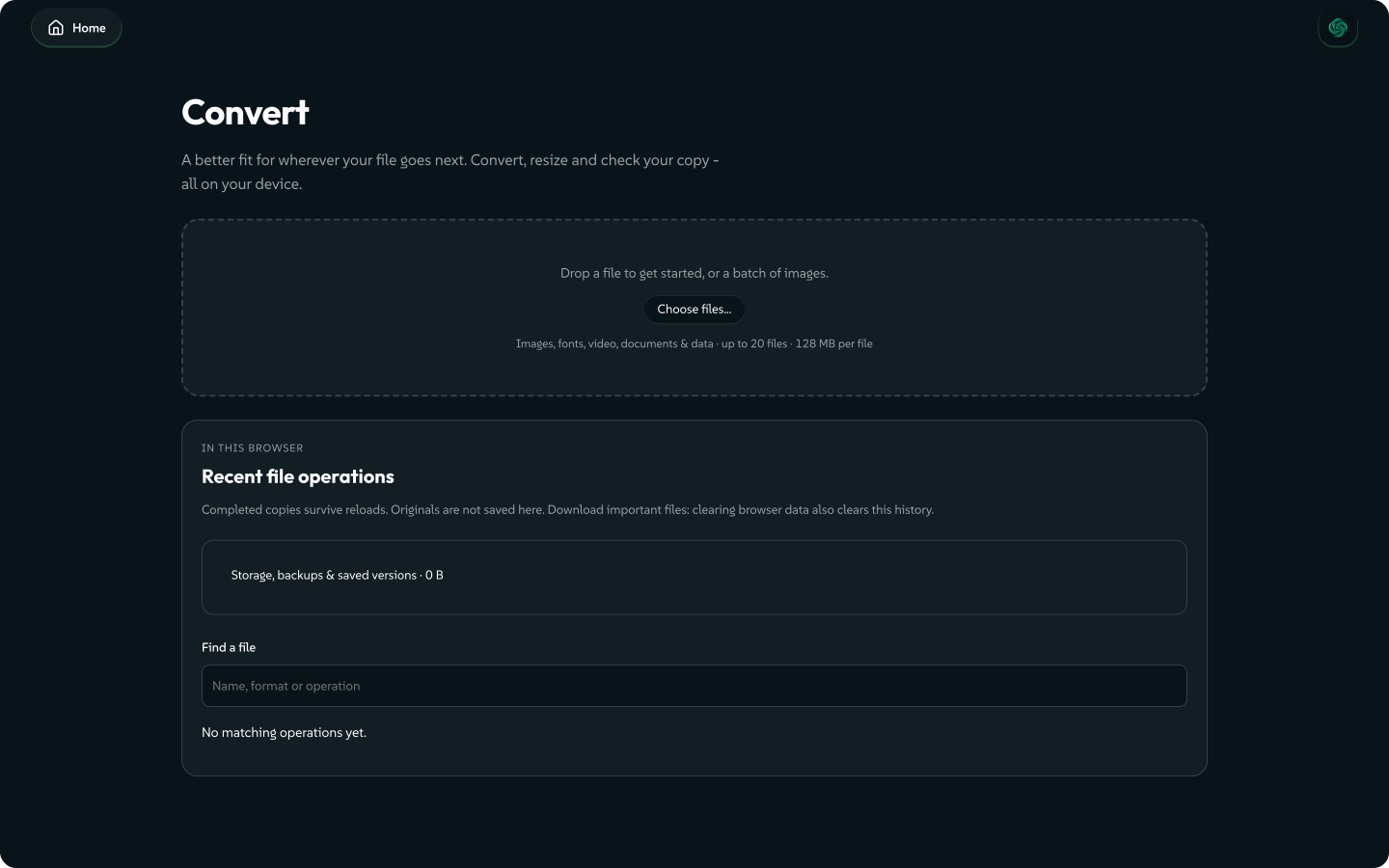
Convert
Drop or choose a file, or a batch of up to 20 images, pick an output format and make a copy. Every conversion runs in the app, with no upload and no service. Finished copies stay in Recent file operations, including after a reload, ready to download or share. Your originals are not kept.
 signed by Lollyvector SVG66 paths~11k nodes46 groups162 KBCheck it yourselfGet the signed file
 signed by Lollyvector SVG66 paths~11k nodes46 groups162 KBCheck it yourselfGet the signed file


| You bring | You can get |
|---|---|
| TrueType, OpenType or WOFF | either of the other two container formats |
| SVG or SVGZ | its compressed or uncompressed twin, a copy with its viewBox fitted to the artwork, plus the image formats below |
| Any image the app can decode | JPEG XL (lossy or lossless), PNG, JPEG, WebP, AVIF, TIFF, BMP, PDF (one page, sized to the pixels) or ICO. A JPEG can also become a JPEG XL that keeps the original JPEG, and that file can give the JPEG back. |
| Markdown, a ZIP of one PDF per page, a ZIP of one PNG per page, a copy without its descriptive metadata or a copy with structural compression | |
PowerPoint .pptx or Word .docx | Markdown |
Plain text .txt or Markdown .md | HTML, RTF, Word .docx or OpenDocument .odt |
| MP4, MOV, MKV or WebM video | the same tracks in another of those containers, or its audio track, both without re-encoding |
.xlsx, .csv, .tsv or .json | any of the other three |
For images, Quick presets, Quality, Longest edge (px) and Target file size (KB) shape the copy. The file chooser lists images, fonts, video, documents and data, up to 128 MB per file. A .txt or .md file is not in its list, so drop it onto the view instead. Batches of several files work for images only.
What each conversion keeps
A font swap and an SVG to SVGZ swap are exact byte work, so an embedded Content Credential and outlined text come through untouched. Anything on the image row is drawn to a canvas first, which means a re-encode. WOFF2 is recognised but has nothing to convert to, and the view reports that.
SVG fitted to its artwork changes only the root <svg> tag: its viewBox moves to the painted artwork with room for strokes, and an absolute width and height keep their size per user unit. Paths, shapes and embedded images keep their bytes, and a raster image inside an SVG stays a raster image, so this is never called vectorising. Text, <use> references, filters and markers are refused with the reason, because their drawn edge cannot be measured exactly without a renderer, and a viewBox that already fits is left alone. An embedded Content Credential no longer matches the changed file.
Vector-to-vector transcoding (SVG to EPS or DXF) is not offered: the engine's vector writers walk a rendered canvas, not arbitrary source SVG, so the result would be wrong. Where a browser cannot encode a format you ask for, the view tells you rather than returning a PNG under an .avif name.
Spreadsheet and data choices
A spreadsheet, CSV, TSV or JSON file shows How to read this file beside the format.
- Worksheets. Pick one worksheet (the first by default) or All worksheets, which writes one file per sheet into a ZIP with a
manifest.jsonlisting each sheet's file, row and column counts and SHA-256, and any empty or chart sheet that was skipped. - Formulas chooses between the results the workbook last saved, the default, and the formula text itself, starting with
=. Nothing is recalculated. A shared formula is rewritten for each cell, and a cell that cannot be rewritten safely keeps its saved result. Number formats are not applied, so a date arrives as its stored serial number. - Delimiter and encoding. For CSV and TSV you set the column delimiter (automatic detection also recognises semicolon-separated files) and the text encoding. Automatic reads UTF-8, or UTF-16 with a byte order mark, and reads anything else as Windows-1252. A chosen encoding refuses text that does not match.
- First row says whether the first row holds headings, is data (JSON then writes arrays of values), or sits under added
Column 1,Column 2headings.
The report lists what the copy kept and what was left behind, and a sheet too large to read in full is refused rather than cut short.
lolly files convert takes the same choices as --sheet, --all-sheets, --cells, --delimiter, --encoding and --header. --sheet takes a worksheet's name or its position, counting from 0 for the first, and a name wins: --sheet=2024 picks a sheet called 2024, and --sheet=1 picks the second sheet unless one is called 1.
Compress, Convert Image and Convert Font
These three are tools, so they save sessions and travel in a link.
- Compress shrinks a PDF by recompressing its images.
- Convert Image is the photo path. It decodes HEIC and HEIF with a bundled decoder and writes WebP, JPEG or PNG, with a quality setting and a longest-edge resize. The Convert view has image settings of its own and also handles fonts, SVG, documents, video and data, which the tool does not.
- Convert Font swaps a font between TrueType, OpenType and WOFF.
What Convert Font reports, and subsetting
Convert Font reports what the font's own tables say: outline format, family and style, weight or weight range and named styles, glyph and character counts, the Unicode blocks covered and the OS/2.fsType embedding statement. It can subset the font to Basic Latin, Western European or characters you type. A subset keeps glyph ids, works on TrueType outlines only and is checked against its output bytes before the download. A font whose own flags say restricted, no subsetting or bitmap embedding only, or that states no permission at all, is not subset. Those flags are the font's own statement, not its licence, so a subset is never a rights grant.
Get the contents out
Unpack
Most software treats a design file as one sealed thing. Unpack (#/unpack) opens the container: the words, the vector marks, the images, the fonts, the colours and the attachments, each one viewable and downloadable. Nothing is uploaded, and the older #/pdf link still works.
Drop a PDF or Illustrator file, an SVG, an HTML page, an InDesign .idml, a Penpot .penpot, a Figma .fig, a PowerPoint .pptx or a Photoshop or GIMP .psd, .psb or .xcf. What comes out depends on what the format holds:
| You bring | What comes out |
|---|---|
| PDF, Illustrator or PowerPoint | The words, because the file carries its glyphs. |
| SVG | Its <text> runs, in document order. Fonts are listed by name, without their files, since an SVG refers to its fonts rather than embedding them. |
InDesign .idml | Fonts listed by name, without their files. Images are linked, not embedded, so their pixels are counted and never fetched. |
| Penpot | Embedded images, as real bytes. |
| Photoshop or GIMP | Every layer as its own named PNG. No words: the reader flattened the text to pixels, which is not the same as the file having none. |
A names-only font row cannot be downloaded, because the file holds no font bytes.
The Text pass rebuilds each page in reading order with the page's own vector picture next to the text. It notes how many columns it read and how many rotated runs it left out, so you can judge the result. Take the words away with Copy all, Download .md or Download .txt, or one page at a time. An SVG whose type was outlined to paths yields no text, the same answer a PDF gives when its text was converted to curves.
Scanned pages have no text to extract. A born-digital PDF contains its glyphs and their positions, which is why extraction works offline. A scanned page holds a picture of text, and Unpack reports it as that, page by page, with a banner when every page is a scan. For those, use the on-device text reader: drop the image into Verify and press Read the text in this image, or open it in Assets and press Read text.
The tabs sit in a strip pinned to the top of the report, and each appears only when a pass found something:
- Palette: the distinct colours the file paints with, each with a copy button.
- Logos: vector marks, downloadable as SVG and sharp at any size. In a guidelines file these are often the most useful thing.
- Images: embedded rasters. Images that cannot be decoded, or that are linked from elsewhere, are counted rather than hidden, and a linked image's pixels are never fetched.
- Fonts: each with its embedding caveats stated: a subset is called a subset, a names-only face carries no bytes and "no embedding restriction" is not called a licence.
- Attachments.
Hidden words are reported first. Text painted underneath an opaque shape appears at the top of the report, with the hidden words shown. A black bar that does not remove the words under it is worth seeing rather than trusting.
Three hand-offs go straight into your design system: a font row installs its face, a mark goes to the Logos room of Design System Setup and the bar sends the whole scan there. None of them re-reads the document; each is built from what the passes already extracted.
Unpack reads up to 400 pages and 120 MB. Beyond that it reads what it can and says the rest is too long. A single mark over 4 MB is not sent to Design System Setup: download the SVG instead.
Read and extract
Read and extract (#/extract) gets the words, tables and pictures out of a PowerPoint deck (.pptx), a PDF or a Photoshop file (.psd), page by page and in reading order. Choose the Pages and set a Character budget; Continue reads on from where the budget stopped. Recognised text leaves out words read with low confidence.
A page that is a picture of its text offers Read the text on this device, which uses the on-device text reader. Each block read that way says which model read the words and how sure the model was. Take the result away with Copy text, or download it as Text, Markdown or JSON. Nothing is uploaded, and macros or scripts in the file never run. lolly read --extract gives the same result in the CLI.
Text
Text brings character exploration and text work into one tool. Its permanent tool ID is still text-helper, so existing links keep working.
- Characters & emoji browses the loaded brand font or searches emoji. Picking a character copies its exact Unicode sequence.
- Write & edit opens a persistent editor with syntax highlighting, selection actions and Undo. Highlighting is a display aid, not a code validator, and unknown languages stay readable as plain text. Snippet, Sandbox and code assets opened in Assets share the same highlighting. The editor and character grid use the active brand's font and interface colours.
- Find an action is a searchable chooser for editing, inspection, conversion and generation: the writing signals also shown in Verify and Assets, plain-language suggestions, de-identification with reviewable aliases, line and word comparison, regular-expression matching and replacement, JSON, YAML and TOML conversion, formatting and validation, encodings, checksums and ASCII lettering. Markdown can be previewed or downloaded as a document. QR codes stay in the QR tool.
Open a file or pick a text asset. Open in Text in Assets, Projects or a Verify text extract opens one too. Save adds the text to Assets, and to its source project when there is one. For text opened from one of your own assets the button reads Save changes, which updates that asset under the same ID so project references keep working; Save a copy in the same dialog keeps both versions. Save changes refuses to overwrite a source that changed after you opened the text. Text reads the complete file, up to 4 MiB, even where Assets shows a shortened preview. Drafts use normal saved-session storage and recovery, and edits do not put the document's contents into the address bar.
Log analysis
Log analysis takes pasted or opened log text, including JSON lines and journal-style fields. It keeps unclassified lines and groups consecutive repeated events. You can filter by text, severity, source and time, and a row opens its original lines and fields. It does not read the system journal.
AI synopsis uses the optional local model to pick original excerpts, with source references. AI rewrite checks names, numbers and links before offering a result. Both need your review, and neither replaces the document automatically. The model downloads only when you ask. Actions show progress and Cancel. A result from an older edit cannot overwrite newer text.
Check where a file came from
Verify & Inspect (#/verify) has a card in the Utilities tab and pages of its own: Verify It Yourself and Security & Verification.
PDF pages
Pages is the PDF page manager. Give it a 1-based expression such as 1-3,7,10- to reorder, rotate, extract or delete those pages. It can also append a second PDF or split comma-separated ranges into separate files. The page strip shows the selection before download. Pages keeps the main document's own metadata and adds none of Lolly's. It refuses encrypted PDFs and XFA forms rather than risk a partial document.
Pages also turns images into a PDF. Add photos, scans or screenshots, alone or with PDFs, and each image becomes one page in the same draggable sequence. Image page size sizes each page from the image's own resolution (Match each image, at 96 pixels per inch when the image gives none) or fits the image inside an A4 or US Letter page, with Image margin (mm) setting the margin.
How images become pages
A JPEG is placed without re-encoding and turned upright from its camera orientation; its location, camera details and any extra pictures stored in the file are left out. An 8-bit PNG keeps its exact pixels; a 16-bit PNG is reduced to 8 bits per channel, and a PNG's colour profile is not kept. An animated PNG is placed as its still picture, and other formats such as WebP or HEIC are converted to PNG first where the app can read them.
What changes in the PDF
Before download, What changes lists what the operation does to the bookmarks, comments, links, form fields and signatures in your PDFs.
Rotating a single PDF edits that file, so everything keeps working except a digital signature, which no longer verifies once the file is saved again. Every other operation builds a new PDF from copies of the pages. Comments and other annotations travel with their pages, but bookmarks are not carried over, links to other pages stop working, form fields can no longer be filled in and the new PDF is unsigned. A page you delete or leave out does not come along through a link or form field that pointed to it, and the signer's name, date and certificate are left out with the signature.
Sign places a transparent signature on a chosen PDF page, in PDF-point coordinates: drag it on the page or enter the numbers. Initials and today's date are optional. A Content Credential is on by default and records the profile signer only when Use my details is on. A password lock is available at download time, but not together with that credential, because encrypting afterwards would break the credential. Sign makes a visible signed document with optional provenance, not a regulated e-signature or identity-verification service.
Audio and video
Trim cuts audio and video at exact in and out points on your device. Under Make it also takes a Poster frame (the picture at the start point) or a Contact sheet of frames across the range. For a clip it can:
- keep or change the container, or make a GIF of up to 15 seconds;
- Rotate the picture, Remove audio or Extract audio as M4A, Opus or WAV;
- re-encode to a Sharing size of 1080p, 720p or 480p, or aim for a Size limit (MB).
The result reports the real container and any codec the device could not handle.
Exact, Re-encode and Fast cuts
Trim copies packets when the chosen boundary and container allow, but a copy can only begin on a key frame, so Cut offers three modes:
- Exact, the default, copies an MP4 or MOV from the key frame before your start and marks the earlier frames for players to skip (some editors and upload sites still show them). It re-encodes the picture of a WebM or MKV.
- Re-encode always re-encodes the picture, so nothing before the start is kept.
- Fast keeps the original packets and may start a little early.
Clean reduces voice noise with the on-device speech model and trims silent edges to the exact sample. It normalises to podcast, streaming or broadcast loudness and keeps the output under a -1 dBTP ceiling. Audio can leave as WAV, MP3, M4A or Opus. For a video, the picture is carried into the new container and the cleaned audio replaces its original track. The terminal path accepts WAV; other containers move to the browser tier or are refused by name.
Voice Recorder records a voice note with a live level meter and gentle coaching, then saves it as MP3.
Script audio (#/script) is a writing surface over on-device speech. Write or paste a script; Markdown is fine, because only the words are read, so code blocks and images drop out and links keep their text. Pick a voice, audition it, choose a speed and press Generate speech (or Ctrl or Cmd and Enter). Under the script sit the word count and an estimate of how long it takes to listen to.
- Shape the reading. Sound marks type marks into the script for you, such as more energy, a question, a breath, a pause, a slower sentence or a word spelled out in phonemes. Tips explains each one. Blend with mixes a second voice into the first, with one slider for the weight.
- Downloads and limits. The first run downloads the voice model once, with its size shown before you start. After that it runs on the device, and the script is never uploaded. A script past about five thousand characters gets a warning, not a refusal.
- Save the clip. Save to your uploads writes a WAV to your asset library, with the voice, speed and per-word timings kept on the record for captioning. It is marked as AI-generated and signed with a Content Credential in the WAV bytes (why).
- Fix a saved clip. Opening a saved clip in Script audio (
#/script?asset=<id>) fills in its recipe. Save changes to this clip rewrites the same asset, so every document that uses the clip hears the fix; Save as new clip keeps both.
Where a device or browser has no speech support, the view says so in one sentence, and the Utilities tab shows no Script audio card.
Colour
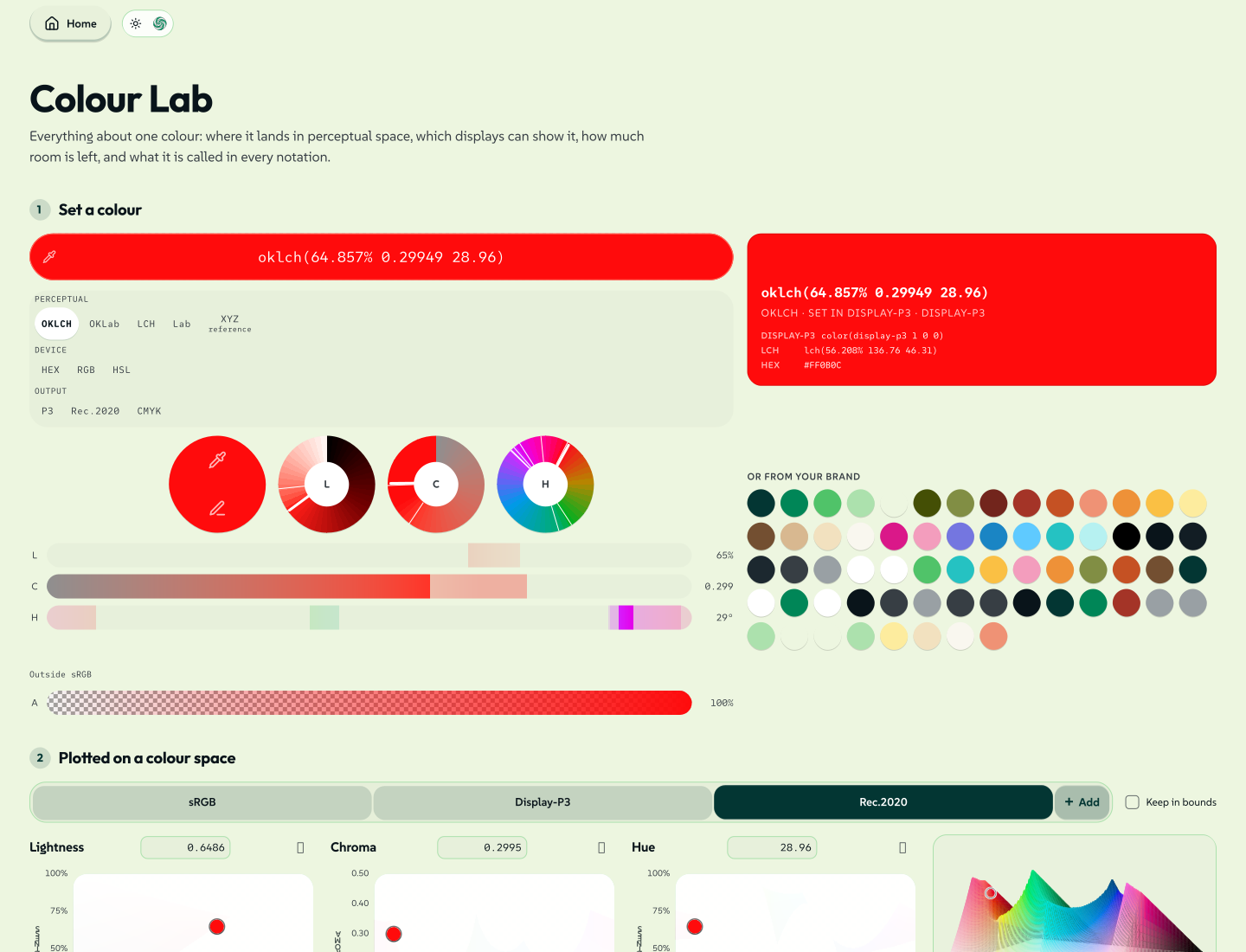
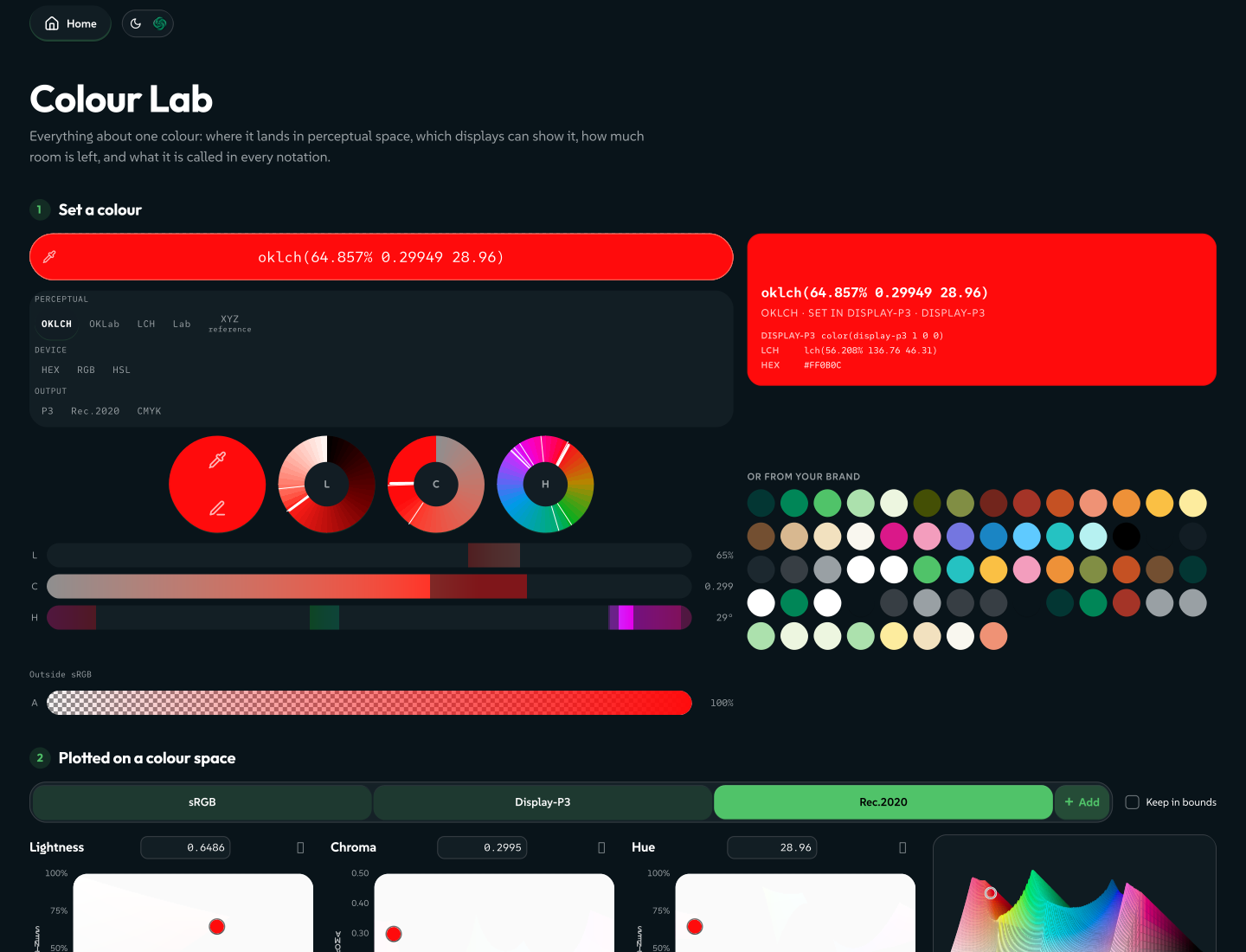
Colour Lab (#/lab) reports on one colour in full. #/lab?c=<css colour> opens the report on any CSS colour, and the address follows what you pick, so a link reproduces the page you are looking at.
The report runs in five steps:
- Set a colour with the app's tabbed colour picker, or from your brand's own swatches.
- Plotted on a colour space: four charts, measured against a comparison target you choose.
- Every notation: the same colour written for each space, ready to copy, with a clamped mark where a space is too narrow to hold the colour.
- Tones and blends: a perceptually even ramp through the colour, and a blend to a second colour at a step count you set.
- Displayable range and readability: the gamut verdict, then contrast scores. APCA comes first because it models polarity, and WCAG second because people still have to report WCAG scores. A foldable grid scores every brand colour against every other, with a colour-vision simulation on top.
 signed by Lollyvector SVG337 paths~15k nodes343 groups4 images456 KBCheck it yourselfGet the signed file
 signed by Lollyvector SVG330 paths~15k nodes343 groups4 images456 KBCheck it yourselfGet the signed file


The colour is never collapsed to sRGB on the way in. color(display-p3 1 0 0) is described at its real chroma and gamut rather than flattened to #ff0000 and declared safe, and every swatch is painted from the value you wrote, so a wide-gamut display shows the real colour. A This screen panel at the foot reports the display the charts are judged against, read live and stored nowhere.
There is no export, canvas or CLI equivalent: copy the notations you need, or share the link.
Your own ICC profiles
The comparison target is sRGB, Display-P3, Rec.2020 or a press profile you load yourself. A stored profile is a user asset, like an uploaded font: the storage meter counts it, a data export carries its bytes and Clear all my data removes the stored profile too. Its id comes from the file's own content, so a &limit=icc:… link matches the same profile on someone else's device rather than relying on a filename. Two kinds of file are refused rather than stored: one the parser cannot read, and one that no rendering intent can answer a gamut question for. This is also where you load the CMYK profile a PDF/X-4 export has to embed; see URL Mode.
Contrast checks a text and background pair, or every pairing in the design system palette, against WCAG 2.1 and APCA, and shows how it reads to colour-blind viewers. Palette Lab grows a palette from one seed colour, with harmony accents, perceptual OKLab ramps and readability badges. It exports DTCG tokens and CSV.
Spreadsheets
Spreadsheet (#/data) opens, reads and lightly edits a spreadsheet with no Excel, no LibreOffice and no internet. Drop or choose an .xlsx, .csv, .tsv or .json. A workbook with several sheets gets a tab bar, so you can switch sheets without picking the file again. Cells are editable in place, and Download as writes the grid as it stands, as CSV, Excel, JSON or TSV.
The grid draws only the rows in view and recycles them as you scroll, so a very large file stays responsive. The viewer reads up to 200,000 rows, and the reader stops at two million cells. Where either limit applies, the banner above the grid says how much you are looking at.
Spreadsheet shows values. A formula arrives as its last computed result, and styles, merged cells, charts and every sheet but the one you download are lost in the download. The banner says this before you edit anything. Use Spreadsheet to read a file, fix some numbers and pass the data on, not to round-trip a formatted workbook. Nothing is uploaded or kept: the file stays in the page until you leave.
Decks
Rebrand (#/rebrand) moves a PowerPoint or PDF deck onto your design system. It proposes each slide on the design system's own layouts, colours and typeface, and waits for you to review each suggestion before it opens the result in Design. Keep the design swaps only the theme, colours and fonts of a PowerPoint deck instead. Unlike the other views, Rebrand keeps each deck as a project on this device, so a review can wait until you come back. Rebrand a deck walks through it with a sample deck.
Theme swap is the tool for the quick case: it swaps the theme, colours and fonts in a PowerPoint deck on this device.
More utilities
- Screen Capture takes a screenshot or recording of your whole screen, a window or a browser tab. Drag on the canvas to crop; the export keeps the exact pixels you captured.
- URL Screenshot captures any web page at any scroll depth, with custom CSS. In a browser it needs the browser extension, which runs in Chromium-based browsers such as Chrome and Edge. The desktop app does the same job without the extension.
- Annotate marks up your own screenshot with arrows, boxes, numbered steps, callouts, a highlighter and a spotlight dim.
- Scan reads QR codes and barcodes on your device. It explains what a code carries (a link, Wi-Fi details, a contact or a product code) and copies first; opening, joining or adding is a separate, deliberate tap.
- Claim stamps your author, copyright and licence onto media you already made (an image, PDF, video or audio file) as Content Credentials, with a durable Imprint on images, and keeps any credential already in the file.
- Countdown is a focused countdown with a live progress ring. Click to pause.
- Jump makes a one-link landing page with your links, heading, portrait and colours. The whole page lives inside the link you share.
- Sandbox runs pasted HTML, CSS and JavaScript, or a JSX or TypeScript component, in a private offline sandbox, which suits previewing code from an AI assistant.
- Prompt Card typesets a long prompt into one compact image for a multimodal model, since image input often costs less than the same words as text.
- Rondocode lets you write music as code and hear it as you type, then export the song as audio, stems or MIDI with Content Credentials, or keep its source.
Related: Using Lolly for the tools and the gallery these sit beside. Search for reaching any utility by name. Export a file for what the tools themselves can write.