
This page is for whoever decides what a Lolly instance is: which brand it wears, which tools it offers, what each tool may do and how people's own switches behave. All of that lives in files you can read and review, not in settings buried in an app. Each section below gives the file and the command that acts on that file.
Profiles: brand + tool set
A profile binds a set of tool packs to a brand catalog. profiles.json at the repository root declares them:
{
  "default": "suse",
  "profiles": {
    "suse":        { "label": "SUSE", "tools": ["community", "brands/suse/tools"], "exclude": ["rebrand-deck", "street-map", "quote-card"], "assets": ["community/emoji-packs", "community/fallback-fonts"], "catalog": "brands/suse/catalog" },
    "lolly-start": { "label": "Lolly Start (blank brand)", "tools": ["community", "brands/lolly-start/tools"], "assets": ["community/emoji-packs", "community/fallback-fonts"], "catalog": "brands/lolly-start/catalog" },
    "lolly-demo":  { "label": "Lolly Demo", "tools": ["community", "brands/lolly-demo/tools"], "assets": ["community/emoji-packs", "community/fallback-fonts"], "catalog": "brands/lolly-demo/catalog" },
    "suse-with-demo": { "label": "SUSE, with Lolly Demo beside it", "catalog": "brands/suse/catalog", "companions": [{ "label": "Lolly Demo", "catalog": "brands/lolly-demo/catalog" }] }
  }
}
lolly-demo is Lolly Demo, the brand lolly.tools and the published images ship. lolly-start is the blank starter, and the one a public clone and CI use. suse needs the private pack, which a public clone does not have. suse-with-demo is the SUSE profile with Lolly Demo offered as a second design system next to SUSE's own: its companions entry copies only the listed Lolly Demo assets into the served index. The file itself holds the full entries.
A profile is chosen per command, not switched globally. Content lives in the packs and nowhere else, so there is no tools/ or catalog/ directory at the repository root to switch:
pnpm run profile                              # which profile this checkout resolves to, and why
pnpm run profile lolly-demo                   # what that profile would resolve to
LOLLY_PROFILE=lolly-start pnpm run dev:web    # run one command under another brand
pnpm run build:catalog --profile=lolly-demo   # or name it on a catalog script
Which profile?
The first that applies wins
- 1
--profile=<name> - 2
LOLLY_PROFILE - 3
.lolly-profileif its packs are on disk - 4
defaultinprofiles.jsonif its packs are on disk - 5The first profile whose packs are all on disk
The resolver
content-roots.ts
- Tool rootscommunity, then the brand's own; later roots win, then
excludedrops ids - The catalogthe brand's logos, colours, type and tokens
- Shared asset rootssuch as the emoji packs, the same files on every brand
A build
materializeInto writes a real tools/ and catalog/ tree into dist/, an RPM or an image. Nothing is written into your checkout.
How a command finds its profile, and what the profile hands back. The first rule that applies wins.
signed by Lollyconfiguration-profile-resolution.htmlHTMLpixels, not shapes9 KBAI generatedgenerated by Claude Opus 5.5Check it yourselfGet the signed filepackages/node-shell/src/content-roots.ts is the resolver every script, shell and service asks. It takes the first of these that applies:
- an explicit
--profile=<name>; LOLLY_PROFILE;- a
.lolly-profilefile at the repository root (written bysetup.sh --profile=<name>), if that profile's packs are on disk; - the
defaultinprofiles.json, if its packs are on disk; - the first profile whose packs are all on disk, which is how a public clone with no
brands/suseresolves tololly-startby itself.
The resolver then answers "where does tool <id> live" (toolFile, listToolFiles, readToolManifest) and "where is the catalog" (catalogFile) from the profile's roots. Later roots win on id collisions, so a brand pack can override a community tool with the same id. The optional exclude list drops tool ids from this profile after that merge: a community tool one brand would rather not ship stays available to every other profile, and an id that is not there gives a warning, not an error.
Brand packs
A brand pack is a directory (brands/<name>/) with a catalog/ and, optionally, its own tools/. A pack can live in this repository, as brands/lolly-start/ and brands/lolly-demo/ do, or be mounted from its own repository as a git submodule. That is how the one private pack, brands/suse, stays out of public clones; an instance without it falls back to lolly-start. Get the source covers checking one out, and Brand architectures covers how parent brands, sub-brands and companions relate.
Stand a new pack up from a design-tokens export:
pnpm run ingest:brand <source> --name <brand> [--label "Label"] [--register|--activate]<source> is any container Penpot or Tokens Studio exports the same DTCG document in: a single tokens.json, a one-file-per-set directory or a project.penpot archive.
- The extracted document is written to
catalog/assets/<ns>/tokens/brand.jsonas the pack's core-tiertokensasset.<ns>is<brand>with hyphens removed, because an asset id cannot carry-in its first segment, so--name acme-cogivesassets/acmeco/…. - Ingest also derives the pack's photo-treatment and icon-theme palette documents under
catalog/assets/<ns>/palette/, so uploaded photos get on-brand washes and themable icons get colour pairings from the start. Icon themes are skipped when the palette has no accent. --registeradds the pack toprofiles.json.--activatealso builds and validates its catalog and prints theLOLLY_PROFILE=<brand>line that selects it; nothing is switched globally.--outpicks another destination and--forceoverwrites an existing pack.
Design Tokens covers the token model. People set up their own design system in the app with Lolly Design System Setup.
Brand lock
A brand's tokens asset can be marked read-only with brandLock on its index entry. The SUSE pack ships locked; lolly-start and Lolly Demo stay open, so people can hide, edit and reset their own copy.
The lock protects that design system's material. People can still create, select and edit their own local systems or make an editable copy of a locked one. isLocked() follows the selected system, and installUserTokens refuses edits to locked material while allowing creation and sync writes to a separate record. Tools and exports use the selected design system.
Supplied and local design systems
Settings → Design systems labels the deployment's default system Managed by this instance when its tokens asset sets brandLock (a desktop app with no instance says Managed by this app). People can use a managed system but cannot change its colours, type or logos. Without the lock, the system reads Came with this app, or From this instance in an app connected to the deployment.
Expand Catalogue source to see the supplied tokens asset, its namespace, the last-known origin and the known version or checksum. Cached or unavailable material is labelled. Lolly instance → Design-system source opens the same explanation.
A catalog can offer design systems beside its own. List them as companionDesignSystems in its assets/index.json, each with a tokens asset id and a label:
"companionDesignSystems": [{ "tokens": "lolly/tokens/brand", "label": "Lolly Starter" }]Each entry must be a tokens asset in the same index, or lolly/tokens/brand, the blank starter every web build carries. validate:catalog checks the list. A browser gets each companion once, as a local system the person can edit, reset to the original or remove, and the active system does not change. lolly.tools offers Lolly Starter beside Lolly Demo this way. A brand lock does not stop a list: the catalog's own system stays read-only and the companions sit beside it, so a locked catalog with no list simply offers none.
Offer a second design system on an instance
A profile can mount a second design system beside its own, so people on one instance can try another system without a second deployment. The instance's own system stays the default and stays locked if it was. People choose the second one in Settings → Design systems, and the choice stays in that browser. Nothing changes for anyone who leaves that choice alone.
Add a new profile rather than changing the one you run, and name what to bring:
"acme-with-demo": {
  "tools": ["community", "brands/acme/tools"],
  "assets": ["community/emoji-packs"],
  "catalog": "brands/acme/catalog",
  "brandTokens": "acme/tokens/brand",
  "companions": [{
    "label": "Lolly Demo",
    "catalog": "brands/lolly-demo/catalog",
    "tokens": "lolly/tokens/demo",
    "assets": ["lolly/tokens/demo", "lolly/logo/", "lolly/icons/", "lolly/font/"]
  }]
}
Each assets entry is an exact id, or a family when it ends in / or -. Only those rows and the files they name are copied, with their licences and rights records as they are. Previews, share cards, renditions and everything else in the other pack stay behind. Mounted rows are on-demand, so a person on your own system does not download them on first load.
brandTokens is required in practice: with two tokens assets Lolly Work needs to be told which one is the instance's. Your own rows win any id both packs hold, so anything both packs call the same keeps your bytes. The merge exists only in the served index and in the built tree; neither pack's files change, and your first profile keeps building the same bytes.
Check it with node scripts/validate-catalog.ts --profile=acme-with-demo, then build the shell and the pack under the new name. See Design-system administration for what a person on Lolly Work sees.
Lists follow the active design system by namespace, in the Assets view, the asset picker and search. A row a companion names belongs to it, a row in the namespace of the instance's tokens belongs to the instance's system, and anything else (a sample both use, an emoji set, a shared asset) is always listed. All design systems in the Assets toolbar shows everything. A saved session keeps drawing whichever system is active, because an asset is still found by its id.
On Lolly Work, an authenticated administrator can follow Manage instance design systems to inspect server sources and preview a change of default or a retirement. Stopping a connect download leaves the mounted catalog available. A newer server advertises revisions: safe views refresh on focus or reconnect, while an open tool or an editable local copy gets a notice and keeps its work. Older servers keep their existing refresh behaviour.
Removing a catalogue design system
A system imported into the browser is a separate local copy. Removing the copy cannot delete files on a host.
If the copy was active, the supplied system becomes active again; the removal dialog says which one before you confirm. Catalog assets, personal sessions and uploads remain, and the supplied system's colours, type and logos can stay visible after the local copy has gone.
To change or remove a design system the server supplies:
- Change the source. Update the content profile in
profiles.jsonand its brand pack. For a neutral instance, selectlolly-start. For a custom catalog, remove the unwanted asset entries and files from the pack and replace any token or tool references that still need them. Keep permanent asset ids assigned to their original assets. - Rebuild and validate every profile with
pnpm run build:catalog:allandpnpm run validate:catalog:all. - Rebuild and redeploy with the intended
LOLLY_PROFILE, and deploy the complete output, catalog included. Replace the old deployment files so removed assets are no longer served. - Purge and reload. Purge any host or CDN cache for the changed catalog files, then reload Lolly while online so it fetches the new catalog. Check the supplied system's name and Catalogue source again, and refresh any downloaded offline copy before testing offline.
Assets that saved sessions reference can stay cached for those sessions.
Capability gating (per tool)
Each tool.json declares the host capabilities it needs (schemas/tool.schema.json). The valid flags are:
network · filesystem · clipboard · camera · microphone · screen · ffmpeg · wasm · capture · composeA shell that cannot provide a capability disables the tool rather than letting it fail. An ffmpeg tool is unavailable in the web app; a microphone or camera recording tool is unavailable in the headless CLI; a capture tool offers a browser add-on on Chromium and is marked desktop-only elsewhere. That is how one catalog serves web, desktop and CLI without per-shell tool lists.
screen is display capture the person grants in the browser's own picker (a screen, window or tab, through host.recorder). It differs from capture, which rasterises a web address the tool itself gives. network access is also allowlisted: a tool declares which hosts it may reach, and host.net refuses every other host.
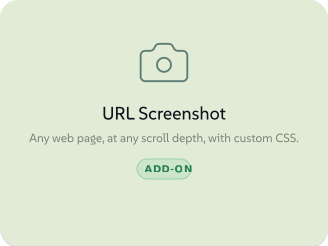
Lolly URL Screenshot declares capture, which a plain browser cannot provide alone, so its tile offers the add-on instead of vanishing:
 signed by Lollyvector SVG3 paths~1.3k nodes11 groups19 KBCheck it yourselfGet the signed file
 signed by Lollyvector SVG3 paths~1.3k nodes11 groups19 KBCheck it yourselfGet the signed file


Curating what people see
Two mechanisms narrow the catalog without forking the catalog itself.
A tool set per instance. Point each instance at a different profile, or at a brand pack with a curated tools/ root, so marketing, sales and IT each see a different library from one codebase.
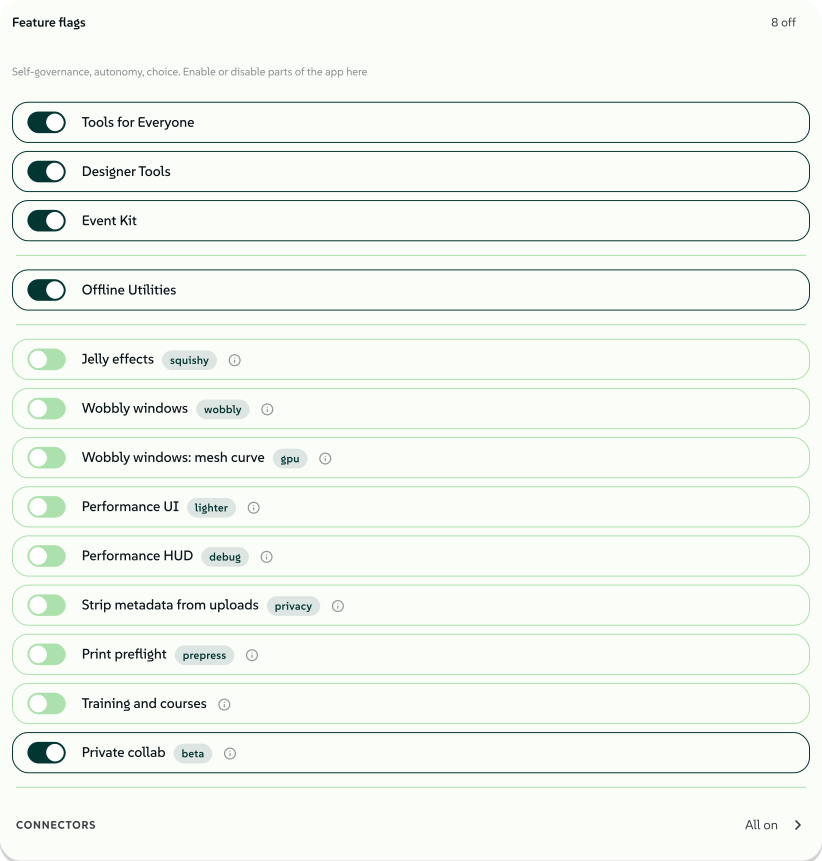
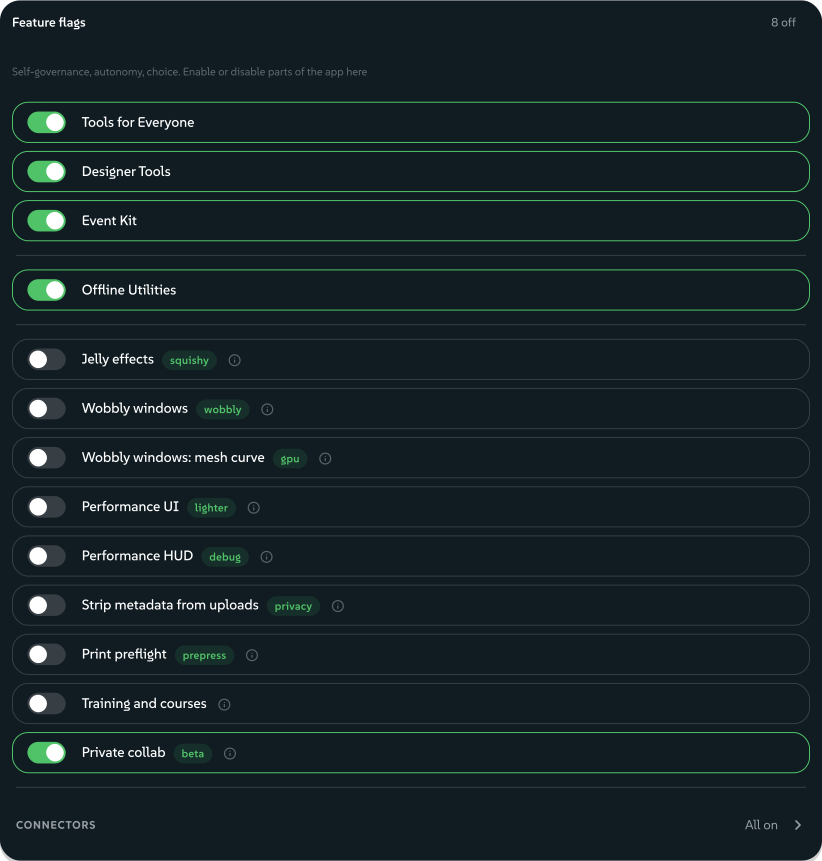
Switches per person. Settings → Feature flags holds them, stored on each person's profile so they sync. None of them ever gates an output format or any API.
| Switch | Default | An organisation can govern it |
|---|---|---|
| Gallery categories: Tools for Everyone, Designer Tools, Event Kit, Offline Utilities | On | No |
| Connectors: one per send destination, such as Google Drive, Dropbox or S3 | On | No |
Private collab (private-collab), the peer-to-peer working-together feature, in beta | On | Yes |
| Neurospicy Mode, the focus-music player (its switch is in Settings → Accessibility) | On | Yes |
| Jelly effects | Off | Yes |
| Wobbly windows, and its mesh curve | Off | Yes |
| Strip metadata from uploads | Off | Yes |
Colourway asset treatments (colourway-asset-treatments): one colour choice per colourway for two-colour icons and photos in Assets and the picker | On | Yes |
Print preflight (export-preflight) | Off | Yes |
| Performance UI and Performance HUD | Off | No |
| Training and courses | Off | No |
Turning a connector off withdraws that destination everywhere it is offered. Nearby discovery, which lets Lolly devices on the same network find each other when starting a collab, has no switch in this list; it is on by default, and an organisation can govern it too.
Strip metadata from uploads scrubs EXIF, location (GPS) and other embedded metadata from images uploaded to Assets. Content Credentials are always kept either way, so a signed or AI-generated image keeps its credential whether the switch is on or off.
Print preflight puts the Before you export prepress card (bleed, resolution, ink coverage, plate counts) above the Download button. It stays off by default so someone exporting a PNG for a chat message never meets prepress findings, and the card never blocks an export. It also honours the older export.preflight instance capability, which reads as governance defaulting the switch on, so members of an instance that granted it keep the card until they choose.
Performance UI gives the app a simpler look that is cheaper to draw: no background blur, shadows or blend modes in the chrome, no decorative motion, and previews that play only when asked. Tool canvases and exports are identical either way. Lolly can also switch the look on by itself, in two ways.
When Lolly switches the simpler look on by itself, and back
For a device that struggles to draw the interface, Lolly switches once and for good:
- At start-up, when the graphics check finds no hardware acceleration (a software renderer such as SwiftShader, llvmpipe or Microsoft Basic Render Driver). The renderer's name is read on the device and never stored.
- During use, when drawing the chrome stays slow for most of the time someone browses the gallery, Assets, Projects, Settings or the docs, spread over at least half a minute. In Chromium-based browsers two kinds of slow frame count, against the same numbers: frames spent mostly in style, layout and paint (never frames spent in script), and frames that arrive 50 ms or more apart while the page's own thread is idle. The second kind is how a graphics chip that cannot keep up with blur and shadows shows itself, since that drawing happens away from the page's own thread. Other browsers use a stricter frame-rate test. Tools, editors, exports, playback, the first seconds after loading and a hidden tab never count.
For a device whose resources are short for now, such as a powerful laptop that is hot, busy with another app or low on battery, Lolly switches for a while:
- Processor pressure, when the browser reports the processor under serious or critical pressure for a whole minute without a break while someone browses those same screens. Lolly's own work raises pressure too, so the same moments never count: tools, editors, exports, playback, the first seconds after loading, and a tab that is hidden or not focused.
- Battery, when the battery is at 20% or less and not charging: where Windows battery saver and Chrome's Energy Saver turn on by default.
- Data Saver (the browser's Save-Data setting) never switches the look on its own. With Data Saver on, a constraint needs to last only half as long.
The look switches back after five minutes of calm without a break: pressure fair or nominal, and the battery charging or above 20%. Calm counts on every screen, since nothing Lolly does makes a busy device read calm. Whatever the readings do, the look changes at most once in ten minutes, and never while someone is scrolling or dragging. Only Chromium-based browsers (Chrome, Edge, Opera) report processor pressure, the battery and Data Saver to a page. Safari and Firefox report none of them, and no browser reports a system low-power mode, so in those browsers the first two rules are the only ones.
A notice says what happened, with Undo and Keep. For the temporary kind it says so: "Lolly switched to the simpler, faster look while this device is busy. It switches back when things calm down." Keep makes a temporary switch last; letting the notice go by leaves the switch temporary. Undo turns the look off and stops that kind of automatic switching on that device, each kind separately: an Undo on a temporary switch stops temporary switching, and an Undo on the other kind stops switching for a slow device. While a first-run prompt is on screen, such as "Add your details to what you make?" or the welcome, the notice waits, and it appears once that prompt is answered or dismissed.
Settings → Feature flags shows under the switch whether the look is on for good or for now and why, and which kind of automatic switching an Undo has turned off, with Allow again. Allow again clears every Undo but leaves the look as it is: Lolly checks again from the next time it starts. Lolly never switches the look at all once someone has set the switch by hand. The decisions are a preference on that device only (lolly:perfUiAuto in local storage), so they do not travel with the profile to another device. They hold what was decided, the reason and when, and never a pressure reading or a battery level.
An optional organisation control plane, Lolly Work, can govern the switches marked Yes. It sets the default used when a person has not chosen, and it can hide the switch entirely; a hidden switch's governed default wins over a stored personal value.
 signed by Lollyvector SVG45 paths~8.0k nodes118 groups98 KBCheck it yourselfGet the signed file
 signed by Lollyvector SVG45 paths~8.0k nodes118 groups98 KBCheck it yourselfGet the signed file


Maturity & watermarking
A tool's status controls how much trust it signals, enforced by the engine rather than by convention:
experimental: exports are watermarked by default, so work in progress cannot be mistaken for finished output. The engine sets that default, and the tool's own code cannot remove the watermark. The code that calls the export can turn it off for one export (watermark: false), and on-device utilities (privacy: "on-device") never carry one.community: no watermark, but flagged as community-maintained rather than brand-approved.official: brand-approved, no watermark. The most-used value incommunity/.
Promote a tool by changing one field in its manifest. Every surface shows the status, so a reader knows what they are picking up before opening the tool.
 signed by Lollyvector SVG5 paths~2.1k nodes11 groups26 KBCheck it yourselfGet the signed file
 signed by Lollyvector SVG5 paths~2.1k nodes11 groups26 KBCheck it yourselfGet the signed file


The manifest is the source of truth, and each brand's catalog/tools/index.json is generated from the manifests. validate:catalog checks the schemas, asset checksums, file existence, bindToProfile fields, palette references and replacedBy chains, and fails CI when the generated index drifts from the manifests. After any tool.json or asset edit, rebuild and validate with the commands in Publish and localize a tool.
Tool and asset ids are permanent contracts: version in the manifest, never rename the path.
Organisation policy with Lolly Work
Content profiles and brand packs configure what a build ships. Optional Lolly Work adds policy for the running organisation: OIDC identity and SCIM provisioning, group permissions, managed profile fields, tool-input restrictions, selected feature flags and export settings. It also configures shared catalogs, projects, approvals, delivery and usage reporting. Personal preferences do not override controls labelled Managed by your organisation.
Keep that service's configuration in its own deployment. See its configuration and governance guides, and Choose a deployment for how it sits beside this app. Static builds keep using the settings on this page without an organisation service.
The services' own config
- CA service reads
services/ca/.envfor provider credentials and certificate policy (CA_CERT_DAYSdefault 30,CA_CERT_MAX_DAYSdefault 365 and the allowed day set). Policy stays on the server; see Content Credentials identity. - MCP server needs an access token (OAuth or bearer) unless the operator opens it with
LOLLY_MCP_ALLOW_ANONYMOUS=1. A hosted server keeps a daily CPU and data-transfer budget (LOLLY_BUDGET_CPU_SECONDS_PER_DAY,LOLLY_BUDGET_EGRESS_MB_PER_DAY), a PNG area cap (LOLLY_MCP_MAX_RASTER_PIXELS) and request, answer and image size limits (LOLLY_MCP_REQUEST_MAX_BYTES,LOLLY_MCP_RESPONSE_MAX_BYTES,LOLLY_MCP_MAX_IMAGE_BYTES). MCP server covers self-hosting, the limits and the tool surface.
The engine version and the time limits on tool hooks are fixed by the engine rather than set per deployment; Host API and Tool hooks cover them.