
Every Lolly tool opens from a link that already holds your choices. Send a colleague a QR code with their address filled in. Put a chart on a web page that redraws from its own link. Make two hundred name badges in a build step. Each one is the same kind of link, and none of them needs an account, a cookie or a server to remember anything.
A link
lolly.tools/t/qr-code?url=example.com&color=%23033633&format=png&export
Where Lolly runs
lolly.tools, your organisation's own site, or lolly:// for the installed app.
The tool
/t/ and the tool's id. A tool id is permanent, so the link keeps working.
Its inputs
One parameter for each input you set, called by the input's id. Inputs you leave out keep their defaults.
Reserved words
The format, the size and what happens on open. No tool may use these names for an input.
The same request on the command line
lolly qr-code--url=example.com --color=#033633--export=png
The command line has no host part: the tool runs on your machine, and writing the file is the export.
A link has three parts: the tool, its inputs and a few reserved words that say what to do with the result.
signed by Lollyurl-mode-anatomy.htmlHTMLpixels, not shapes9 KBAI editedgenerated by Claude Opus 5.5Check it yourselfGet the signed fileRead a link
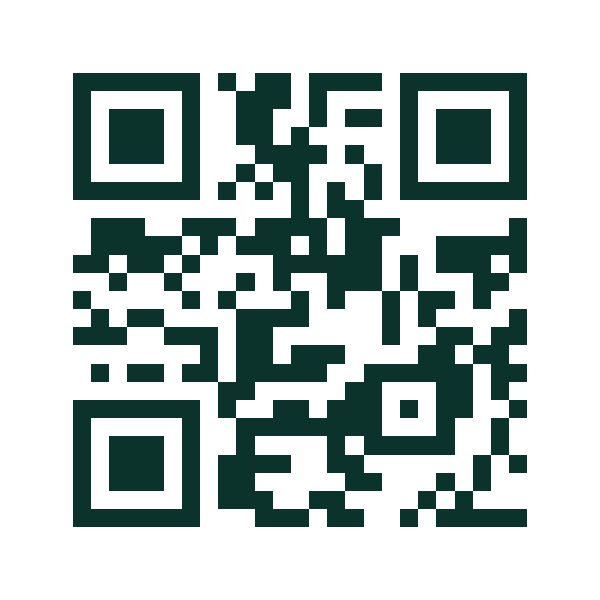
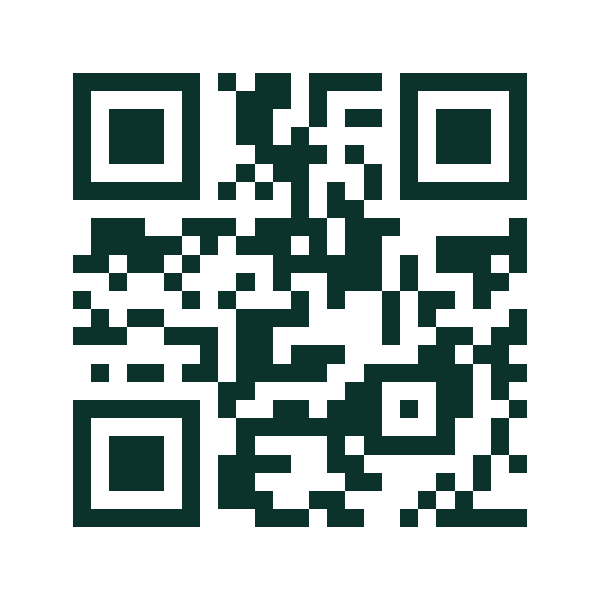
https://lolly.tools/t/qr-code?url=https%3A%2F%2Fexample.com&color=%23033633&format=png&export/t/qr-code is the tool. url and color are two of its inputs, each called by the id it has in the tool's manifest. format=png&export are reserved words that download a PNG as soon as the page opens. Everything else in a link is the design.
The /t/<id> path is the canonical form. The address bar shows it once a tool has loaded, and Share and the embed URLs build on this form. The older hash form, /#/tool/<id>?…, still opens the same tool. A bare tool id as the path also works: /qr-code?url=… forwards to /t/qr-code?url=….
 signed by Lollyvector SVG1 path~1.3k nodes12 KBCheck it yourselfGet the signed file
 signed by Lollyvector SVG1 path~1.3k nodes12 KBCheck it yourselfGet the signed fileTry it in the app


Parameters stack freely. This link sets five inputs, makes the canvas 600 by 600, hides the sidebar and downloads event-qr.png:
/t/qr-code?url=https://example.com/event&color=%230c322c&background=%23ffffff&ecl=H&padding=4&format=png&export&filename=event-qr&w=600&h=600&fullA chart takes its inputs, its short keys, a canvas size and full in the same way:
/t/chart?ct=donut&pl=warm&t=Everything+in+one+link&lg=1&lp=right&sv=1&w=1200&h=800&full signed by Lollyvector SVG58 paths410 nodes40 groups45 KBCheck it yourselfGet the signed file
 signed by Lollyvector SVG58 paths410 nodes40 groups45 KBCheck it yourselfGet the signed file


Inputs in URLs shows how each kind of input is written. Reserved URL parameters lists every reserved word.
The same link on the command line
In the address bar
/t/qr-code?url=https://example.com&format=png&export&filename=my-qrIn a terminal
lolly qr-code --url=https://example.com --export=png --output=my-qr.pngThe CLI reads the same names through the same conversion code, written as --key=value instead of ?key=value. Two things differ. --export=<fmt> takes the format, because writing a file is the export. --output gives the file's path, and without it the file goes to stdout:
lolly qr-code --url=https://example.com --export=svg > qr.svg   # pipe SVG onward
lolly qr-code # list the tool's inputs--format=<fmt> is accepted as another spelling of --export=<fmt>. Never pass a bare --export with --format: the bare form is read as the format 1 and the render stops.
Share, embed or automate
Share a link
The web app writes your inputs and result settings to the address bar as you work, so the address is always a bookmark of what you see. Share builds a cleaner link: the design and your chosen link options, without your editor selection, viewport or open panels.
A shared link leaves out anything personal unless you choose to include it, such as the details from your profile. What a link carries lists what travels, what stays on your device and when to send a .lolly file instead.
Embed a tool in a page
Add the iframe flag to embed a tool with its inputs filled in. The frame shows only the tool's rendered output, with none of the app's controls. It keeps nothing on the visitor's device: no saved session and no history entry.
<iframe src="https://brand.example.com/t/qr-code?url=https://example.com&iframe"
        width="900" height="700" frameborder="0"></iframe>
A Lolly site frames inside its own origin and not inside anyone else's, because it ships frame-ancestors 'self' in its Content-Security-Policy. That stops a page you do not control from laying an invisible frame over Lolly's export buttons. Framing within one origin, such as your own marketing page showing your own Lolly, needs no change. To allow another site, the operator adds that origin to frame-ancestors in the deployment's Content-Security-Policy (Deployment), naming each origin rather than allowing every site.
Tool composition (portable embed URL)
One tool can show another tool's render through a link that looks like an image address. Its query is ordinary URL-mode parameters:
<img src="https://lolly.tools/tool/qr-code.svg?url=https://example.com&color=0c322c">Nothing is fetched from lolly.tools. A shell recognises this exact shape and renders the named tool on the device, showing a placeholder pixel until the render is ready. Anything that does not match the grammar exactly is treated as an ordinary image, and that strict match is the security boundary.
The extension is the author's choice of fidelity. An svg child stays a true vector when the parent exports SVG or PDF, and rasterises crisply for PNG. A png, jpg, jpeg or webp child embeds as an image. pdf is in the grammar but is not inlined as a child.
A child draws in the theme and colourway of the document it sits in, so a QR code in a dark document is dark. A link that carries its own _themes keeps that choice for the groups it names.
Design uses this path: a tool placed in a Design document is an embed URL rendered this way. Both this form and the declarative composes block in a manifest need the tool to declare the compose capability; Composition and brand overlays covers the declarative form.
How a child's theme choices combine with the document's
A link that carries _themes of its own keeps its choice for the groups it names, and the document's choices fill in the rest: _themes={"":"light"} inside a dark Beach document draws the child light, in Beach. A document that made no choice of its own draws in the choices its design system is set to, so those fill in the rest instead.
In the web app this holds in the tool view, a framed tool, a multi-edit card, a batch row and a document export alike. A pasted tool link keeps its _themes in the canonical id it is stored under, so it reopens in the same choice; choices inherited from the document never enter the id. The CLI writes the same id, so a link it writes back keeps the child's _themes, but the CLI does not yet draw the child in those choices.
Automate in a build step
Call the CLI from a pipeline to make files on demand:
lolly qr-code \
  --url=https://example.com/product/${SLUG} \
  --color=#0c322c \
  --export=svg \
  --output=./dist/qr-${SLUG}.svg
CLI batch and automation covers batches, exit codes and the --json envelope.
Long and private links
A readable link such as ?color=30BA78&theme=dark can be edited by hand. A complex document is different. A Design file with dozens of boxes, each with coordinates, colours and text, runs to thousands of characters. Pasted links, social crawlers, QR codes and some servers still fail past about 2,000.
Packed links (z)
For those, the app compresses the whole readable query into one z parameter:
/t/design?background=…&boxes=…&format=png   ← readable (for example 2,729 characters)
/t/design?z=1eJyFkc… ← packed (for example 1,059 characters)Readable
Packed z
- 1,800 characters. Past this length the address bar switches to the packed form, when packing is shorter.
- Past about 2,000. Pasted links, social crawlers, QR codes and some servers start to fail.
The address bar switches to the packed form once the readable query passes about 1,800 characters.
signed by Lollyurl-mode-packed.htmlHTMLpixels, not shapes8 KBAI editedgenerated by Claude Opus 5.5Check it yourselfGet the signed fileThe app packs only when packing is shorter. On a short link the compression framing costs more than it saves, so links stay readable below the threshold. The Share dialog offers a Shortest link checkbox, ticked for large documents, that shows the saving.
A packed link decodes the same everywhere. The engine's expandQuery() turns z back into the plain query before anything reads it, so the web app, the CLI (lolly <id> --z=1eJ…) and pasted-link composition all behave as they do with the readable form. On-visit flags such as export, full and _v can ride beside z in readable form and still work.
How the z codec works
z's value is <tag><payload>. Tag 1 is raw DEFLATE (RFC 1951, a frozen standard) through the platform's own CompressionStream, carried as base64url. It is the default and the shortest form in characters.
Tag 2 is the same DEFLATE bytes carried as unpadded upper-case base32 (RFC 4648). It runs to about 20% more characters, but every character is in a QR code's alphanumeric set, which costs 5.5 bits a character instead of 8. The Share dialog's QR button writes large links this way, and the printed code comes out a version or two smaller.
Both tags decode everywhere, and the tag versions the codec so a later variant cannot break a link written today. The packed form compresses the app's own canonical readable query, so there is no second encoding to keep in step and no lookup table on any server. A link packed in a browser decodes the same in Node's zlib and the CLI.
Encrypted links (zx)
A password can lock a link, with no server and no account. Tick Password-protect this link in the Share dialog and set a password, and the link changes to the zx form. On-visit flags still ride alongside in readable form.
The state is compressed, then encrypted with AES-256-GCM under a key derived from the password with PBKDF2-SHA256. Opening the link asks for the password and decrypts in the recipient's browser. A wrong password asks again; cancelling loads the tool at its defaults.
- The password never travels. The link holds only the ciphertext with a random salt and IV. Send the password another way. Nothing stores the password, so nothing can recover a lost one.
- It opens interactively only. An encrypted link opens in Lolly, but it cannot be embedded as an image, because the embed path renders without a person to ask. It renders at the defaults there.
- It is its own codec.
zxis<tag><base64url>ofsalt‖iv‖ciphertext, versioned apart fromz.expandQuerynever touches it: decryption happens only where the app can ask for the password.
Where to go next
| Task | Guide |
|---|---|
| Write each kind of input: text, colours, assets, lists, tables and keyframes | Inputs in URLs |
| Download, copy, size, print, present or embed when a link opens | Links that do something on open |
| Look up one reserved word | Reserved URL parameters |
Open a view of the app, or launch the installed app with lolly:// | App links and deep links |
Section links from the earlier guide
- Setting tool inputs
- String, text, longtext, url
- Select
- Number
- Boolean
- Color
- Asset
- Blocks
- Vector
- File
- Table
- Keyframe tracks
- Compact encoding (opt-in)
- Reserved parameters
- Physical units (unit= + dpi=)
- Print-ready output
- Contact sheets
- Download a file
- Download a file
- Download a file
- Copy to the clipboard
- Set the size
- Open clean, embed or publish
- Open clean, embed or publish
- Transparency and outlined text
- Resume a saved session
- App views
- The lolly:// scheme
- App-wide
- Gallery (#/, and #/u for utilities)
- Assets (#/a)
- Projects (#/p, #/p/<folderId>)
- Batch and Multi-edit
- Batch and Multi-edit
- Design System Setup (#/start)
- Settings (#/settings)
- Settings (#/settings)
- The remaining views
- On a tool route
- Read a link
- Read a link
- Read a link
- The same link on the command line
- Embed a tool in a page
- Automate in a build step
- What a link carries
- Share, embed or automate
- Where to go next