
Two people can edit the same tool session at the same time, each on their own device. There are two ways to do this, and the right one depends on where you both are.
- A private collab connects two devices directly. Use it at the same table or on the same network, even with no internet. You need no account, and your edits go straight between the two devices.
- A work collab runs through your organisation's Lolly Work instance. Use it when your organisation offers one and you are on different networks. It has its own section: Work collabs with Lolly Work.


Start a private collab
One person invites. The other replies, and the two devices connect. From then on, a change on one device appears on the other.


- Open the collab. In the tool, press Share in the export controls, open Private collab and press Start a collab. A tool tile's menu in the gallery offers Start a collab too.
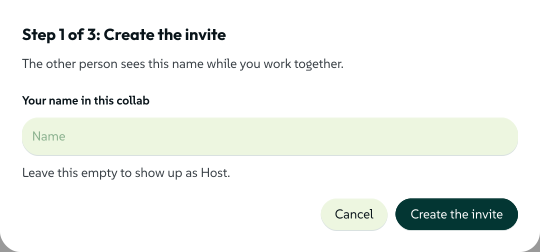
- Name yourself for this collab and press Create the invite.
- Send the invite to the other device as a link, a QR code or a code.
- Get the reply back. The other device makes a reply, and it has to reach your waiting screen before anything connects.
- Compare the plates. Both screens show the same six characters. Read them out loud.
 signed by Lollyvector SVG12 paths957 nodes14 groups17 KBCheck it yourselfGet the signed file
 signed by Lollyvector SVG12 paths957 nodes14 groups17 KBCheck it yourselfGet the signed file


Before you invite anyone, know two things.
- The person who invites owns the session. The saved session lives on the inviting device, and its History records the other person's changes too. The joining device gets a working copy that it can edit and export, but the copy is not filed in its Projects and ends with the collab. While the collab lasts, its History holds checkpoints in memory, and Open as a copy on one of them files a separate copy on the joining device.
- Anyone holding the invite can join and edit. Send the invite the way you would send the work itself, and treat a re-sent invite as a re-shared document.
Both devices need the same tool. A collab sends values, never code, so the template and the logic come from the catalog on each device. If the joining device does not have the tool, the join is refused as soon as the invite is read. The refusal gives the tool's id, such as qr-code.
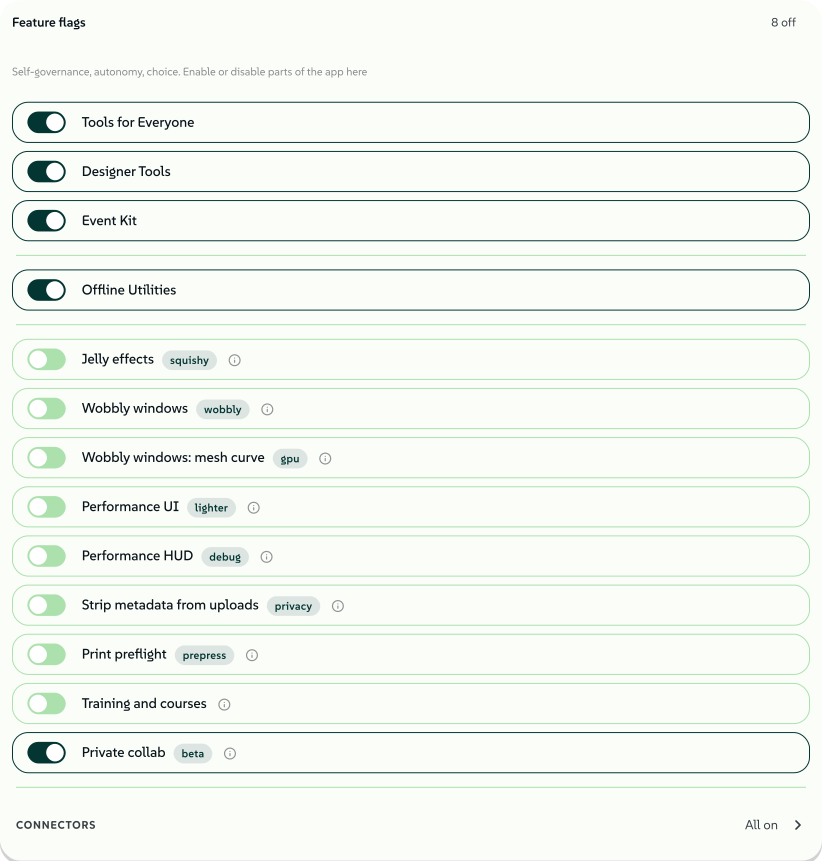
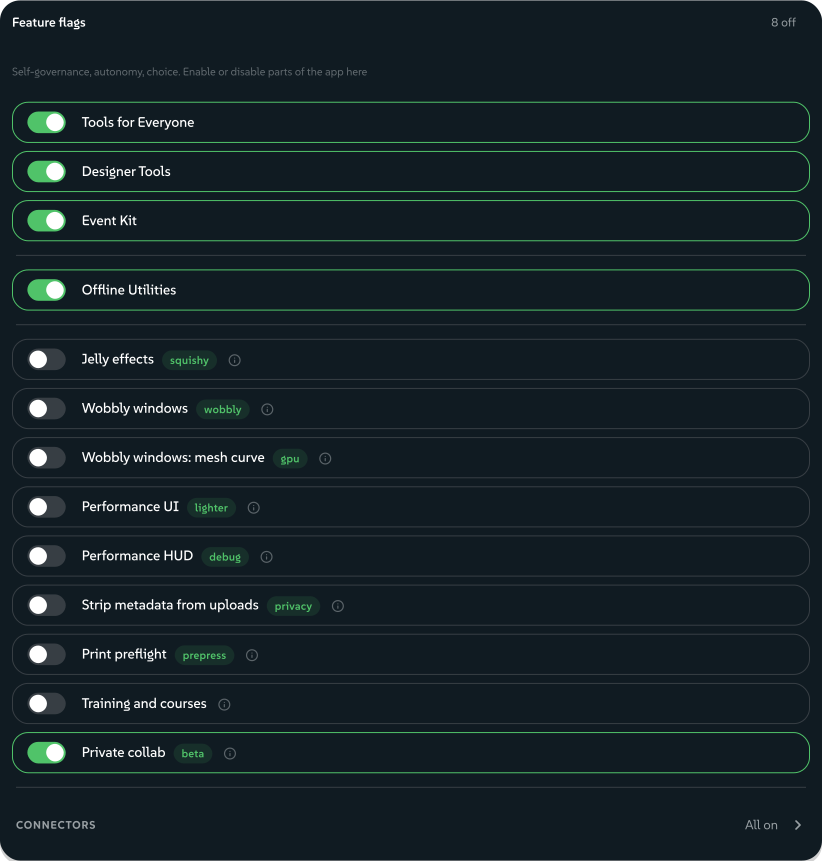
The feature is on by default. It carries a beta pill in Settings → Preferences → Feature flags, where you can also turn it off. An invite link opened on a device where it is off offers to turn it back on.
 signed by Lollyvector SVG45 paths~8.0k nodes118 groups98 KBCheck it yourselfGet the signed file
 signed by Lollyvector SVG45 paths~8.0k nodes118 groups98 KBCheck it yourselfGet the signed file


Name yourself
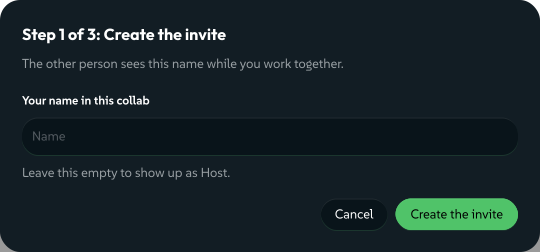
The name you type here is the only thing about you that crosses the link. On the joining device the field starts with the first name from your details, which you can change or clear. Leave it empty and you appear as Host, or Invitee on the joining side.
 signed by Lollyvector SVG10 paths~3.3k nodes13 groups41 KBCheck it yourselfGet the signed file
 signed by Lollyvector SVG10 paths~3.3k nodes13 groups41 KBCheck it yourselfGet the signed file


Each screen is headed Step 1 of 3 to Step 3 of 3 on both devices. You are looking at different screens, so the step numbers are how you tell each other where you are.
Send the invite
Once the invite is made, your screen shows it in three forms. They carry the same invite, so pick whichever suits the two of you.
| Form | How the other person uses it | When it fits |
|---|---|---|
| Link | A #/join?inv=... address. Opening it shows the join screen with the invite already read, ready for their name. | You have any messaging channel between the devices, and the joining device can reach the address you are using. |
| QR code | They press Scan a code on their join screen, or point a phone's camera app at the QR on the Invite link tab. | You are in the same room with no channel between the devices, such as a phone and a laptop on one desk. |
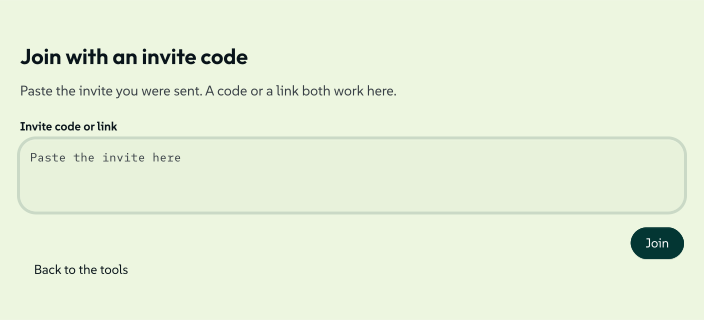
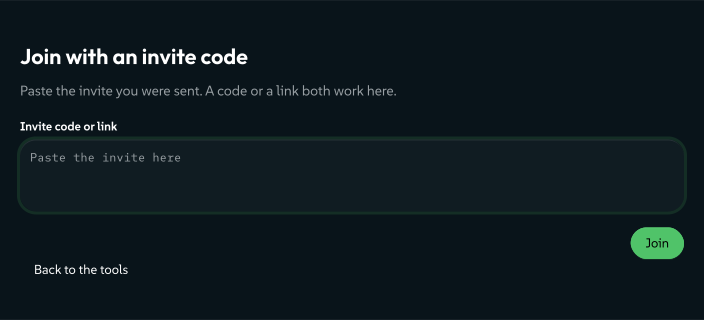
| Code | They open #/join, which Join with a code in the Share dialog also opens, and paste the code there. | The channel mangles links, or someone is typing or reading the invite out. |
Scan a code appears only where the browser can decode a QR, which today means Chromium-family browsers. Where it cannot, there is no button rather than one that never finds anything.
 signed by Lollyvector SVG9 paths~2.6k nodes9 groups32 KBCheck it yourselfGet the signed file
 signed by Lollyvector SVG9 paths~2.6k nodes9 groups32 KBCheck it yourselfGet the signed file


Two more ways skip the copying.
- Over shared cloud. If you both have the same storage connected in Lolly (an S3 bucket, a WebDAV server, Google Drive or Dropbox), the Private collab section also offers Over shared cloud. You both enter the same Session code, then one of you presses Host and the other Join. The invite and the reply pass through that storage, and your edits still go straight between the two devices.
- Nearby devices, in the desktop app. On the desktop app, the invite screen lists Nearby devices: other desktop apps on the same network that have pressed Make this device visible. Tap one to hand it the invite, and its reply comes back the same way. You still compare plates.
While you wait, the screen counts down how long the current invite still works. After ten minutes a fresh invite is made automatically and the screen tells you, so send the new one. That happens twice, then the wait stops and tells you nothing came back in time. Make a new invite restarts the clock whenever you like.
Get the reply back
An invite on its own connects nothing. The joining device makes a reply, and the reply has to reach your waiting screen. The reply comes as a link, a code and a QR, like the invite, but your waiting screen has no scanner, so send it back as a link or a code.
- As a link. The reply is a
#/join-reply?ans=...address. Opened on the device that made the invite, it hands the reply to the waiting window, which moves on by itself. The tab that opened it says so and can be closed. - As a code. Paste it into Paste the reply code here on the waiting screen and press Connect.
- From a phone. If the waiting device is a phone, its camera app can open the QR on the Reply link tab, which then works like opening the link.
You can test with two tabs on one device. If you open your own invite in another tab, the join screen notices and says so in one line you can dismiss. The pairing is real; it just joins two windows of one browser.
If the reply reaches the wrong window
A reply pasted into the invite door is recognised as a reply, and you are told which window it belongs in. A reply link opened on a device where no window is waiting says so and leaves the code on screen to copy. A device with more than one invite waiting says so too, and leaves the code for you to paste into the right one rather than guessing.
Check the plates
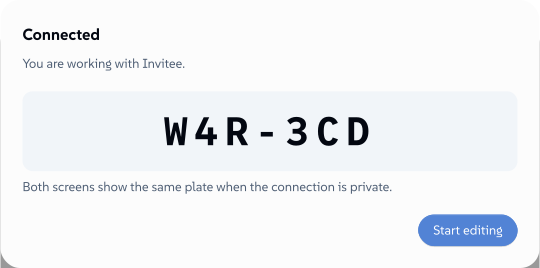
The moment the two devices connect, both screens show the same six characters, in two groups of three, with one sentence under them:
Both screens show the same plate when the connection is private.
Read the plate out loud and check it against the other screen. If the two match, your devices are talking to each other and to nobody in between. If the connection drops and you pair again, you get a new plate, so compare again.
 signed by Lollyvector SVG6 paths~2.5k nodes9 groups51 KBCheck it yourselfGet the signed file

How the plate check protects you
The invite carries a fingerprint of the inviting device, and the reply carries one back. The plate is worked out from both fingerprints together, ordered so that each device gets the same answer without being told which one it is. Anyone who wanted to sit in the middle would have to end the connection on both sides with certificates of their own. That gives two fingerprints neither of your devices ever saw, and no change to the invite or the reply makes two matching plates appear on your screens.
This is the same idea as the short authentication string in ZRTP (RFC 6189, section 7): the people are the part of the channel that cannot be forged. Comparing plates turns "the invite reached them" into "the invite reached them and nothing changed it on the way".
- The alphabet has no look-alike characters. No 0 or O, no 1 or I or L, no B against 8, because "oh" against "zero" is exactly the confusion an out-loud check must not absorb.
- A screen reader reads it character by character, spaced, with a pause between the groups. Read as a word, a mismatch could sound like a match.
Editing together
Once you are connected, the tool opens on both devices with the session in it, and you both just work.
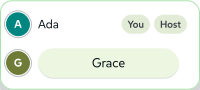
The collab pill sits over the canvas: the people in the collab as a stack of initials, and a dot for the state of the link (Connecting, Live, Reconnecting, Away or Disconnected). Open it for the roster, which lists everyone and tags You, Host, Away, Observer and any AI agent.
 signed by Lollyvector SVG5 paths87 nodes14 groups6 KBCheck it yourselfGet the signed file

 signed by Lollyvector SVG7 paths443 nodes15 groups10 KBCheck it yourselfGet the signed file

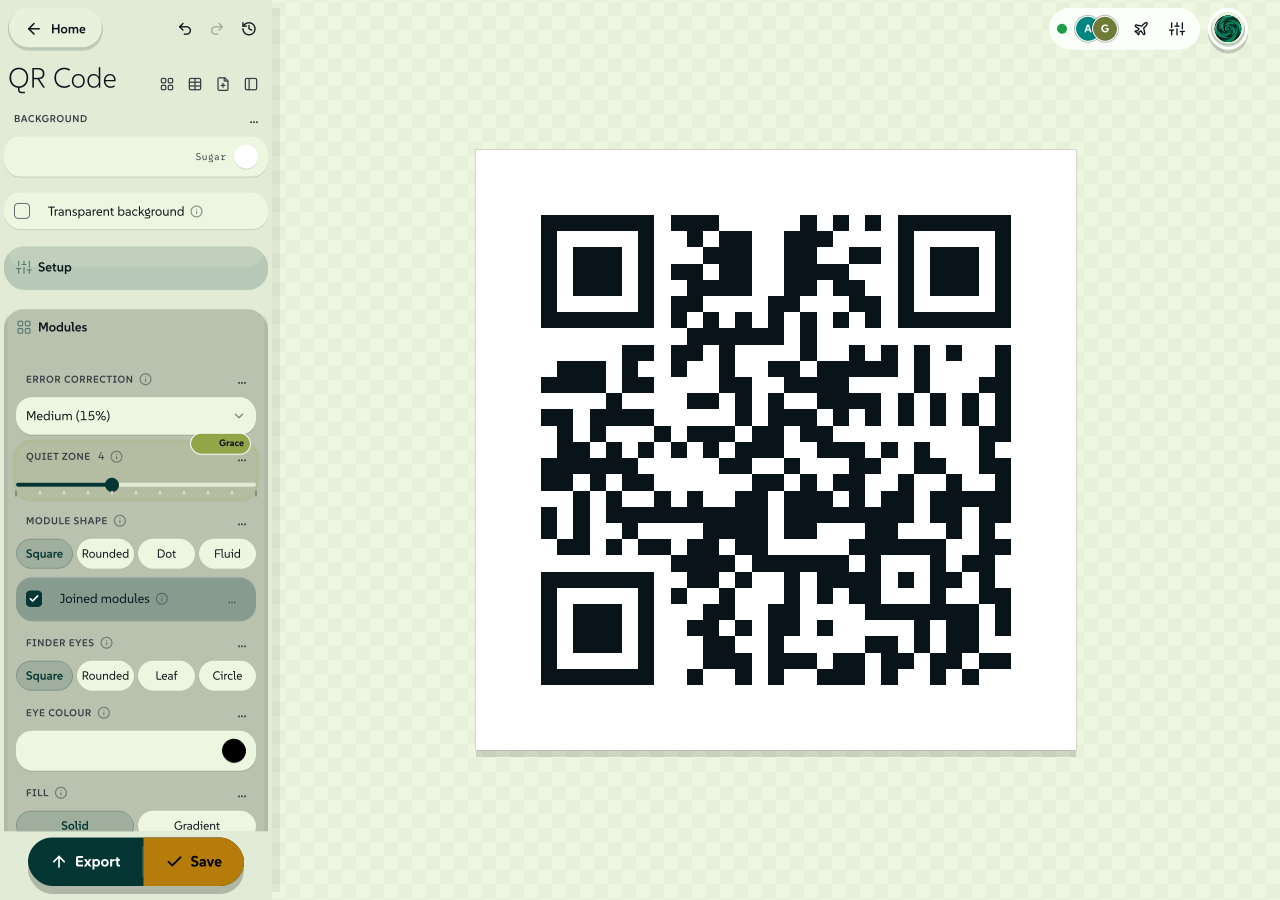
You can see where the other person is working. The control they are in gets a coloured ring with their name on a chip, and the part of the render that control draws gets a matching outline. Colour is never the only signal: the ring always carries the name, the outline has a hairline that reads as a shape, and each handover is announced to screen readers.
 signed by Lollyvector SVG150 paths~8.6k nodes281 groups2 images163 KBCheck it yourselfGet the signed file

Pointers appear on canvas tools. In a tool with a freeform canvas, such as Design, you see the other person's pointer. Show pointers in Collaboration settings on the pill turns pointers off for you. In a form tool the canvas is a rendered preview, so the focus rings show where the other person is working instead. Presence is never written into the render: rings, outlines and pointers are painted on a layer over the render, so they cannot change a byte of what you export.
Your undo is yours. A change arriving from the other device never goes onto your undo stack, so you cannot undo something you did not do. When you undo, the old value goes back and travels to the other device like any other edit.
The last write wins, per field. There is no locking and no queue, and you both end up with the same value. Two people typing into the same text field at the same moment get one of the two versions, not a merge, as in other design tools. The focus rings are there so you can avoid that.
If the connection wobbles, the dot says Reconnecting and nothing is torn down. A brief drop heals on its own. A real drop needs a fresh invite, because the session lives only on the two devices (see If it does not connect).
If the two devices run different versions, you are told. A small difference in the tool says some fields may not match. A larger difference in the collab format makes both devices observers, and the pill says Observing. Each keeps seeing the session, and edits from either device are not sent.
Send a session
The connection that carries your edits can also carry things too big to be edits. Lolly calls this a beam.
Press Send this session on the collab pill. The other device gets a card saying what is offered, how many items it holds and how large it is, with Accept and Decline. Nothing moves until they accept. You both watch the same progress card, and either of you can cancel. The transfer runs on its own channel, so editing stays responsive while it runs.
 signed by Lollyvector SVG9 paths~2.2k nodes12 groups32 KBCheck it yourselfGet the signed file

- What travels: the session, plus the files you brought to it, such as uploads, recordings and captures. Those exist on one device only, so the session needs them to arrive complete.
- What stays behind: anything already in the catalog on both devices. Those items travel as references and resolve on the other side, so the transfer is the size of your own work, not of a design system. If a reference cannot be resolved there, the transfer lists which ones.
- On arrival: a received session is always filed as a new session labelled with the sender's name. It never overwrites anything. Files are stored byte for byte as they arrived, with no re-encoding, and checked against their declared size and digest, which keeps Content Credentials intact. A file the device already has is recognised by its checksum and not stored twice.
Send this session is the one beam control today, and it appears only while the transfer channel is open. The format can also carry a hand-picked set of files, a whole project or everything under a tag, but the app does not offer those yet.
With no internet
Private collab is built for this case.
The same network is enough. Two laptops on the same Wi-Fi, a laptop and a phone on one router, or two machines on a wired switch find each other on the local network. Editing together never touches the internet.
No network? Make one. Turn on a phone's personal hotspot and connect the other device to that hotspot. That network has two devices and no route anywhere, and that is enough on a plane, in a basement or on a site with no coverage. A hotspot is also the answer when a venue's Wi-Fi stops its own guests from talking to each other.
What each part needs
| The part | What it needs |
|---|---|
| Editing together | The two devices can reach each other on the same network. Nothing else. |
| Opening an invite link | The joining device can load Lolly at the address in the link. An installed app, or Lolly already open on that device, loads offline. A first-ever visit has to reach the address. |
| A code | Nothing beyond the app being open on both devices. This path needs no network at all until the devices connect. |
| Scanning the invite's QR | On the joining device, a camera and a browser that can decode QR codes (Chromium-family today), or a phone's camera app on the Invite link tab. The reply goes back as a link or a code. |
| A beam | Both people in the tool. A transfer offered before the other side has the tool open is not queued. |
Across different networks, private pairing is limited. Each device offers only the addresses it can see on its own network, and Lolly configures no external address-discovery server. Use one shared network or a hotspot, or a work collab if your organisation offers one.
If it does not connect
Each failure screen says what happened and offers the next step.
| The screen says | What to do |
|---|---|
| This network blocks direct connections | The network stops its own clients talking to each other, as guest, hotel, office and conference Wi-Fi often do. Use a personal hotspot with both devices on it, a wired network or another network. A work collab does not need a direct connection. |
| Nothing came back in time | The reply never arrived. Usually it is still on the other person's screen, waiting to be sent back. Make a new invite and send it again. |
| The connection dropped | The other device stopped answering. Make a new invite to carry on: no server holds the session, so there is nothing to resume. Your work is untouched on your device. |
| This device does not have that tool | Add the tool to the joining device, then ask for a fresh invite. |
| The two versions of that tool do not match | One device cannot read the other's version of the tool. Update both. |
| This device could not open the connection | The browser refused to make a direct connection. Reload and try again. |
| This link carries no invite or This invite could not be read | The invite arrived incomplete or was changed on the way. Ask for a fresh one. If the channel wraps lines, the code pastes more reliably than the link. |
Work collabs with Lolly Work (optional)
Lolly Work is the Lolly project's organisation service. An instance your organisation runs adds shared projects, sign-in and access policies around the same tools. You can use Lolly and private collabs without Lolly Work.
In a work collab, everyone edits a session held by the organisation's instance, with live edits and cursors. The organisation decides who can join and who can edit. People can be on different networks, as long as each can reach the instance.
To start one:
- Open your organisation's Lolly address and sign in. Use Lolly at your organisation covers connecting a browser, desktop or mobile app.
- Open Projects → Team projects and choose the shared session.
- The session joins its live collab as it opens. The collab pill shows Connecting, then Live. Open the pill for the roster.
- To ask someone on the project to edit with you now, press Invite someone on the pill and type their name in Invite to edit now. The button is there when you may invite people to the project.
To join an invitation, press Open the collab in the invite in your inbox. Joining uses your organisation access, so there is no reply code to exchange.
Your edits go to the organisation's server and are saved to its shared session. Wait for Saved to work before you leave. View only means you can follow the session but not change anything. Your organisation manages access to the shared copy and how long it is kept.
An AI agent can join too, when you are a member and your organisation's instance offers agent invitations. Invite agent in Collaboration settings on the pill brings one in. It appears in the roster tagged AI agent, with Pause agent (then Resume agent) and Disconnect agent. Invite an agent to a document explains what an agent may do.
If Team projects is missing, or a shared session opens without the collab pill, ask whoever runs your organisation's Lolly whether the feature and your access are turned on. Operators set up an instance from Run your own server.
Comments, mentions and links
A work collab can hold a review: comments pinned to the canvas, mentions that tell a colleague and links that open one thread. All of it stays inside your organisation's instance, and none of it changes who can open the document.
Comments. Open Collaboration settings on the collab pill and choose Comments. Pin a comment and then choose an object or a point, or use Comment on selection or Comment at canvas center. Each comment starts a thread that anyone who can open the document can read and reply to. Resolve thread moves it out of the open list; Reopen thread brings it back.
Finding feedback. The four filters at the top of the panel are Open threads, Resolved threads, Unread and Involving me (threads you started, replied to or were mentioned in). Each shows how many threads it holds.
- Show comment location moves the canvas to the pin, switching artboard if the thread is on another one. If the object was deleted, the canvas shows where it was.
- Previous thread and Next thread, or Alt+Up and Alt+Down, step through the threads in the current filter.
- Hide pins clears the pins from your canvas without changing anyone else's. The choice is kept on this device.
Unread. Comments counts the threads with replies you have not seen, and each of those threads carries a dot. While any are unread, the Collaboration settings button carries a dot too. Opening a thread marks it read, and Mark all as read clears the rest. Read state is yours alone.
Mentions. Type @ in a comment to choose a colleague. Only people who can already open the document are offered, by name and never by email address, and a mention never gives anyone access. The people you mention, and everyone already in the thread, get a notice in their inbox; its Open thread button opens the document and the thread. If you lose access to the document, or it is deleted, its notices leave your inbox. Your organisation can turn mentions or notices off.
Links to a thread. Copy link to thread copies an address that ends in ?thread= and the thread's id. For anyone who can open the document, the link opens that thread, after signing in if needed. The link gives no access by itself: someone without access sees Ask for access, and once a manager approves, the same tab opens the thread.
Live updates. While you are connected, a new comment or reply shows for everyone in the document within about a second. Without a live connection the panel still checks for changes every few seconds.
Interrupted edits. If the connection drops in the middle of an edit, the edit that could not be sent is saved as a separate copy on this device, with a notice that stays until you dismiss the notice. Changes the server had already accepted are in the shared document. Open recovery copy opens the copy; Download recovery copy saves it as a file. A copy is listed only for the account and organisation that made it, and it is removed from the device after 30 days.
Following, presenting and versions
What everyone in the document can see. While you are connected, your device shares where you are: the artboard you are on, the part of the canvas in view and your zoom, what you have selected, your pointer, whether you are presenting and whom you are following. Everyone in the document can see all of this, not only the person you follow. Closing the document stops the sharing.
Following someone. Press a person's picture in the bar at the top of the canvas to follow them, or press their name in the list of people (your own picture opens the list). Your view then moves with theirs: their artboard, where they are looking and their zoom. Their selection stays theirs. If they open a comment thread, your Comments panel opens the same thread. The bar shows Following and their name, and an outline in their colour frames your canvas.
- Stop following or Escape stops following and takes you back to the view you had before.
- Moving the canvas yourself (scrolling, dragging, pinching or zooming) or choosing something also stops following, and keeps the view you are on.
- If the person leaves the document or steps away, following stops and the bar tells you.
Who is following you. The bar shows Followers: with a count. Their names are in the list of people under Following you, and a screen reader announces each new follower.
Presenting. When someone presents the document, everyone else sees that they are presenting, with Follow presentation. Following a presentation shows each slide they show, and ends when they stop. If two people present at once, only the one who joined the document first is shown. Guests cannot present.
Show pointers. Show pointers in Collaboration settings is a checkbox. Clear it to hide other people's pointers on your canvas, and select it again to bring them back. It changes only what you see: others still see your pointer, and the pictures, pins and follow outline stay. The choice is kept on this device.
Versions. Open History to see the document's versions, newest first. Your organisation's instance keeps them with the document. Each version says when it was made, why (Automatic version, Saved version, Restored version or Recovered work) and who edited since the previous version. Names never include email addresses, and guests are shown as "Guest".
- Save version (editors) keeps the document as it is now. Give it a name, or leave the name empty to name it after the time.
- Preview shows a version larger, with when it was made and who edited the document. Open as a copy opens it as a separate document of your own.
- Restore this version (editors) asks first, then changes the document for everyone who has it open, with the same checks as anyone's edits. Undo restore is offered for 30 seconds and puts back the document as it was just before. Locked settings, and settings others are using at that moment, stay as they are, and the message tells you. If the document cannot take every change, nothing is restored.
- Delete version (managers) asks first, then removes the version from History for everyone.
Deleting the document deletes all its versions. An older instance without saved versions shows its recent checkpoints in History instead, which you can open as a copy but not restore.
Related: Using Lolly for the tool, the canvas and saving sessions. Sync your devices for keeping one person's devices in step. Privacy for what is stored and where.