Quickstart
Lolly turns your rules - colours, type, layouts, logic - into tools anyone can use to make finished files: images, PDFs, social cards, video, by filling in a few fields. There's nothing to learn and nothing to upload: it all runs on your device, online or off.
This is the one page to read first. Two things get you productive: make Lolly yours and bring in what you already have (your design files and tokens). Everything else is a link away.
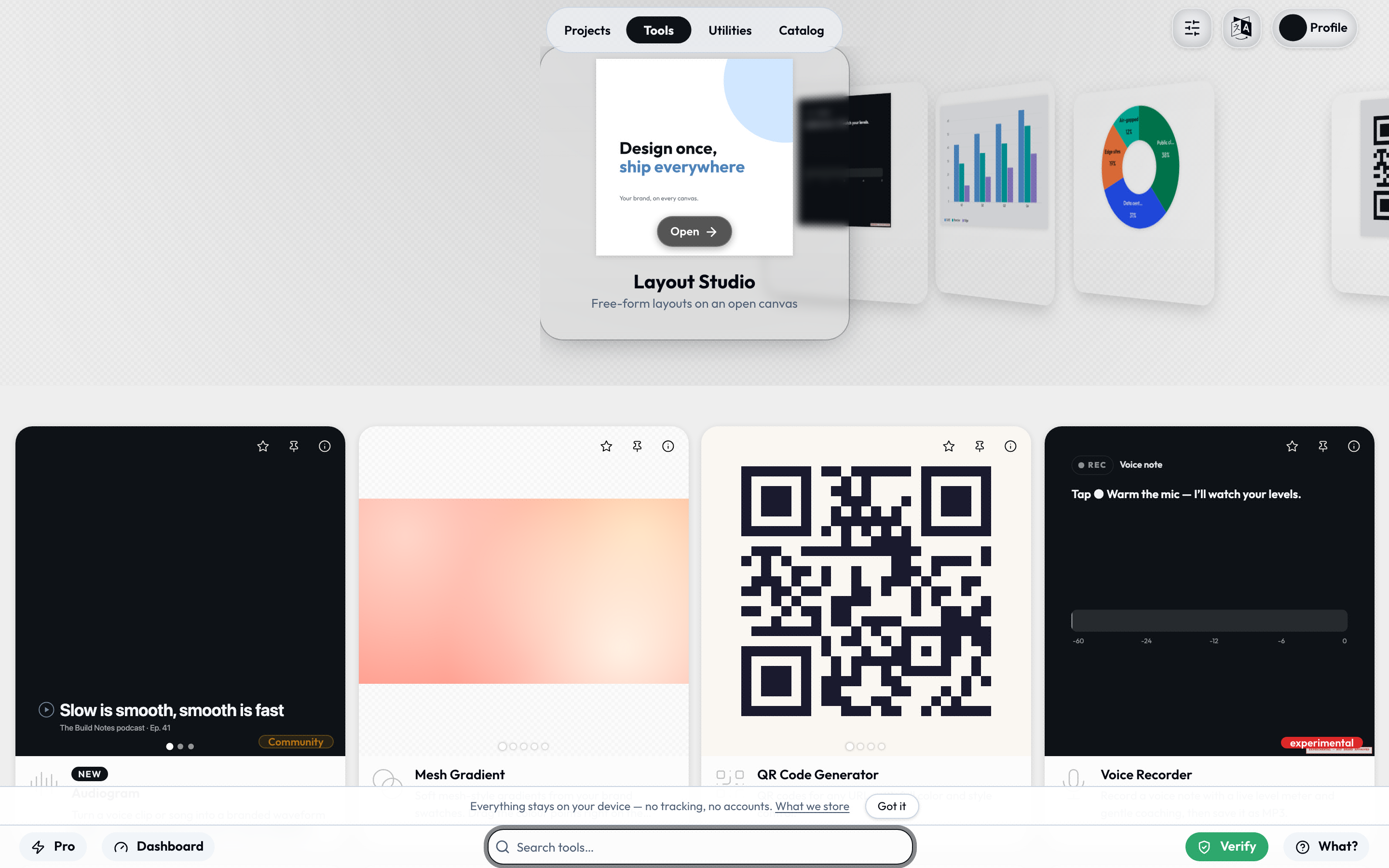
New to Lolly and just want to make something? Open the app, pick any tool from the gallery, fill in the blanks, and hit Render. Come back here when you want it wearing your brand.
1. Make it yours - configure your Design System
Your brand in Lolly is a small design-tokens document - colours, fonts, and a few rules - that every tool renders against. Set it once and everything you make is on-brand by construction, not by review. There are three ways in; pick the one that matches where your brand already lives.
Start from scratch (the design system builder)
First run drops you on the Start screen (#/start) - the Brand Studio. Give it a name and a primary colour and Lolly derives a complete, accessible palette from it - light/dark surfaces, text, accents - using the same colour maths the engine uses everywhere else.
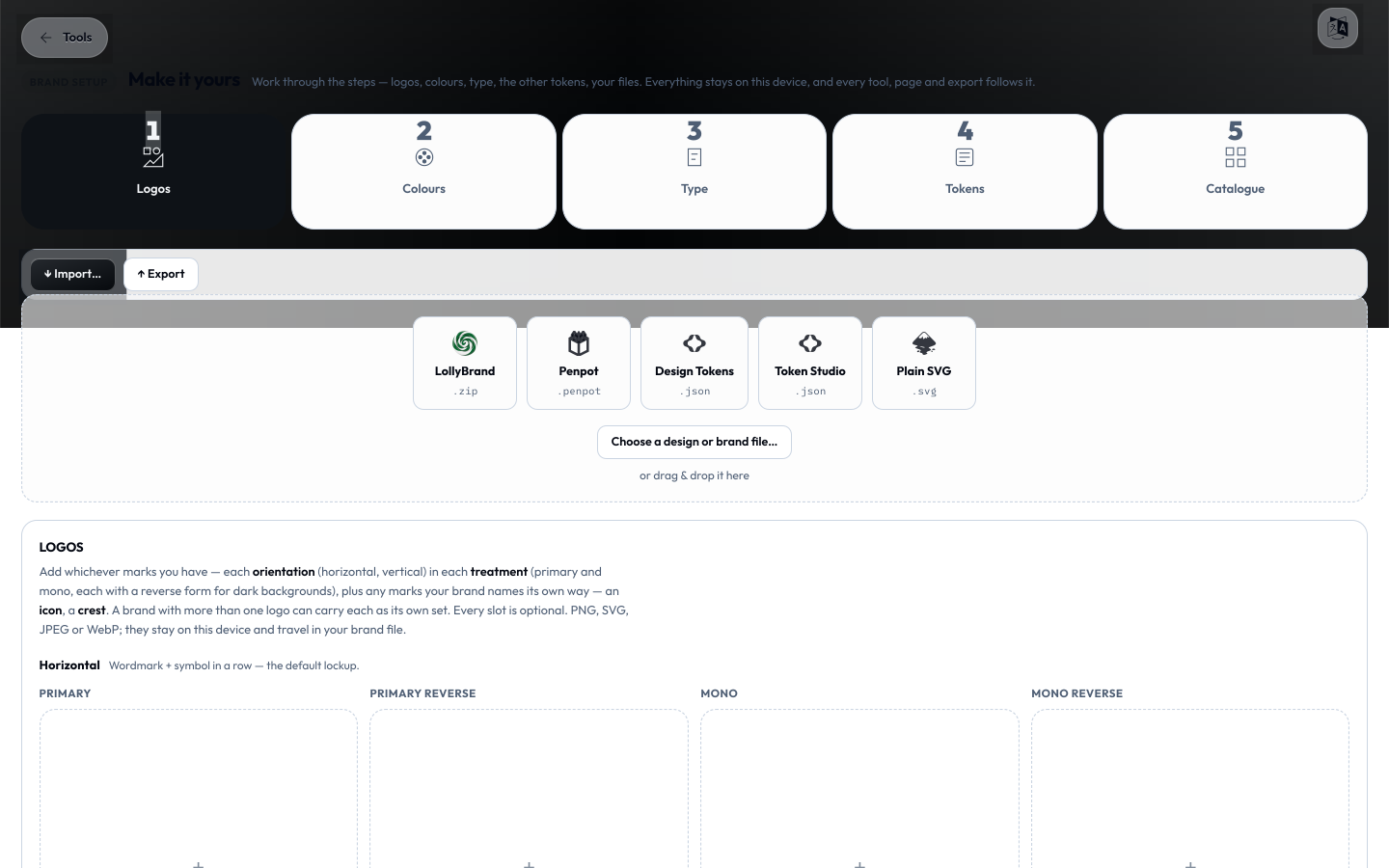 Pick a font, and you have a working brand in under a minute. From there the studio's five tabs (Logos, Colours, Type, Tokens, Catalogue) let you take it as far as you like - refine any of it later, whenever you come back. You can always revisit this from the dashboard (provided you arent using a brand-locked version of lolly)
Import a brand you already have
If your brand is already captured as design tokens - from Penpot, Tokens Studio (Figma), or any plain DTCG file - bring it in wholesale rather than retyping it. Two routes:
- In the app: the design system builder: Brand Studio (
#/start) accepts a token file, a Penpot export, or aLollyBrandpack directly - drop it in and the palette lights up. - From the command line, to stand up a reusable brand pack:
# a monolithic tokens.json, a one-file-per-set directory, or a Penpot project archive
npm run ingest:brand -- ./my-tokens.json --name acme --label "Acme" --activate
ingest:brand accepts all three containers Penpot / Tokens Studio export the same document in - a single tokens.json, a directory ($metadata.json + per-set files), or a project.penpot archive. With --activate it registers the brand as a profile, switches to it, and rebuilds the catalog. See Configuration for how brand packs and profiles fit together.
Tune it in the app
Once a brand is active, keep shaping it in the Brand Studio (#/start) - change a colour or a role and every preview across the app updates as you type. (The dashboard's Design system tab at #/d shows the brand read-only; the Studio is where you edit it.)
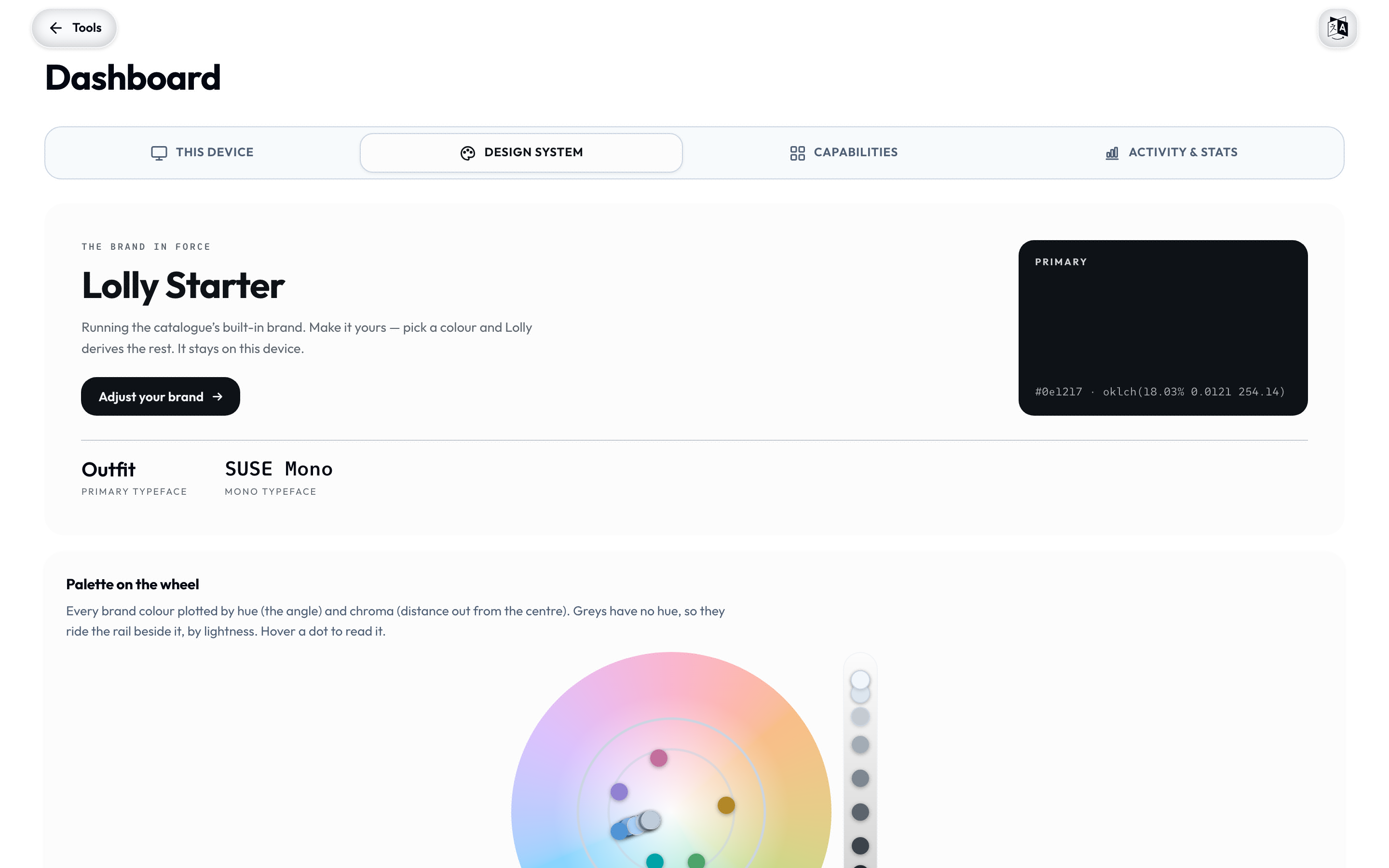 The same brand is summarised on the Profile → Your brand card. Fonts are real: pick from Google Fonts and Lolly stores the file on your device as a brand asset, so your typography travels offline and nothing is fetched at render time.
When you're happy, export the brand as a LollyBrand pack - a single file a colleague can import to get the exact same palette, fonts, and rules. That's how a brand moves between people and machines without a server in the middle.
Brand tokens round-trip both ways. Because Lolly's brand is DTCG tokens - the format Penpot reads and writes natively and Tokens Studio brings to Figma - the palette you design with and the palette Lolly enforces are one document, not two lists you keep in sync by hand. See Design Tokens.
2. Bring in what you already have
You don't start from a blank page. Lolly opens the design work and the open formats you already own.
Open-source design files
Finished work in Figma, Penpot, Illustrator, InDesign, or any SVG app doesn't have to stay locked in the app you drew it in. Open Layout Studio, click Import a design, and the file opens as a living layout - not a flattened picture. Every layer becomes an editable box: text stays retypable, shapes stay shapes, images land in your library, and complex vector art is preserved faithfully. It arrives already conformed to your brand faces and colour rules.
| You have | Bring it in as |
|---|---|
| A Figma frame | Native .fig (File → Save local copy), or an SVG export |
| A Penpot design | Its .penpot export, or any SVG |
| An Illustrator file | Native .ai (PDF-compatible) or .pdf - opens directly |
| An InDesign layout | .idml (File → Export → InDesign Markup) |
| Anything else | Any SVG - the universal door in |
The whole import happens on your device - the file is parsed in your browser and nothing is uploaded. Full details, and exactly what carries over, are in Import a design.
Got a PowerPoint deck instead? Drop the .pptx on Deck Builder to edit it slide by slide, already snapped to your brand - or run Rebrand a Deck to get the same deck back re-themed, charts and animations intact.
From a one-off to a template
Here's the payoff: an imported layout is an ordinary Layout Studio session, so once you save it, it lives at a URL. Anyone with Lolly can open that URL, change the words, swap an image, and render their own version - no design app, and the locked parts stay locked. A once-off design becomes a reusable tool. That's the whole idea, reached without writing a line of configuration.
Open data and open tools
The community tool set is open source and brand-agnostic - QR codes, street maps, filters, privacy utilities - and it renders against your brand the moment you activate it.
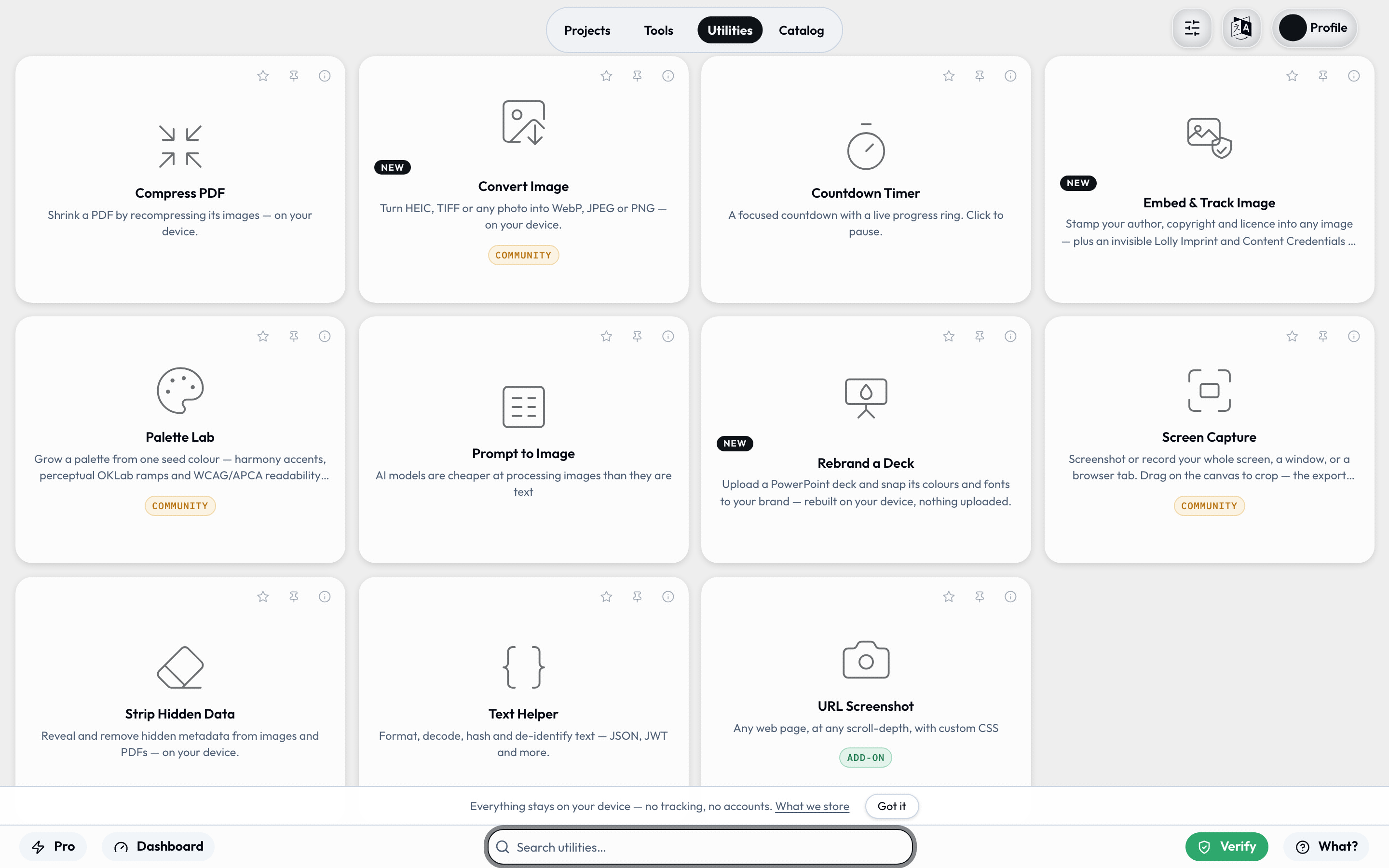
Feed tools your own open data too: paste or drop a CSV or JSON table and a tool's repeating fields fill from it, one finished asset per row.
3. Make something, then share or automate it
With a brand active and your material in hand, every tool produces a finished file:
- Render any tool to SVG, PDF, PNG, JPG, WebP, video, and more - at true print sizes and physical units when you need them. See Exporting & formats.
- Share a link. Every tool state is a URL, so a finished asset is reproducible and parameter-addressable - commit the link, regenerate on demand.
- Do it in bulk. Drive a template from a spreadsheet in the batch grid: one finished asset per row.
- Automate it. The same render runs from the CLI and from an AI agent - a URL is the API.
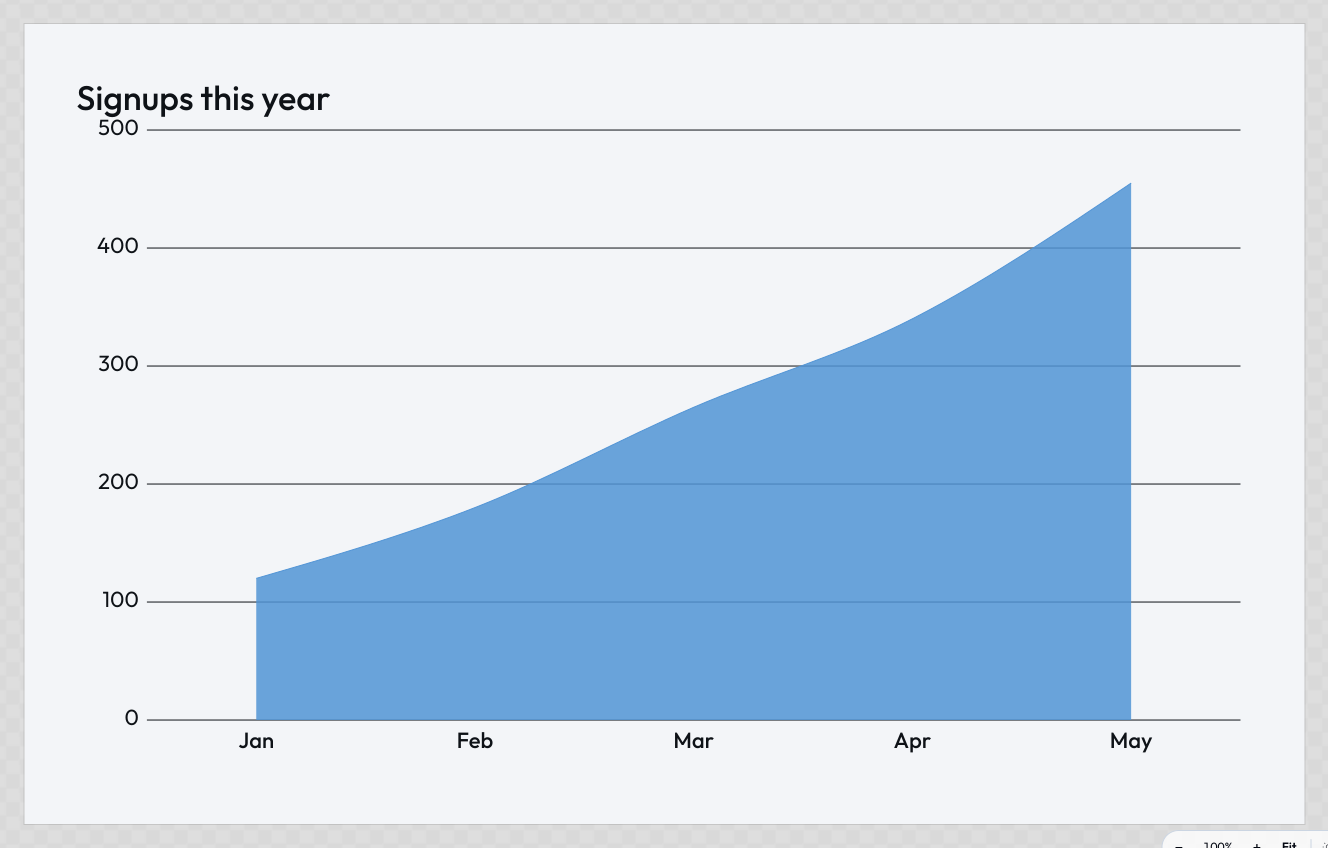
"A URL is the API" is literal. The chart below was not drawn by anyone: its type, its heading and its whole data table were typed into the address bar, and the same link renders the same chart on any device.
Where to go next
Three pathways, depending on what you're here to do:
- Lolly for Creators - you make things. The advantages, and how to get the most out of the app.
- Lolly for Builders - you author tools, integrate, and deploy. The technical documentation.
- Lolly for Operators - you're responsible for brand, security, and rollout across an organisation.