
The music generator makes a track in any of Lolly's genres, from lofi and jazz to synthwave and drum and bass. Every note is composed on your device, with no samples, no recordings and no generative AI.
Music you make here comes under the Creative Commons Attribution 4.0 International licence (CC BY 4.0): free for any use, including commercial use, as long as you credit Lolly with the line Music made with Lolly (https://lolly.tools), CC BY 4.0. Use your music explains how to credit a track.
Open Music generator from Utilities, or go to the music generator. Free background music has a short sample of every genre.
 signed by Lollyvector SVG159 paths~8.3k nodes163 groups6 images318 KBCheck it yourselfHämta den signerade filen
 signed by Lollyvector SVG159 paths~8.3k nodes163 groups6 images319 KBCheck it yourselfHämta den signerade filen


Make a track in four steps
- Pick a start Choose a genre and a seed, or press shuffle for both. Set the key and the tempo if you like.
- Change instruments by section Click a section in a lane, hear the instruments in that section and use one there or all through the track.
- Mix the parts Set each part's level, the effects, the room and the drive.
- Keep the track Download an M4A or WAV file, save the tune to your assets, or copy a link.
The studio at a glance
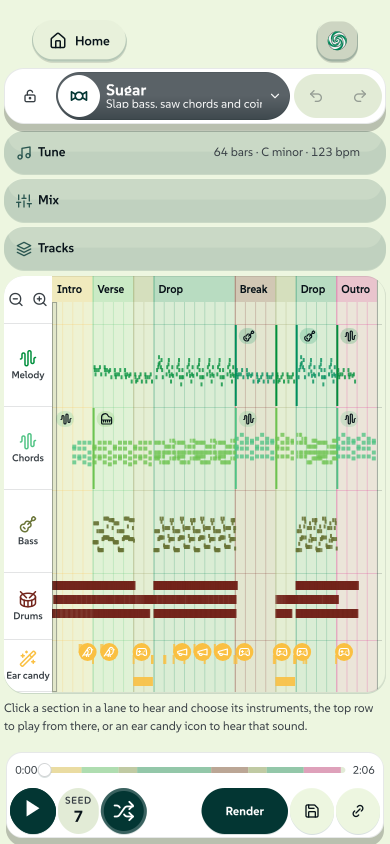
From the top down:
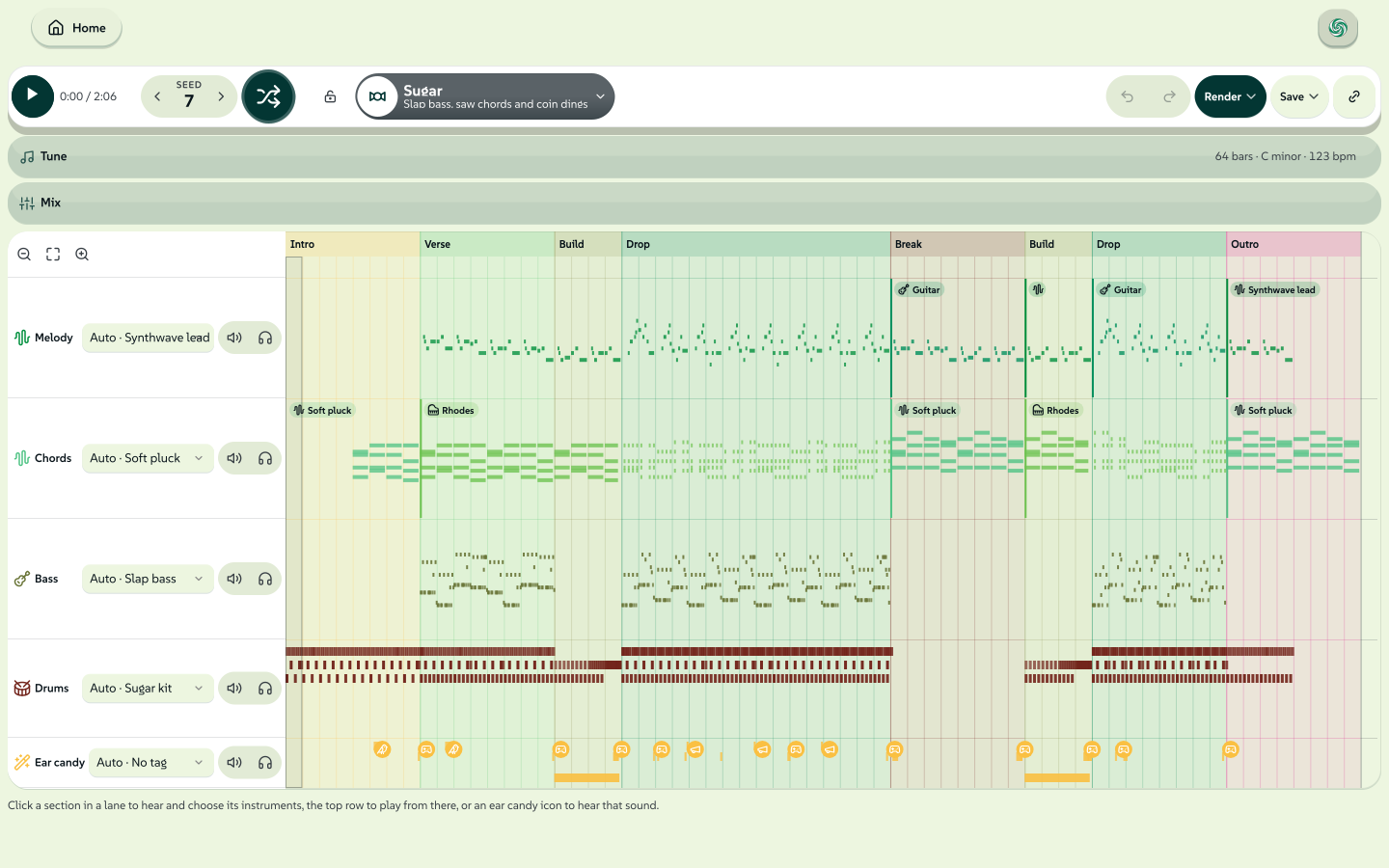
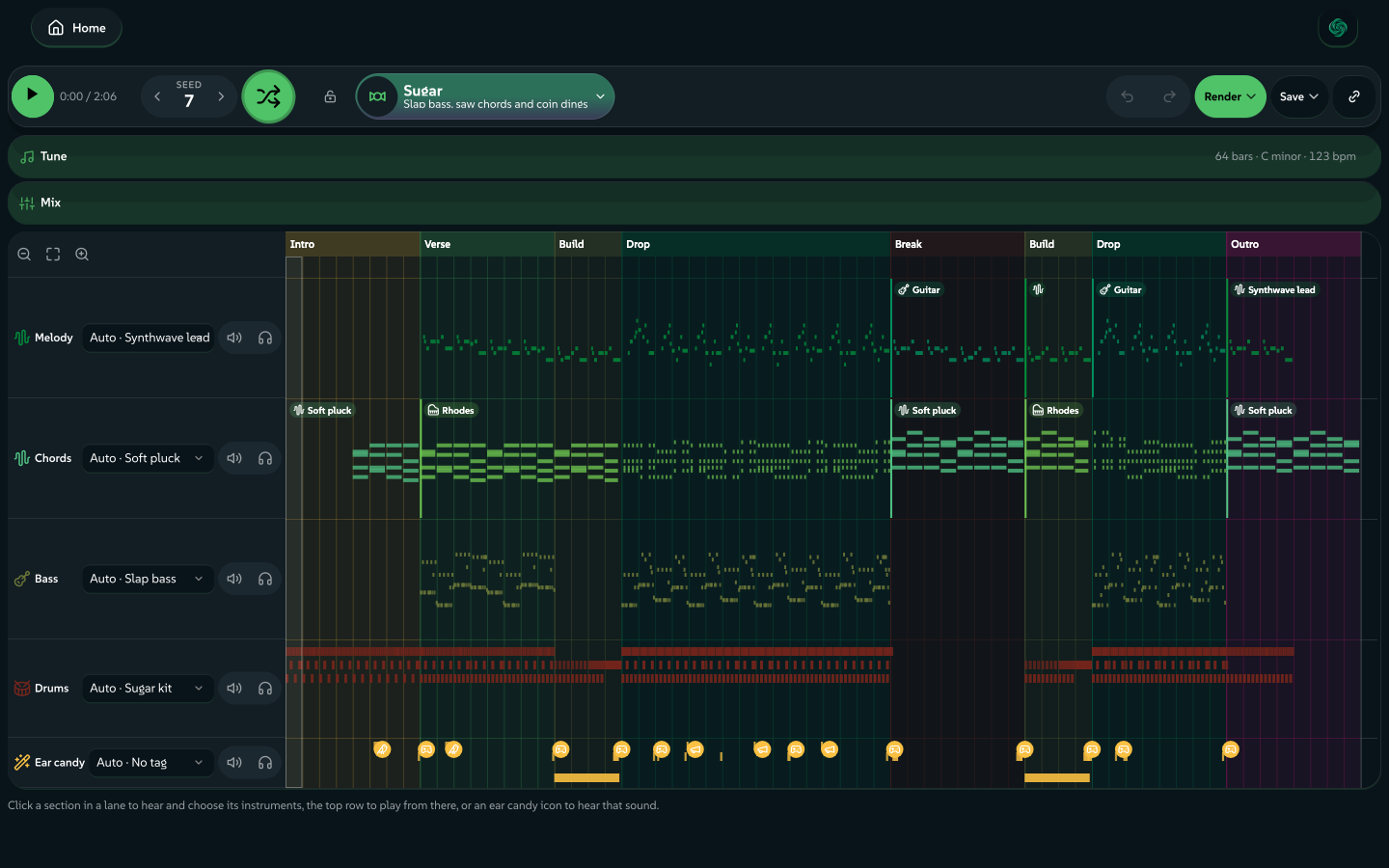
- The bar. Play and the time, the seed, shuffle, the genre padlock and the genre button, then undo and redo, Render, Save and the link.
- Tune. The length, the key, the tempo and Reset. The heading shows the length, key and tempo while the section is closed.
- Mix. A level for each part, the room, the texture, the brightness and the drive, and the ear candy switches.
- The visualiser. A band that shows while something plays.
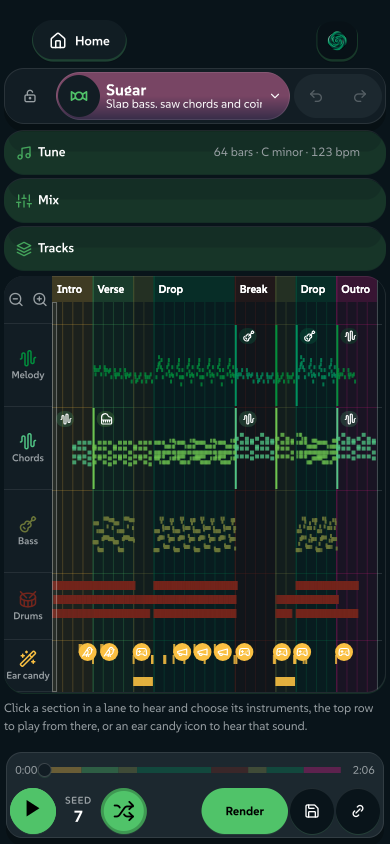
- The track. The sections and chords along the top, then a lane for each part with every note drawn. Section names follow the genre. In a band genre, the drop is the chorus and the break is the solo.
 signed by Lollyvector SVG34 paths~1.7k nodes48 groups31 KBCheck it yourselfHämta den signerade filen
 signed by Lollyvector SVG34 paths~1.7k nodes48 groups31 KBCheck it yourselfHämta den signerade filen


Choose a genre
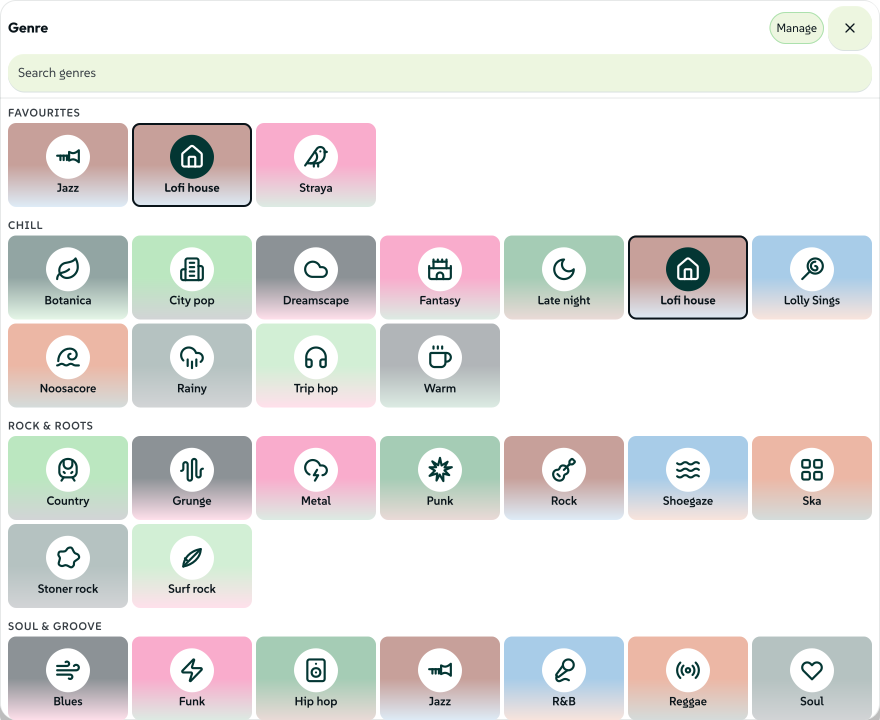
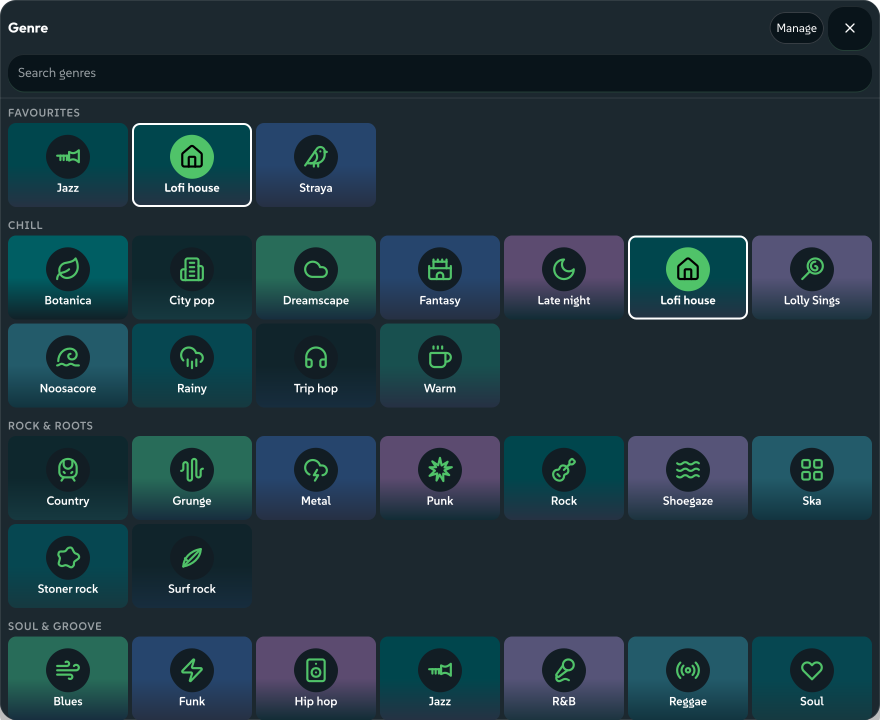
The genre button shows the genre playing: its icon, its name and a line about its sound (Straya's reads "Didgeridoo, banjo and bush birds"), in the genre's colours. Click the button to see every genre as a card, A to Z in six groups: Chill (the Lofi moods among them), Rock & Roots, Soul & Groove, Club, Bass & Synth and World. A Favourites row at the top holds the genres you starred. A Recent row under Favourites has the last six genres you played.
 signed by Lollyvector SVG127 paths~6.6k nodes145 groups103 KBCheck it yourselfHämta den signerade filen
 signed by Lollyvector SVG127 paths~6.6k nodes145 groups103 KBCheck it yourselfHämta den signerade filen


Type in the search field to narrow the cards ("house" finds Lofi house and Funky house). Click a card, or move to a card with the arrow keys and press Enter. Escape clears the search, then closes the picker.
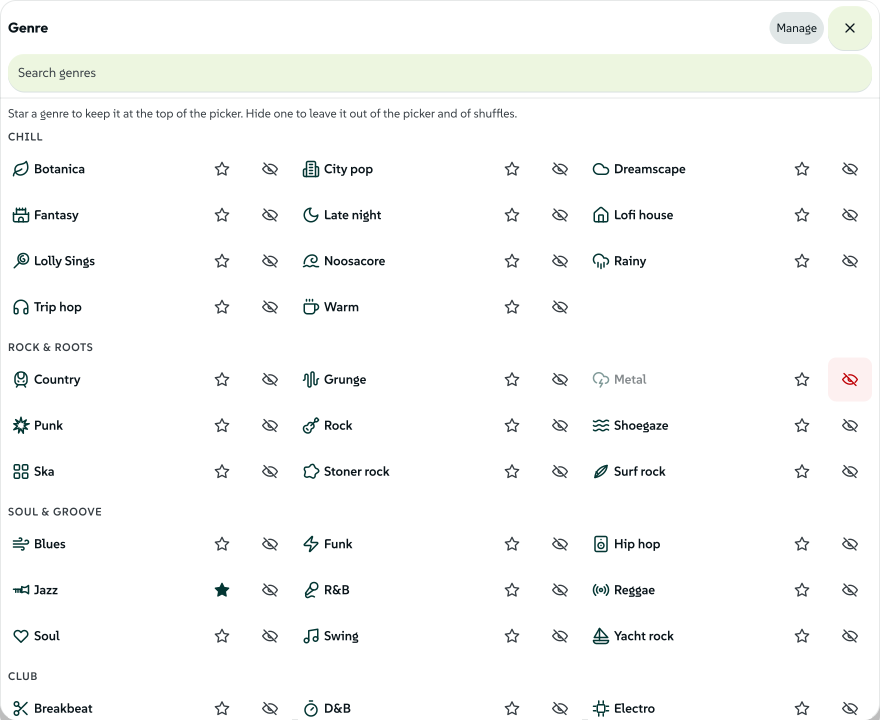
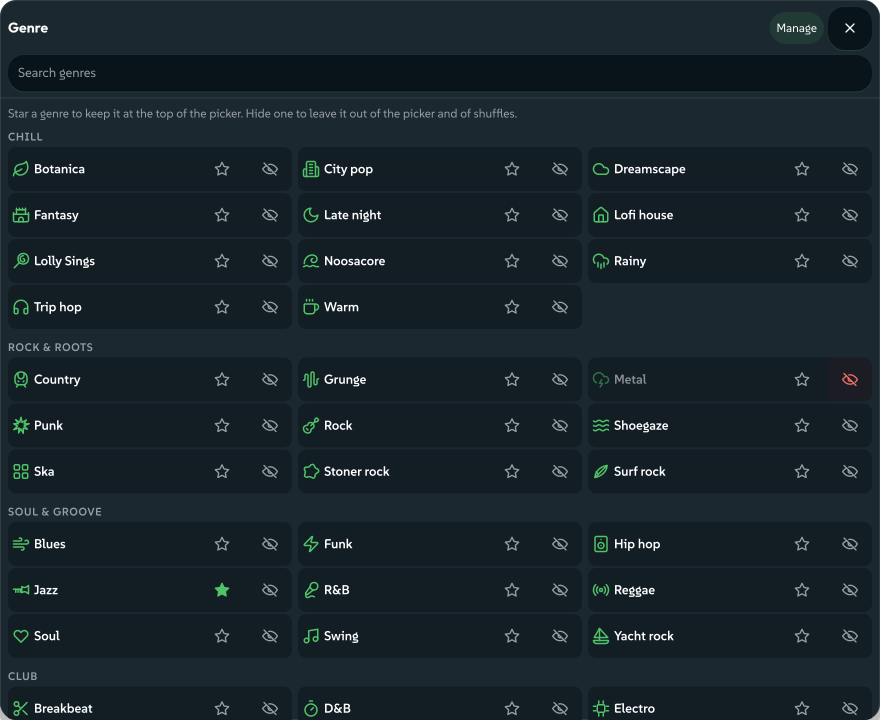
Manage, in the picker's heading, lists every genre with a star and an eye:
- Star a genre to add the genre to Favourites.
- Hide a genre you never want. The picker and every shuffle leave out a hidden genre. A link or a closed padlock still plays a hidden genre.
Each change is saved at once. The note that says what changed has Undo. Press Manage again to go back to the cards.
 signed by Lollyvector SVG255 paths~9.5k nodes283 groups157 KBCheck it yourselfHämta den signerade filen
 signed by Lollyvector SVG255 paths~9.5k nodes283 groups157 KBCheck it yourselfHämta den signerade filen


Shuffle, the seed and the padlock
Every tune comes from its genre and a seed, a whole number. The same genre and seed always make the same tune on any device.
- Shuffle, the round button with the crossing arrows, draws a new genre, seed and sound. Hold Shift as you press Shuffle to change only the sound and keep the genre, the seed and the key.
- The seed. Type a number, step with the arrows, or drag across the number to slide through seeds.
- The padlock between shuffle and the genre button decides whether shuffle may change the genre. Open, shuffle draws any genre. Closed, shuffle stays in the genre you chose and draws a new seed and sound. Your choice is kept with your profile.
A closed padlock travels in a link as lock=genre. Whoever opens that link shuffles within the same genre until they open the padlock. The Make your own buttons on the genre pages use this link to keep you in the genre you came for.
The tracks
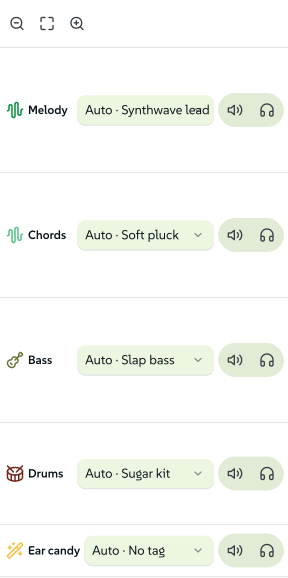
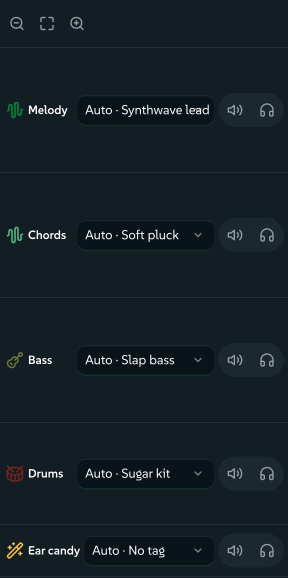
Each lane is one part of the tune:
| Track | What it plays |
|---|---|
| Melody | The tune itself |
| Chords | Keys, guitars, strings, harps or saw chords |
| Bass | The bass line |
| Drums | The kit, from acoustic and jazz kits to 808s |
| Ear candy | The sounds laid over the tune: birds, waves, shouts, the Lolly tag, a games console, sparkles, sweeps, a DJ's scratches and a trailer's hits |
 signed by Lollyvector SVG59 paths~2.6k nodes66 groups5 images46 KBCheck it yourselfHämta den signerade filen
 signed by Lollyvector SVG59 paths~2.6k nodes66 groups5 images46 KBCheck it yourselfHämta den signerade filen


- Mute and solo. Each track's head has mute (the speaker) and solo (the headphones). Soloed tracks play alone.
- Who chose the instrument. A head reads Auto and the instrument's name when the composer chose the instrument (Auto · Slap bass), and the name alone when you did. Where a part changes instrument, a line runs down the lane and a chip shows the new instrument: filled when you chose the instrument, tinted when the composer did.
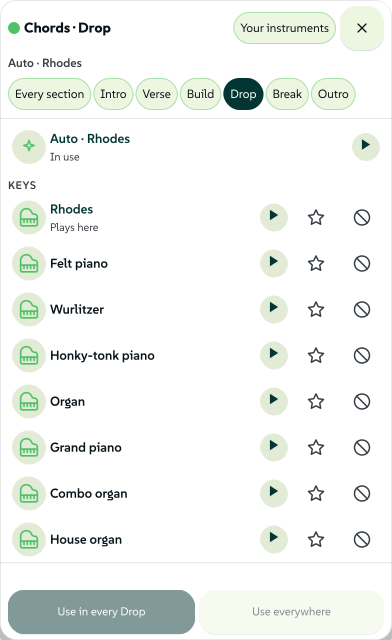
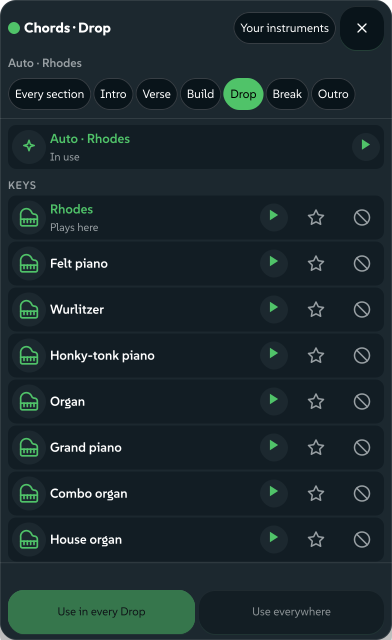
- Choose an instrument. Click a section in a lane, or a track's head, to open the instrument popup at that place. Its heading says where the choice applies, such as Chords · Drop for a section or Chords · every section for a lane head, and what plays there now. That part of the lane lights up. Click another section while the popup is open and the popup moves there. The chips under the heading choose every section or one kind of section. A card's play button plays two bars of this tune's part on that instrument, with the other parts turned down. Use in every Drop (named for the section you chose) plays the instrument in every section of that kind. Use everywhere plays the instrument all through the track. The first card, Auto, goes back to the composer's choice. For the drums, the popup holds the kits: a kit changes how the drums sound, never which notes they play. On a phone the popup rises from the bottom of the screen.
- Favourites and blocks. The star on a card makes an instrument a favourite, which shuffle draws more often. The block button keeps an instrument out of shuffles and new tunes. In its place, the generator plays another instrument from the genre.
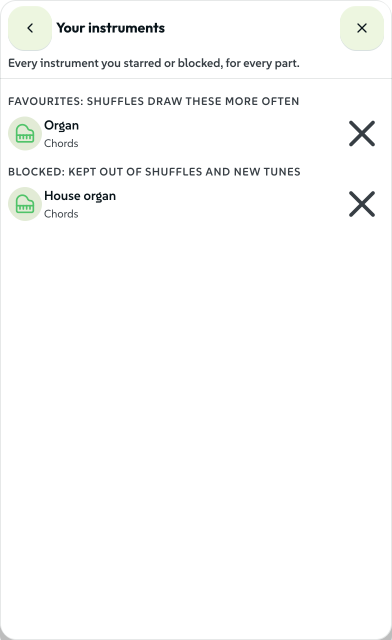
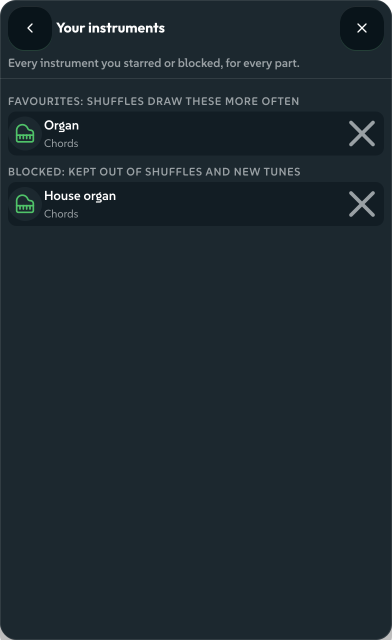
- Your instruments, in the popup's heading, lists every melody, chords and bass instrument you starred or blocked. Each has one button to take the star or the block away. The note that follows has Undo.
- The Turntable. One of the Melody lane's synths, the Turntable plays the tune as a DJ's scratches: baby scratches, chirps, flares and stabs. Each note's length chooses the scratch, and the record is pitched to each note. The turntable scratches the tune's own sounds (a sung vowel, a horn stab or a bass note), never a record.
 signed by Lollyvector SVG95 paths~5.2k nodes144 groups78 KBCheck it yourselfHämta den signerade filen
 signed by Lollyvector SVG95 paths~5.2k nodes144 groups78 KBCheck it yourselfHämta den signerade filen


 signed by Lollyvector SVG27 paths~3.6k nodes34 groups44 KBCheck it yourselfHämta den signerade filen
 signed by Lollyvector SVG27 paths~3.6k nodes34 groups44 KBCheck it yourselfHämta den signerade filen


Tune
Tune sets the track's length, key and tempo.
 signed by Lollyvector SVG16 paths776 nodes19 groups2 images17 KBCheck it yourselfHämta den signerade filen
 signed by Lollyvector SVG16 paths776 nodes19 groups2 images17 KBCheck it yourselfHämta den signerade filen


- Length. A track ends the way a song does. Where the length you chose falls partway through a tune, the tune is cut at the end of a phrase and finished with its own outro and fade. The track can be a little longer or shorter than you asked.
- Key. Move the tune up to six semitones up or down. Every pitched part moves together and the drums stay as they are.
- Tempo. Each tune plays at its own tempo until you type another or drag across the field. The notes keep their place in the bar, so only the speed changes. The arrow beside the field goes back to the tune's own tempo.
- Reset keeps the genre and the seed and puts everything else back: 64 bars, every part automatic, the tune's own key and tempo, every level as designed and nothing muted or soloed.
Mix
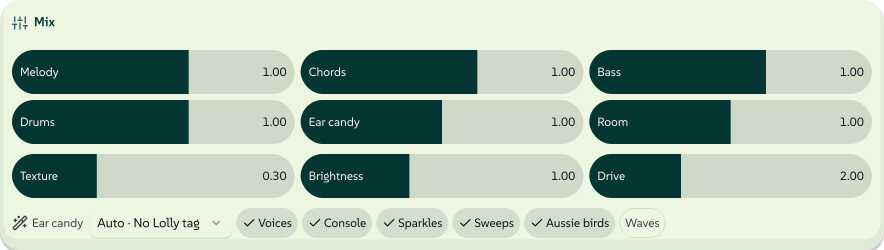
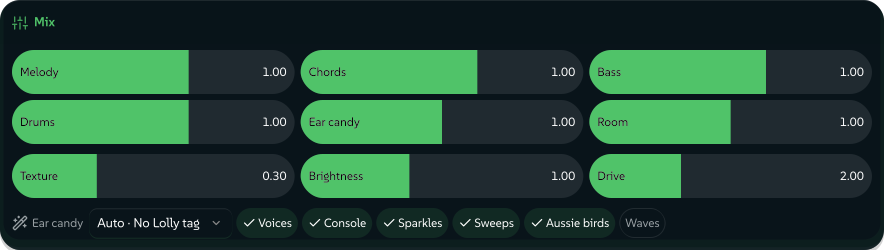
Mix holds a level for each part, the room, the texture (from a clean record to a dusty one), the brightness and the drive. Each is a pill with its name and value. Press or drag along the pill to set the level, or use the arrow keys.
 signed by Lollyvector SVG65 paths~5.8k nodes105 groups1 image81 KBCheck it yourselfHämta den signerade filen
 signed by Lollyvector SVG65 paths~5.8k nodes105 groups1 image81 KBCheck it yourselfHämta den signerade filen


The ear candy row turns kinds of sound on and off: Voices (the shouts and the Lolly tag), Console (a games console's sounds), Sparkles, Sweeps (the risers, the phasers and a DJ's scratches), Aussie birds and Waves. In a genre with birds of its own, such as Straya or Noosacore, Aussie birds turns those birds off. In any other genre the switch adds a magpie and a kookaburra now and then. Waves works the same way with the sea. The menu beside the switches chooses how a tune says "Lolly": as the composer placed the tag, not at all or one way every time (spoken, sung, whispered, shouted, as a robot and more).
Ear candy moments
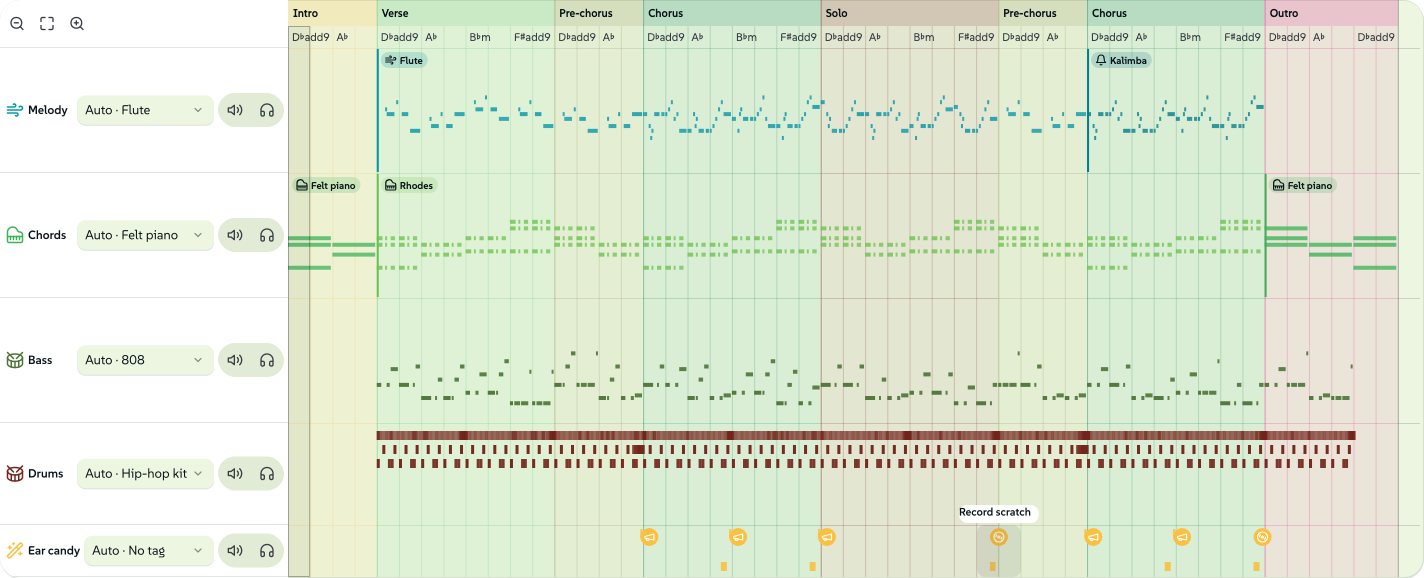
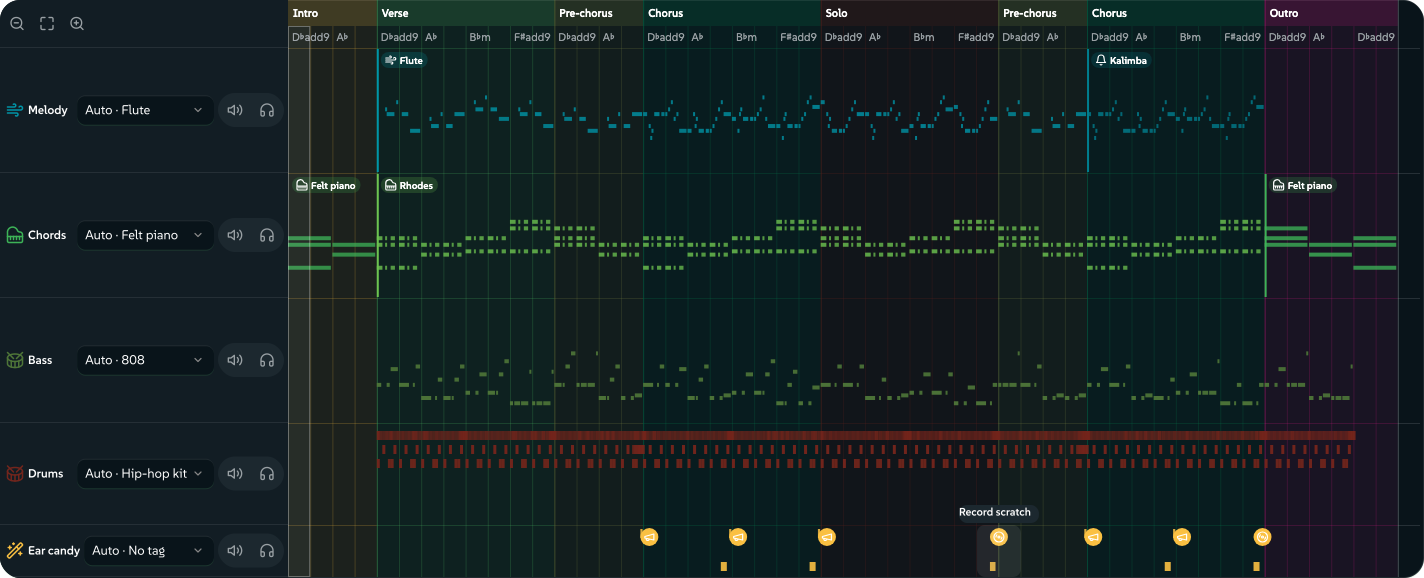
Each sound on the Ear candy lane shows as a small icon where the sound comes in: a bird, a wave, a games console, a riser or a sweep, a shout or the Lolly tag, sparkles, the sounds of a place, a record for a DJ's scratch or a bolt for a trailer's impact. Point at an icon to see its name.
- While the track is stopped, press an icon to hear that moment on its own, with every other part turned off.
- While the track plays, press an icon and the music carries on from that moment's bar.
- With the keyboard, the icons are one stop for Tab, and the arrow keys move from moment to moment.
Hip hop, breakbeat and jungle tunes most often carry a DJ's scratches: scratched hooks on a chorus turnaround in hip hop, rewinds and backspins into a drop in breakbeat and jungle. About one R&B or trip hop tune in four has a few. A funk, nu-disco or UK garage tune has a few now and then. Like the Turntable, the scratches work on the tune's own sounds, never on a record.
 signed by Lollyvector SVG70 paths~2.6k nodes70 groups6 images186 KBCheck it yourselfHämta den signerade filen
 signed by Lollyvector SVG70 paths~2.6k nodes70 groups6 images186 KBCheck it yourselfHämta den signerade filen


The visualiser
While a tune plays, or is stopped part way, a band above the track shows a spectrum analyser in the colour of the section playing. The settings button in its corner switches to a waveform, MilkDrop or nothing. Expand grows the band in the page. Full screen gives the band the whole screen, where MilkDrop plays with its presets, a preset shuffle and a preset cycle. With reduced motion on, both open on the analyser and MilkDrop waits until you choose MilkDrop. Escape leaves full screen, then shrinks the band.
 signed by Lollyvector SVG7 paths51 nodes11 groups1 image11 KBCheck it yourselfHämta den signerade filen
 signed by Lollyvector SVG7 paths51 nodes11 groups1 image11 KBCheck it yourselfHämta den signerade filen


Render, save and share
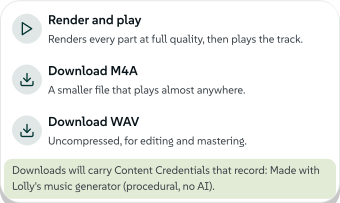
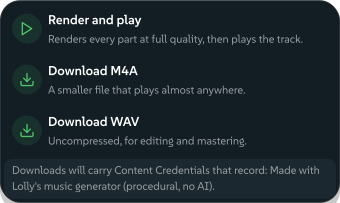
Play plays the track live, as fast as your device can compute the sound. Render computes the track at full quality first, with denser cymbals and more detail than live playing can afford. Render offers three choices:
 signed by Lollyvector SVG16 paths~5.7k nodes19 groups63 KBCheck it yourselfHämta den signerade filen
 signed by Lollyvector SVG16 paths~5.7k nodes19 groups63 KBCheck it yourselfHämta den signerade filen


- Render and play plays the full-quality render.
- Download M4A saves a small AAC file, for video editors, phones and the web.
- Download WAV saves an uncompressed file, for editing or mastering.
A render can take longer than the track itself. A card shows the progress. Cancel or Escape stops the render. After a render, the button reads Rendered and each choice happens at once. A change to the track goes back to live playing until you render again.
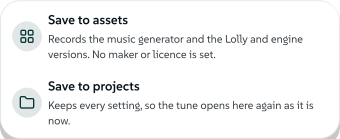
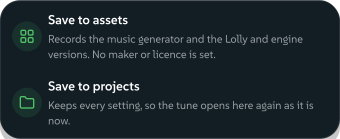
Save keeps the track without rendering:
 signed by Lollyvector SVG8 paths~3.7k nodes13 groups44 KBCheck it yourselfHämta den signerade filen
 signed by Lollyvector SVG8 paths~3.7k nodes13 groups44 KBCheck it yourselfHämta den signerade filen


- Save to assets keeps the track as a tune: a few hundred bytes holding everything the track was made with. A saved tune plays in Assets and in the Neurospicy player. You can pick the tune as a video's music bed (the tune loops to fill a longer video) or an audiogram's sound.
- Save to projects keeps every setting. The track opens again in the music generator as you left the track.
The link button copies a link holding every setting. Anyone who opens the link hears the same track and can change the track for themselves.
Undo and redo
You can undo every change: the genre, the seed, a shuffle, an instrument, mute and solo, a level, the tempo, the key, the length, the ear candy switches and Reset. Use the arrows beside Render, or press Cmd or Ctrl+Z to undo and Shift+Cmd or Ctrl+Z (or Ctrl+Y) to redo. A slider dragged counts as one step, however far you drag the slider. One slider drag counts as one step. A playing track keeps playing, and the line under the track says what was undone or redone. Starring or hiding a genre and starring or blocking an instrument are kept with your profile, not with the track. Each of those has Undo in the note that appears as you make the change.
Content Credentials
Every M4A or WAV you download carries Content Credentials: a signed record inside the file. The record says the track was made with Lolly's music generator, procedurally and with no AI, and gives the genre and the seed. Its digital source type is algorithmic media, the IPTC term for media computed by an algorithm with no recordings or trained models, so a checker such as Lolly Verify does not flag the track as AI. The record carries no person's name. The same sentence is also the file's plain description, which a music player shows.
The file also states its licence and the credit the licence asks for, in the record and in tags a music player or file inspector reads without a credential reader:
- The copyright field (a WAV's copyright and an M4A's copyright item) reads Licensed under Creative Commons Attribution 4.0 International (CC BY 4.0), https://creativecommons.org/licenses/by/4.0/. Credit: Music made with Lolly (https://lolly.tools), CC BY 4.0.
- An XMP packet gives the same sentence as the usage terms, the licence's address, Lolly (lolly.tools) as the party to credit, and the credit line Music made with Lolly (https://lolly.tools), CC BY 4.0.
- The Content Credentials record the sentence as the file's rights, beside the licence's address, the party to credit and the credit line.
After a download, the line under the track repeats what a reading of the written file found, the licence included.
To share a file without the record, run the file through the Lolly Strip Hidden Data utility. What a track records lists everything each kind of file and saved tune keeps.
Use your music
Music you make in the music generator comes under the Creative Commons Attribution 4.0 International licence (CC BY 4.0). The same licence covers the samples on the genre pages and the tunes the Neurospicy player's stations compose. The music is free for any use, including commercial use, provided you credit Lolly. Use this line wherever your credits go:
Music made with Lolly (https://lolly.tools), CC BY 4.0
- A video or a YouTube upload: in the description or the end credits.
- A podcast: in the show notes.
- A live stream: in the description or on a panel.
- A game or an app: on the credits screen.
- A presentation or an event: on the last slide or in the programme.
A track you save to your assets starts with the same licence and credit in its details. You can change the licence there. What a track records has the details.
Music made here is not copyright-free. The music is royalty-free as long as you include the credit that CC BY 4.0 asks for.
Keyboard and phone
- Space plays and stops. Click the top row to play from a section, or double-click a bar to play from that bar.
- Escape closes the instrument browser or a panel, then leaves the generator.
- Zoom in, zoom out or fit the whole track with the buttons above the track heads.
- With reduced motion on, in your system's settings or in Lolly's, the sections, menus and popups change at once instead of moving.
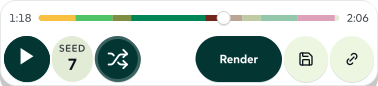
On a phone, the controls you press most sit in the dock at the bottom of the screen: play, the seed, shuffle, Render, Save and the link. The seek bar along the top of the dock shows the time gone at one end, the track's length at the other and the tune's sections in their colours. Tap or drag along the seek bar to go to a bar of the music. While the track plays, the music carries on from where you let go. While the track is stopped, play starts there. With the keyboard, the arrow keys step a bar and Page Up and Page Down step a section. Home and End go to the start and the end. Each track is a row showing its instruments, mute and solo. Tap a row to choose its instruments.
 signed by Lollyvector SVG23 paths543 nodes46 groups16 KBCheck it yourselfHämta den signerade filen
 signed by Lollyvector SVG23 paths543 nodes46 groups16 KBCheck it yourselfHämta den signerade filen


 signed by Lollyvector SVG139 paths~6.6k nodes143 groups1 image213 KBCheck it yourselfHämta den signerade filen
 signed by Lollyvector SVG139 paths~6.6k nodes143 groups1 image214 KBCheck it yourselfHämta den signerade filen


How the music is made
Generated music explains how a seed becomes a tune, what stays the same between devices, how each genre's instruments are built and measured and what every file and saved tune records.