
Use a learning module to turn a Lolly project into a course for a website or a learning management system (LMS). Arrange lessons, add your saved designs and imported media, check the learner experience, then download a versioned ZIP.
For LMS delivery, the customer LMS enrols learners and records completion. For website delivery, learners open a static page and progress stays in their browser. You do not need a Lolly Work account to build a package. The draft and saved package versions live on your device.
Courses support ordered lessons, formatted text, images, slides, video, audio, downloadable resources and practice quizzes. Completion remains a learner acknowledgement of required lessons. Practice questions provide feedback and can be retried; scored assessments, pass marks, branching and certificates are outside this version.
Start from your project
- Open Projects, then the folder containing your course material.
- Choose Export course. Review the folder's content and nested folders. Imported files, saved tool creations and batch rows appear together. Existing learning modules contribute their lessons; Open existing module lets you export one without copying it.
- Use the checkboxes to choose content and Move up or Move down to set its teaching order. Unavailable content remains listed. Replace it, unselect it, or choose Exclude unavailable items. For a long selection, use Find content to locate an item; clear the search before reordering. Select all and Clear selection apply to the whole list. Choose a course title and Create course from selection.
- The course opens in the editor. Review the assembled outline, add explanations, adjust required lessons, or use Add lesson for another step. Folder names become section labels. Every imported item is required initially; review that choice.
- Open Course details to add a description, learning objectives and content language. Use a language tag such as
en,en-GBorde. The learner controls are currently in English.
You can also select a mixture of project items and choose Export course, or choose Export course in a supported tool's export controls. The tool saves its current inputs before handing them over. Create learning module starts an empty outline from Projects. A course started without a folder appears with your unfiled work. Reopen its Learning module tile to continue editing.
Changes save after a pause in typing, when you leave a field, or when you change the outline. Wait for Saved on this device before closing the tab. Retry save retries a failed write. If another window has changed the module, keep the current window open and copy your edits before reopening the saved version. Undo edit reverses recent draft edits in the current editing session; it does not delete published versions.
 signed by Lollyvector SVGKendin kontrol etİmzalı dosyayı al110 paths~18k nodes154 groups2 images363 KB

Arrange the course
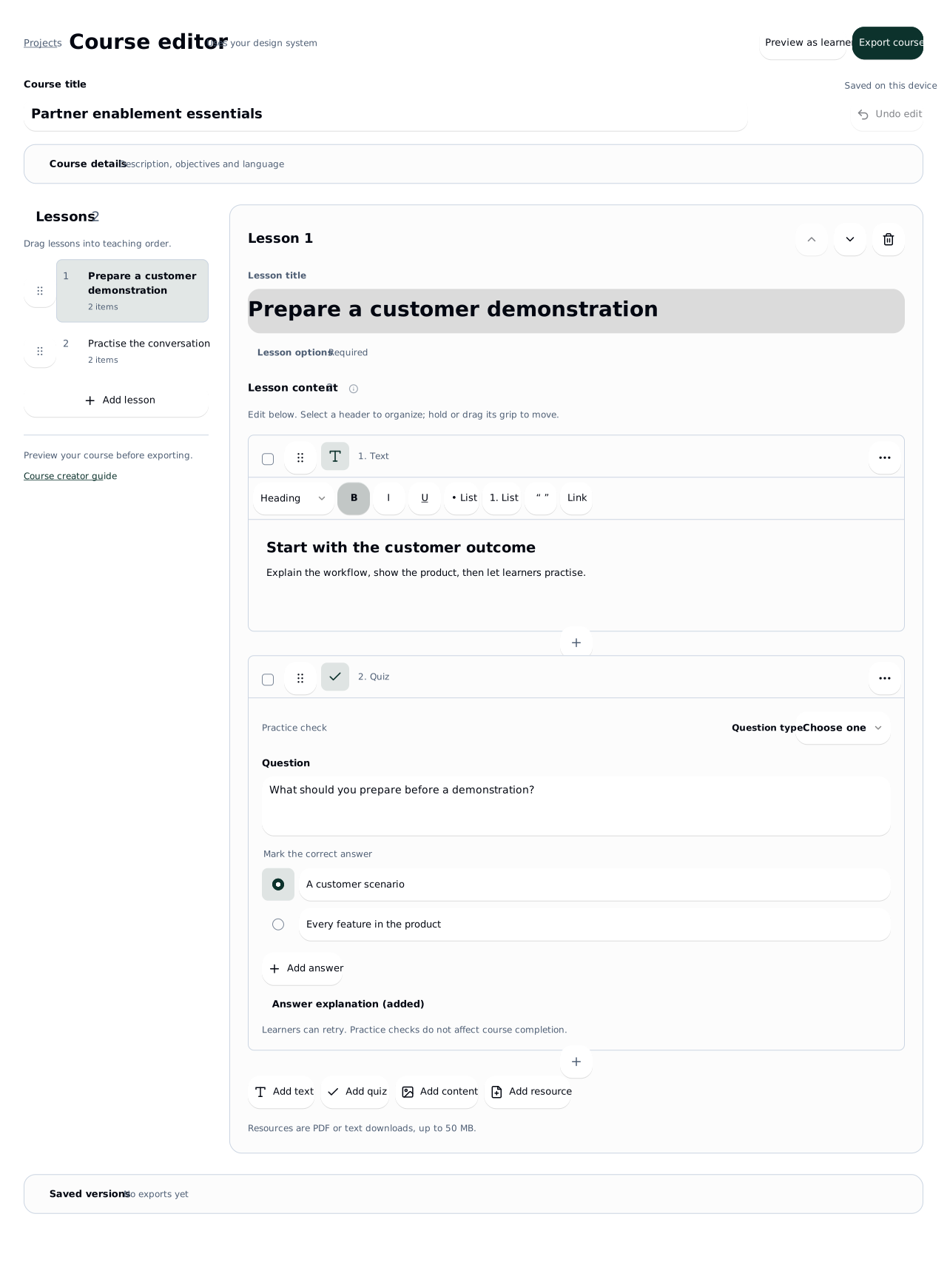
Each lesson holds one or more pieces of content. The order in the outline is the order learners see. On a phone, open Lessons to organize the outline; choosing a lesson folds it again so you can edit the content. The outline shows each lesson's content count and marks optional lessons. Select a lesson to edit it.
Text, questions and media appear directly on the lesson canvas. Click inside the text to edit. Open Content options beneath a visual or recording for its source, rendition and accessibility fields.
- Drag the grip beside a lesson to change the teaching order. Move lesson up and Move lesson down remain available in the lesson header.
- Click a content header to select it. Hold the header or drag its grip to reorder. Use Command-click (Mac) or Control-click to add or remove items; Shift-click selects a range. Checkboxes also select content. Editing text does not select its content block.
- Drag selected content together, or drop it onto another lesson in the outline. Move to lesson provides the same action through a destination picker. Selected content retains its order and is added at the destination's end.
- Use the selection bar to duplicate or remove several items. Clear selection returns to editing. Undo edit restores recent changes, including moves and removals.
- Use Insert content below, the plus between content items, to add text, designs, media, a quiz or a resource at that position. The buttons at the bottom append content.
- Open Lesson options to enter a Section (optional) or change Required for completion. Give related lessons the same section name and place them together. Reference material can be optional.
With a keyboard, focus a content or lesson grip and press Space or Enter to pick it up. Use arrow keys, Home or End to choose a position; Space or Enter places it. Escape cancels. The content actions menu also has Move content up, Move content down and Remove content. Reordering keeps focus with the item.
Keep lessons focused. A useful pattern is a short explanation, a demonstration, then instructions for the learner to try the task themselves. The module must contain at least one required lesson, and every lesson must have content.
Format lesson text
Choose Add text, then write on the canvas. Select text and use the formatting bar for Bold, Italic, Underline, bullet or numbered lists, quotes and links. Text style chooses a paragraph, heading or subheading. Standard editing shortcuts work; Alt+F10 moves focus from the text to its formatting bar.
The text remains selectable and uses semantic headings and lists in the exported player. Links accept full https://, http:// or mailto: addresses. Select a linked phrase and choose Link to change or remove it. Unsupported pasted formatting is removed; there are no arbitrary font or color overrides in lesson text.
The active design system supplies the authoring colors, fonts and controls. Learner preview uses its resolved presentation. Saving a course version captures those styles and the required fonts alongside the content, so later profile edits do not restyle a package already shared with a customer.
Add practice quizzes
Choose Add quiz after an explanation or demonstration.
- Choose Choose one, Choose several, or True or false.
- Write the question and answer choices. Single and multiple choice questions allow two to eight answers. True or false supplies its two answer labels.
- Mark the correct answer, or all correct answers for Choose several. Use Add answer or the remove control to change the choices.
- Open Answer explanation to describe the reasoning. This explanation appears after the learner checks an answer.
- Use Preview as learner to try both correct and incorrect responses. Check answer gives feedback; learners can change their choices and try again.
Export preflight identifies empty questions, missing or duplicate answer text and invalid answer keys, and Fix item returns to the affected content. Practice answers resume with the saved attempt in a browser or LMS. They do not set an LMS score, pass mark or completion requirement. Every portable package includes its practice answer key, so use these questions for learning and rehearsal.
 signed by Lollyvector SVGKendin kontrol etİmzalı dosyayı al63 paths553 nodes166 groups2 images61 KB

Add designs, slides and media
Choose Add content inside the selected lesson. The picker shows the receiving lesson and opens its course project when available. Browse projects, saved creations, library or uploads. Each successful addition updates the item count; choose Done when you have gathered the material. Create or edit holds the photo, capture and processing shortcuts available on your device.
Content shows source names, available images, saved thumbnails and media controls directly on the canvas. Cached thumbnails are shown only when they predate the course capture; use Preview course to check the captured result of a saved tool session. Accessibility explanations stay separate from the source name.
| Material | How to use it |
|---|---|
| Saved Design creation or another saved tool creation | Pick it from Projects or saved creations. Lolly captures its current inputs and offers only the renditions that tool can export on this device. |
| Static slides or a multipage design | Keep Render as: Still pages. All exported pages appear in that content block, in source order. |
| Animation or a moving design | Select Render as: Video with motion. Lolly exports the authored sequence as video, including a silent animation. |
| Imported image | Pick or upload it. PNG, JPEG and WebP can be packaged directly. SVG is converted to PNG for the learning player. |
| Finished video or audio | Pick or upload it. MP4 is a useful starting point for video; test playback in the customer's learner browser. |
| Written teaching material | Choose Add text. The player presents it as selectable text rather than a picture of text. |
| PDF handout or plain text file | Choose Add resource. The learner receives a download link. The local resource limit is 50 MB. |
| PowerPoint or PDF pages you want to teach from | Import them using Lolly's existing design import workflow, review and save the result, then add that saved creation. A resource PDF is a download, not a slide import. |
Still pages contain their visual appearance. Add equivalent explanations as native lesson text so a learner does not have to read an image to understand the lesson. Interactive elements inside a design become part of the exported visual or video. The learner navigation and completion buttons remain native controls.
A tool with no suitable saved output cannot be added directly. Export finished recordings and file-based utility results first, then add the resulting files. Animated GIF and APNG imports need conversion to video.
The packager accepts PNG, JPEG and WebP images; MP4 and WebM video; MP3, M4A, WAV, Ogg and WebM audio; PDF and plain text resources. The learner's browser must also support the chosen media encoding. Convert unsupported formats before publishing.
Edit or refresh a source
Under Content options for a saved tool creation, Edit source opens the original editor. Save there to return to the learning module, then choose Update from source on the content block. Review the updated content in learner preview.
The module keeps a captured copy of a saved creation's inputs. Editing the original does not automatically replace that copy. Referenced asset bytes and the installed tool implementation are resolved when you prepare a preview or build a version, so check the final output after changing your library or tools.
Batch rows are captured as independent content. Add a batch row again from Projects to incorporate later changes.
An existing package contains its own finished files. Later edits to the project, source creation, asset library or module cannot change a saved ZIP.
Make the course understandable and accessible
For images and slides, add a Description or equivalent explanation. Use Decorative image only when the image adds no information a learner needs. For a dense diagram, put a fuller explanation in Add text.
For video and audio, add a written version of the media in Read as text. For video captions, expand Video captions and paste reviewed WebVTT text into Captions (WebVTT). For example:
WEBVTT

00:00:00.000 --> 00:00:03.000
Open a terminal and check the system version.
Lolly checks the WebVTT header. Preview the timing and wording yourself. Include important sounds and relevant visual information in the written version or accompanying lesson text.
Add any required attribution, licence information and synthetic narration disclosure as visible lesson text. Check that you have permission to distribute the images, fonts, music, footage and other material in the customer's LMS. A portable package includes copies of the finished media.
Use keyboard navigation in the preview. Check the reading order, descriptions, caption controls, focus visibility and small screen layout. Automated checks identify missing fields; they do not certify that a course is accessible or that its teaching is correct.
Preview the learner experience
Choose Preview as learner. Lolly prepares the content using the same compiler and player used in the downloadable package. Preparing motion can take longer than preparing still pages.
The preview says Test preview. Its progress stays in that preview and is never sent to an LMS. Close and reopen it to start another test. Escape closes the preview even after you have used the learner controls.
Learners can navigate the lesson list freely. Viewing the last lesson, seeking to the end of a video or downloading a resource does not complete the module. The learner must:
- Select Complete lesson and continue for each required lesson.
- Select Finish once every required lesson has been acknowledged.
Optional lessons do not prevent Finish. This is an acknowledgement policy, not proof of attention or a scored assessment. The LMS receives one module completion, rather than a separate gradebook item for every lesson.
In an LMS launch, Save and exit saves the current place and ends the session. The player also saves during navigation and periodically while it is open. Browser shutdown and network failures can interrupt the last write, so learners should use Save and exit and wait for confirmation. After ending a session, relaunch from the LMS to continue or review it.
Check and export the course
Review findings name the lesson and content item. Choose Fix item to open the relevant field. After a repair, Export course returns to Review; the updated content must pass a fresh package check.
- Choose Export course at the top of the course editor. The dialog guides you through Destination, Review and Download.
- Under Destination, select Website, a SCORM format, or an experimental xAPI format. You can record the receiving website or LMS name. Enter its upload limit in MB when known, or leave it blank. Choose Review course to continue.
- Review the lesson counts, required and optional content, language and completion rule. Resolve the items marked to fix. Fix item takes you to the affected lesson or content. Review accessibility findings in learner preview.
- Choose Check and prepare package. Lolly resolves sources, renders their content and checks the exact ZIP size. A missing source, unsupported rendition or size limit stops the check. No content is silently dropped.
- A successful check opens Download with the exact package size. Review the handoff instructions and enter version notes, then choose Save version and download ZIP. Lolly stores that exact checked package on this device before requesting the download.
- Keep the ZIP and Download handoff report with the delivery record. The report includes the version, checksum, destination, size and remaining review items.
The progress job offers cancellation. Continue editing closes the dialog while checking continues; changing the draft invalidates and cancels that check. Leaving the module cancels unfinished checking. Reopen Export course to see a completed check. Changing content, format or destination settings requires another check. Cancellation never creates a partial course package.
After a version is saved, Download ZIP again retrieves the same finished package. Expand Download help for recovery controls, including choosing a save location where supported, without rendering again. A browser download request is not proof that a file reached disk; check your download location. Expand Saved versions beneath the editor to recover a package after reopening the module.
Local builds support up to 200 lessons and 512 MB of distinct prepared content. Large videos can exhaust browser memory before that size. Split large courses or reduce the size of the finished media when needed. The destination limit checks the final ZIP in decimal MB.
The ZIP contains a launch page, learner player and finished content. LMS targets also contain the selected manifest. Learners need no Lolly account, and authoring credentials are not included.
Publish on your own website
Choose Website as the delivery format. Extract the ZIP and upload all its files together to a static HTTP(S) site, retaining the relative paths. Link to its index.html. A site builder can embed that URL:
<iframe src="/courses/product-introduction/index.html"
        title="Product introduction" width="100%" height="800"></iframe>
Test the hosted URL, including images, media, resources, small screens, completion and reopening. Opening files directly from disk is not the supported launch path. No Lolly server or special server runtime is required. Website access control is the responsibility of your hosting platform.
Progress is stored in IndexedDB for this course version, URL path and browser profile. It does not follow the learner to another device. Clearing site data removes it; people sharing a browser profile share that progress. If browser storage cannot open, the player explains that progress lasts only while the page stays open. Embedding on a different origin may restrict browser storage, so test the actual host page.
This is convenient local progress, not an authenticated training record. Keep existing versions at their existing paths when preserving that browser progress matters. A new release starts fresh. A future integration can observe the versioned progress event; the integration contract explains its scope and the responsibilities of a receiving platform.
Choose a format for each customer
| Format | Use |
|---|---|
| Website | Any static HTTP(S) host, including your own platform. Progress stays in the learner's browser. |
| SCORM 1.2 | The starting format for the Litmos pilot and general partner compatibility testing. |
| SCORM 2004 4th Edition | A separate package for a customer whose LMS supports that edition. It uses a different tracking API from SCORM 1.2. |
| xAPI / Tin Can | An experimental ZIP for an LMS with a compatible Tin Can launch. The launch must supply learner identity, registration and temporary tracking authorization. |
| cmi5 | An experimental package for a cmi5 LMS. It uses the cmi5 launch and authorization process. Do not assume it is interchangeable with Tin Can. |
Litmos publicly lists SCORM 1.2, SCORM 2004 and xAPI/Tin Can support. That does not establish the settings or exact conventions in a specific LMS tenant. Lolly's generated packages have not yet completed acceptance testing in a partner or customer tenant. Litmos content support.
Ask a partner which format and edition they accept, their package size limit and which learner browsers they support. For example, Moodle documents SCORM 1.2 support and does not provide native SCORM 2004 support. Moodle SCORM FAQ.
You do not enter LRS credentials in the authoring screen. An xAPI package expects the customer's LMS to provide launch authorization. A standalone xAPI ZIP opened outside that launch will not create a learning record.
Test in Litmos or a partner LMS
Import the ZIP into a test course before assigning real learners. Use the same downloaded file for repeatable acceptance checks.
- Launch as a new test learner. Check that the course is incomplete initially and the first lesson opens.
- Complete one lesson, use Save and exit, then relaunch. Check that the player restores the same lesson and acknowledgements.
- Navigate to the last lesson without acknowledging earlier required lessons. Finish should remain unavailable.
- Complete the remaining required lessons and select Finish. Confirm completion in the LMS's learner record.
- Relaunch the completed module. Confirm that review does not downgrade completion.
- Check images, resources, silent motion, narrated video, captions and audio in the browsers your customer uses.
- Interrupt a connection or force a save failure in a test environment. The player should show a failure rather than claim progress was saved.
Record the package checksum, LMS name and edition, browser, date and results. A successful preview is not evidence that an LMS launch, import or tracking integration has passed.
Update a course without changing an existing release
Edit the draft, preview it, add version notes and choose Export course, run the checks and save a new version. The new ZIP gets another saved version. Your customer chooses when and how to replace the package in their LMS; Lolly does not update an imported course automatically.
Expand Saved versions, then use Download SCORM 1.2 ZIP or the corresponding format button to recover the exact stored file. Package details shows the checksums for file comparisons and acceptance records.
To supply a different format of an existing version, choose Export this version for another destination beside it, select the destination, then check and download. This uses its frozen content, even if the current draft or original source has changed. An already built target downloads its existing artifact again.
Test a replacement with the LMS administrator before applying it to an active course. Progress belongs to the package release that created it. The player starts fresh if it receives saved state for a different release; an LMS may also reset or retain its own course status according to its replacement policy.
Use Lolly's device backup before clearing site data or moving to another device. Keep a separate copy of each delivered ZIP and its version notes. Team storage, shared review and approval in Lolly Work are not part of this local creator workflow yet.
When something goes wrong
| Message or symptom | Next step |
|---|---|
| Save failed or a storage error | Keep the tab open. Make room on the device, then use Retry save. Copy important new text elsewhere if saving continues to fail. |
| Source unavailable | Reconnect the source or replace it using Add content. A previously saved package can still be downloaded if its bytes remain on the device. |
| Unsupported SVG content | Export a PNG from the source editor and add that image. External SVG dependencies cannot be left inside a portable package. |
| Motion was expected but still pages appear | Set the saved creation's Render as option to Video with motion, then preview again. |
| Launch this package from your LMS | Import the ZIP and use the LMS's learner launch. Opening index.html directly cannot supply the LMS tracking connection. |
| Retry saving in the learner player | Keep the player open, restore the connection and retry. A completion message appears only after the tracking operations succeed. |
| Authorization expired or progress changed in another session | Relaunch from the LMS. Avoid running the same attempt in two tabs. |
| Package will not import | Check the selected standard, edition and package size with the LMS administrator. Keep the original ZIP structure intact. |
| LMS still shows incomplete | Check that all required lessons were acknowledged, Finish was selected and the player confirmed the save. Collect the exact package version and visible error for investigation. |
For a creator working with the CLI
The CLI uses the same module compiler and learner player:
pnpm run cli learning check module.json
pnpm run cli learning build module.json --format=scorm12 --output=course.zip
pnpm run cli learning build module.json --format=static --output=website.zip
The input follows the SDK's learning-module-v1.schema.json for original courses or learning-module-v2.schema.json for formatted text and practice quizzes. The editor upgrades a draft to schema 2 when either feature is added. Existing schema 1 drafts and saved packages remain readable. For this CLI path, export saved tool sources to media first. Set each asset source's url to a relative file path beside the module JSON, with its format matching the file. The command reads only files within that directory, including when resolving symbolic links. It refuses to overwrite an existing output file. Use --json for a machine-readable build result and checksum.
Give teams reusable material tools
Use Share with rules in Design to make a course-cover, badge or handout tool. Expose course titles, common first/last names, approved images and authored layout choices. Teams fill those inputs and save or export consistent materials. Add the rendered files to the course project, then use Learning for the website or LMS package. The reusable .lolly tool is not a SCORM or xAPI package.