
Create and edit text directly on the canvas. The local text bar contains font, size, weight, colour, emoji and paragraph controls. The optional Inspector offers the same settings. A scope caption tells you whether a change affects selected text, paragraphs or entire stories.
Headings and paragraphs
Press T, then click for text that grows with its content, or drag to make a fixed frame. Double-click existing text to edit it. Enter starts a paragraph; Shift+Enter inserts a line break within the paragraph. Done finishes editing. Escape closes the current popover first, then cancels the text edit.
Ordinary typing, paste and the emoji picker preserve your literal text. Formatting does not replace spaces, change quotes or insert hyphens into the source. Typography cleanup previews optional changes before applying them. Focus text quietens unrelated artwork while you edit.
Numeric controls share the Design Inspector's behaviour. Drag the grip beside a value to adjust it, or click the number to type. Shift makes a drag or arrow-key adjustment ten times larger; Alt makes it ten times smaller. You can enter arithmetic such as 1920/2, relative changes such as +10, or a decimal comma. Enter or leaving the field applies the value; Escape restores it. Each drag or arrow-key burst makes one Undo step. Mixed selections show Mixed until you choose a shared value.
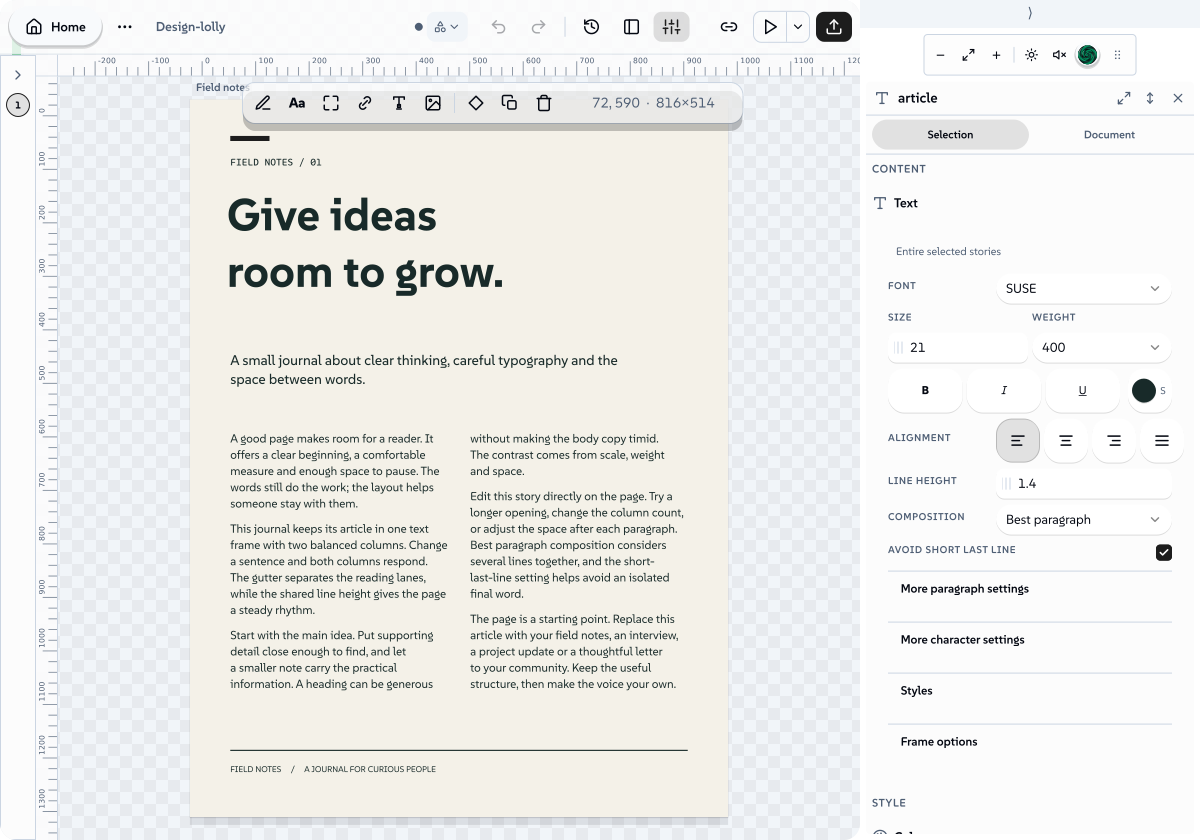
Use Paragraph > Composition to choose Standard, Best paragraph or Balanced heading. Best paragraph considers line endings across the paragraph. Balanced heading prefers similar line lengths. Avoid short last line discourages a lone final word. Explicit line breaks and unbreakable text still take priority. If the constraints cannot fit, the text remains available and the frame shows overflow.
Try Field notes in the template picker's Publishing filter. Its article lives in one frame with two balanced columns.
 signed by Lollyvector SVGVerifică singurDescarcă fișierul semnat1.409 paths~33k nodes287 groups5 images937 KBTry it in the app

Flow an article through frames
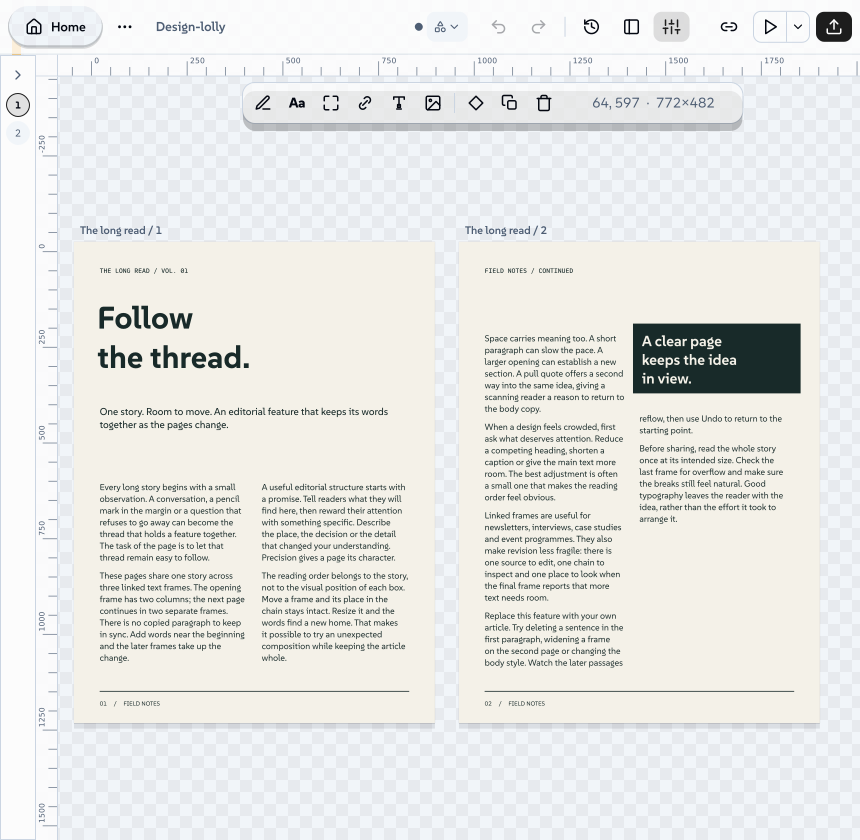
A story is one continuous source with an ordered set of text frames. Select a frame and choose Continue text. Create a linked frame by dragging on the canvas, or choose an existing text frame from the target list. Joining two nonempty stories shows their proposed order before you apply it.
Frame options control size, insets, columns, vertical alignment, baseline grids and optional fitting. Linked frames keep fixed dimensions. Resizing one changes where the article continues. Hidden frames retain their place in the story. A locked frame keeps its geometry.
Deleting a frame keeps its text. Deleting the last frame offers Place text, where you can edit the whole story or place it again. Delete story and frames is the separate action that removes source. Copying selected frames copies their settled visible text into independent stories; Copy entire story includes text beyond the last frame.
To keep an article readable at a frame boundary, open More paragraph settings and adjust the minimum lines before and after a break, or keep the paragraph with following lines. Overflow findings point to the affected text. Enlarge the frame, continue the story, or relax the conflicting setting.
Zoom with the view controls or pinch gesture. Pan with the wheel, middle-button drag or Space-drag. Every canvas edge and the surrounding pasteboard remain reachable when zoomed in. Use Fit or 0 to return to the whole canvas.
 signed by Lollyvector SVGVerifică singurDescarcă fișierul semnat2.437 paths~50k nodes200 groups1 image875 KBTry it in the app

Open The long read under Publishing. Add a sentence in the opening frame to see the same story reflow into the two frames on the next page.
Text on a path
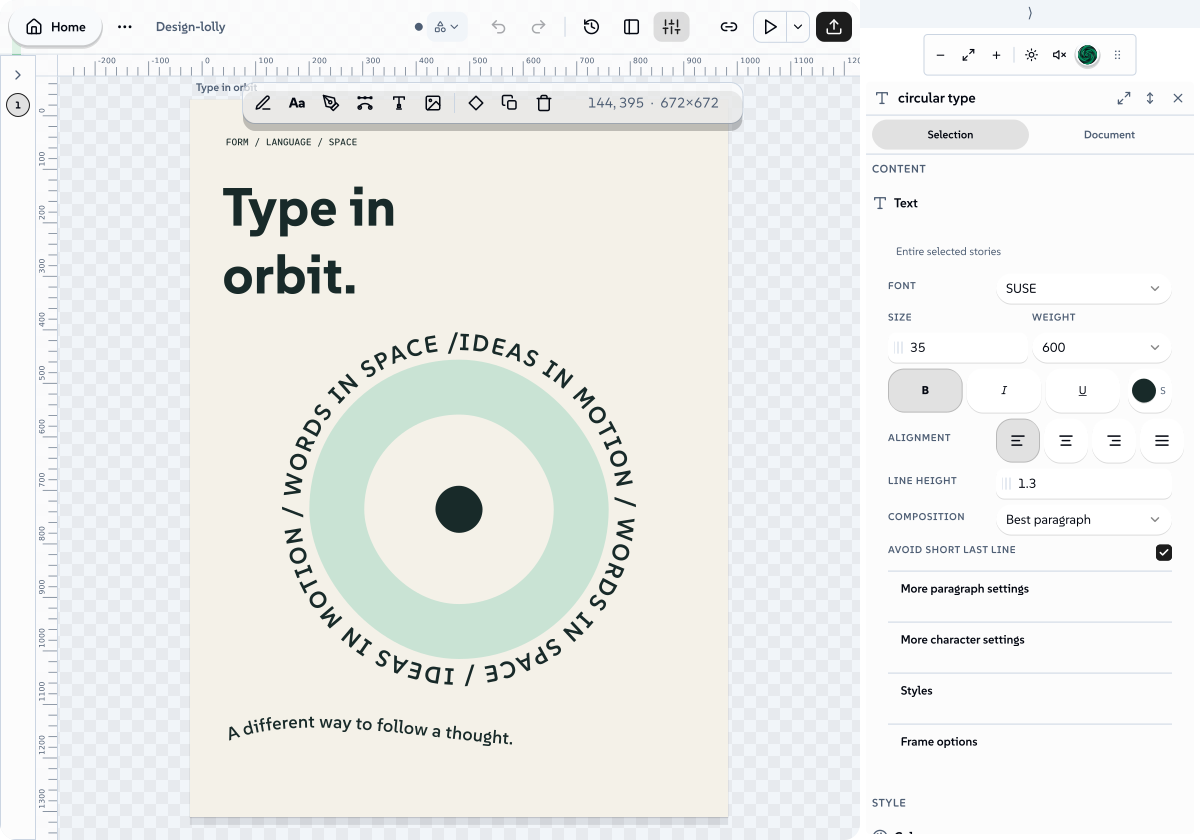
Use Add > Text on a circle or Text on a path. You can draw a guide or attach a text object to a selected path. The text owns an editable copy of that guide. Edit its points, drag the path handles, or enter precise start, end and baseline values.
Natural spacing keeps the authored type size. Fit to path scales it to the chosen interval. Reverse changes the guide direction, and Flip side changes the side of the baseline. Neither reverses the source text. Detaching returns ordinary text and can keep the guide as a separate shape.
A path accepts one paragraph and one continuous open path or closed contour. A closed path uses at most one traversal. Ambiguous guides and unsupported settings are refused with an explanation. Long text remains editable beyond the endpoint.
 signed by Lollyvector SVGVerifică singurDescarcă fișierul semnat304 paths~9.8k nodes358 groups5 images321 KBTry it in the app

Use Type in orbit in Publishing to try both closed and open guides. Select the ring of text, open Path options, and adjust its start or baseline.
Typography and wrapping
More character settings exposes supported font axes, named instances and OpenType alternatives. Preview an alternative before choosing it. Tracking, baseline shift and display case affect appearance while preserving source. Named paragraph and character styles can inherit from another style; changing a definition updates its uses.
More paragraph settings contains spacing, indents, tabs and leaders, rules, optical margins, drop capitals and language-specific hyphenation. Automatic hyphenation supports English (US and UK), French, German and Spanish. The dictionaries are bundled for offline use.
Select another object and use Text wrap to keep text away from its bounding box or an admitted closed contour. Wrapping applies to text frames on the same artboard. Preview the offsets, then apply them. Unsupported clipped or painted contours offer bounding-box wrapping instead.
Convert text or emoji to editable vectors
Select a range or text object, choose Convert to paths, and review the preview. You can convert text, emoji or both. Keep editable copy retains hidden source. Whole objects become paths whose points you can edit; a converted range becomes inline vectors with fixed advances and retained source meaning. Use Ungroup to separate a converted object into individual paths, and Group to collect selected parts again. Solid glyphs and emoji pieces have their own selection bounds and ordinary fill controls. Gradients, strokes and clips retain their paint; their points remain editable. Groups whose shared opacity or clipping cannot be separated without changing the picture stay together.
For a linked frame, Duplicate appearance preserves the original flow. Detach and freeze visible text removes that settled range from the thread and recomposes the remaining text. Both are undoable. Turn off split-text animation before converting. Unsupported paint or a partially selected shaped cluster must be resolved before conversion.
A hidden source copy does not need its font to export the converted artwork. Showing that copy again checks its pinned font before it can render.
Save, export and recover
Open Share for a link or an editable .lolly file. It has its own tab beside Inspector and Export, so you can return to your settings without closing it. The link follows your current design. On a phone, Share opens as a dialog.
Save, share links, portable .lolly files and generated tools retain the authored text document and font identities. User font assets follow the portable file's asset rules. A missing or changed active font is reported; Lolly does not silently substitute a different face.
The native editor currently requires the first face of a font file. For another face in a font collection, choose a separate font file. Layout and export can still use a pinned collection face.
SVG, PDF, raster exports and Sequence frames use the same settled glyph geometry. Composed text in PowerPoint and Penpot is vector artwork, so it does not provide ordinary text editing in those applications. Keep the editable Lolly document for source changes.
dotLottie is a structural animation format with a smaller supported feature set. It currently refuses text, audio and converted vectors with independent paint. Use MP4 or WebM for those compositions. SCORM opens the course builder, where you choose the content and review the learning package before downloading it.
Export waits for current text layout. Overflow requires either a layout correction or the explicit Export visible text only choice. That choice omits clipped and unplaced source from the exported picture while retaining it in the document.
Collaboration synchronises the complete text document. It does not merge simultaneous edits character by character. Incomplete story/frame updates pause editing and export. Previous text retains bounded recovery copies until the document closes. An incoming edit during IME composition keeps the received text and offers the conflicting local draft for copying or downloading.
If a frame is hidden or removed while an input method is composing text, editing closes and the unfinished draft remains available for recovery. Copy or download a needed draft before closing the document.
The current bounds are 65,536 UTF-16 source units per story, 128 stories, 256 named styles and an 8 MB text document. Layout, path geometry and caches have additional limits. If a share link is too large, use an editable file. See the engine text guide for the layout contract and supported limits.