
Press Ctrl-Space and type two letters: Lolly shows the tools, saved work, assets and settings that match. One field, always in the same place at the foot of the screen, reaches all of them.
Open search
The field sits in the middle of the bar at the foot of the window, between Open and Settings on one side and Verify and What? on the other. Press Ctrl-Space from any screen that shows the bar, or click the field.
 signed by Lollyvector SVG21 paths948 nodes20 groups20 KBSemak sendiriDapatkan fail yang ditandatangani
 signed by Lollyvector SVG21 paths948 nodes20 groups20 KBSemak sendiriDapatkan fail yang ditandatangani


The bar shows on
- The Tools gallery, Utilities, Assets and Projects
- Settings
- The guides you read inside the app
The bar steps aside in
- A tool's own canvas, and Multi-edit
- Batch, Verify, Convert, Compare, Prepare for sharing, Rebrand and History
- The spreadsheet, Colour Lab, Unpack, Read and extract, Script audio and the component library
- Design System Setup and Ask Lolly, which has its own question field
Where the bar steps aside, Ctrl-Space does nothing; those screens keep their own controls. Outside the app, the installed apps answer lolly:// links from a launcher, a Shortcut or a terminal, and on Linux the GNOME Shell search provider and KRunner list Lolly's tools by name; see The lolly:// scheme.
What it finds
Matches are sorted into groups, always in the same order:
| Group | What it matches | Try typing |
|---|---|---|
| Tools and Utilities | Tool names, descriptions and tags. A name stays findable by its English word even when the app is in another language. | qr, chart, pdf |
| Projects | Your saved sessions, by name, file name and the tool that made them, and your folders by name. Not the text inside a session. | a file name you used |
| Assets | The design system's images, logos, audio and fonts, and your uploads, by name, id, tag, category and format. Not what is in the picture. | logo, svg |
| Settings | Every settings section, the four accessibility preferences and the feature flags, by name and by the words people search for. | dark mode, calm, storage |
| Docs | Every published page and heading of these guides. | export |
| Ask Lolly | Always last: one row that hands what you typed to Ask Lolly, which answers with a quoted section of the guides. | any question |
Matching folds case and accents, so cafe finds "Café". Search does not list the app's own workbenches yet, such as Verify, Convert, Unpack, the Colour Lab and the spreadsheet; open them from the Utilities tab, or Verify from the bar.
What happens when you pick a result
On the Tools gallery, Utilities, Assets and Projects, the grid you are looking at filters itself as you type. In Settings and in the guides, the screen behind stays as it is. Either way, the group for the screen you are on leads the panel, with room for more rows. The Tools, Utilities, Projects and Assets groups end with a See all in … row that opens a full results view.
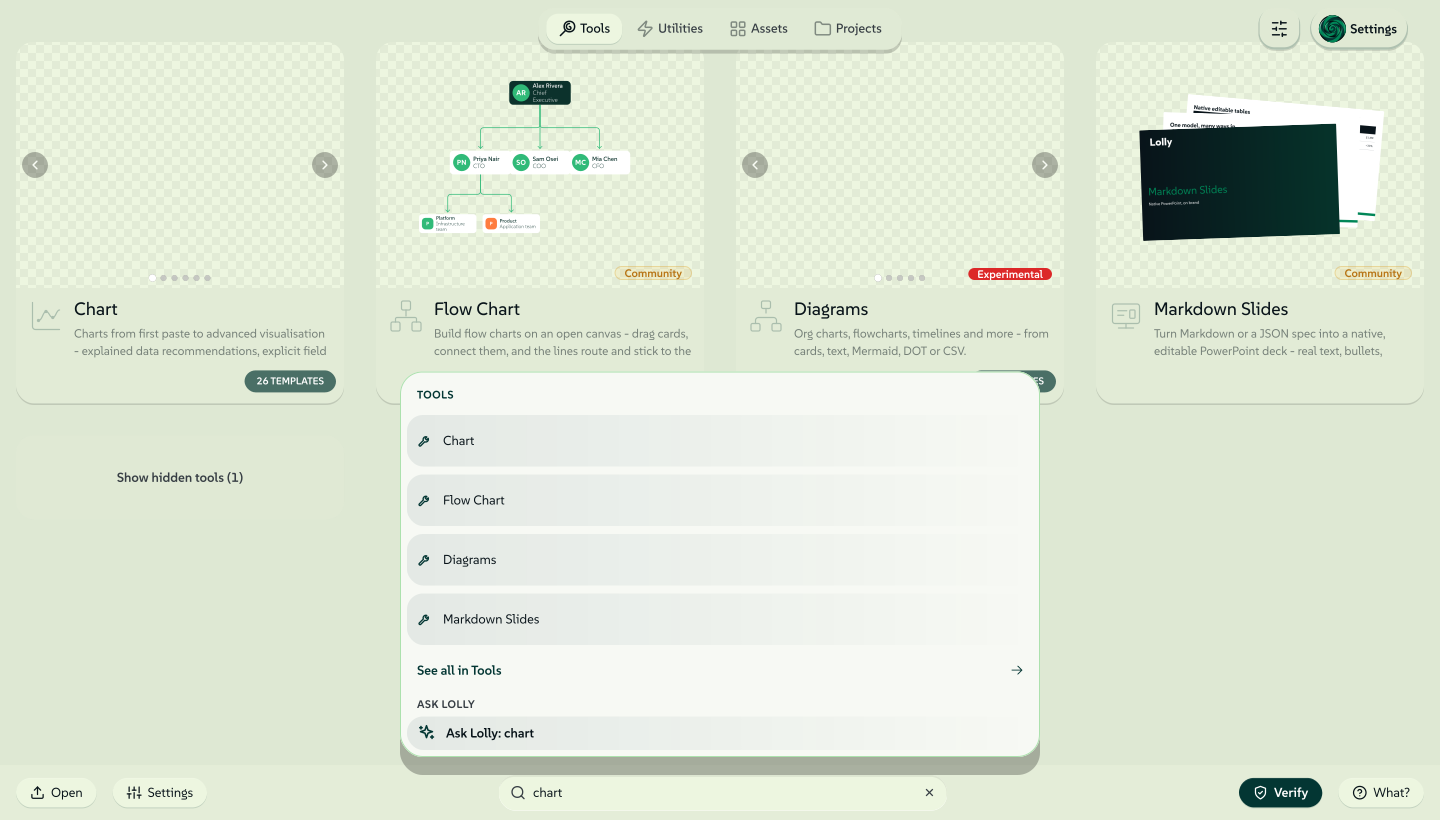 signed by Lollyvector SVG206 paths~29k nodes251 groups3 images579 KBSemak sendiriDapatkan fail yang ditandatangani
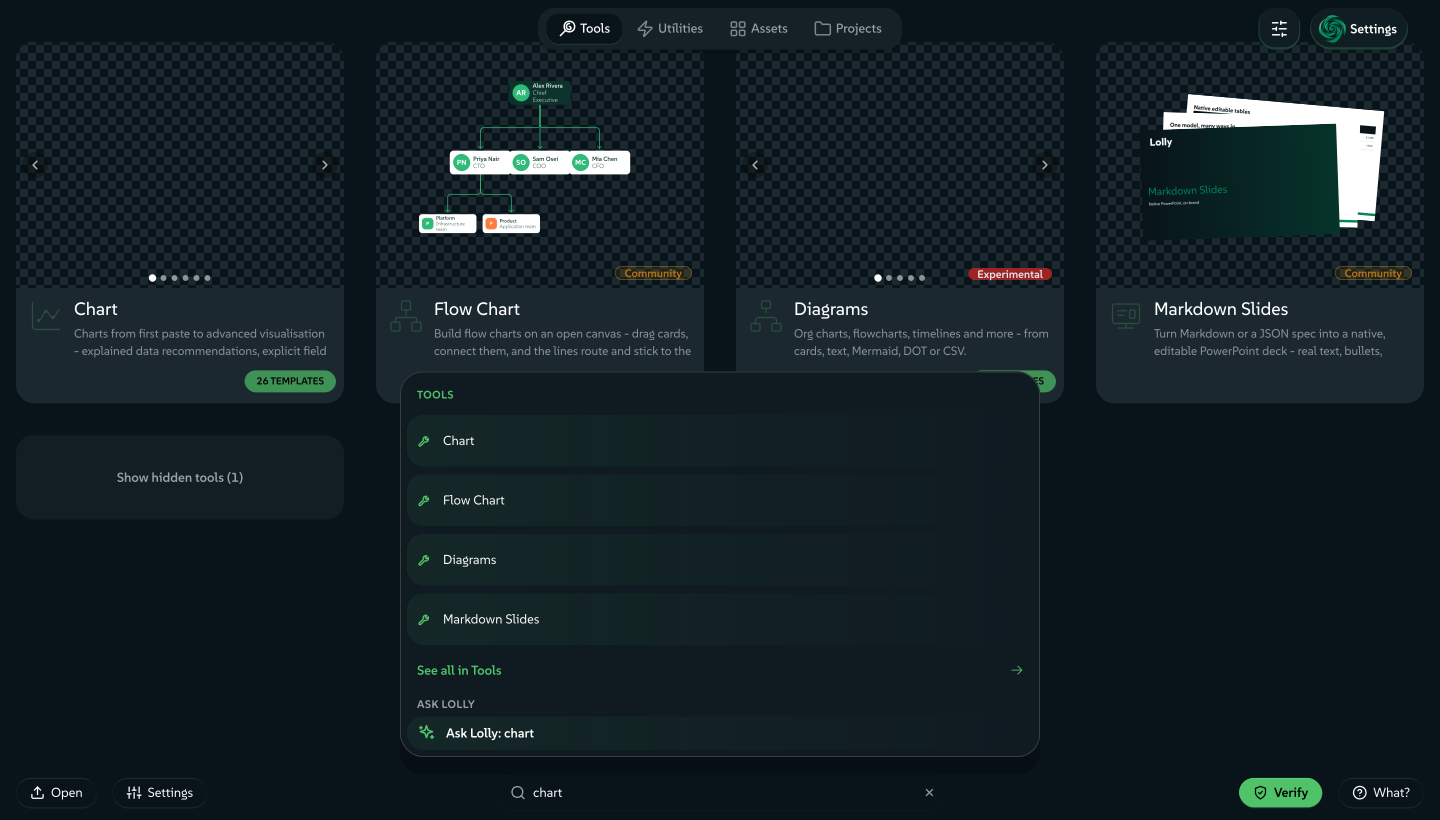 signed by Lollyvector SVG206 paths~29k nodes251 groups3 images579 KBSemak sendiriDapatkan fail yang ditandatangani


Every result is an ordinary link you can bookmark or paste: a tool opens at #/tool/<id>, and #/settings?tab=<device|brand|caps|activity> opens Settings on that tab. A Projects result points at a saved slot on this device (#/tool/<tool>?slot=…), so that link works only on this device.
Keyboard
- Ctrl-Space jumps to the field from any screen that shows the bar. A small
⌃␣chip in the empty field is the reminder, on a wide screen with a mouse or trackpad. Cmd-Space also works where the system lets it through, but macOS keeps it for Spotlight, so Ctrl-Space is the one to learn. - The arrow keys walk every row across every group.
- Enter opens the highlighted row, and Cmd/Ctrl-Enter opens it in a new tab.
- Escape backs out a step at a time: it closes the panel, then clears what you typed, then leaves the field.
Limits
- It searches names, labels and tags, never contents.
- Results only navigate. Nothing in the panel deletes, renames or changes a setting for you.
- It keeps no history and shows nothing before you type. Below two characters the panel stays closed.
- Matching is exact substrings, folded for case and accents. It does not correct a typo.
- It runs on your device, from data already there. The exception is Docs: the first search fetches this site's search index, the same file the site's own search uses, and what you type is never part of that request. Offline, the Docs group is simply missing.
Related: Your favourites for keeping the tools you use in view. Using Lolly for the gallery, Projects and Assets that search reaches. Settings for the deep links behind each settings result.