
Choose formats, download, copy, size, presentation and saved state.
Part of URL Mode.
Format with format=
format=<fmt> selects the output format for both export (download) and copy (clipboard).
Supported values:
| Value | Output |
|---|---|
svg | Scalable vector (requires <svg> root in the template) |
svg-anim | Animated SVG - self-contained vector flipbook (animated tools only) |
emf | Enhanced Metafile vector (for Office apps) |
eps | Encapsulated PostScript vector (RGB) |
eps-cmyk | Encapsulated PostScript vector - DeviceCMYK (naive conversion, no output intent) |
dxf | DXF vector cut file - AutoCAD R12, paths in mm (laser/vinyl/CNC) |
png | Lossless raster |
jpg / jpeg | Lossy raster |
webp | Lossy/lossless raster |
avif | AVIF raster |
tiff | Uncompressed sRGB raster (RGB TIFF) |
exr / hdr | Float raster interchange - OpenEXR and Radiance RGBE, written over a render carrying genuine headroom (hdr=1) |
pdf | PDF document |
pdf-cmyk | Print PDF - CMYK with output intent (see print marks & bleed) |
cmyk-tiff | Print TIFF - flattened CMYK raster |
pptx | PowerPoint deck - native editable text/shapes + extractable images/vectors |
penpot | Penpot design file - boards, editable shapes and the brand's colours, typographies and design tokens |
docx / odt | Word / OpenDocument text - headings and paragraphs read off the render, editable, not a picture of the page |
ico | Icon bundle (e.g. tool-logo) |
zip | Multi-file bundle (optionally password-locked - see Exporting → Locked downloads) |
html | Static HTML document |
md / txt | Markdown / plain text |
json / csv | Structured data |
css / scss | Colour tokens as CSS custom properties or Sass variables |
gpl / ase | Swatches for other design apps - GIMP palette, Adobe Swatch Exchange |
ics / vcf | Calendar event / contact card |
ttf / otf / woff | Font files (Convert Font) |
gif | Animated GIF (animated tools only) |
apng | Animated PNG - full colour + real alpha (animated tools only) |
webp-anim | Animated WebP - full colour + alpha, smallest file (animated tools only) |
webm | WebM video (animated tools only; Chrome/Firefox/Android) |
mp4 | MP4 video (animated tools only; Safari/iOS and recent Chrome) |
wav / mp3 / m4a / opus | Audio only - the sound with no picture |
Not all tools support all formats - only the formats listed in the tool's manifest render.formats are valid. The authority on the whole set is the render.formats enum in schemas/tool.schema.json; this table shows what each value produces. Requesting an unsupported format falls back gracefully.
Download with export
Adding export (no value needed) triggers an automatic download the moment the tool finishes rendering. Pair it with format= to set the file type; if format is omitted the tool's default format is used.
/#/tool/qr-code?url=https://suse.com&format=svg&export
/#/tool/qr-code?url=https://suse.com&format=png&export
/#/tool/qr-code?url=https://suse.com&format=pdf&export
export without format downloads in the tool's first listed format:
/#/tool/qr-code?url=https://suse.com&exportDownload filename with filename=
Sets the name of the downloaded file. The format extension is appended automatically - do not include it.
/#/tool/qr-code?url=https://suse.com&format=png&export&filename=homepage-qr
→ downloads as homepage-qr.png

/#/tool/qr-code?url=https://suse.com&format=svg&export&filename=event-badge
→ downloads as event-badge.svg
Without filename=, the download is named after the tool ID (e.g. qr-code.png).
Copy to clipboard with copy
copy (no value needed) arms the tool's copy-to-clipboard action. Pair it with format= to choose the format; if format is omitted the tool's default is used.
/#/tool/email-signature?firstname=Andy&format=html©
/#/tool/qr-code?url=https://suse.com©
/#/tool/qr-code?url=https://suse.com&format=png©It does not fire silently on load. Browsers only allow a clipboard write in response to a user gesture (navigator.clipboard.write rejects otherwise, and the image path would fall back to an unexpected download). So when copy is present, the shell highlights the Copy button and performs the copy on your first interaction with the page - the click that supplies the required gesture.
Use export instead if you want a genuinely unattended result (a download needs no gesture). copy is for "open this link, then it's ready to paste." It is a web-shell affordance; the CLI ignores it (use --output / stdout).
Canvas dimensions with width= / height=
width and height (short aliases w and h) set both the canvas document size and pre-fill the export dimensions panel. They are not passed to the tool as inputs.
?width=1200&height=630
?w=800&h=800
?w=1920&h=1080
Mixing long and short forms is fine - ?width=1200&h=630 works. The canvas preview updates to the new aspect ratio.
 signed by Lollyvector SVGControleer het zelfDownload het ondertekende bestand11 groups7 KB
 signed by Lollyvector SVGControleer het zelfDownload het ondertekende bestand11 groups7 KB


Fullscreen with full
full collapses the sidebar so the canvas fills the entire viewport. The value is ignored - presence of the param is enough.
/#/tool/qr-code?url=https://suse.com&fullAny tool takes it. Mesh Gradient with full is artwork and nothing else.
 signed by Lollyvector SVGControleer het zelfDownload het ondertekende bestand57 paths~1.1k nodes58 groups60 KB
 signed by Lollyvector SVGControleer het zelfDownload het ondertekende bestand57 paths~1.1k nodes58 groups60 KB


Combine with export for a clean unattended export flow:
/#/tool/qr-code?url=https://suse.com&format=png&filename=my-qr&export&fullLand on the export panel with options
options opens the tool with the export-settings panel already expanded (format, dimensions, DPI and the export/copy buttons) instead of the collapsed Render button. Use it to share a link where the recipient is one click from downloading.
/#/tool/qr-code?url=https://suse.com&options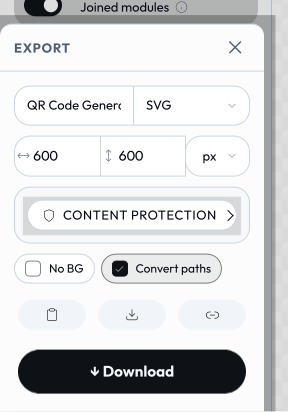 signed by Lollyvector SVGControleer het zelfDownload het ondertekende bestand60 paths~4.0k nodes75 groups2 images62 KB
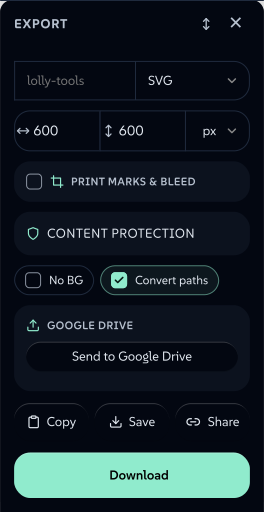 signed by Lollyvector SVGControleer het zelfDownload het ondertekende bestand60 paths~4.0k nodes75 groups2 images62 KB


options is the opposite of full: full hides all chrome to show only the preview, while options surfaces the export chrome. If both appear, full wins (there's nowhere to anchor the export panel once the sidebar is collapsed). The flag is web-only - the CLI ignores it.
Transparent background
Tools that support transparent export expose a transparentBg boolean input. Pass it like any other boolean input:
?transparentBg=1Transparency is preserved in formats that support an alpha channel: png, webp and avif. It is ignored for jpg, pdf and svg (SVG has no background rect when transparent).
Full example:
/#/tool/qr-code?url=https://suse.com&color=%230c322c&transparentBg=1&format=png&export&filename=qr-transparentThe engine injects a second export toggle the same way: convertPaths (the Convert paths text-to-vector outlining control) is added automatically to tools that export a vector format. It is URL-expressible as any boolean - ?convertPaths=0 to leave text live, ?convertPaths=1 to outline it - and defaults on. A tool that sets render.convertPaths: false suppresses it (and the param has no effect).
Loading saved state with slot=
Saved state slots are named snapshots of input values stored in the browser. The slot param loads one by name. Any URL params present alongside slot override the saved values for that render only.
/#/tool/quotes?slot=andy-quote-v2
/#/tool/qr-code?slot=homepage-qr&format=png&export