
Sequence is the timeline under Design's canvas. Use it to cut a product video, a social clip or a title sequence: put clips in order, trim them, cross-fade between them, set the sound and export the whole piece or one part.
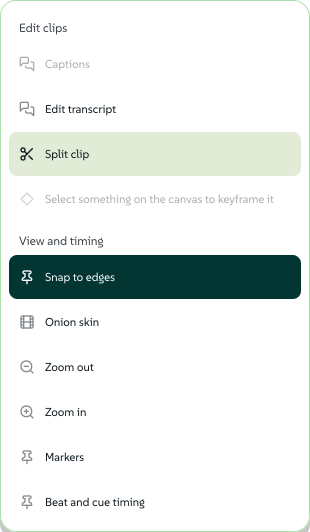
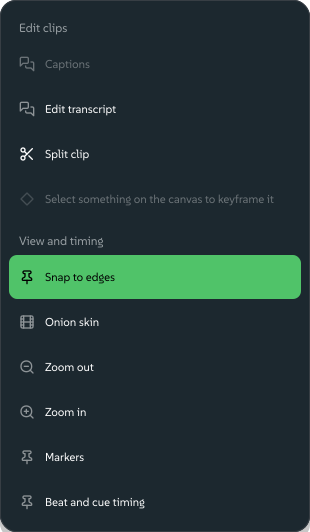
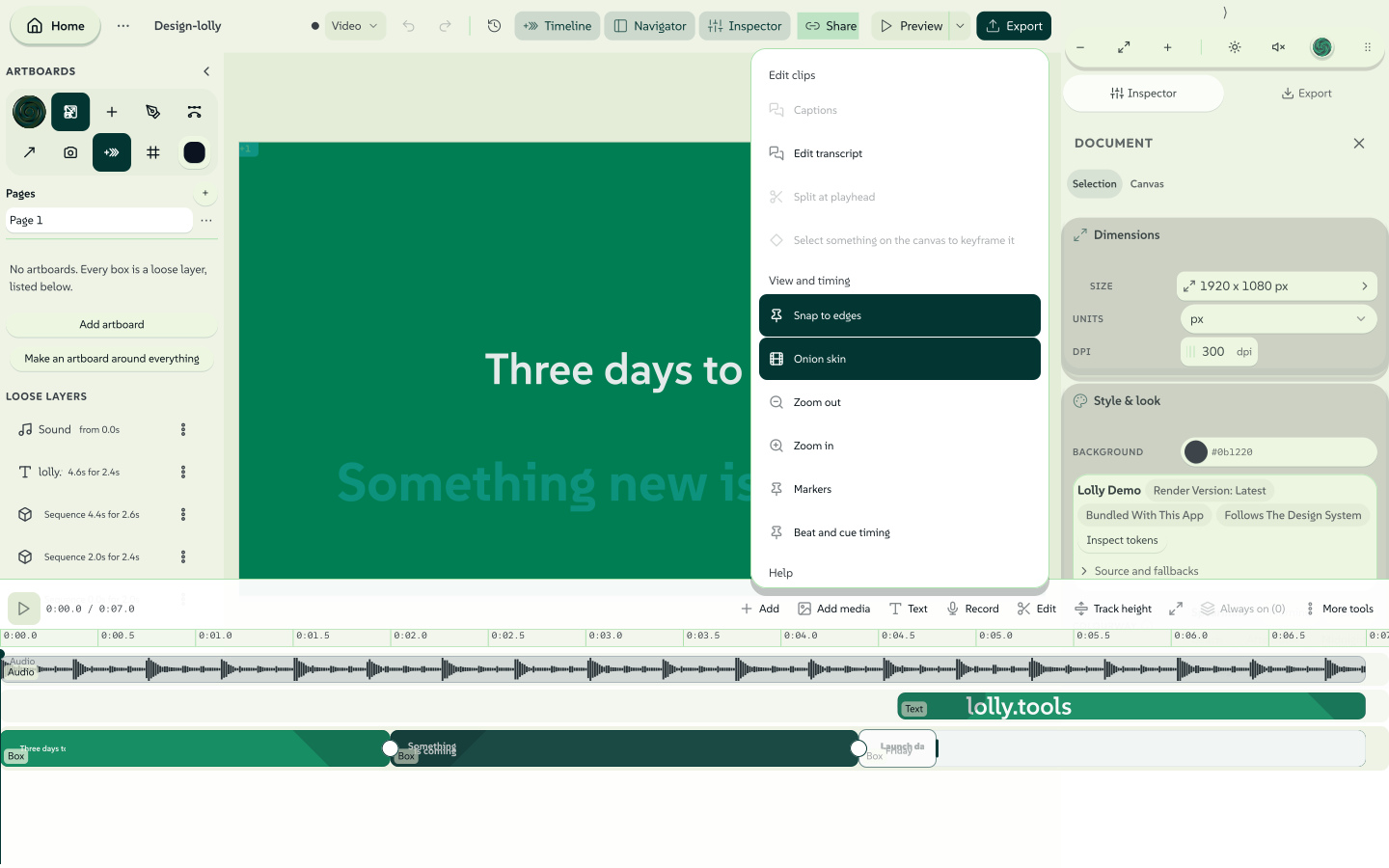
The bar above the tracks keeps the everyday controls in view: Add for media, text and recordings, Edit for the selected clips, Track height, Fit to view and Always on. More tools holds the rest in three groups: Edit clips (split, captions and +Keyframe), View and timing (snapping, onion skin and zoom) and Help (the Quick video guide and the keyboard shortcuts).
 signed by Lollyvector SVG63 paths~8.8k nodes132 groups105 KBПеревірте саміОтримати підписаний файл
 signed by Lollyvector SVG63 paths~8.8k nodes132 groups105 KBПеревірте саміОтримати підписаний файл


Everything runs on your device, and what plays in the timeline is what the exported file contains. Long sequences scroll both ways inside the tracks panel: use a trackpad or wheel, drag an empty track area on touch, or focus the tracks and use the arrow and Page keys. New to the timeline? Timeline (Sequence) in the Design guide gives a short tour first.
Your first edit
- Arrange. Drag clips to change their order. Add brings in media, a title or a recording: Record a video, Record screen, Record a voiceover or Script a voiceover.
- Trim. Drag either end of a clip to change its length.
- Split. Park the playhead inside a clip and press
S. - Cross-fade. Pull a seam to the right to turn a cut into a crossfade.
- Export. Choose MP4 or WebM in Export, or mark a range first (see Markers, ranges and frame rate).
Each of these is one undo step. The sections below cover each one in detail.
Splitting a clip
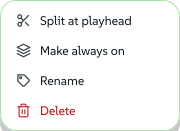
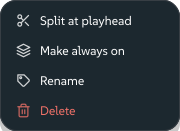
Split clip cuts one clip into two at the playhead. Open More tools and choose it, press S, or use the clip's right-click menu.
The button says what it will cut before you press it: Split clip when the playhead is inside one, Split 3 clips when a selection spans it, and Split at playhead, greyed out, when there is nothing to cut.
 signed by Lollyvector SVG39 paths~3.7k nodes36 groups48 KBПеревірте саміОтримати підписаний файл
 signed by Lollyvector SVG39 paths~3.7k nodes36 groups48 KBПеревірте саміОтримати підписаний файл


The scope resolves in one order:
- every selected clip the playhead is inside, so a multi-selection cuts in one press;
- failing that, the sequence clip under the playhead, with no selection needed;
- failing that, nothing is written and the panel explains why.
Shift+S, or Shift-clicking the blade, cuts every timed clip the playhead is inside, on every lane, ignoring the selection. The whole cut is one undo step. Cuts snap to clip edges and whole seconds, so pressing twice at the same spot does nothing the second time.
Through edits, and Join
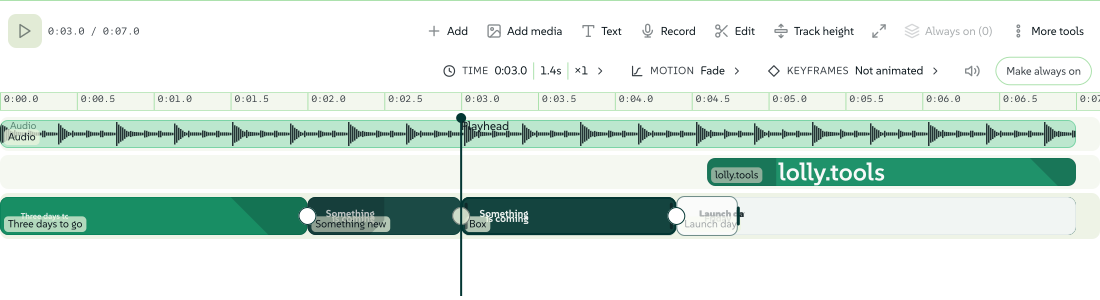
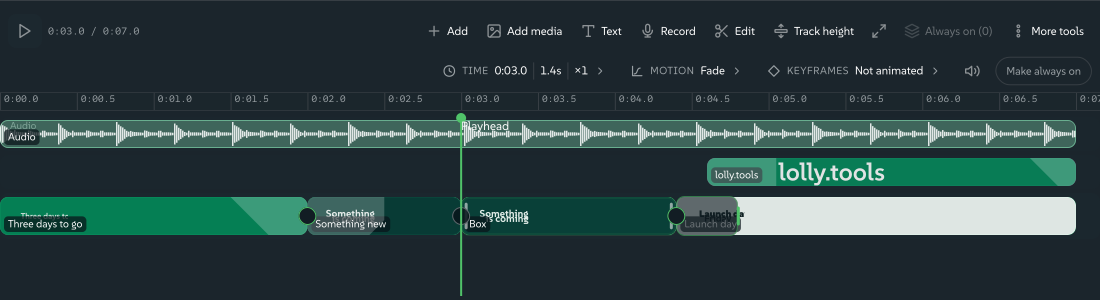
A cut you have not acted on yet is a through edit: the two halves still run continuously, and the sequence plays as if the cut were not there. A hairline marks those seams, so you can tell which cuts are decisions and which you made and then left alone.
 signed by Lollyvector SVG87 paths~11k nodes184 groups129 KBПеревірте саміОтримати підписаний файл
 signed by Lollyvector SVG87 paths~11k nodes184 groups129 KBПеревірте саміОтримати підписаний файл


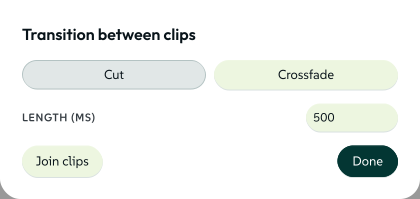
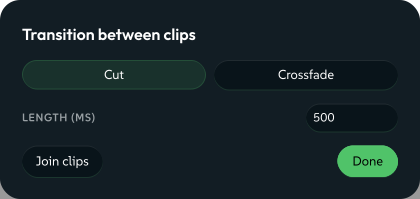
Click the seam and the transition dialog offers Join clips beside Cut and Crossfade. Join is also in a clip's right-click menu and the timeline's Edit menu, and works from either side: the two halves become one clip again, with the second half's ending restored. A seam whose sides were trimmed apart, sped up differently or given a transition is a decision, so it offers no Join.
 signed by Lollyvector SVG12 paths~1.4k nodes14 groups22 KBПеревірте саміОтримати підписаний файл
 signed by Lollyvector SVG12 paths~1.4k nodes14 groups22 KBПеревірте саміОтримати підписаний файл


Trimming
Drag either end of a clip to trim the clip. The grip is a narrow bar, but the area that responds is wider, and at least 24 pixels for a finger or a pen. A clip too narrow for two grips offers neither and explains in its tooltip: zoom in, or use the inspector.
While you drag:
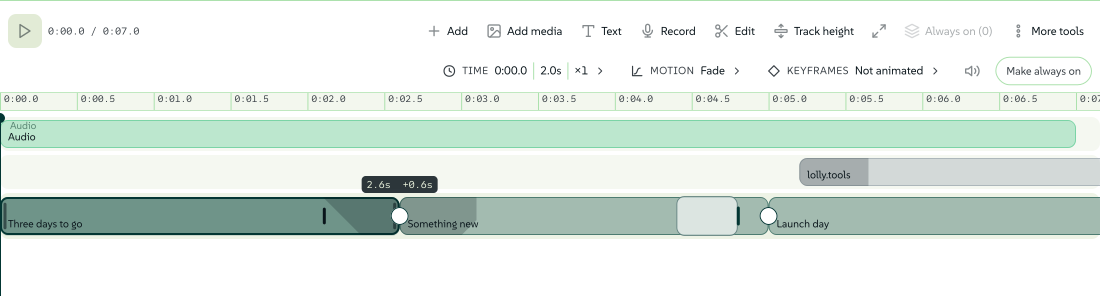
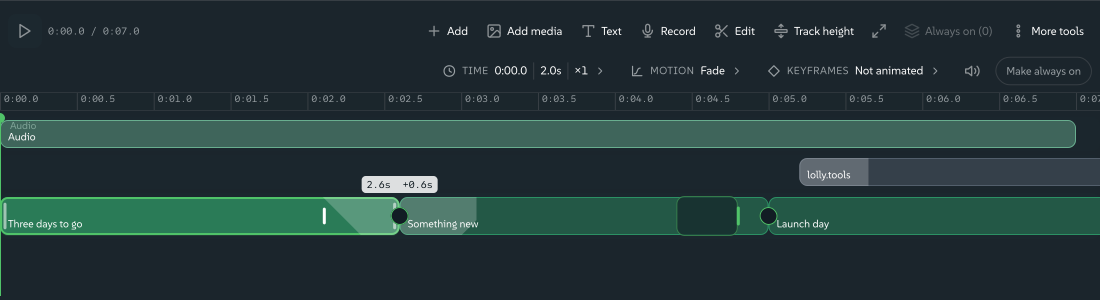
- a readout at the dragged end shows the new length and the signed change (
4.2s +0.6s); - a ghost extent shows how much source is still reachable past the edge;
- the edge shows a limit state when you ask for more than the file has;
- on the sequence row, the clips downstream move as you drag, so you see the ripple you are causing;
- hold Alt to override snapping.
Nothing is written until you let go.
 signed by Lollyvector SVG76 paths~6.5k nodes171 groups88 KBПеревірте саміОтримати підписаний файл
 signed by Lollyvector SVG76 paths~6.5k nodes171 groups88 KBПеревірте саміОтримати підписаний файл


Every trim also works from the keyboard:
| Key | What it does |
|---|---|
[ / ] | Aim at the in edge or the out edge of the selected clip |
, / . | Nudge that edge one frame earlier or later (hold Shift for ten) |
E | Pull that edge to the playhead |
Esc | Let the edge go (then a live recording, then close the panel) |
 signed by Lollyvector SVG82 paths~9.9k nodes175 groups118 KBПеревірте саміОтримати підписаний файл
 signed by Lollyvector SVG82 paths~9.9k nodes175 groups118 KBПеревірте саміОтримати підписаний файл


Crossfades you can see and drag
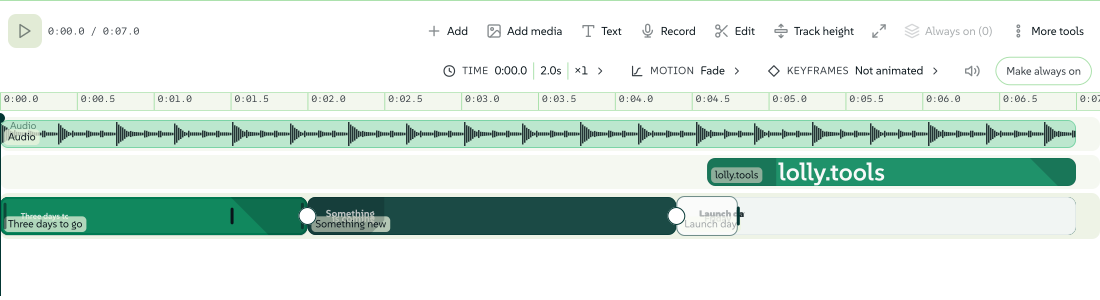
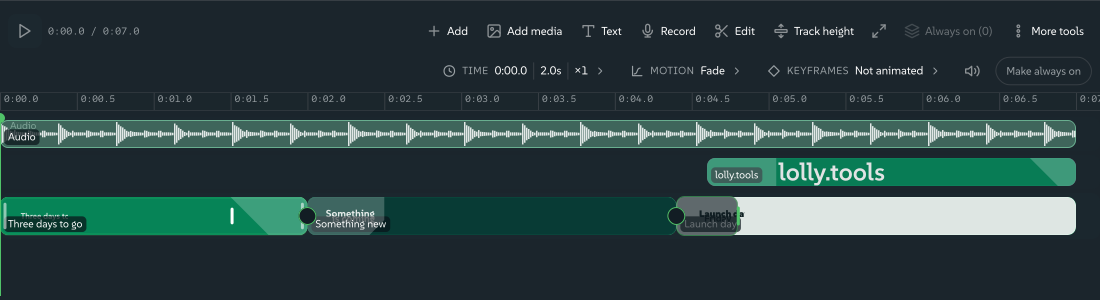
A crossfade is drawn where it happens: a band that starts at the cut and lies over the head of the next clip, as wide as the crossfade is long. The first clip stays at rest up to the cut, then fades out across the band while the next fades in under it, and the two sounds cross at equal power so the level does not sag. Preview and export follow the same rule.
Drag the grip at the band's right end to change the length, in steps of one project frame, up to the length of the clip it hands over to; a badge shows the length as you go. Drag it back to the cut to make a plain cut again, or pull a plain seam to the right to make a crossfade. Escape cancels a drag. A click on the seam opens the dialog, where the length is a number you can type.
If the first clip runs out of footage before the crossfade ends, that part of the band is hatched. The export holds the clip's last frame there and never invents picture, so shorten the clip or the crossfade if a frozen frame is not what you want.
A clip that animates in or out on its own carries a wedge at its head or tail, as wide as that animation. Hover the clip and drag the grip on the wedge's inner end to lengthen or shorten the animation, up to half the clip. A seam between a clip that fades out and one that rises in is not a crossfade, and the dialog explains that choosing Cut or Crossfade replaces the two clips' own transitions.
Undo follows what you did, not the clock: one drag is one step, and adding, deleting, pasting or splitting a clip is always its own step. A pasted main-row clip goes in after the clip under the playhead; a pasted overlay starts at the playhead.
Sound
Select any clip with audio, an audio box or a video's soundtrack, and the inspector grows a sound strip. The two level controls open a tall fader over the timeline when pressed, and the number beside each takes typed values.
- Volume (0 to 200%). Above 100% boosts the exported file; the preview plays at 100% and the control tells you. The diamond beside it keys the level at the playhead, using the same keyframes as motion, so splitting or trimming a clip carries its volume curve along. The bolt normalizes the clip to -16 LUFS.
- Pan (-100 to 100), equal-power in preview and file.
- Under other audio. A music bed set to sit under speech drops wherever the other clips actually make sound, measured from their audio, and comes back up in the gaps.
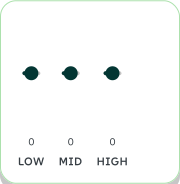
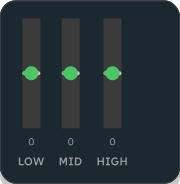
- Effect. Fourteen presets, from Voice cleanup (an on-device model that removes background noise) through tone shapes, reverb spaces and a telephone. A preset writes its full settings into the clip, so a later re-tune never changes a link you already shared. The sliders button opens the EQ: Low, Mid and High as dB faders.
- Pitch (semitones, an octave each way, voices kept natural). A speed-changed clip also gets Preserve pitch, on by default, so slow motion stays in key.
 signed by LollyPNGpixels, not shapes73 KBПеревірте саміОтримати підписаний файл
 signed by LollyPNGpixels, not shapes66 KBПеревірте саміОтримати підписаний файл


 signed by Lollyvector SVG6 paths258 nodes15 groups7 KBПеревірте саміОтримати підписаний файл
 signed by Lollyvector SVG6 paths258 nodes15 groups7 KBПеревірте саміОтримати підписаний файл


One envelope drives the preview and the export mix, so the file sounds like the timeline. Audio preview keeps a bounded temporary cache of decoded sound on your device, released when the timeline closes; an abandoned cache expires after a day. A stretch that will play within 1 dB of full scale is tinted amber on the waveform, and over it, red. A true-peak limiter guards every export at -1 dBTP. The export bar's Loudness select adds a platform target: Off by default, or -14 LUFS (streaming), -16 (podcast) or -23 (broadcast).
Detach audio
Detach audio pulls a video clip's sound onto its own overlay lane, to trim, move and mix separately. It is in the clip's right-click menu, the timeline's Edit menu and on Shift+D. The two halves stay linked:
- the picture is muted and carries a chain mark saying where its sound went, and the sound carries the same mark back;
- selecting either selects both, so they move together; Alt-click selects only the one you clicked;
- Re-attach audio, from either side, puts the sound back and un-mutes the picture.
The link holds through a split: split the muted picture and both halves still point at the sound. A video clip's menu also offers Remove background…, which makes a transparent cut-out of the clip on your device with the same methods as Assets, saved as its own asset.
 signed by Lollyvector SVG13 paths~1.0k nodes14 groups17 KBПеревірте саміОтримати підписаний файл
 signed by Lollyvector SVG13 paths~1.0k nodes14 groups17 KBПеревірте саміОтримати підписаний файл


Subtitles and the transcript
A clip with speech offers two on-device doors in its right-click menu, and Generate editable captions sits under More tools:
- Generate subtitles listens to the clip and writes timed caption boxes. The first run downloads the speech model once and tells you its size.
- Edit transcript opens the transcript as flowing text: click a word to jump the playhead there, select a sentence to cut it. A clip with no transcript yet gets one made in the background first, and the editor opens when it is ready.
Markers, ranges and frame rate
Project frame rate sets the editing grid and the default movie export rate: 24, 25, 30, 50 or 60 fps (existing documents use 30). Frame steps, splits, trims and transition handles follow that grid. An explicit export Frame rate, or the fps link parameter, overrides the file's rate. Changing the project rate leaves clip times in place. A video clip's Timing controls show its source rate; VFR means the source uses variable frame spacing.
Press M to add a marker at the playhead, or Shift+M to add one with a label. Click a marker on the ruler to edit its label, colour and type: Marker, Chapter, Range or Note. Ctrl+Left and Ctrl+Right visit the previous and next marker. Markers and in and out points are snap targets, saved with the document and its link, and never extend the duration. The Markers menu exports chapters as a WebVTT sidecar, timed from the start of the whole sequence.
To export part of a sequence:
- Press I at the start of the part you want.
- Press O at its end. The ruler highlights the range and the export bar shows its times.
- Choose Markers > Preview mix to render the range with picture and sound, including effects the live preview cannot show. The preview is at most 960 pixels wide; the export uses the output size you chose.
- Export. Movie and audio files contain only that interval, with motion and sound in their original positions.
Points past the end are clamped; an empty or reversed range exports the whole sequence. Markers > Clear range restores the whole sequence. Closing Preview mix cancels an unfinished render.
J, K and L shuttle backward, stop and shuttle forward; repeating J or L steps through 1x, 2x and 4x, and changing direction returns to 1x. Shuttle scrubs silently; Space plays with sound.
When a main-row clip is moved or resized, overlays that started within it follow its start. Deleting that clip moves those overlays to the start of the removed interval, joining two pieces keeps the overlays inside, and an overlay you move yourself keeps its position.
Marker link format
Design appends projectFps and sequenceMarks to its inputs; fps stays an export parameter. The versioned marker value looks like v1|m,1000,,888888,Intro|c,2000,,ffcc00,Chapter%201|i,1000|o,4000. Each marker entry holds its kind (m, c, r or n), absolute milliseconds, an optional range end, a six-digit RGB colour and a URI-encoded label. In and out entries use i and o. Readers ignore malformed entries and unknown versions. Limits are 256 markers, 160 characters per label, one hour and 65,536 characters for the whole value.
Lottie animations
Drop a .lottie package or Lottie .json file on the gallery and choose Edit animation in Sequence, or add one from the timeline's media picker. If a package holds several animations, choose one. The new artboard takes its dimensions and the clip its duration.
Each instance keeps its own animation choice. Trim, split, duplicate, change speed and animate position, scale, rotation or opacity with the usual controls. The original package stays intact in your library, and a .lolly document carries the source and your edits to another device.
Expand a clip with +, or choose Animation layers, to edit its internal layers: names, visibility, source in and out frames, transform values and keys, easing and static fill and stroke colours. The playhead previews the result. Internal edits apply to this clip only, and Reset internal edits restores the original.
Choose dotLottie in Export to download the edited sequence as one animation. It supports imported shape animations, nested compositions, embedded still images, solid native shapes, paths and outer transform keys. The project frame rate and in and out range apply.
What dotLottie keeps and refuses
Sources keep their original timing, including fractional frame rates; a new document uses a 30 fps editing grid when the source rate is outside the five project choices. Source keys keep their own frame times and easing. Existing spatial position keys can be edited, but a key cannot be inserted inside a curved spatial path. Animated fill and stroke properties are preserved. For nested time-remapped compositions, selecting a source key does not guess a timeline position; scrub to preview.
Position axes can use different curves in a dotLottie export; anchor and scale axes must use matching curves, or use a movie export. A nested composition reused within one clip stays shared within that clip, and duplicated clips can diverge.
Font-dependent text, expressions, 3D, masks, mattes, effects and themed appearance are not supported, nor are native text and video from the editor. An unsupported import or export lists the feature and is never silently replaced by a still; use a movie export instead.
Packages can be up to 64 MiB, and clips must last at least 0.1 seconds. Required credits travel inside the exported package as readable files. dotLottie exports do not carry signed Content Credentials.
Premiere XML exchange
To bring a Premiere edit in, export it as Final Cut Pro 7 XML (xmeml) and open it with Import a design in Design, using Replace the board. Select the media files or keep placeholders; the clips open in Sequence. The reader keeps rational rates, source references, tracks and frame counts, and reports clock conversions, missing media and unsupported effects or transitions. A Lolly ZIP with sequence.xml and a Media folder opens the same way.
To send an edit to Premiere, export Premiere XML + media: a ZIP of timed, unprocessed clips, the original media and a report. Unzip it, import sequence.xml in Premiere and relink the media. Placement, fitting and effects do not transfer, so render generated layers first or export finished video. Check the timing of media whose rate differs from the project rate. Native .prproj files are not supported.
The CLI reports an XML timeline's frame counts and mapped inputs without opening the app:
lolly adobe timeline sequence.xmlHow selection follows the playhead
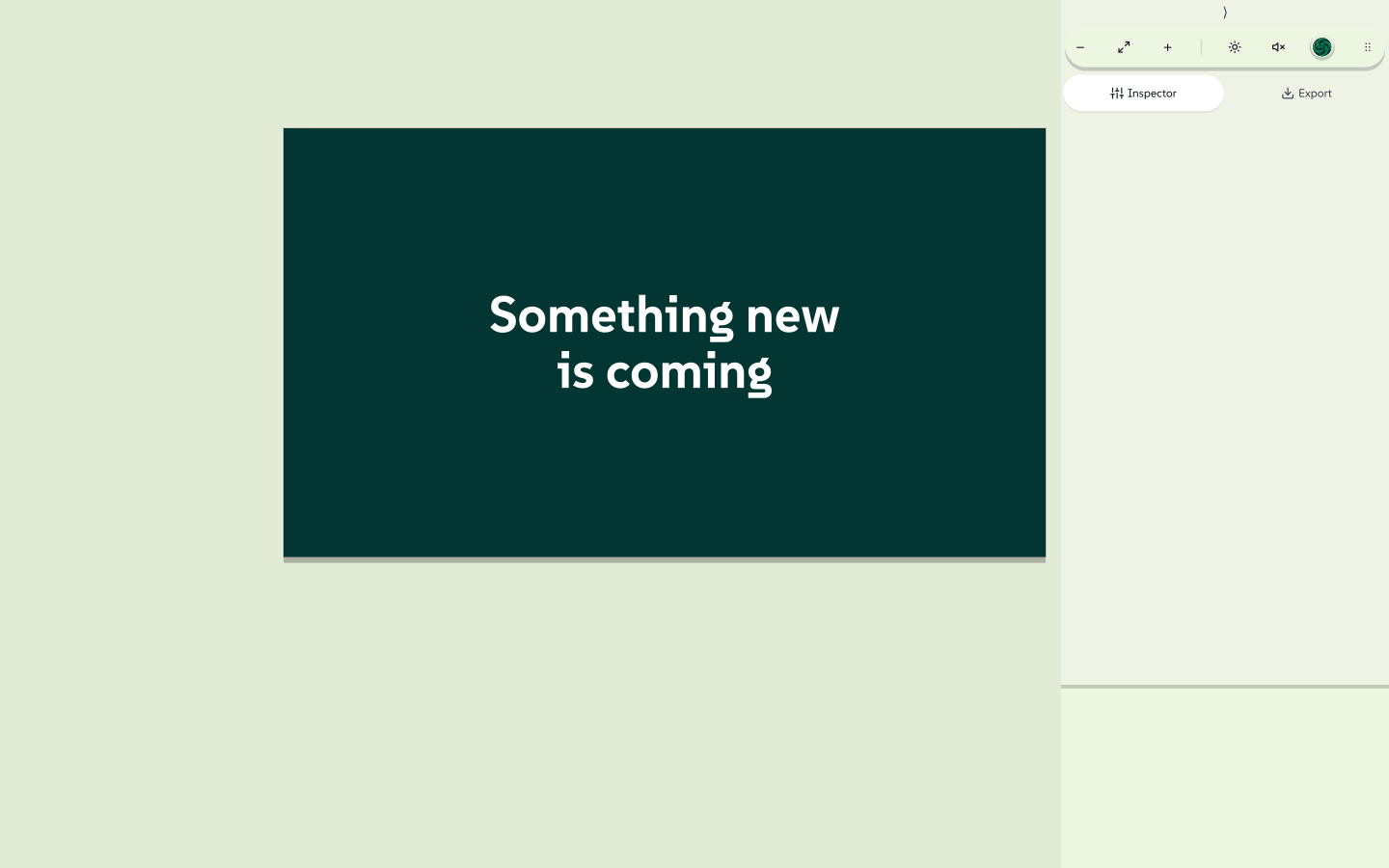
A timed canvas shows one instant, and three promises keep editing predictable:
- Moving the playhead never changes what is selected. Scrubbing is looking, not choosing, so a value typed into a panel always reaches the clip you picked.
- Selecting in the timeline moves the playhead inside that clip, so the thing you selected is on screen. It moves only when it has to: never while playing, never for an Always on box and never when the playhead is already inside.
- An off-playhead selection is flagged. If you select a clip and scrub away, the canvas removes the outline and handles and shows a banner with Go to it, which seeks to the clip's start. The banner stays away during playback, where scenes coming and going is expected. While the selection is off-playhead, keys that would change the design are refused; Escape, Tab and Select all still work.
The timeline's own inspector (Length, Trim in, Speed, the two transitions and Mute) and the tool sidebar edit the selected clip wherever the playhead is. They are the precise route and the accessible one.
 signed by Lollyvector SVG75 paths~1.4k nodes55 groups57 KBПеревірте саміОтримати підписаний файл
 signed by Lollyvector SVG68 paths~1.4k nodes55 groups56 KBПеревірте саміОтримати підписаний файл


Clips not live at the playhead are not painted, so a click falls through them to the topmost visible box underneath, as it does for overlapping boxes.
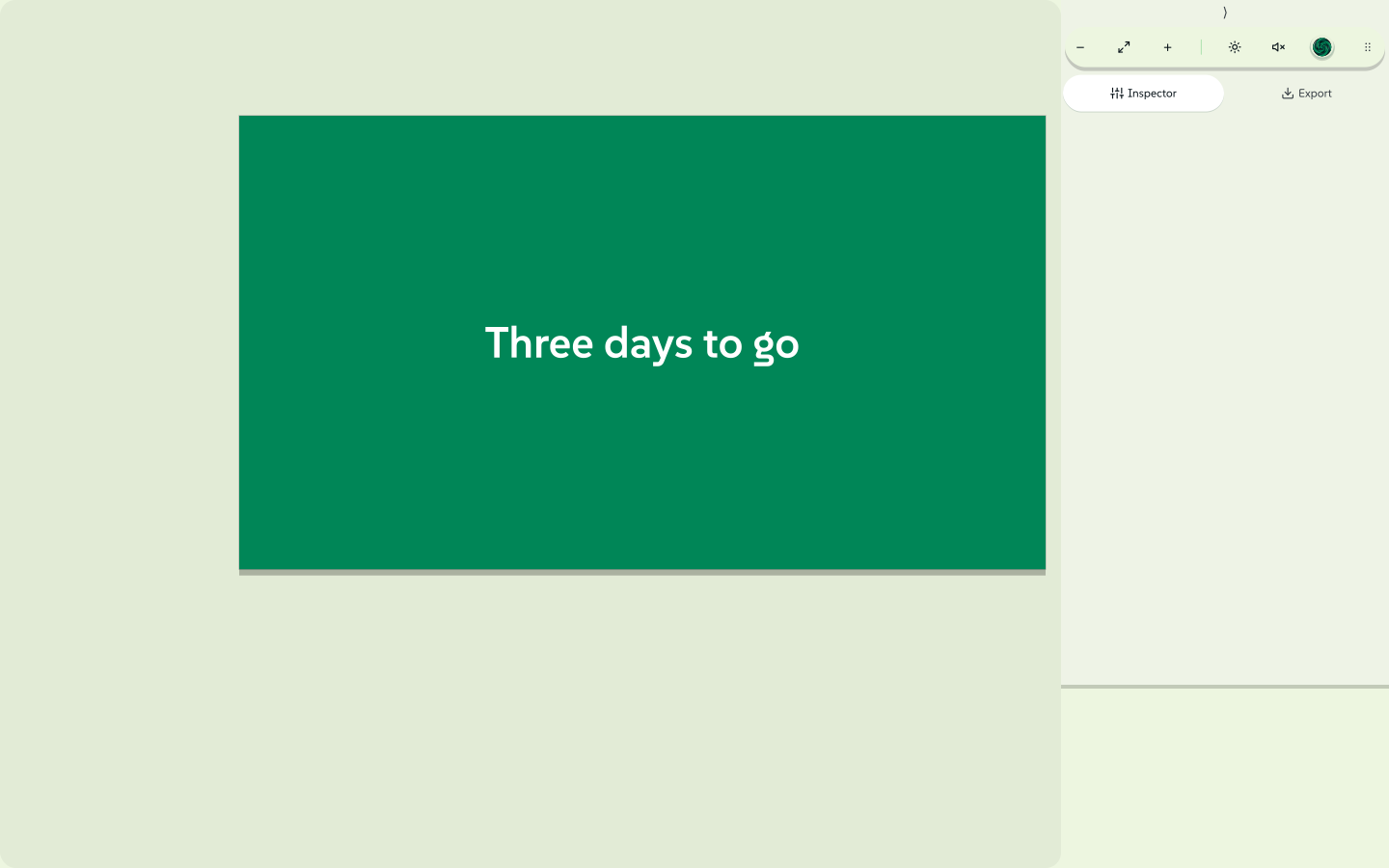 signed by Lollyvector SVG74 paths~1.2k nodes57 groups55 KBПеревірте саміОтримати підписаний файл
 signed by Lollyvector SVG67 paths~1.2k nodes57 groups54 KBПеревірте саміОтримати підписаний файл


Onion skin
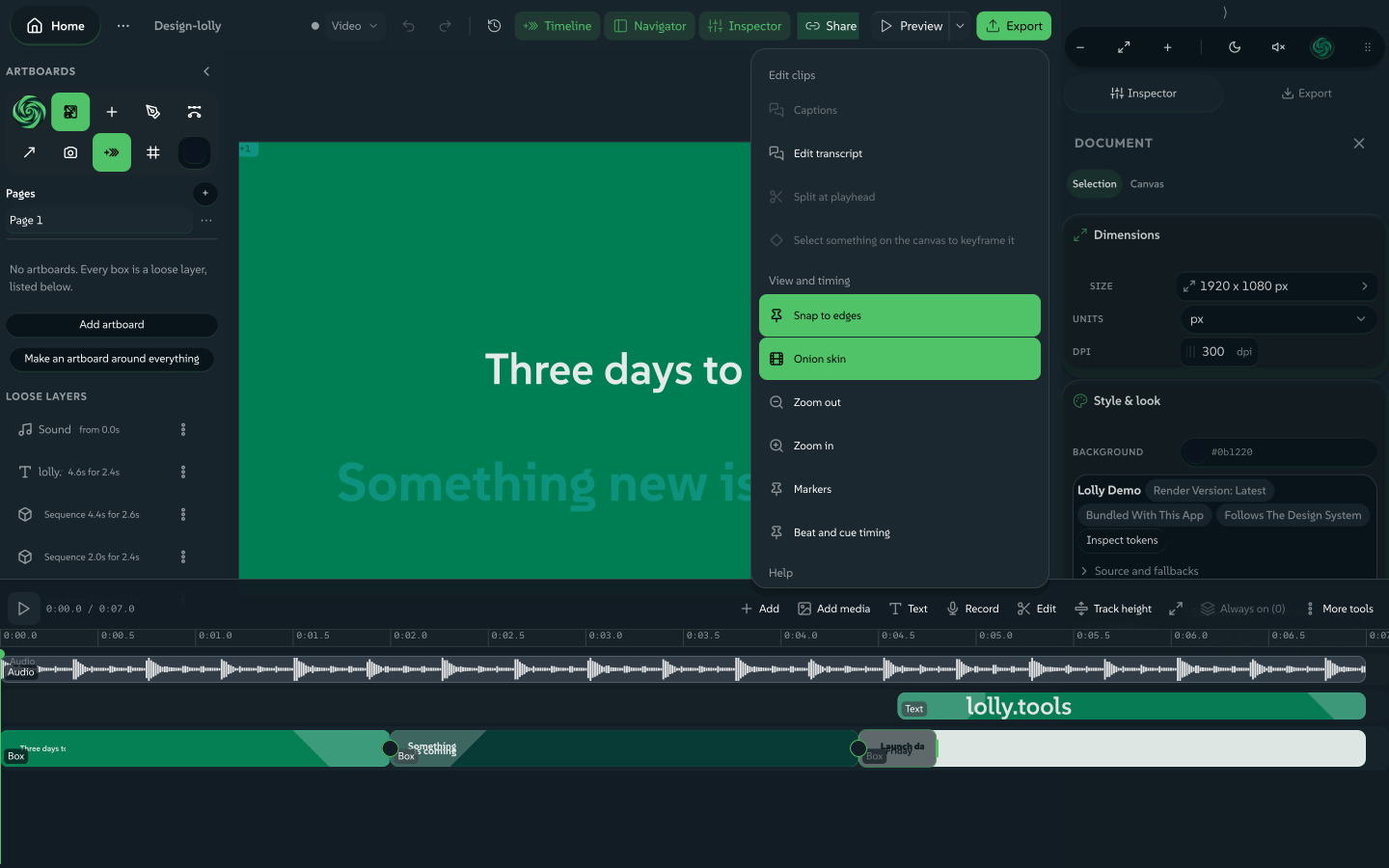
Onion skin shows neighbouring clips as ghosts over the live one, for judging the frame before and after. It is off by default, because full-frame scenes laid over each other turn to mud, and your choice is remembered on this device.
- Open More tools and choose Onion skin, or press
Shift+O. - Long-press the button, right-click it or press
Alt+Shift+Ofor options: the mode, up to two clips before and after, and the strength.
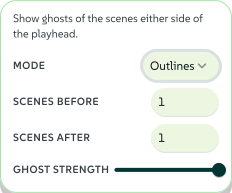 signed by Lollyvector SVG12 paths~2.2k nodes20 groups1 image30 KBПеревірте саміОтримати підписаний файл
 signed by Lollyvector SVG12 paths~2.2k nodes20 groups1 image30 KBПеревірте саміОтримати підписаний файл


- Outlines, the default, draws each neighbour as plain rectangles where its boxes sit, which stays readable over an opaque scene. Filled adds each ghost's own colour and picture.
- Past clips are warm and future clips cool blue, and each ghost also carries a
-1or+2chip, so direction never depends on colour alone. With Hide colourful previews on (see Inclusive Design), Filled falls back to Outlines.
 signed by Lollyvector SVG376 paths~28k nodes489 groups2 images459 KBПеревірте саміОтримати підписаний файл
 signed by Lollyvector SVG369 paths~28k nodes489 groups2 images459 KBПеревірте саміОтримати підписаний файл


Ghosts are drawn outside the exported canvas and stripped before any format is written, so an export with onion skin on is byte for byte the same as one without.
Keyboard shortcuts
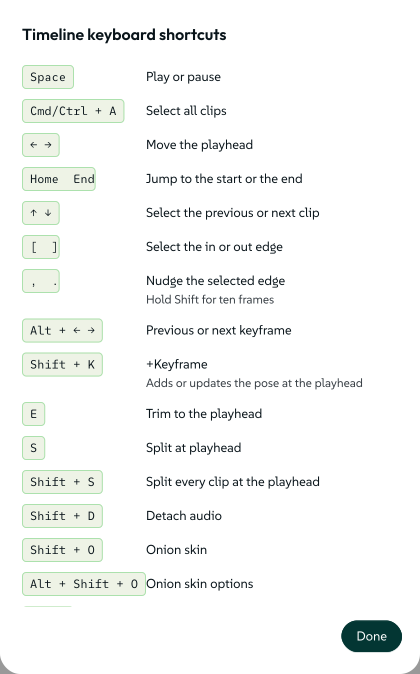
Every timeline shortcut is a bare letter or punctuation key, because the familiar editor chords such as Ctrl/Cmd+B collide with browser bindings a web page cannot reliably take over. Press ? with the timeline focused, or open More tools and choose Keyboard shortcuts, to see every key with what it does. Escape closes the sheet and returns focus.
 signed by Lollyvector SVG37 paths~10k nodes76 groups116 KBПеревірте саміОтримати підписаний файл
 signed by Lollyvector SVG37 paths~10k nodes76 groups116 KBПеревірте саміОтримати підписаний файл


Wide colour and HDR
Sequence follows the Design document's Colour setting, so a Wide colour / HDR document keeps its float pixels and 10-bit video through the timeline. Turn on HDR output for a 10-bit PQ movie, or export an SDR copy from the same document; see Wide colour and HDR editing.