
Put the handful of tools you actually use at the top of the gallery. Star a tool (or, on Utilities, a utility card) and a big tile for it appears in a strip above the grid, one star at a time.
Until you star your first thing, the strip shows a short starter set: up to six featured tools on the Tools gallery, and Verify & Inspect, Jump, Sandbox and Unpack on Utilities. Nothing is written to your profile for that set. Your first star replaces it with your own list, and if you later unstar everything, the strip goes away rather than bringing the starter set back.
 signed by Lollyvector SVG15 paths~4.3k nodes34 groups50 KB自分で確認する署名済みファイルを取得
 signed by Lollyvector SVG15 paths~4.3k nodes34 groups50 KB自分で確認する署名済みファイルを取得


Starring and unstarring
You star a tool in two places, and both write to the same list:
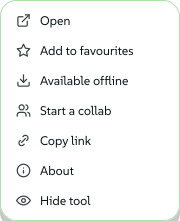
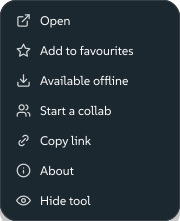
- In its right-click menu - Add to favourites / Remove from favourites. On a phone or tablet, press and hold the card for the same menu.
- In the selection bar - tick a card's checkbox (or several: ⌘/Ctrl-click, Shift-click a range or drag a box across empty space) and an action bar appears along the bottom with a Favourite button that stars, or unstars, the whole selection in one go. Right-clicking inside a selection offers the same Favourite / Unfavourite row.
 signed by Lollyvector SVG22 paths~1.6k nodes23 groups23 KB自分で確認する署名済みファイルを取得
 signed by Lollyvector SVG22 paths~1.6k nodes23 groups23 KB自分で確認する署名済みファイルを取得


The same star works on a utility card in the Utilities view - Verify & Inspect, Colour Lab, Unpack, Spreadsheet and the rest. They aren't tools (no saved sessions, nothing to keep offline), but the strip treats a starred one exactly the same way: a tile of its own, icon-led since there's no preview to show.
Not the strip you're after? The ★ Favourites pill under View options → Filter shows the same starred set as an ordinary filtered list in the grid below, instead of the drifting strip up top - useful if you'd rather scan a plain list.
One star, two lists. The star on an asset (Assets) is a separate list: it pins that logo, image or colour to the top of every asset picker. Starring a tool never touches your pinned assets, and pinning an asset never adds a tool.
The other way back. Once you have saved work in three different tools, a Yours row of chips above the grid leads with your favourites, then the tools you used most recently.
Gallery or Cover Flow
Open View options and, under Favourites, choose how the strip itself looks:
- Gallery - a slow, calm filmstrip that drifts sideways on its own and pauses the moment you touch the strip.
- Cover Flow - the same tiles fanned out in 3-D, one centred and upright, the rest tucked back at an angle; drag or flick through them, then press Open on whichever one is centred.
A new install opens on Cover Flow at every screen width, and the fan works with touch as well as a mouse. Once you pick one yourself, Lolly remembers your choice.
Your favourites stay on your device
Your starred tools are saved on your profile, the same on-device record that holds your name, your headshot and your other preferences.
- They are saved in this browser's own storage, with no account and nothing uploaded.
- They are separate from the design system: starring a tool is a shortcut for you and changes nothing on anyone else's install.
- They travel only where your whole profile does: with Sync through the storage you chose, or in a backup you export and import yourself. They never go to a Lolly server.
The choice between Gallery and Cover Flow is kept in this browser only and is not part of a profile export, so a new device starts on Cover Flow.
Related: Search for the other way back to something quickly. Using Lolly for the gallery, hiding tools you never use and the rest of the app. Profiles for what else rides on that on-device record.