
A template is a saved starting point for a tool. Open the tool on one and every control arrives already filled in, ready for you to change a few words. Some templates ship with the tool. The rest are ones you saved yourself, out of a design you had already got right.
Two things a template is not:
- Not a saved session. A session, in Projects, is one document you come back to: reopen it, change the date, save it again. A template starts new documents instead, as many as you want, and stays as it was while each of those goes its own way.
- Not a
.lollyfile. A.lollyis a file you hand to someone else (Sharing your work). A template stays on this device and appears inside the app, in the tool it belongs to. You can turn one into the other, but they do different jobs.
Your saved templates and your choices about shipped templates are kept on your profile, the same on-device record as your name and your starred tools. A profile backup carries them to another device. You can also export or share an individual template as described under Passing one on.
Save one from a tool
- Press Save as on the render pill, beside Export.
- Two cards open. Save to a project keeps this one document. Save as a template keeps it as a starting point for new ones.
- Name it, add one line of description if that helps you recognise it in six months, and save.
The template card also carries a checkbox. In Chart it reads Start new Chart documents with this, in Design Start new Design documents with this: the tool you are in names itself. Tick it and every blank open of that tool begins here instead of asking. There is more on that below.
In Design, the Lolly menu has both doors: Save as opens the dialog, and Save as a template… opens it with the template card ready to type into.
The quick Save in the export panel is unchanged: one click, no dialog, it stores the session you are working in. Save as is the one that asks which kind of save you meant.
What a template keeps: every setting you touched, plus the export size and format you chose, so a poster template opens back at A4 and 300 dpi rather than at the tool's own default size. Pictures are kept as references to the asset in your library, not as copies.
What it never keeps: a file you dropped into a file input, which is bytes you handed the tool for one job and not a starting point for anything; and the document's own name, because each new document gets its own.
A tool with nothing to fill in, like a file converter, shows no template card. There would be nothing to put in it.
Save one from Projects
You do not have to open the tool. In Projects, right-click any saved session and choose Save as a template…. Tick several tiles first and the same item makes one template out of each, named after each session.
The sessions themselves are untouched, and stay where they were.
Start with
Each tool remembers one of three answers for a blank open:
- Ask me - the chooser opens with every template that tool has. This is the answer until you change it.
- Blank - the tool opens on its own defaults, no chooser.
- A template - the tool opens on that one, no chooser.
Four places set it: the checkbox in the save dialog, the tile menu in the chooser, the Templates collection in Projects, and the tool card's info dialog.
Three things it never changes:
- + New on a tool card always asks. It is the way back to the chooser when you have set a template and want something else this once.
- A link somebody sends you opens what the link says, and so does a command you type at the terminal. Your own starting point is a preference on this device; it never rewrites what a shared link renders on anyone else's.
- If the template is deleted or hidden later, the tool quietly goes back to asking. Nothing breaks, and nothing opens on something that is no longer there.
Managing them
In the chooser
The chooser opens on a blank open when the answer is Ask me, and from inside a tool whenever you want it: Design's Lolly menu has New from template, and every other tool has a Templates button above the controls.
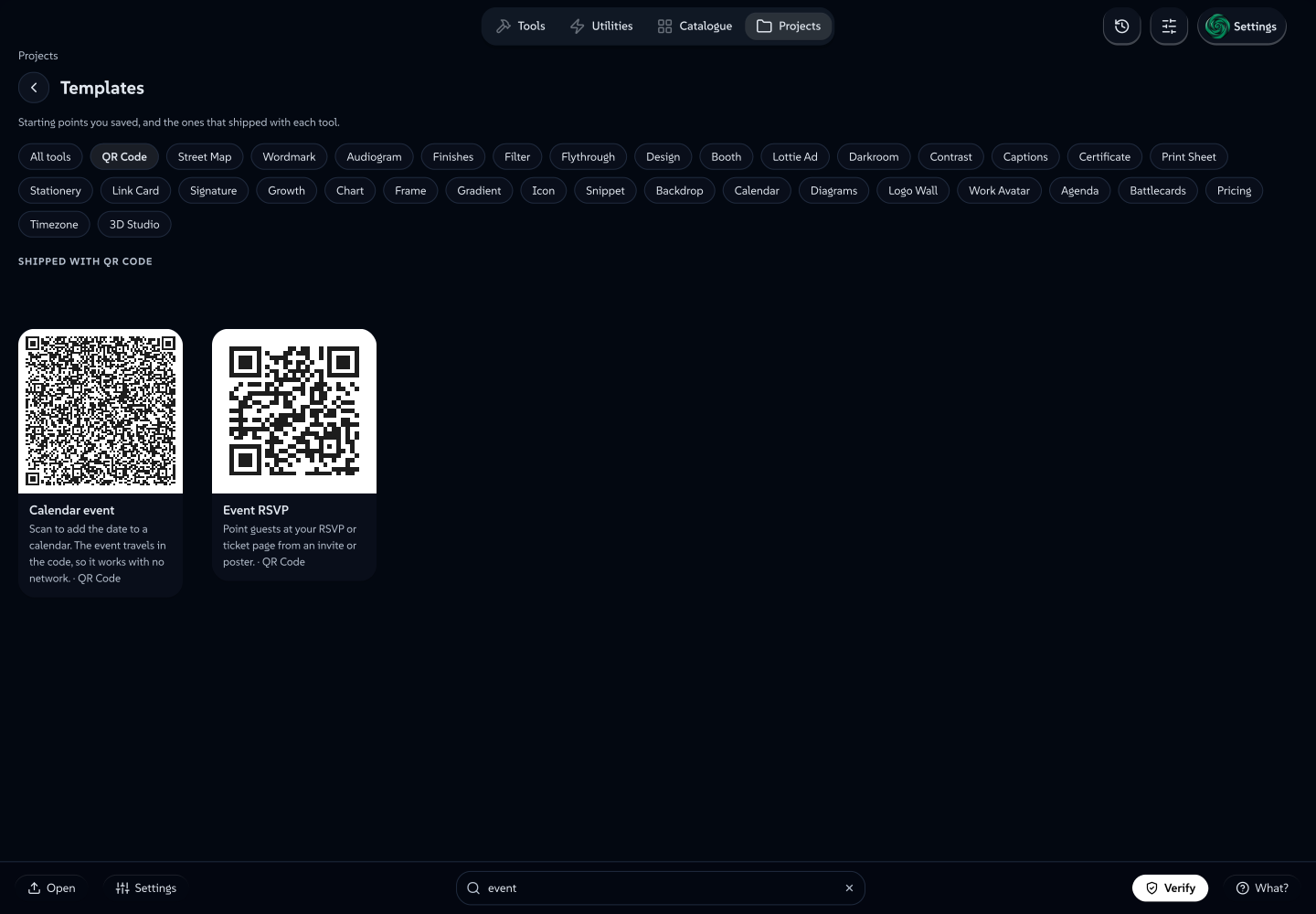
Every tile carries a menu, on right-click, long-press, or the … that appears when you point at it:
- Use it, the same as clicking the tile.
- Start Chart with this (again naming the tool you are in), or clear it if this one is already the starting point.
- Rename and edit the description, on one of yours.
- Make a copy, on one that shipped, so you have your own version to change.
- Export as file (.json) and Share template (.lolly), for passing one on.
- Hide, on one that shipped, or Delete, on one of yours.
The Templates collection
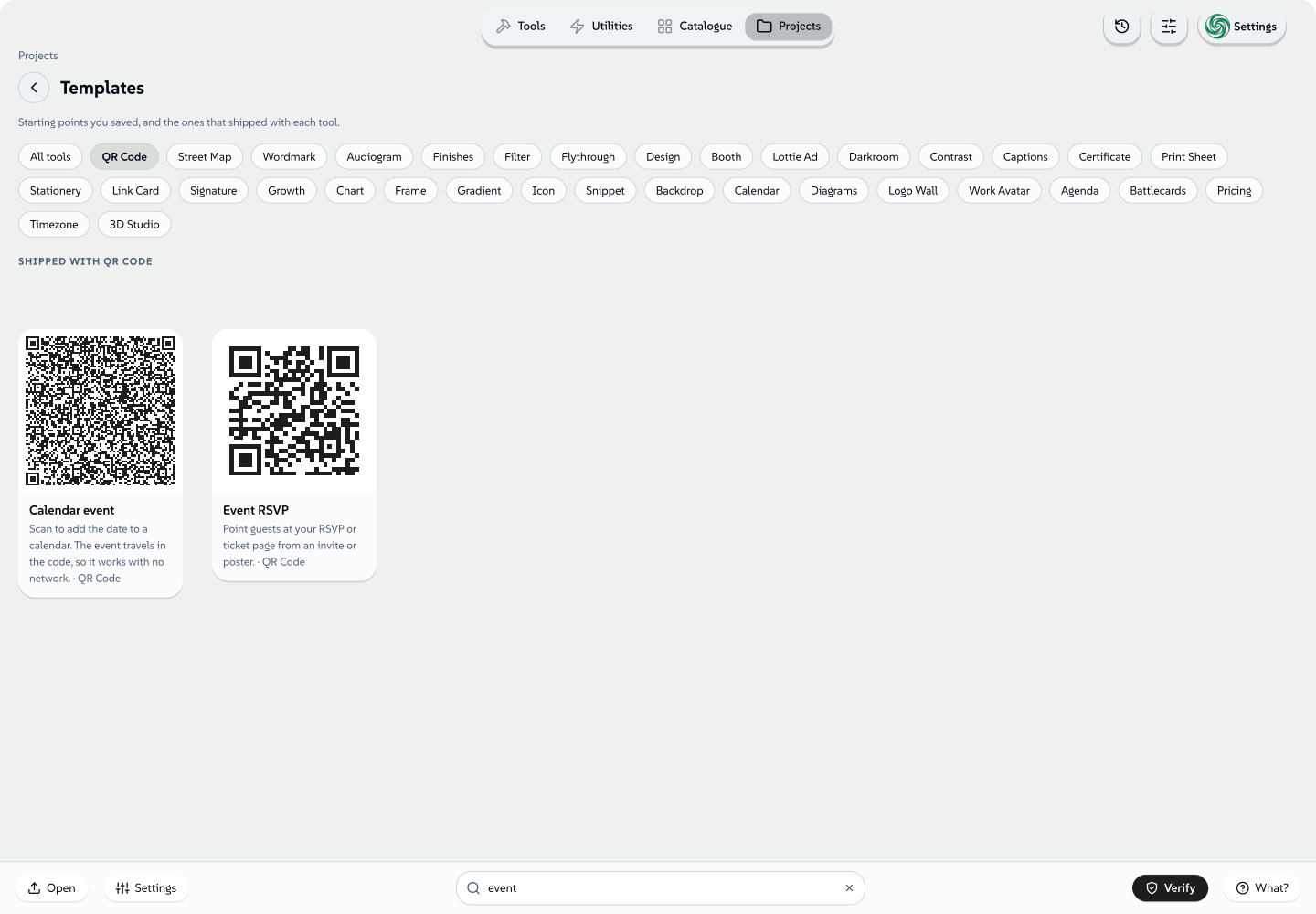
Open Projects and choose the Templates tile. Inside a folder, the Templates chip in the rail opens the same collection. It lists templates across every tool in three groups: Yours, Shipped with each tool, and Hidden. There is a chip per tool to narrow it down, the search box works here as it does everywhere else in Projects, and every tile has the same menu as in the chooser.
It is a view, not a folder: nothing can be dragged into it, and it has no rename or delete of its own.
 signed by Lollyvector SVG自分で確認する署名済みファイルを取得157 paths~42k nodes201 groups668 KB
 signed by Lollyvector SVG自分で確認する署名済みファイルを取得157 paths~42k nodes201 groups669 KB


Start from New asset
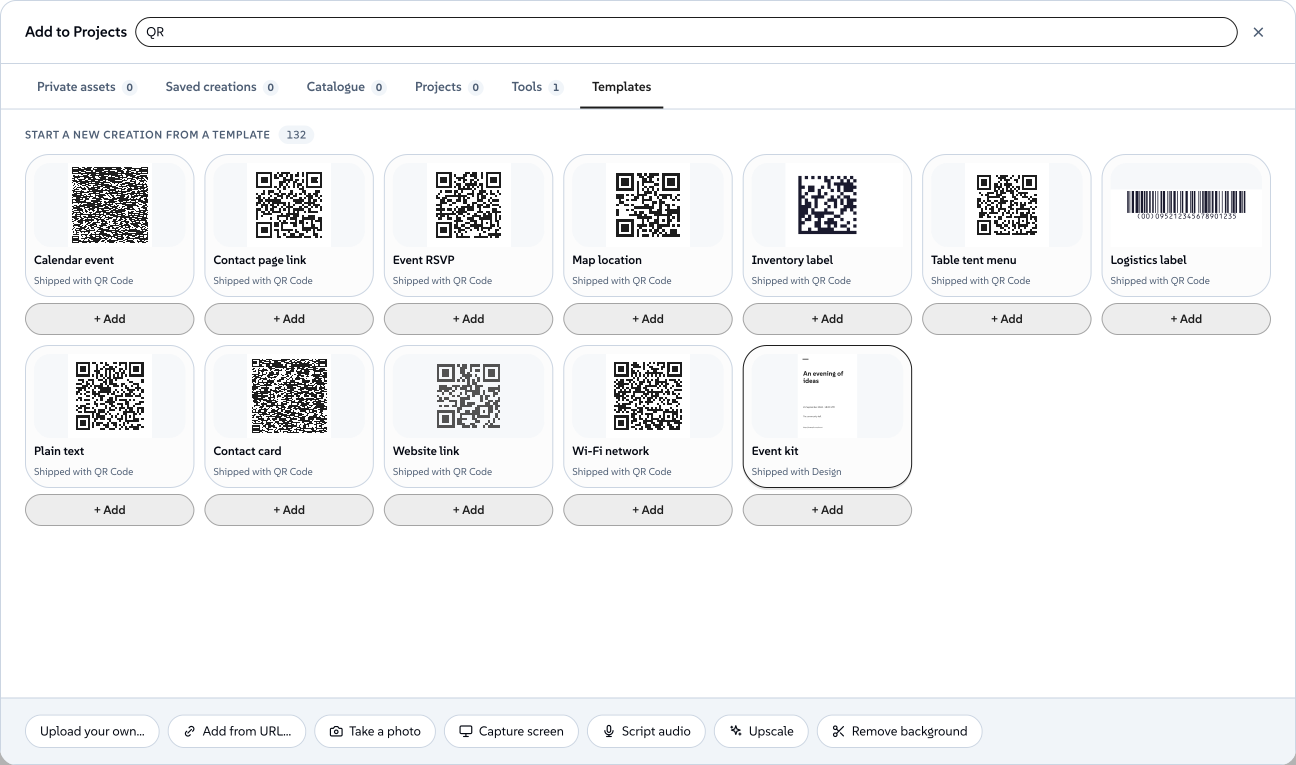
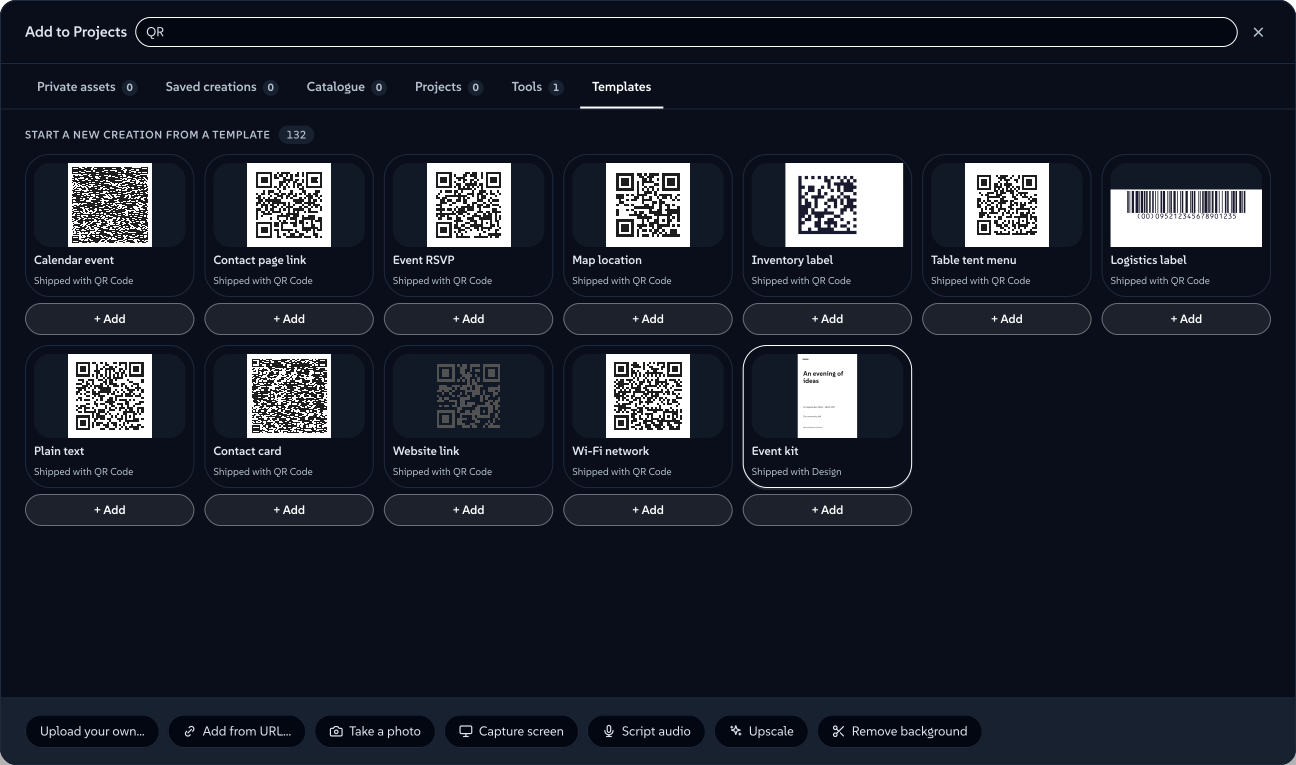
New asset in the Projects header opens the shared picker, at the root or inside a folder. Choose its Templates tab to browse your starting points first, followed by those shipped with tools. Hidden templates stay out of this picker. Search by template name, description or tool.
- Open a template to edit a new creation. Its first save files it in the folder you came from and returns you there. Starting from the Projects root saves it directly at the root.
- + Add saves a new creation with the template's settings immediately and keeps the picker open, so you can add another.
Both actions leave the template unchanged. To rename, hide or delete a template, open the Templates collection instead. Images need a real folder when added through this picker; tool and template creations can also be saved at the root.
Template cards load previews as they come into view, using your current brand. An unavailable preview keeps the template's name and a Preview unavailable label. If your saved templates cannot be loaded, Try again retries the list while keeping available choices visible.
 signed by Lollyvector SVG自分で確認する署名済みファイルを取得92 paths~49k nodes122 groups402 KB
 signed by Lollyvector SVG自分で確認する署名済みファイルを取得92 paths~49k nodes122 groups402 KB


Hide or delete, by who made it
What you made, you delete, and it is gone from this device.
What shipped with a tool, you hide. A shipped template is a file that comes down with the tool and arrives again on the next sync, so hiding it puts a cover over it for your profile rather than pretending to erase it. That is the better bargain: a starter can never be lost by accident. A Hidden (N) entry counts what you have put away and restores any of it.
To change a shipped starter rather than lose it, use Make a copy. The copy is yours to rename, edit and delete, and you can hide the original afterwards so only your version shows.
A design system can arrive with some of its starters hidden already, so a team sees a curated set on day one. Nothing is missing, and Hidden (N) brings any of them back for you.
Passing one on
- Export as file (.json) writes the template out in the same file format a tool's own shipped templates use. Drop it into a tool's
templates/folder, or send it to whoever maintains that tool, and it can ship for everybody. - Share template (.lolly) wraps it as a file you can send. Opening it on the other device adds it there as a template.
Presets
A template that shipped with a tool can carry presets: named variants inside the one template, like a poster in three colourways. Pick the one you want in the chooser.
You cannot make a preset in the app. A saved template is how you keep a variant of your own: save the second colourway as its own template, name it for what it is, and it appears in the chooser beside the first.
Related: Using Lolly for sessions, Projects and sharing. Your favourites for the other way of keeping something to hand. Profiles for the on-device record all of this is written onto.
Share a constrained tool
A saved template is a starting point in its original tool. To give recipients only selected inputs, choose Share with rules from a template’s menu, or from a saved tool session in Projects. This opens a separate authoring copy and leaves the source intact. Design offers object rules; other supported still tools offer an ordered list of editable inputs over their existing renderer. The resulting .lolly installs a separate tool with fixed settings and explicit controls. See Share with rules for supported inputs and the preview and checking steps.