
Rebrand takes a slide deck someone else made and moves it onto your design system. It reads every slide, works out what each object on it is, and proposes each slide again on your design system's own layouts, in its colours and its typeface. Nothing is final until you decide: every change is a suggestion you can see, compare and answer before anything is written.
Rebrand works on your device. The deck is read here and is not uploaded, and the original file is never changed.
Two ways to rebrand
Rebrand offers two modes, and you choose one before you open a deck.
| Mode | What it does | When to use it |
|---|---|---|
| Renovate the layout | Rebuilds each slide on your design system's slide master: its layouts, colours, typeface and marks. | The deck should look like it was made in your design system from the start. |
| Keep the design | Keeps every slide where it is and swaps in your theme, colours and fonts. | The layout is fine and only the look needs to change. |
Most of this page is about Renovate the layout, because that is where the review happens. Keep the design has its own section at the end.
Try it with the sample deck
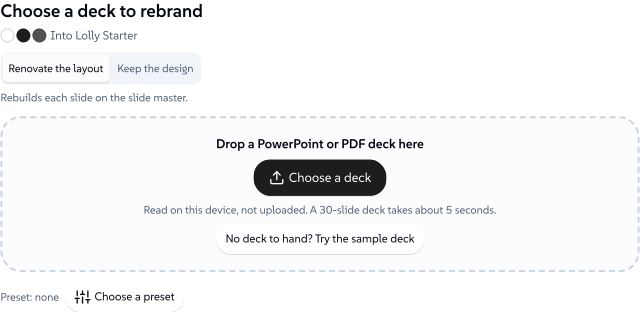
Open Rebrand from Utilities. The first screen asks for a deck, and says which design system it will go into.
 signed by Lollyvector SVGخود جانچیںدستخط شدہ فائل حاصل کریں22 paths~6.3k nodes28 groups73 KB

No deck to hand? Choose No deck to hand? Try the sample deck. It opens a made-up deck, a night market's review of its season, in its own old colours, fonts and lantern logo. The screenshots on this page all use it, so you can follow along step by step.
Open your own deck
There are three ways in:
- Choose Choose a deck on the Rebrand screen and pick a
.pptxor PDF file. You can pick several at once, and they are read one after another. - Drop a deck anywhere in Lolly and choose Rebrand from the choices that appear.
- Open a
.lollyfile that holds a Rebrand project, and choose Open in Rebrand.
While the deck is read, a line says what is happening, for example "Reading slide 12 of 30", and the slides fill in underneath. A 30-slide deck takes about five seconds.
If your design system has no slide master of its own, the Rebrand screen adds "with the neutral slide master" and the deck goes onto a plain one instead. The Brand Studio is where a design system gets its masters, logos, colours and fonts.
The review screen
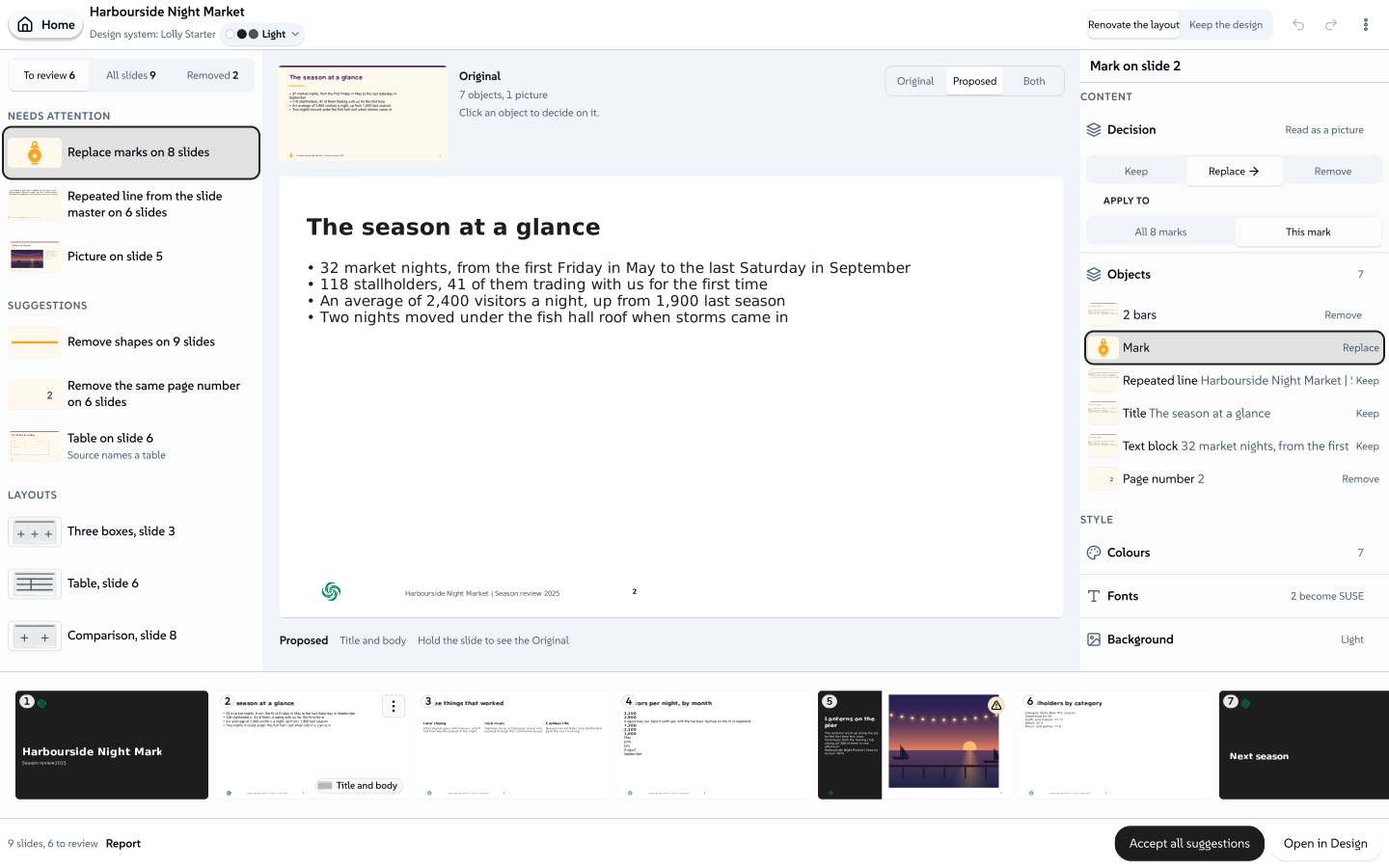
When the deck is read, the review screen opens.
 signed by Lollyvector SVGخود جانچیںدستخط شدہ فائل حاصل کریں152 paths~22k nodes329 groups23 images622 KBTry it in the app

It has five parts:
- The review list, on the left: the things Rebrand wants you to look at, one card each.
- The slide, in the middle: the Proposed slide, large, with the Original small above it.
- The decision panel, on the right: what you can do with whatever is selected.
- The filmstrip, along the bottom: every slide in the deck, in order.
- The footer: how many slides and cards are left, the Report, Accept all suggestions and Open in Design.
Suggestions and decisions
The Proposed slide already shows every suggestion applied, so you can see where the deck is heading before you change anything. A suggestion is not a decision. Nothing leaves Rebrand until you have answered each card, or chosen Accept all suggestions to take them all as shown.
Every change you make is answered with Undo, next to the counts in the footer and in the top bar.
Work through the review list
 signed by Lollyvector SVGخود جانچیںدستخط شدہ فائل حاصل کریں31 paths~6.8k nodes82 groups7 images207 KBTry it in the app

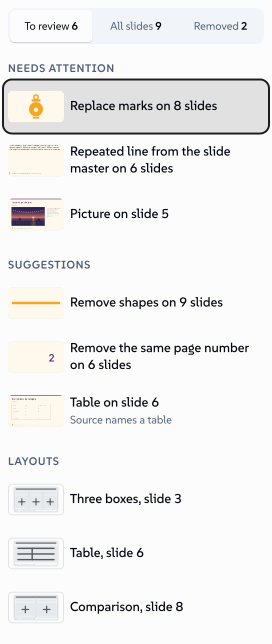
A card stands for one kind of object across the deck, so you answer the old logo once rather than on every slide: "Replace marks on 8 slides". The list has three groups:
- Needs attention: something Rebrand is unsure of, or something that needs your choice, such as what should replace the old logo.
- Suggestions: what Rebrand proposes for everything else, such as removing the old page decoration.
- Layouts: the layout Rebrand suggests for slides whose shape it recognised. Match applies them all at once.
Each card is in one of three states: Needs attention, Not reviewed or Accepted. The tabs at the top switch between To review, All slides and Removed, which lists everything taken out so you can keep it after all.
Compare the original and the proposed slide
 signed by Lollyvector SVGخود جانچیںدستخط شدہ فائل حاصل کریں8 paths~1.6k nodes24 groups2 images54 KBTry it in the app

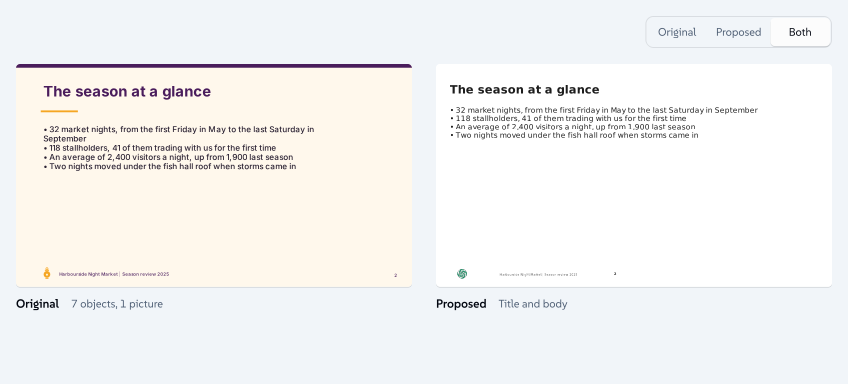
Choose Original, Proposed or Both above the slide. To glance back at the original without changing the view, hold the slide, or hold the backslash key (\\).
Click any object on the slide to decide on it. The caption under the slide gives the layout in use and points out anything to check, such as text that no longer fits its box.
Decide on an object
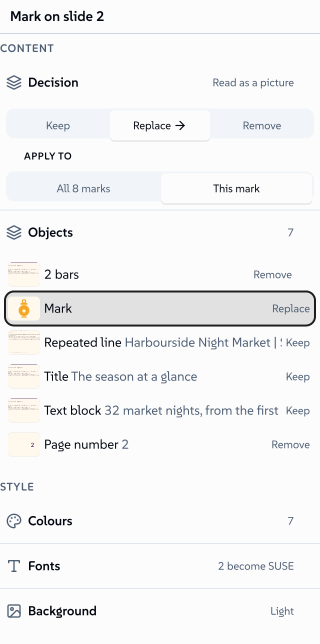 signed by Lollyvector SVGخود جانچیںدستخط شدہ فائل حاصل کریں57 paths~8.1k nodes111 groups6 images125 KBTry it in the app

The decision panel's heading says what is selected, such as "Mark on slide 2" or "Slide 3 of 9". Under Decision:
- Keep, Replace or Remove the object.
- Replace offers what to put in its place: Use the design system mark, Choose a picture or Add a labelled stand-in, and for a photo Treat with Filter or Treat with Darkroom.
- Apply to chooses between every object of this kind in the deck and only this one. Objects you have changed by hand keep your change unless you tick the box that includes them.
If Rebrand read some text and is unsure of it, a Text field shows what it read, so you can correct it.
Further down the panel:
- Objects lists everything on the slide and what will happen to each one.
- Colours shows each colour the deck used, grouped by what it does (backgrounds, text, accents, chart series), and the design system colour it becomes. Change any of them, lock one, or choose Shuffle for another arrangement.
- Fonts shows which typeface replaces each of the deck's.
- Background sets this slide, or the selected slides, to Light, Dark or Brand colour.
Choose a layout for a slide
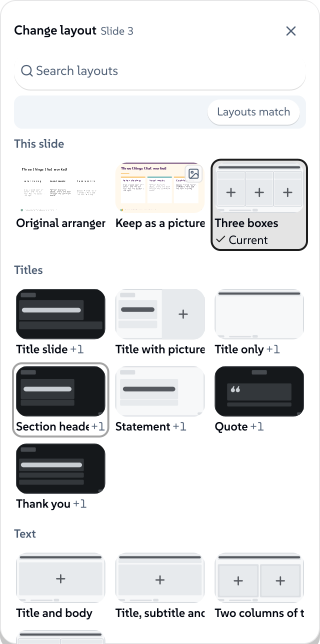 signed by Lollyvector SVGخود جانچیںدستخط شدہ فائل حاصل کریں39 paths~5.8k nodes150 groups3 images198 KBTry it in the app

Choose Change layout in the decision panel, or the layout name on a slide in the filmstrip. The chooser shows:
- This slide: the current layout, the one Rebrand suggests, others that also fit, Original arrangement (everything stays where it was, in the design system's colours and typeface) and Keep as a picture (the slide stays exactly as it was, as one picture).
- Every other layout, grouped as Titles, Text, Boxes, Pictures, Data and Steps and lists.
- Search layouts: type what you want, such as "4 boxes" or "two content".
Point at a layout to preview it on the slide; click to use it. A switch counts the other slides of the same shape, for example Also the 2 slides like this one, and applies your choice to them too. Match proposes a layout for every slide Rebrand recognised in one step, and never changes a layout you chose yourself.
A slide with more than its new layout holds continues onto another slide. The caption then reads "Part 1 of 2", and the report lists what moved.
Pick a deck theme
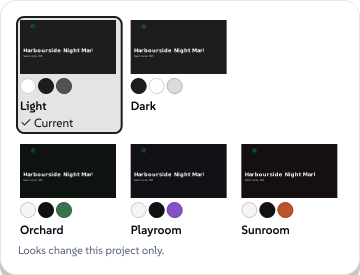 signed by Lollyvector SVGخود جانچیںدستخط شدہ فائل حاصل کریں24 paths~1.7k nodes46 groups5 images163 KBTry it in the app

The theme button in the top bar shows the deck's colours. Open it to choose Light or Dark for the whole deck, Brand colour where the design system has one, or one of its Looks. Each choice is drawn with your own first slide. If a theme would make some text hard to read, the choice warns you before you apply it, and Background in the decision panel changes a single slide.
Arrange the slides
 signed by Lollyvector SVGخود جانچیںدستخط شدہ فائل حاصل کریں28 paths649 nodes64 groups8 images247 KBTry it in the app

The filmstrip is the deck in order. Drag a slide to move it. Its menu (the three dots, or Shift+F10) offers Change layout, Leave out or Include, Move earlier, Move later, Move to position, Reset slide and Open in Design. Select several lets you change or move many slides together.
A slide you leave out is not deleted: it stays in the project, and Include brings it back.
Press ? to see every keyboard shortcut. The ones you will use most:
| Key | What it does |
|---|---|
| Arrow keys, K and J | Previous and next slide |
| Shift and an arrow | Select more slides |
| Alt and an arrow | Move the slide one place |
| L | Change the layout |
| \\ | Hold to show the Original |
| Ctrl or Cmd and Z | Undo |
| Esc | Back to one slide |
Finish in Design
 signed by Lollyvector SVGخود جانچیںدستخط شدہ فائل حاصل کریں42 paths~6.1k nodes92 groups8 images190 KBTry it in the app

When the review list is empty, Open in Design turns into the main button. If cards are still waiting, Rebrand asks whether to accept them as proposed first. Choosing Accept all suggestions beforehand does the same in one step, and Undo takes it back.
Open in Design opens the result as a new Design document, one artboard per slide, where you can edit anything further and export it as PowerPoint, PDF or pictures. Opening it again later makes a new revision; the first one is never overwritten.
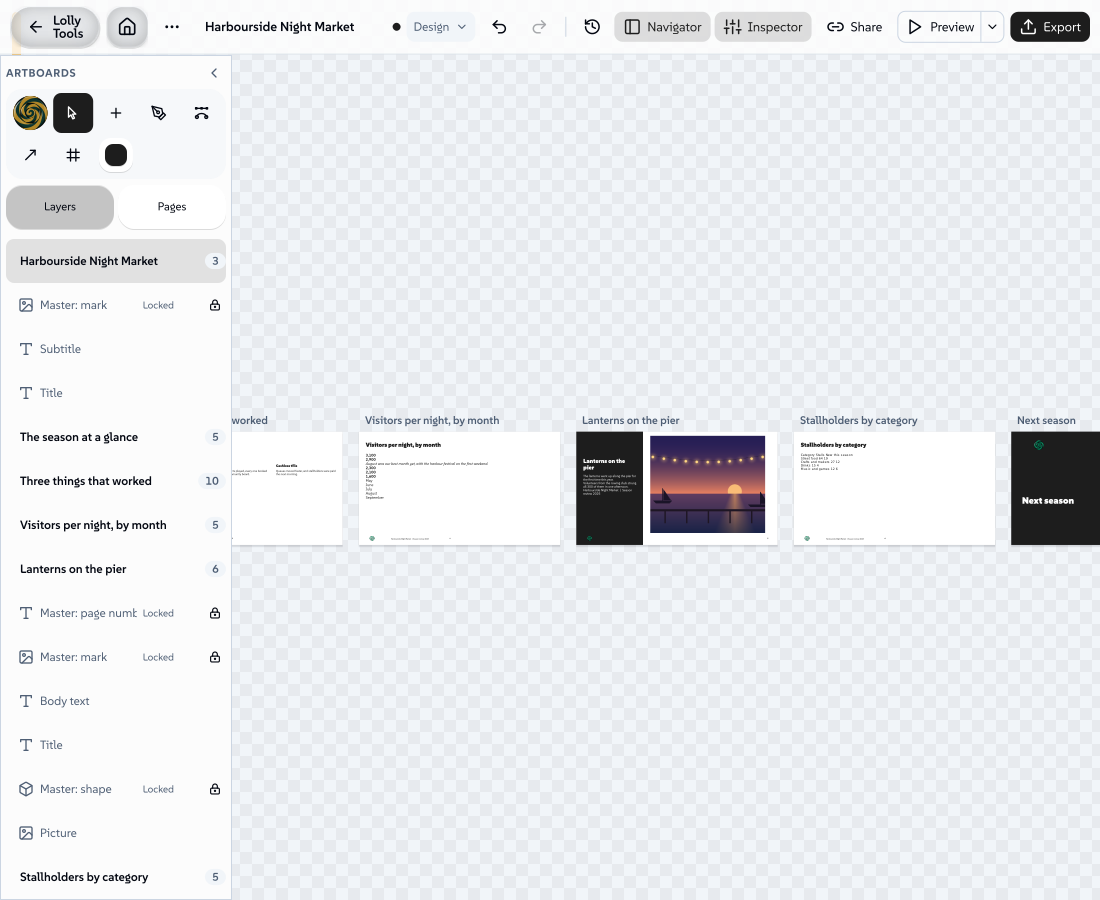 signed by Lollyvector SVGخود جانچیںدستخط شدہ فائل حاصل کریں309 paths~31k nodes279 groups4 images756 KB

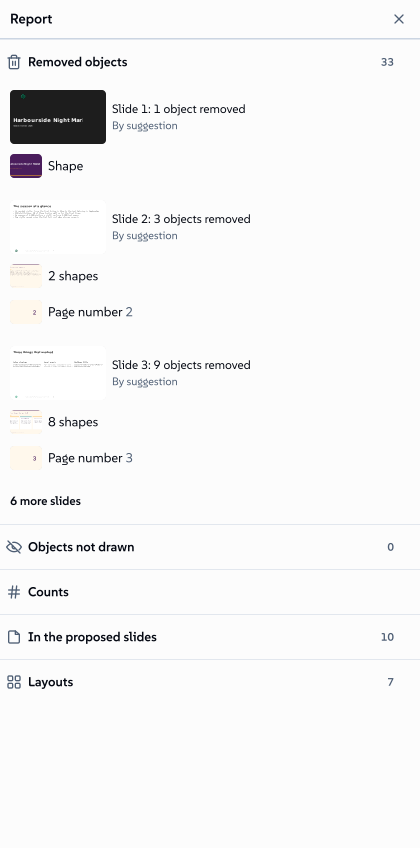
The Report, in the footer, accounts for every object in the original deck: the objects removed, anything not placed or not drawn, the layouts used and the counts for the rest. Anything Rebrand could not place on a slide is listed under Not placed, and waits on its own artboard in Design so nothing is lost.
Keep the design
 signed by Lollyvector SVGخود جانچیںدستخط شدہ فائل حاصل کریں54 paths~7.0k nodes129 groups10 images176 KBTry it in the app

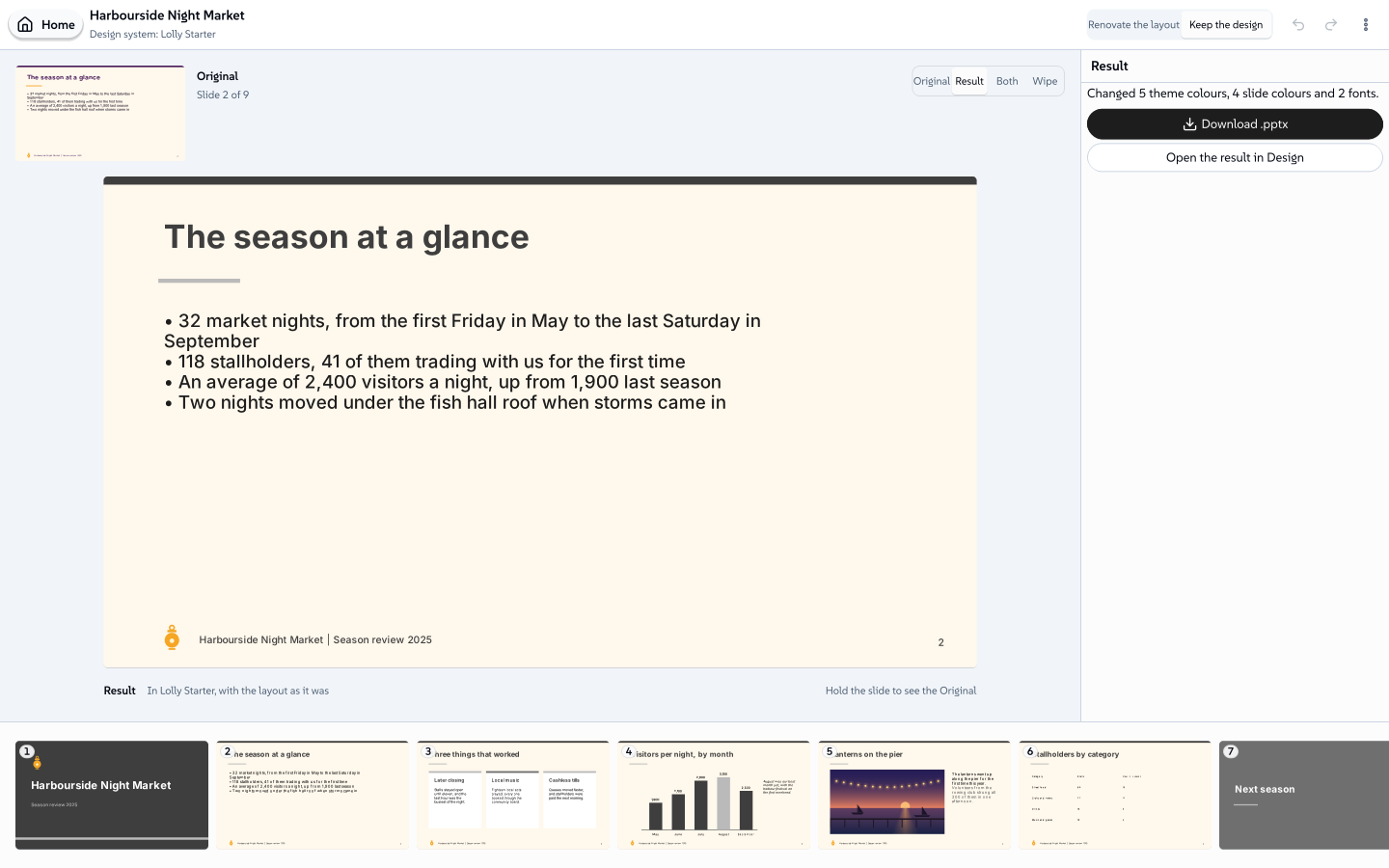
Choose Keep the design on the Rebrand screen, or switch to it in the top bar. Rebrand swaps the theme, colours and fonts and says what it changed, for example "Changed 5 theme colours, 4 slide colours and 2 fonts". Compare the result with Original, Result, Both or Wipe, then choose Download .pptx, or Open the result in Design.
Keep the design works on PowerPoint files. A PDF cannot take this path, so open it with Renovate the layout.
Decks made of pictures
Some decks are pictures of slides rather than slides: a scanned PDF, or a PowerPoint file with one picture per slide. Rebrand tells you ("All 15 slides are pictures") and offers Read the text, which recognises the text on each picture and rebuilds the slide from it, or Keep as pictures.
Reading the text uses a text recognition model on your device. The first time, Rebrand offers to download it and says how large it is; the download sends nothing from your deck. The rebuilt slides are marked "Rebuilt from pictures" in the review list, so you can check each one before it goes to Design.
Your projects
Every deck you open becomes a project, saved on this device. Recent projects on the Rebrand screen reopens one where you left it, with every decision you made. To move a project to another device, choose Download .lolly from the project menu (the three dots in the top bar) and open that file there.
From the command line
The same stages run from the command line and from AI agents: lolly rebrand plan, compile and inspect. See Rebrand: renovate an old deck in the CLI guide.
Words you will see
| Word | What it means |
|---|---|
| Suggestion | What Rebrand would do with an object. Shown on the Proposed slide, but not final until you accept it. |
| Card | One entry in the review list. A card can stand for the same kind of object on many slides. |
| Needs attention | Rebrand is unsure, or needs your choice before it can go on. |
| Slide master | The set of layouts, colours and furniture a design system gives its slides. |
| Original arrangement | The slide's objects stay where they were, in the design system's colours and typeface. |
| Keep as a picture | The slide stays exactly as it was, as one picture. |
| Left out | A slide that will not go to Design. It is not deleted, and Include brings it back. |
| Not placed | Content that fits no layout. It goes to its own artboard in Design. |
Good to know
- Rebrand reads
.pptxand PDF files. A deck from Keynote or Google Slides works once it is exported as PowerPoint. - Its suggestions, layout matches and recognised text are its best reading of the deck, not a guarantee. The review is there so you can check them, and the report shows every outcome.
- The original file is never changed, and deleting a project leaves the file alone.