
Two jobs come up once you make the same kind of file often. Sometimes you need many versions of one design: a card in a dozen languages, or every size of a banner. Sometimes you have several different saved designs and want one change to reach all of them, such as a new date or a new headline.
Batch does the first job and Multi-edit does the second. Both run on your device and export through the same render path as the tools themselves.
Batch
- One template, many rows. Each row is one set of inputs and makes one file.
- Fill the rows by typing, pasting from a spreadsheet or importing a CSV.
- No limit on rows; 50 show per page.
- Opens from Batch in the Projects header (
#/batch).
Multi-edit
- Two to eight different saved designs, side by side as live cards.
- One sidebar edits the inputs they share, then each card's own.
- Each design saves back to where it came from.
- Opens from Edit together in the Projects selection bar.
Make many versions of one design
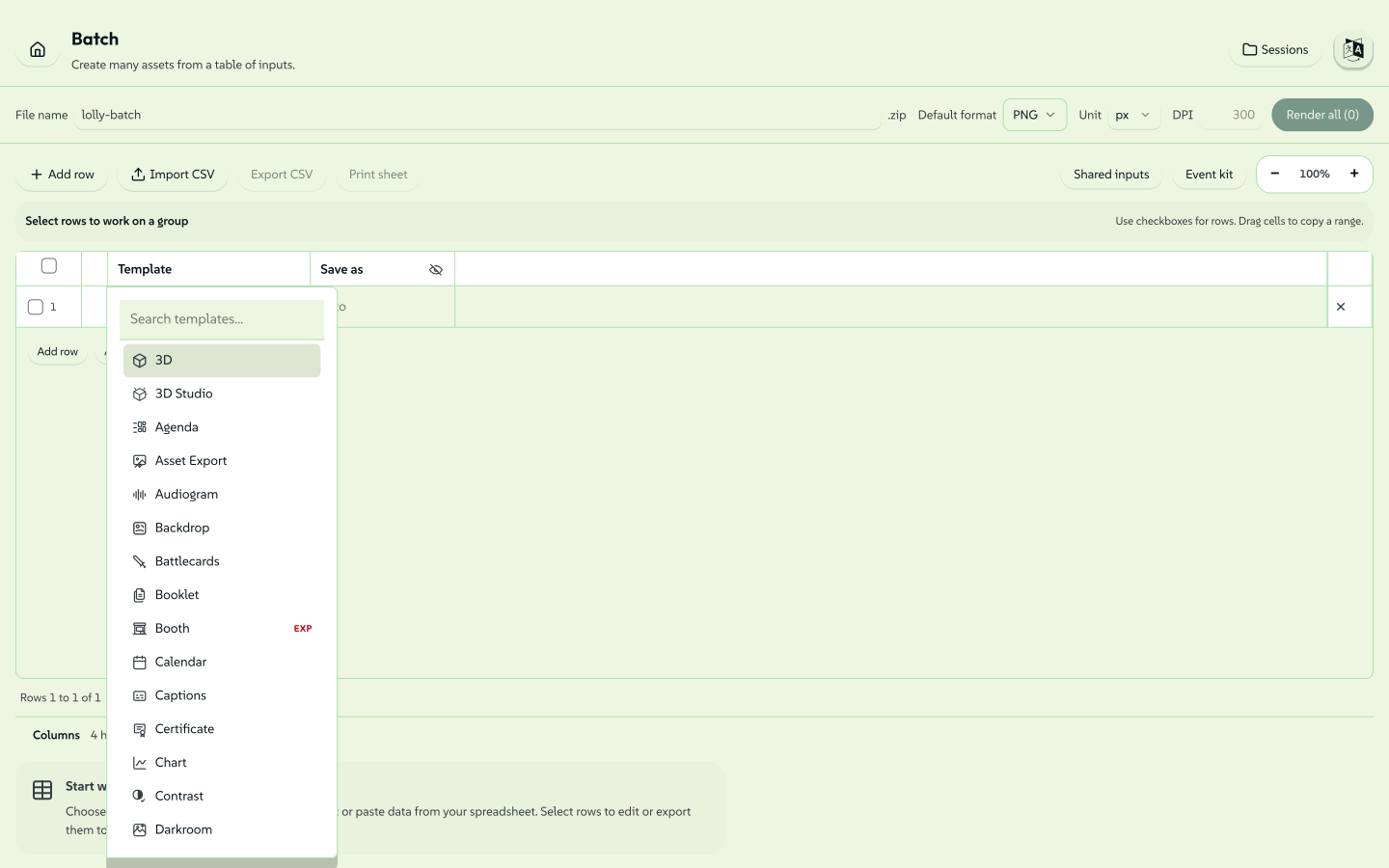
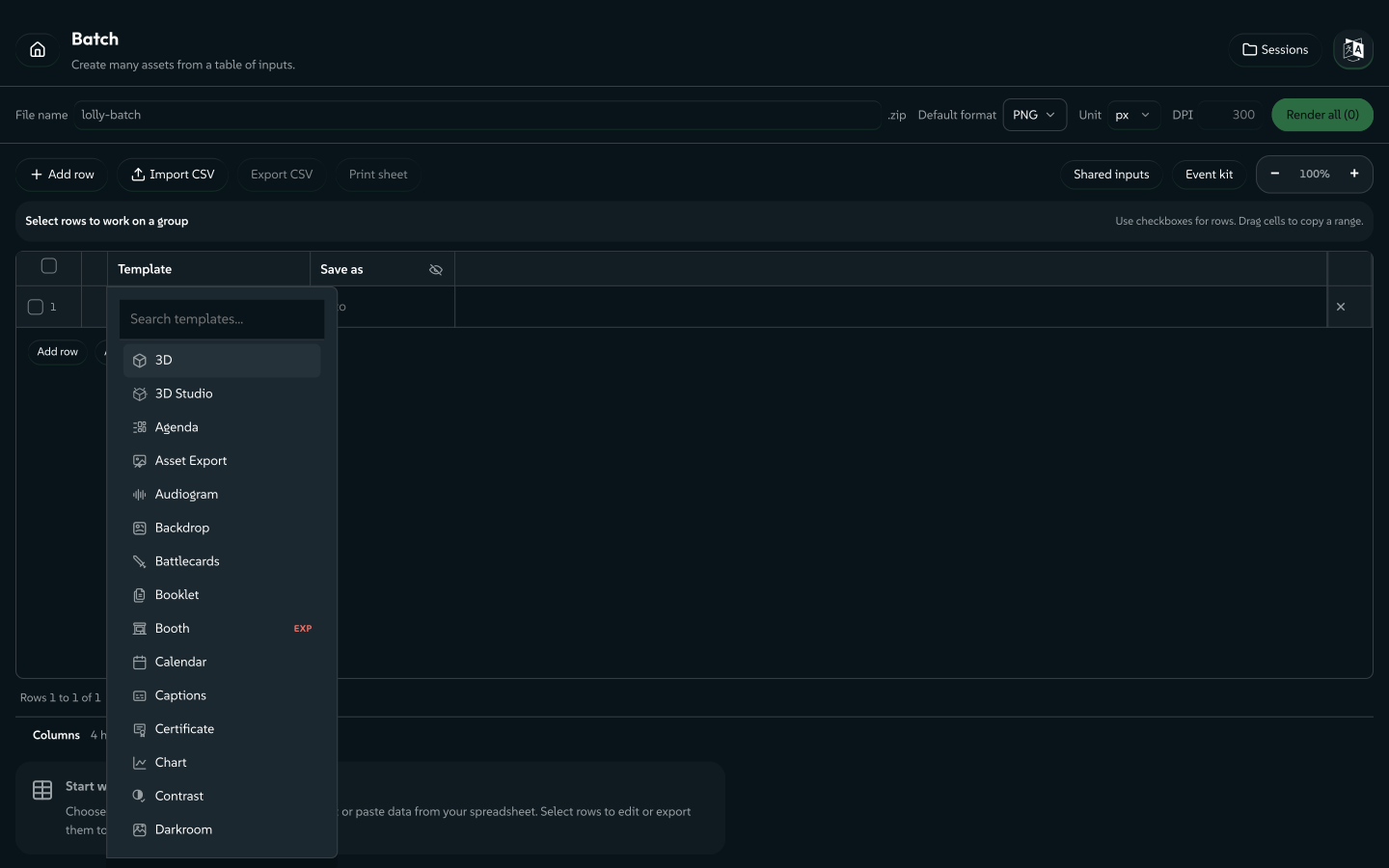
Open Projects and press Batch in its header. The grid starts with one row: choose a template in it, then duplicate the row or paste data from your spreadsheet. Opened from inside a folder, Batch returns you to that folder.
 signed by Lollyvector SVG133 paths~15k nodes185 groups1 image195 KBПровери самВземи подписания файл
 signed by Lollyvector SVG133 paths~15k nodes185 groups1 image195 KBПровери самВземи подписания файл


Fill the rows. Type into a cell or paste a block straight from Excel, Google Sheets or another spreadsheet. Import CSV adds rows or replaces the batch. When you paste into a cell that holds export settings, Lolly asks which input each pasted column fills. Export CSV writes the grid back out. Open Columns below the grid to show more inputs, or per-row width, height, unit and DPI.
Set the output. The toolbar sets the zip's file name, the Default format, units and DPI for every row. The format menu is the export panel's grouped list, showing the formats the catalogue offers and your browser supports. A row with its own format, size or file name keeps its own setting.
Render. Render all exports every row into one .zip. Select rows first and Render selected, Export selected CSV and Print selected rows act on just those; clear the selection to work on the whole batch again. Print sheet lays the rows out on a printable sheet. Batch activity reports each import and render, and folds away to give the table more room.
Keep the batch. Sessions saves the whole grid as a named batch session, which reopens later from Projects. Sessions always saves every row, whatever is selected. Folders… in the same menu opens a whole Projects folder as rows, one per saved session, with each file name carrying its folder path.
Selecting rows and cells
Select rows with their checkboxes, or Shift-click a checkbox for a range. The header checkbox selects the current page, and *Select all N rows takes the rows on other pages too. Selections stay as you move between pages. Edit input, Duplicate and Remove act on the selected rows, and Undo remove* restores the rows removed last. From a focused cell, Shift+Space selects that row and Escape clears the selection.
Drag across cells, Shift-click a cell or use Shift+Arrow keys to select a rectangle. Copy cells, or Ctrl+C / Command+C, copies the values for a spreadsheet. Ctrl+A / Command+A from a focused cell selects every visible column on every page; from a row checkbox, the same shortcut selects every row. Selecting cells leaves checked rows checked. Double-click a cell or press Enter to edit its text. Paste a rectangle from the clipboard, or paste one value to fill every selected cell; blank cells and multiline text keep their positions.
Colourways and themes per row
Each row keeps its own theme choices: light or dark, and a colourway when the design system has them. A row opened from Projects, a folder or a saved batch renders in the choices its session was saved in, and its preview opens in them. The print sheet, a duplicated row and a filled row all keep them.
A CSV carries the choices in a _themes column after the size columns, holding the same JSON as the _themes link parameter, for example {"":"dark","colourway":"beach"}. A blank cell, or {}, means the design system's defaults. The column is written only when some row has choices, so a batch without any exports the same CSV as before. On import, a cell that is not valid theme choices is listed as an issue and its row renders in the defaults. The grid has no control for changing a row's choices yet, so set them in the CSV or in the saved session.
Batch, or Render folder
Batch makes many variants of one template. To re-render sessions you have already saved, select them in Projects and use Render selection, or Render folder for a whole folder; Find and recover your work covers both.
Edit several saved designs together
Tick between two and eight saved sessions in Projects and choose Edit together from the selection bar. They open side by side as live cards at #/multi?s=<slot>,<slot>…. Each card is a real render of its session, so what you see is what will export.
One sidebar drives them all:
- Shared comes first: every input that two or more of the sessions declare the same way (same id, same type, same constraints, the rule the batch grid uses for its columns). Edit a shared control once and the value reaches every session that declares the input, live on every card. Two sessions of the same tool share everything; two different tools share only the inputs they have in common.
- Below it, one folded card per session holds all of that session's own inputs, as complete as the tool's own sidebar, with a compact export block: Format, W / H, Unit, DPI and Download. That Download saves the session first, then renders the file with the same file name, format and Content Credentials it would have from the tool.
- Filter inputs… at the top narrows the controls on every card at once, so you can reach "the headline" in eight sessions without scrolling.
Click any card (or press Enter on it) to open that session's sidebar card. Save all writes every session back to its own slot. Download all saves first, then renders the whole set into one zip, the same way Render selection does in Projects, with the optional password lock offered on the way.
Each card draws in its own session's theme choices, including a tool placed inside the design. Cards in different looks sit side by side while the app around them keeps its own colours, and Save all, the downloads, Batch grid and Send to Print Sheet keep each session's choices.
Limits
- Eight at most. Every card mounts its own live runtime, and eight is the number that stays responsive. A link asking for more, or for a session that no longer exists, says so rather than half-loading.
- The link is local. It names your own saved slots, so it reopens that set on this device. It is not a share link.
- For anything bigger, choose Edit as sheet in the same selection bar. It opens the whole selection as rows in the batch grid (
#/batch?s=…), with no size limit and no same-tool rule. Folders stay out of both: open a folder in the grid with Sessions → Folders…, or render one with Render folder in Projects. - Search does not reach Multi-edit. It is the one view the search bar does not know about.
Where to go next
- Export a file: the formats, sizes and print settings each row can use.
- Templates: starting points that make a good first row.
- Find and recover your work: Projects, folders and rendering what you saved.