
This guide covers the optional organisation service. Configuration, console and API paths refer to your Lolly Work instance. The packaged console keeps its release-matched copy of this guide.
A partnership runs from the programme you create to the day access ends, and an end can be undone for 30 days. This page covers creating a programme, checking what its partners get, inviting the people, a person in two programmes and ending a partnership at once or on a date.


This page is part of Run a partner programme.
Create the programme
Open Partner programmes, type a name and press Create programme. The id comes from the name and never changes, so the group stays the same when you rename the programme later. Set Owning team to the team in your organisation that runs the programme: when a partnership ends, its people's projects go to that team. An administrator can give your partner team programme.manage, so the team runs programmes without being administrators:
lw grants add group:partner-team programme.manage '*' --effect allowThen give the programme its tools and assets (Shared assets and licences), add its companies (Co-branding and partner kits) and publish its templates (Partner templates).
Check what they get
On the programme's page, or a company's, See what they get shows the programme or the company as its partners get it: the tools, the files and the templates with what each lets them change, each drawn with the company's details. Check here before anyone is invited. A drawing is a watermarked preview and nothing is saved.
To see the app itself as a partner does, choose View as partner… in the app's account menu, then the programme and a company; Stop viewing ends the view. A banner reads "Viewing as Northwind IT · Resellers, EMEA" and "Changes are not saved to the partner's account."
- One tab. The view lives in that tab only and ends after an hour. Your other tabs stay your own, and the view keeps its own storage, so your saved work and settings are untouched.
- Downloads, saves and copies work. A file made while viewing records the company it was made for, and the person who made it is you, never the partner.
- Nothing else. Every change to the partner's account is refused, first-run prompts are hidden and live collaboration stays closed: "Not while viewing as a partner".
Invite the people
On the programme's page, Add people takes a list, with a company and an end date on each line, and shows what will happen before anything does. Domains lets everyone at a partner's proved domain join the programme and the company when they sign in. Lolly Work sends no email for this, so it gives you one message to send yourself.
email,name,company,ends
ana@partner.example,Ana Silva,Northwind IT,2027-06-30
bo@partner.example
Preview shows what each line will do before anything happens: new and to be invited, already signing in and to be added, already in with nothing to do, or not possible, with the reason. Add then does it in one step and shows a result for each line. Adding the same list again changes nothing.
A domain is proved by a DNS record the partner publishes, or on your say-so while they cannot. Public mail domains and your own domains are refused, and staff are never moved by a domain on its own (Add people by domain).
A person in two programmes
They get the tools and files of both. For each input, a company's rule overrides its programme's rule, and across two programmes the stricter rule wins. Someone in two companies may get no company details filled in, because Lolly Work cannot always tell which company a piece is for, so put each person in one company where you can.
End a partnership
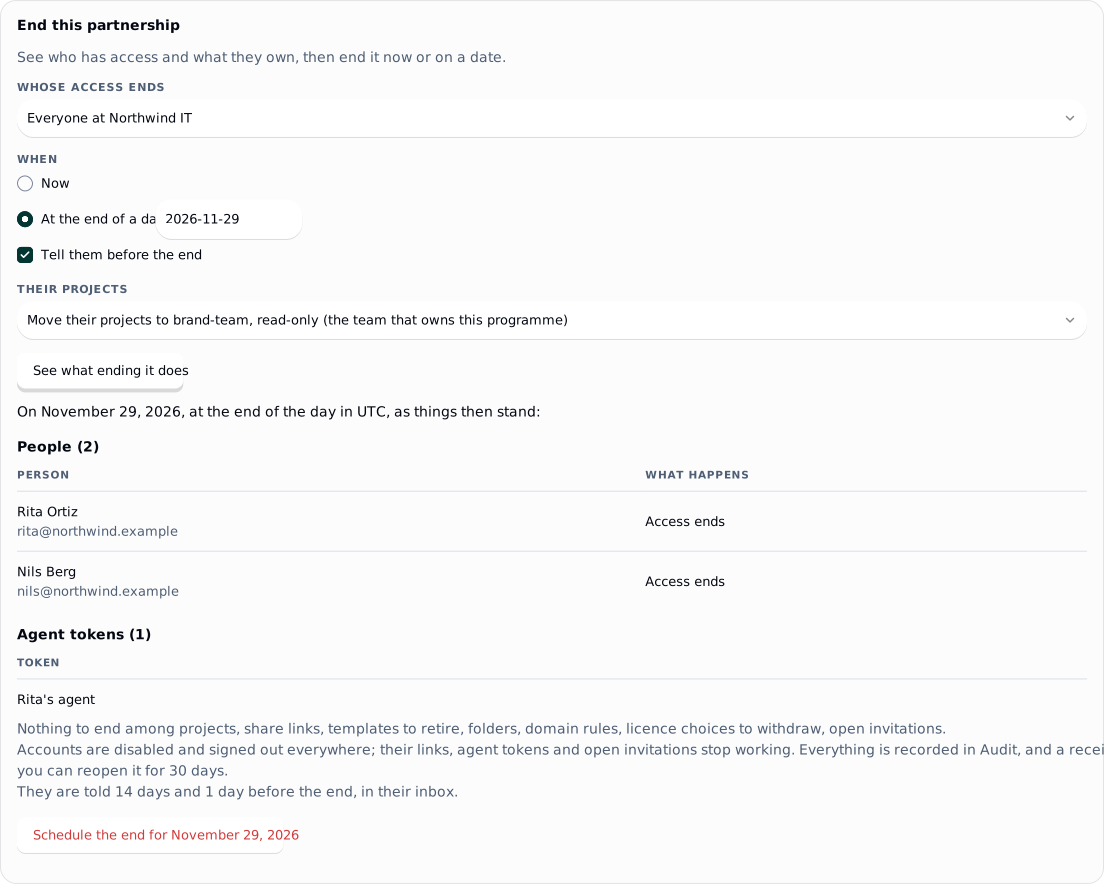
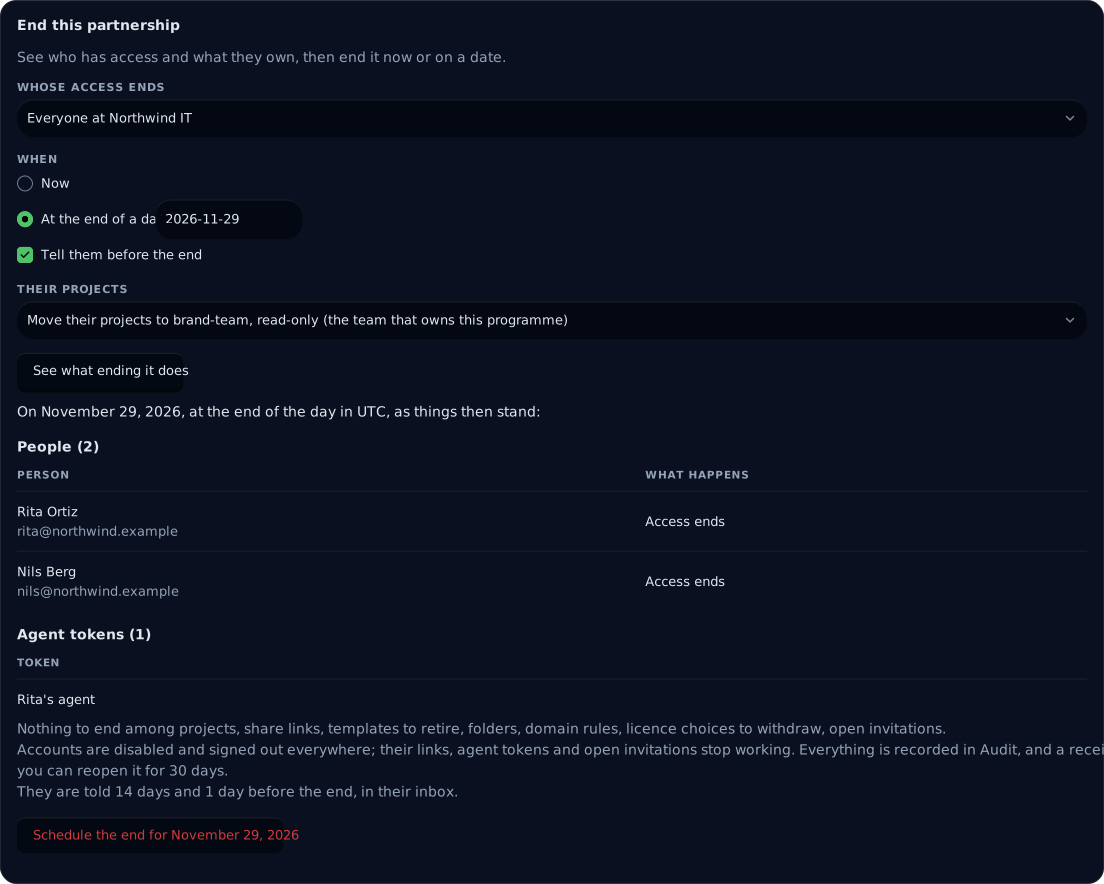
The End this partnership card on the programme's page ends the whole programme, and the same card on a company's page ends that company alone. It first shows what ending does, then does all of it in one step: nobody new joins through its domains, accounts are disabled and signed out, their links and agent tokens stop working, open invitations are withdrawn, templates published only to them are retired, their provider folders end and their projects move as you chose. Someone who is also in another live programme keeps the account and leaves only this programme.
 signed by Lolly Demovector SVG5 paths65 nodes64 groups3 images174 KBCheck it yourselfPobierz podpisany plik
 signed by Lolly Demovector SVG5 paths65 nodes64 groups3 images174 KBCheck it yourselfPobierz podpisany plik


Choose what happens to their projects:
- Move their projects to the owning team, read-only (the default when the programme has an owning team).
- Move their projects to me, read-only (the default when there is no owning team).
- Move their projects to me, editable.
- Leave their projects where they are.
The programme or company is then ended, not deleted. The company's details and their history stay, because files already made record them.
End on a date
In the same card, choose At the end of a day and the day. With Tell them before the end ticked, people are told in their notifications 14 days and 1 day before, and their company card gives the date. The scheduled end then shows on the page with Change and Cancel the end.
The notice reads "Your access through Resellers, EMEA ends on 21 November 2026", with "Pieces you saved to team projects stay with <workspace>, read-only. Download anything you want to keep before then." and Open Projects. Someone who stays through another programme reads "Your access through your other programmes stays as it is." The person who scheduled the end is told too.
Reopen an end
An ended programme or company shows the date of the end and the person who ended the partnership. For 30 days its page offers Reopen, which first shows who signs in again and what comes back: the people, templates, folders and, with Give their projects back, their projects. Links, tokens, licence choices and sessions stay ended. After the 30 days, the page says Reopen is no longer offered and to add the people again by list.
Limits and quotas
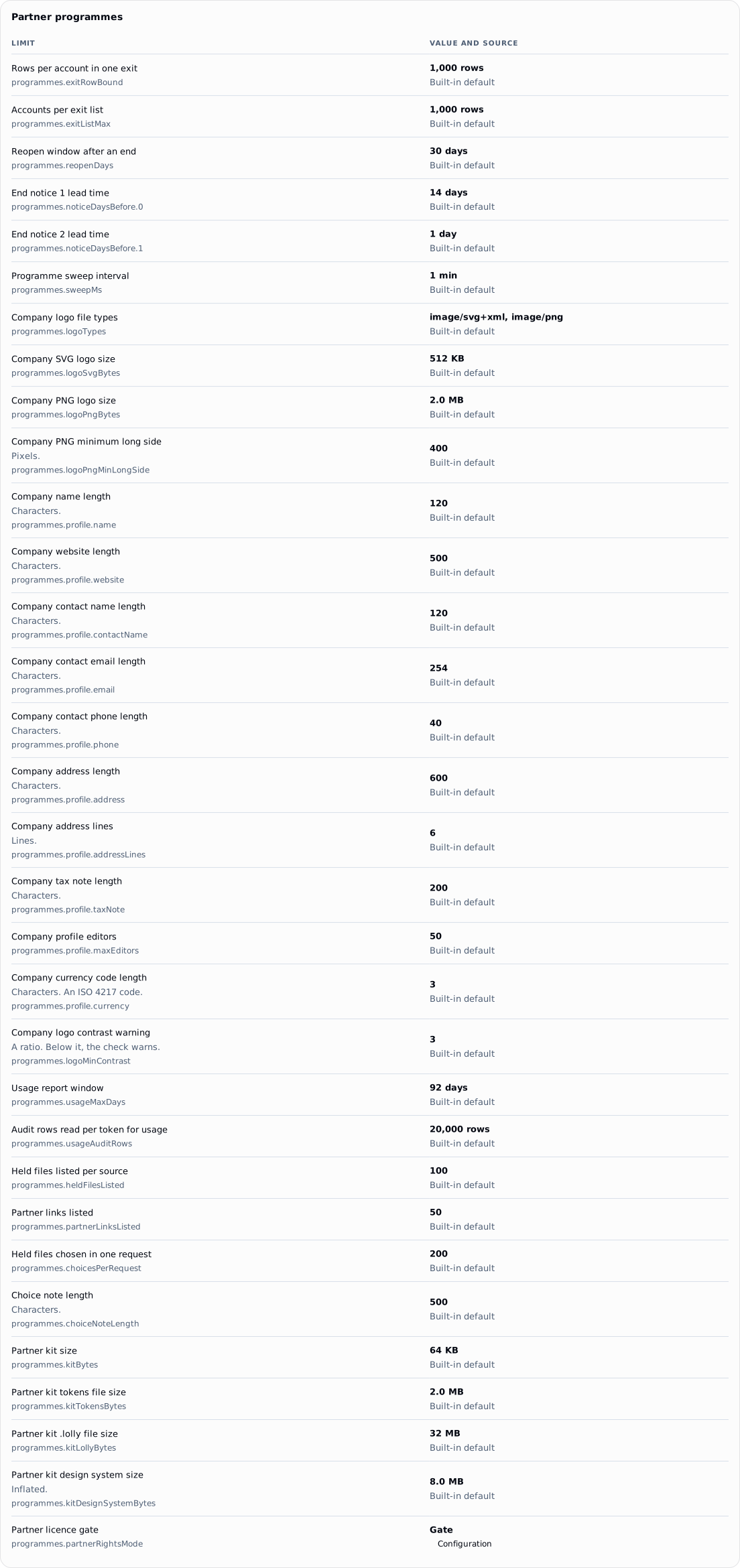
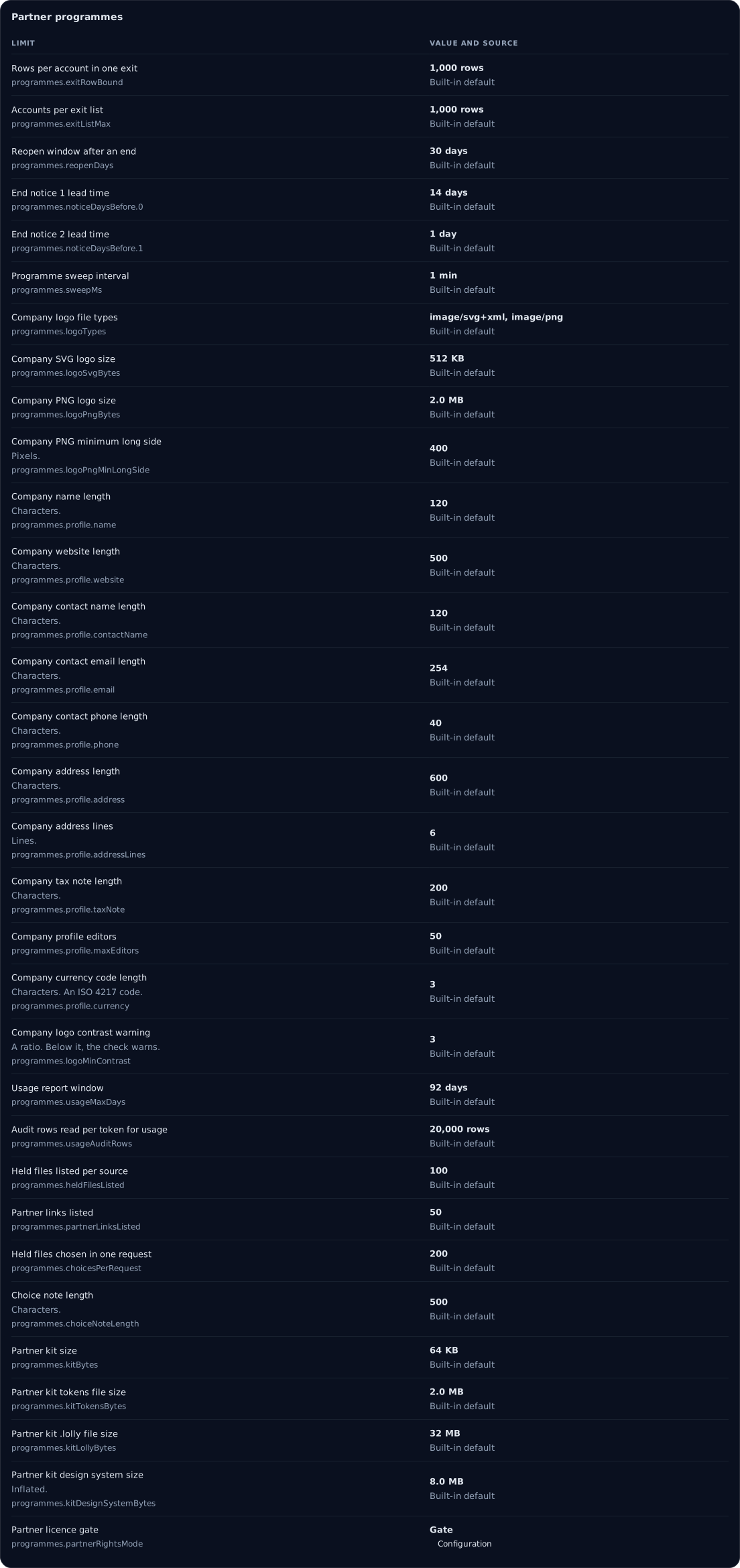
The deployment page's Limits and quotas tab, for anyone with policy.edit, lists every limit a person meets, grouped by area, partner programmes and agent tokens included. Each limit shows its value and whether the figure comes from your configuration, the environment or the built-in default.
The Partner programmes card on the Limits and quotas tab
 signed by Lolly Demovector SVG313 groups205 KBCheck it yourselfPobierz podpisany plik
 signed by Lolly Demovector SVG313 groups206 KBCheck it yourselfPobierz podpisany plik


Worked example: Northwind IT
The worked example on Run a partner programme follows Northwind IT, a reseller in Resellers, EMEA, through every subject. Its first, fifth, sixth and eighth steps happen here.
1. Create the programme
Console. Open Partner programmes, type "Resellers, EMEA" and press Create programme. On its page, set Owning team to your partner team's group, here partner-team.
lw.
lw programmes create resellers-emea --name "Resellers, EMEA" --team partner-teamStep 1 with the API
PUT /api/v1/programmes/resellers-emea
{ "name": "Resellers, EMEA", "team": "partner-team" }
The answer is 201 with the programme: its id, name and team, its group programme-resellers-emea, and empty tools, collections and members lists.
Rita has not been invited yet, so she sees nothing.
Next: 2. Give the programme its tools and logos.
5. Check what Northwind IT gets
Console. On Northwind IT's page, press See what they get. Preview shows the company card at its latest details revision, 4 here, the two tools, the logos collection and the data sheet drawn with Northwind IT's logo and contact line, as a watermarked preview. To see the app itself, choose View as partner… in the app's account menu, then Resellers, EMEA and Northwind IT, and press Stop viewing when you are done.
Rita sees nothing yet; Preview and View as partner change nothing for her.
6. Invite Rita
Console. On the programme's page, under Add people, paste one line per person: the address, then optionally a name, a company and an end date. Rita's access will end with the company's in step 8, so her line has no end date of its own:
rita@northwind.example,Rita Ortiz,Northwind ITPreview lists Rita as new and to be invited. Press Add 1 person, then copy the one message Lolly Work offers and send it to her yourself.
lw.
lw people import resellers-emea roster.csv            # a preview
lw people import resellers-emea roster.csv --apply    # does it
Rita signs in, and her home opens with Northwind IT's card first, then the data sheet. Use opens the sheet with Northwind IT's logo and contact line in place and one field, Your price. When she exports, the Design system card reads "Records: Lolly Demo · Colourway: Spearmint · Partner: Northwind IT (Resellers, EMEA)". The partner record holds Northwind IT and the programme, never Rita herself; the details line in the artwork shows the contact you set in step 3.
Next: 7. Give Rita's agent a token.
8. End the partnership on a date
Console. On Northwind IT's page, the End this partnership card ends that company alone. Choose At the end of a day and the date 30 June 2027, keep Tell them before the end ticked and press See what ending it does. The dry run lists Rita, her agent token and anything else that ends, one table per kind. Schedule the end for 30 June 2027 then schedules the end in two steps, and the scheduled end shows on the page with Change and Cancel the end.
lw. The same end from a terminal:
lw people exit --company northwind-it --at 2027-06-30            # a preview
lw people exit --company northwind-it --at 2027-06-30 --apply    # schedules it
Step 8 with the API
POST /api/v1/programmes/exit
{ "company": "northwind-it", "at": "2027-06-30" }
Without "apply": true the answer is 200 and changes nothing: dryRun: true, the accounts whose access ends, those who stays through another programme, the tokens, templates, folders and rightsChoices it covers, endsAt and notice. With "apply": true the answer is 201 with scheduled: true and the receipt's id as exit.
Rita is told in her notifications 14 days and 1 day before, and her company card reads "Your access through Resellers, EMEA ends on 30 June 2027". At the end of that day her access ends, her links and her agent's token stop, and her saved pieces stay with your team, read-only. For 30 days, Reopen on the company's page brings back her access, the templates and her projects; links and tokens stay ended.
Every option
- Creating and managing programmes: Create a programme
- Lists, invitations and the People list: Add people
- Domains, DNS proof and staff: Add people by domain
- End dates on a line or a domain: End dates
- Preview and the view as a partner: See what they get, View as partner
- How input rules combine: Input rules for partners
- Everything an end covers: End a partnership, End on a date, with a notice, Reopen an end
- Every limit: Limits and quotas