
Turn a finished Design document into a small tool that other people can personalize. You choose the inputs, limits, imagery and layouts. They enter their content and export a finished PNG, SVG or PDF.
The shared .lolly contains one reusable tool, its fonts and its images. Keep the Design master separately so you can revise it later.
Start from a saved session or template
In Projects, open a saved tool session's menu and choose Share with rules. The Templates collection and template chooser offer the same action. Lolly opens a separate authoring copy; the saved source remains intact. An open tool also offers Save as → Share with rules → Choose inputs. Save the authoring session to keep its rules for later revisions.
A Design session opens the object-based Rules workspace described below. Other supported still tools open an input list over their existing renderer:
- Select the inputs recipients may edit. Use Find an input to locate a setting. Settings for other content types are hidden until requested.
- Open Settings to name a control, reduce a text limit, narrow a numeric range or restrict a list of choices. Unselected settings remain fixed at their captured values.
- Drag a handle to arrange inputs. With a handle focused, press Space, use Up/Down, then Space to drop. Escape cancels the move.
- Choose a sidebar or an Edit inputs button, then Preview and Share
.lolly. The share dialog checks the actual portable renderer and its included dependencies.
For example, start with a QR Code session, expose only URL, label it Destination, and keep the colours, code style and dimensions fixed. The resulting tool still generates a new code for each destination.
This route currently supports text, links, dates, numbers, switches, lists, colours and still images. Structured content and font choices stay fixed. Live tools, composition, custom file exporters and renderers that require browser code or unavailable dependencies report what needs repair. Use Design when you need object-level fitting, linked inputs or artboard choices. Sharing a template (.lolly) continues to share an editable starting point; it does not apply designer rules.
Bring the design
Open Design, or drop a Canva PDF or PDF-compatible Illustrator .ai onto Lolly and choose Share with rules. Choose pages from the thumbnail picker; each selected page becomes an artboard. The source filename supplies the initial tool name. Dropping a new source starts new rules and a new tool revision history; use Replace source file to retain existing rules. For an existing document, open the File menu and choose Share with rules.
This import route keeps source font names. Check the result before exposing inputs. Compare with source aligns the source page and Design at the same zoom when the imported PDF-compatible file is at most 30 MB. The source preview is reconstructed from the PDF; use Open original file for the final fidelity check. The original stays with your saved authoring session and is excluded from the reusable tool. Larger sources keep their conversion notes without embedding the PDF in the master; review the original in its authoring app.
- Missing font: open Source and fonts → Review fonts. Choose a replacement for each source family, or use its Add font button to install a complete face. An upload replaces only the family you chose. Review the artwork before applying. A PDF's embedded subset may cover its original words without supporting new names.
- Fragmented text: select the runs within one artboard and choose Combine as text. Review the assembled copy; the replacement uses the first object’s style. Check mixed styles and spacing in Design.
- Outlined letters: select only the letter shapes, then use Replace selected artwork with text. This removes those selected shapes and creates one text box. Review its font and spacing in Design; Undo restores the original objects.
- Flattened text in an image: prepare a clean background in the source app. Lolly cannot remove the old words from a bitmap by adding editable text over them.
- Unsupported
.ai: save with PDF compatibility enabled, or export a PDF/SVG from Illustrator. - Motion, linked tools and custom CSS: prepare still artwork and apply styles to objects before making a portable tool. The first release exports still assets.
PDF text uses the source character widths to join compatible fragments into whole words. Separate styles and distant columns remain separate objects. Clipped images, vector paths and supported effects stay inside transparent SVG artwork with no added backing colour or padding. These images can be replaced as a whole; their internal paths are fixed. Cropped text may still need replacement or outlining in the source editor.
Compare with source also lists conversion notes by page and object. Use Review object to select affected artwork. Approximate colours or effects, cropped text and skipped pages require a source review before sharing. After checking the original, choose Mark source reviewed. This records your review in the master; font, image and layout checks still run separately. Replacing the source starts a new review. CMYK colours are approximated for the screen, so compare them carefully or prepare an RGB source.
Replace source file imports a corrected PDF or PDF-compatible AI into a review first. Confirm each artboard and each linked object. Lolly suggests only unique names or unchanged text; ambiguous objects need your choice. Applying preserves the public input identities, recipes and choices. Cancel leaves the master intact.
Start from the design system
For imported artwork, Source and fonts → Apply design system previews replacement fonts and offers explicit colour-to-token mapping before applying. For new artwork, choose the design system before composing it. Use its fonts, colour tokens, assets and available templates or imported components in Design. Once placed, their text and image objects can become inputs through the same Rules workflow. The published tool captures their finished appearance; it does not introduce a separate component editor or replace the recipient’s design system.
Choose the inputs
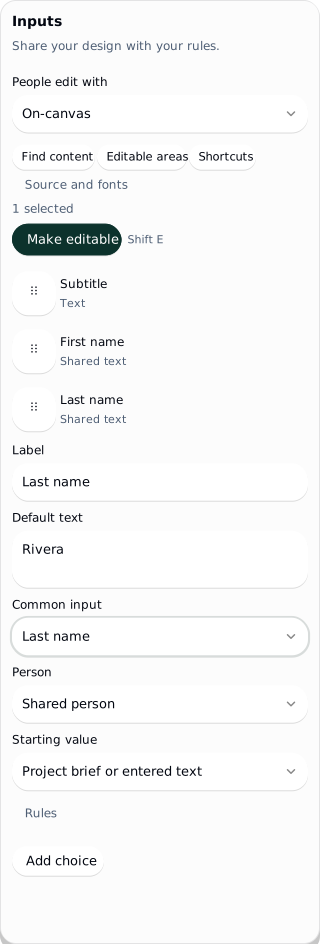
In Rules, select a text or image object and choose Make editable. All other artwork stays fixed. Select several objects with Shift-click or drag a marquee. Alt-click cycles through overlapping objects and selects inside groups. Find content lists text and images by layer and artboard; Editable areas toggles their outlines. Repeating the action on the same object reuses its input.
Give each input a short label and an intentional default. Use Link selection inside its Rules disclosure to reuse that input on another object or artboard. The link uses object identity, so renaming or reordering a layer does not break it. Unlink detaches one target while keeping the other links. Find matching objects offers unique cross-artboard matches for your approval. A removed object needs relinking before sharing.
Keep the first interaction simple. Open a field's Rules only when you need more control:
| Input | Rules you can set |
|---|---|
| Text | Default, help, required value, character limit, wrapping and maximum lines |
| Text size | Fixed size or shrink to fit, minimum and maximum; optional reader size control with default and step, shared fitted size across linked objects |
| Typeface, weight and colour | Explicit approved choices; colour choices start from the active design system's tokens |
| Image | Replacement uploads or a list of approved images; minimum pixel dimensions and allowed upload formats |
| Image placement | Separate X/Y percentages and zoom, each with minimum, default, maximum and step |
| Image fit | Fixed treatment or an explicit Fill frame / Fit inside choice |
Preview and the recipient view show requested and fitted sizes when text shrinks. Images can be dragged and zoomed within the declared ranges; Reset returns to the authored or selected theme position. A field that cannot fit blocks export. Lolly does not truncate a shared name or shrink it below your minimum. Test realistic content, including long names and the languages your audience uses.
 signed by Lollyvector SVG직접 확인하기서명된 파일 받기15 paths195 nodes68 groups4 images28 KB

Share common names across assets
Choose First name, Last name or another Common input meaning. The visible label can differ between tools; the meaning keeps the fields connected. Choose Recipient, Presenter or Shared person to avoid connecting two different people. Organization uses text; Headshot uses an image.
Project brief or entered text is the default source. Choose The person using the tool only when you want that person's profile to prefill the field. Common names do not automatically mean the designer's own name.
For a single full-name object, choose Build text from first and last name. Pick the order and separator, then enter example values in the two new fields. Lolly does not guess how to split an existing name.
In Batch, add the related tools and choose Shared inputs. Enter values once for that set of assets. The existing brief controls let you use a different value for one output and relink it later. Each output keeps its own layout constraints; a long value can fit a slide while requiring correction on a badge.
Make themes and layouts
With several artboards, choose Add layout choice. One public choice selects an authored artboard and its dimensions. Link the same content input to the corresponding objects on the other artboards to preserve reader content when layouts change.
Use Add choice for coordinated themes. In Edit options:
- Name the choice and its first option.
- Choose an artboard, set existing input defaults, or capture properties from selected objects.
- Edit the captured values, including approved imagery, colours, type and image positioning.
- Duplicate the option and change its name and values. Reorder options with their handles.
- Use Add preview thumbnail to render a small visual of the selected option. Update it after changing the artwork or values.
For each existing input, choose Keep recipient content, Editable after choosing, or Controlled by this choice. Editable defaults apply to untouched fields. A reader's changed text stays when they switch options. A controlled property has no independent reader override. Conflicting owners are reported before sharing.
Return to Design to change object geometry. Return to Rules to refresh the authored artboards and review their bindings. Changing Lolly's interface theme is separate from choosing a theme inside a published tool.
Arrange the reader experience
Choose Sidebar for a visible form alongside the output. Choose On-canvas for a compact Edit inputs button; selecting an editable area opens its control. The same ordered form remains available for names, themes and controls without an artwork target.
Drag input handles to set the order. With a keyboard, focus a handle, press Space, use Up/Down, then Space to drop or Escape to cancel. Move up/down buttons remain available inside Rules. On touch devices, drag from the handle; scrolling elsewhere stays normal.
| Shortcut | In Rules |
|---|---|
| Shift-E | Make selected text/images editable |
| Shift-P | Switch Rules / Preview |
| Cmd/Ctrl-Z | Undo in the current mode; Preview samples have separate history |
| Cmd/Ctrl-Shift-Z | Redo a rule change |
| Cmd/Ctrl-F | Find editable text and images |
| Shift-H | Toggle editable-area outlines |
| ? | Open Rules shortcuts |
| Escape | Close the active overlay, return from Preview, or clear selection |
Typing, input controls and open dialogs keep their normal shortcuts. To move or resize artwork, switch to Design.
Preview and share
Preview runs the actual compiled tool with the same isolated runtime recipients use. Try replacement text, size limits, images and every layout. Samples survive mode changes. Open Sample controls for Test limits, Reset samples, Reset to theme and Use as defaults. Only Use as defaults changes the master defaults.
Choose Share .lolly, name the tool and choose the allowed output formats. Check file shows the compiled artwork, ordered input labels, file size and version before download. Issue buttons return to the affected rule, object or font. Closing the sheet cancels preparation. Lolly checks the rules, font embedding, glyph coverage, image availability and text layout across the choice combinations before writing the file. Unsupported sources need repair in Design. Approved image credits travel with the package. For a held source, the share dialog shows the asset and asks you to confirm that you have permission to include it. Otherwise, replace that source before sharing.
The file carries the resolved design system values and dependencies. Another person's active brand profile cannot restyle the fixed artwork. Save the Design master using the normal Save action; sharing a tool does not replace that master.
Use the finished tool
Drop the .lolly into Lolly. Review its trust prompt and install it if you trust its source. Enter the declared inputs, export an asset, and save outputs as ordinary tool sessions. The installed tool has no Design layer editor.
Once Lolly and the tool are available offline, editing and export use their local resources. The package does not require the sender's account, project or asset cache.
After download, Save Design master opens the existing save flow; a failed or cancelled save leaves the live master available to retry. Try downloaded file runs the actual package in a separate preview while keeping the Design master open. Recipients still use the normal trust/install flow.
Sharing changed content creates a new version; an unchanged download reuses the version. Save the master after publishing so this publication record survives reopening. Recipients choose when to install it. Saved outputs pin their installed revision, and resharing an older saved output carries that revision's tool files. Reusing a version number for different contents is refused. Keep the original .lolly if you may need to restore a revision after removing the tool from the device.
For automation, a reviewed tool can use the same browser export path:
lolly run welcome.lolly --trust-tool --firstname=Sam --lastname=Rivera \
  --export=png --output=welcome.png
This requires Lolly's browser renderer and a current web build. --trust-tool explicitly accepts the packaged tool for this run. The renderer still checks the designer's rules.
Use it for training materials
Make a course-cover tool with a course title, presenter names, image and approved layouts. Training and sales enablement teams can produce consistent covers, badges and handouts from those inputs, then add the rendered assets to a project and assemble the course in Learning.
A reusable .lolly produces course materials. The Learning export produces the static website or LMS package. See Training courses for delivery, completion tracking and versioned course exports.
Save as a template keeps a starting point for a tool. Share with rules creates a separate constrained tool. Export makes the finished asset.