
A tool takes pictures and files in two ways. An asset input lets people pick from the design system's library or their own uploads, for logos, photos and other brand imagery. A file input takes a person's own file into memory so a utility can transform the bytes and hand them straight back, the way a converter or a metadata stripper works.
asset - library or device upload
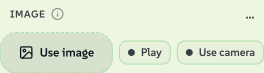
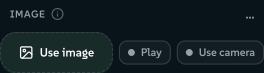
An asset input opens the host's asset picker and stores the chosen AssetRef, in the same form whether the asset came from the catalog or the person's device:
{
  "id": "logo",
  "type": "asset",
  "label": "Logo",
  "assetType": "image",    // vector | raster | image | video | audio | lottie | model | any - constrains the picker
  "allowUpload": true       // also let the user add an image from their device
}
assetType decides what the picker offers:
assetType | The picker offers |
|---|---|
image | Any still image, raster or vector. The right choice for a picture slot, because people can also pick or upload SVGs. |
raster | Bitmaps only. |
vector | SVG only, for logos you recolour inline. |
video, audio, lottie | That kind of media; audiogram takes audio. |
model | 3D models, as in 3d-studio. |
any | Everything, including assets that are not images. |
filter narrows the picker further: { "tags": [...], "namespace": "..." } is passed to host.assets.query().
 signed by Lollyvector SVG10 paths718 nodes18 groups13 KBCheck it yourself서명된 파일 받기
 signed by Lollyvector SVG10 paths718 nodes18 groups13 KBCheck it yourself서명된 파일 받기


Uploads from the person's device
With allowUpload: true, the picker offers the person's image library beside the catalog. People add images from their device, and the host stores the bytes exactly as they arrived, because a silent re-encode would break a Content Credential's hard binding. It offers to downscale only a very large file. Stripping metadata is a separate preference the person opts into (Strip metadata from uploads, off by default).
The library has no limit on the number of images; the only limit is the device's storage, checked before each write. It is shared by every tool and managed in Settings → Storage → My images. SVG uploads are cleaned of scripts and event handlers on the way in and stay vector.
These images stay on the device. Their AssetRef.source is "user", and their user/… id means something only on the device that holds the bytes, so they are left out of share links (URL Mode). Tools treat user and library assets the same, and no tool code takes part in the upload.
A pasted tool link becomes an image
Every asset input also accepts a Lolly tool link pasted into the picker's search box: a share link copied from another tool (…/#/tool/qr-code?url=…) or an embed URL (…/tool/qr-code.svg?…). The host renders that tool through host.compose and places the result in the slot, after the person picks the render format and size. This is the person's counterpart to an authored composes: no manifest declaration, and it works in every tool's image inputs.
The picker offers SVG and bitmap render formats for any image slot. SVG is the default, because it stays crisp, goes into SVG and PDF exports as true vector and rasterises cleanly for PNG; a vector slot offers SVG only. The asset's identity is the canonical embed URL, so it is kept in saved sessions and share links and renders again on load, like a library id. The picker offers this wherever the shell can compose; the compose capability gates only authored composes.
file - the user's own file (on-device utilities)
A file input takes a file the person picks into memory and hands its raw bytes to the tool. It suits content-transform utilities, the file jobs people would otherwise hand to a stranger's website: strip metadata, crop, compress, convert. An asset is brand imagery that goes through the library; a file is the person's own content, processed and handed straight back.
A file value lives only in memory on the device. It is never written into a link, because binary data has no shareable form, never saved with a session and never uploaded. That is the privacy promise of an on-device utility, and the rules below keep that promise.
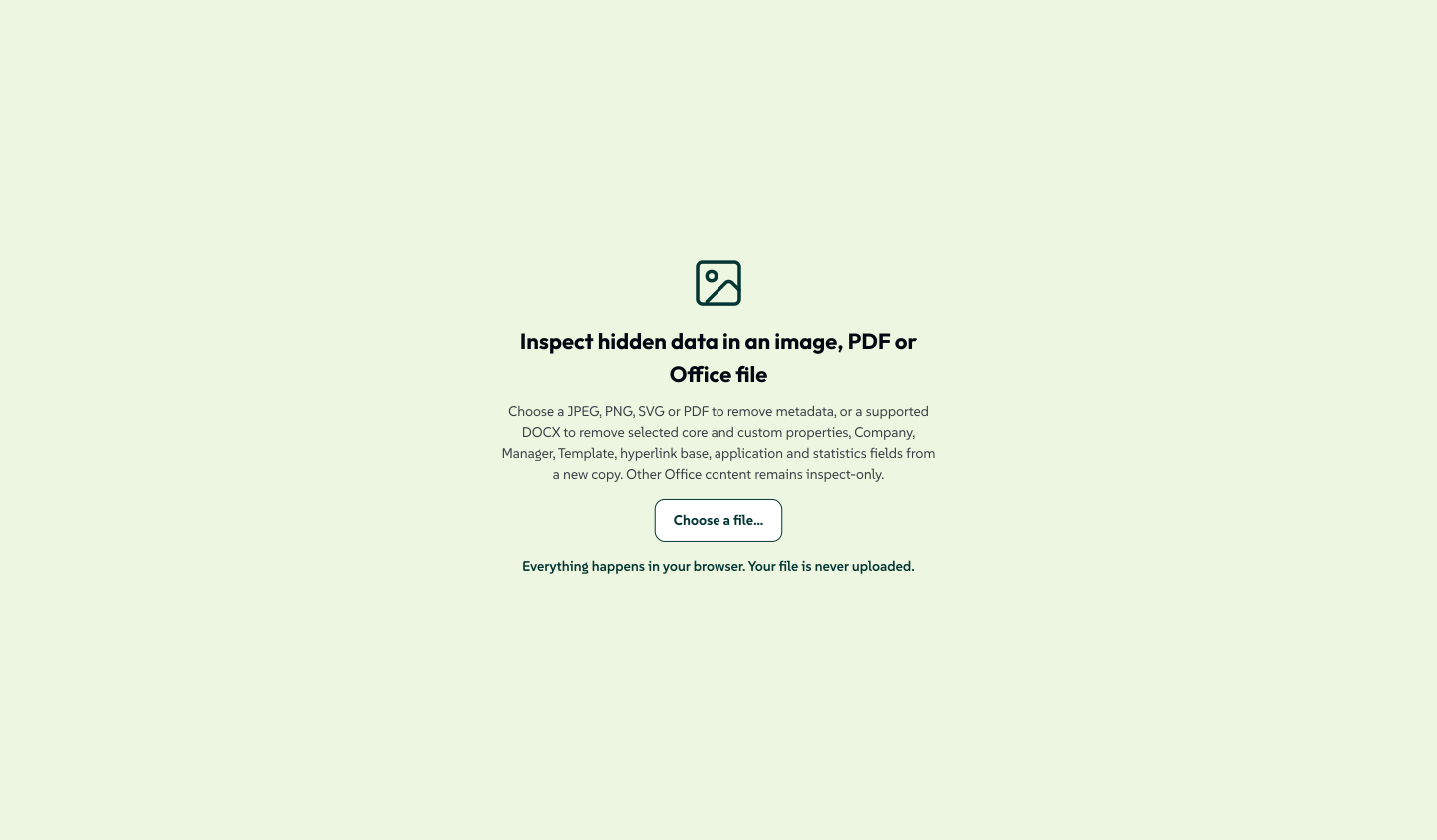
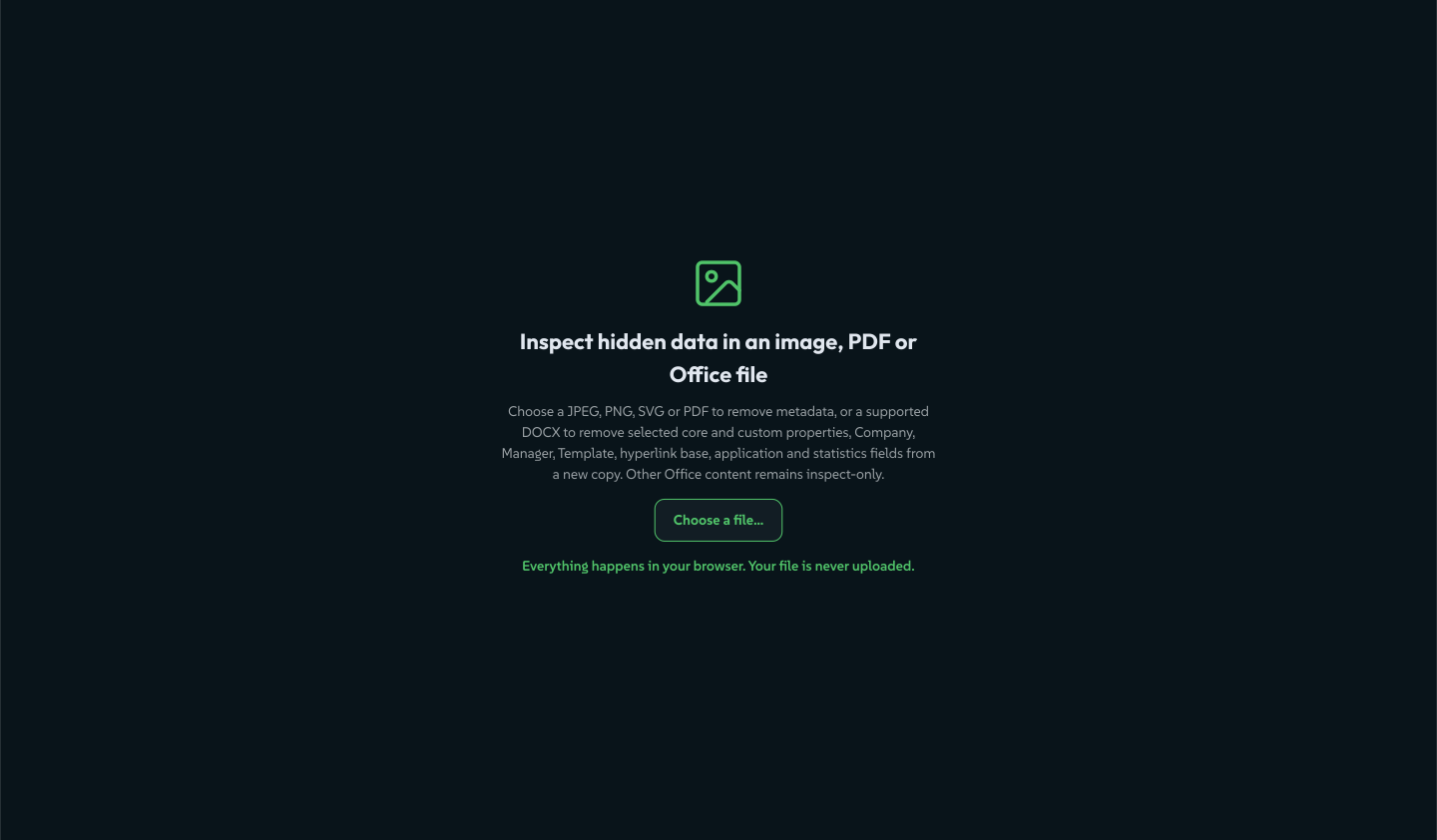
With layout: "canvas" (layouts), a single file input becomes the working area itself: the drop zone strip-data opens with.
 signed by Lollyvector SVG9 paths~7.7k nodes10 groups87 KBCheck it yourself서명된 파일 받기
 signed by Lollyvector SVG9 paths~7.7k nodes10 groups87 KBCheck it yourself서명된 파일 받기


{
  "id": "photo",
  "type": "file",
  "label": "Photo",
  "accept": ["image/jpeg", "image/png", ".jpg", ".png"],
  "maxSize": 52428800
}accept- allowlist of MIME types and/or extensions for the picker (a UX hint; still validate bytes in the hook). Omit to accept anything.maxSize- max bytes; the host rejects larger files at pick time.multiple-trueaccepts many files at once. The value becomes an array ofFileRefs, the CLI collects repeated--<id>=patharguments and anexportFilehook may return one result per file, which the host delivers as a single zip (pages,claim).
The value is a FileRef: { __file: true, name, mime, size, bytes, url }. bytes is a Uint8Array the hook reads directly, with no host. call, because the portable host. surface has no file-read API. On the CLI a file parameter is a path the runner loads: --photo=./pic.jpg.
Producing output: the exportFile hook + privacy: "on-device"
A content-transform utility does not draw the canvas into an image. It produces a transformed file:
- The person drops or picks a file. The bytes arrive in the
fileinput's value, in memory. - Your
exportFilehook transforms the bytes. It returns the new bytes, a MIME type and a file name. - The shell delivers the result. It wraps the bytes and hands them to
host.export.file: a download on the web, the--outputpath on the CLI.
Declare the exportFile hook and mark the tool as an on-device utility:
{
  "status": "official",
  "privacy": "on-device",
  "render": { "width": 760, "height": 620, "formats": ["jpg"], "export": false, "actions": [] },
  "hooks": { "onInput": true, "exportFile": true }
}
privacy: "on-device"shows the Runs on your device - nothing is uploaded badge. The validator refuses an on-device tool markedexperimental, and at run time its exports carry no provenance metadata and no watermark: nothing may be stamped into a person's own file.render.export: falsehides the standard format, size and download bar."actions": []removes the default Save and Share buttons, because saving would keep the person's bytes.- The
exportFilehook reads the picked file and returns the transformed bytes as a plain record:
function exportFile({ model }) {
  const inputs = Object.fromEntries(model.map(i => [i.id, i.value]));
  const f = inputs.photo;                       // the FileRef
  const cleaned = stripMetadata(f.bytes);       // your transform (pure bytes → bytes)
  return { bytes: cleaned, mime: f.mime, filename: f.name.replace(/(\.\w+)?$/, '-clean$1') };
}
In the template, a <button data-export-file>Download…</button> runs the hook. Use onInit and onInput to return extras the template shows, such as the metadata that was found. strip-data is the reference.