
Design is the tool for layouts no template covers: a poster from scratch, a deck of slides, a motion piece with a soundtrack. Instead of a form of controls, you get a canvas of boxes you drag, resize, rotate and type into. It exports through the same render path as every other tool, so what you see on the canvas is the file you get.
This page walks the canvas from the first box to a finished deck: the window, shaping boxes, drawing your own shapes, placing 3D scenes and other tools, adding time, checking the result and presenting the finished deck. Using Lolly covers what Design shares with every tool, such as saving and sharing.
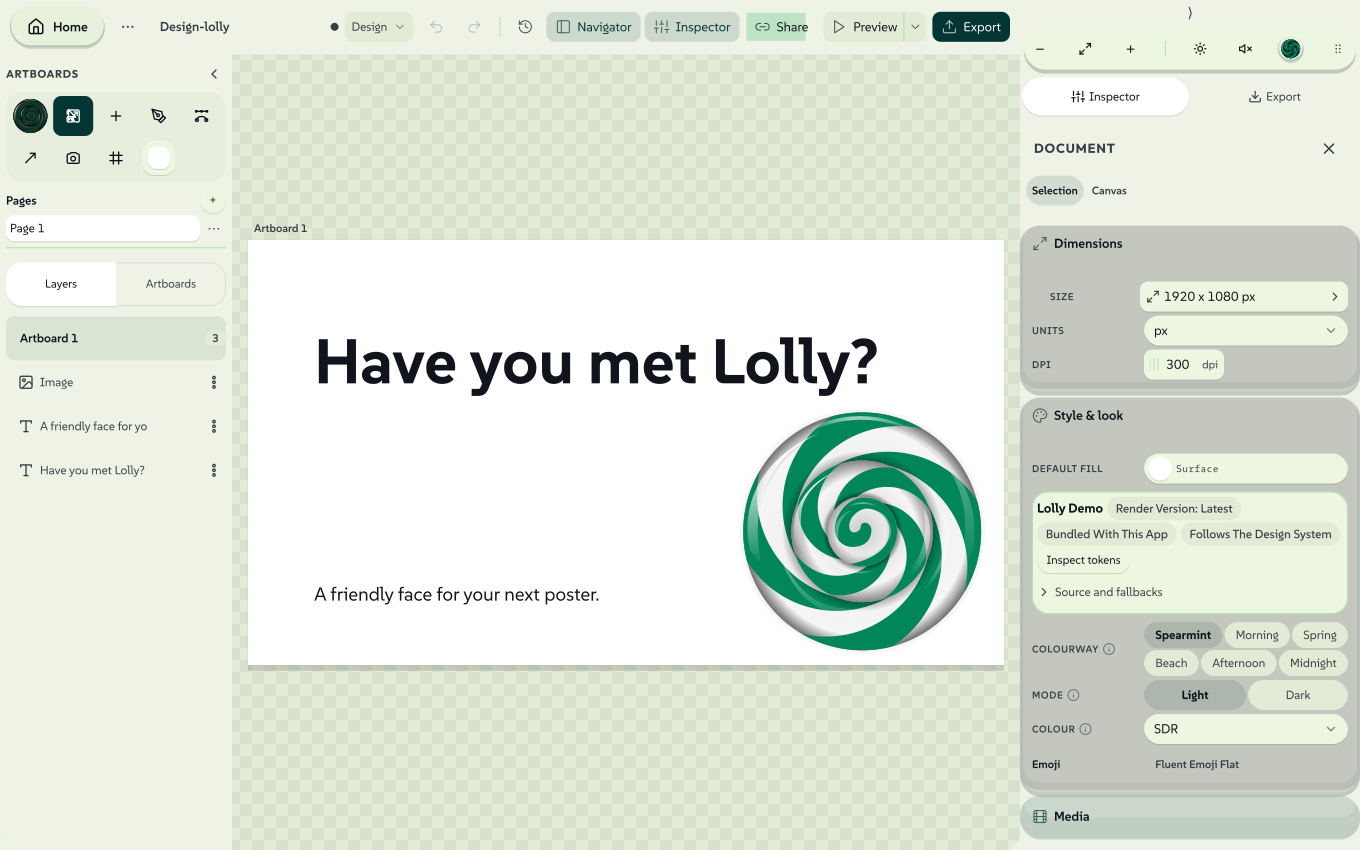 signed by Lollyvector SVG288 paths~14k nodes329 groups3 images282 KB自己驗證取得已簽署檔案
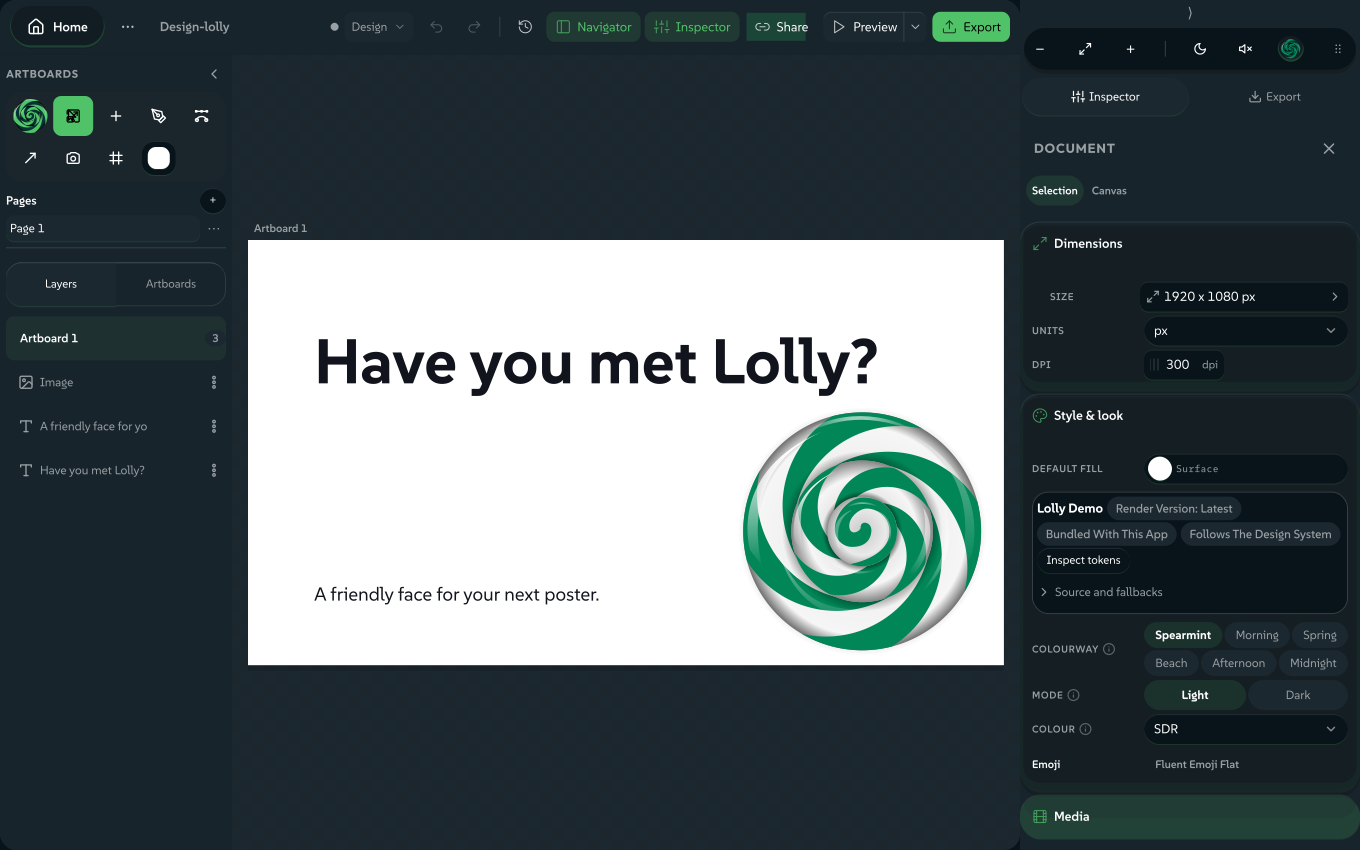 signed by Lollyvector SVG281 paths~14k nodes329 groups3 images281 KB自己驗證取得已簽署檔案


The Design window
The top bar starts with Home, the File menu and the document's name (click the name to rename the document). The middle holds Undo, Redo, History, the zoom controls (with Fit all and Fit artboard) and toggles for the Timeline, the Navigator and the Inspector. On the right sit Share, Present and Export. On a phone, the less-used buttons move into More actions.
The tool rail down the side holds the Lolly menu and the tools you draw with: Pointer, Add a box, Pen, Edit points, Line, then the Timeline, Artboards and Auto-arrange buttons.
 signed by Lollyvector SVG60 paths413 nodes40 groups42 KB自己驗證取得已簽署檔案
 signed by Lollyvector SVG60 paths413 nodes40 groups42 KB自己驗證取得已簽署檔案


The canvas works like a designer's pasteboard around the artboard:
- Park boxes off the artboard. Drag a box past the frame edge and it stays visible and selectable. Everything outside the frame is faded, and the frame keeps its shadow to mark where the file begins.
- Only the artboard exports. Anything outside the frame, or the part of a box hanging over the edge, is cropped from the output in raster and vector formats alike.
- Zoom out past Fit, down to 20%, to see everything you have parked.
- Resize the artboard by changing the export size. Boxes keep their positions, so you can reframe a layout around existing content.
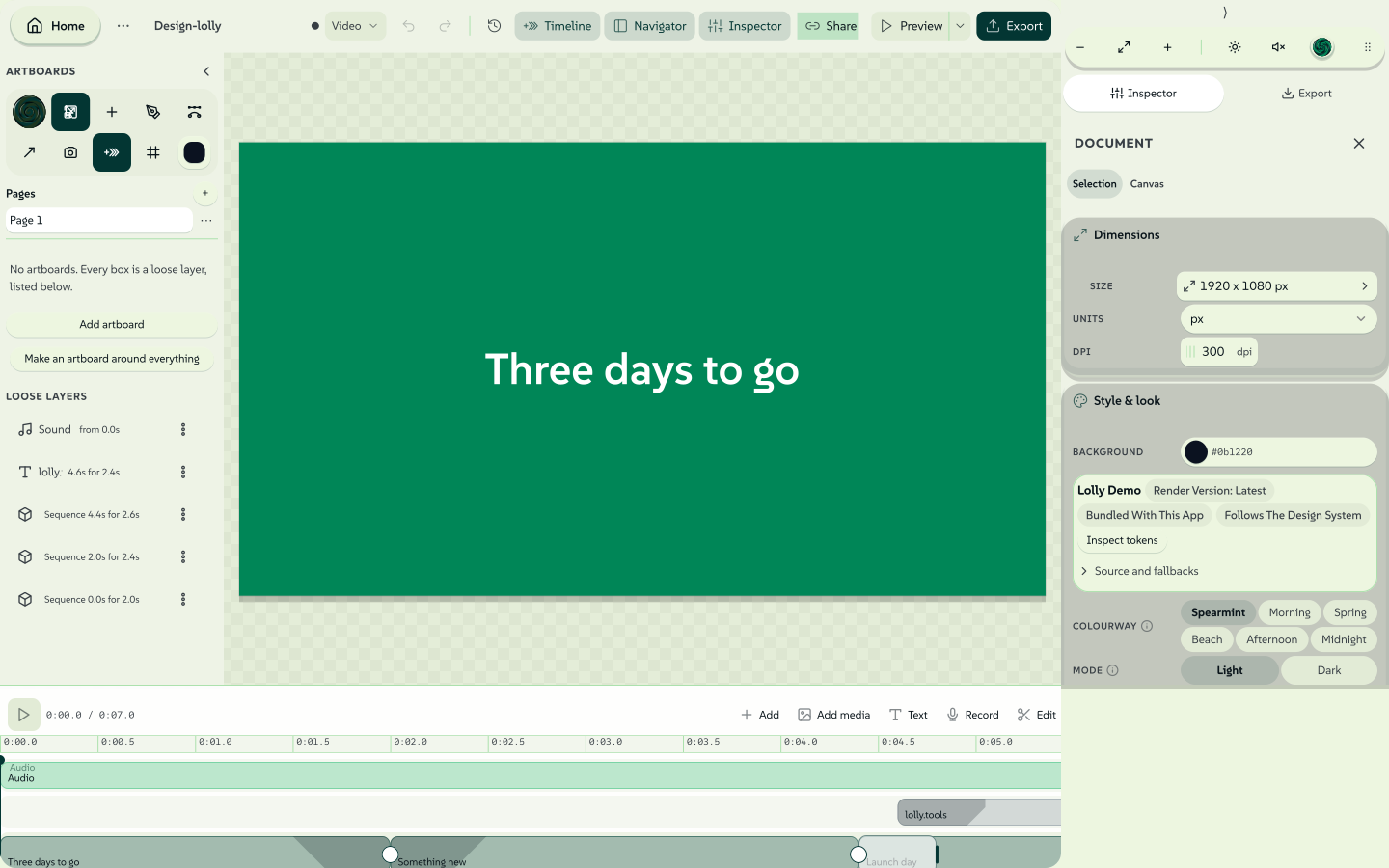 signed by Lollyvector SVG326 paths~20k nodes444 groups2 images358 KB自己驗證取得已簽署檔案
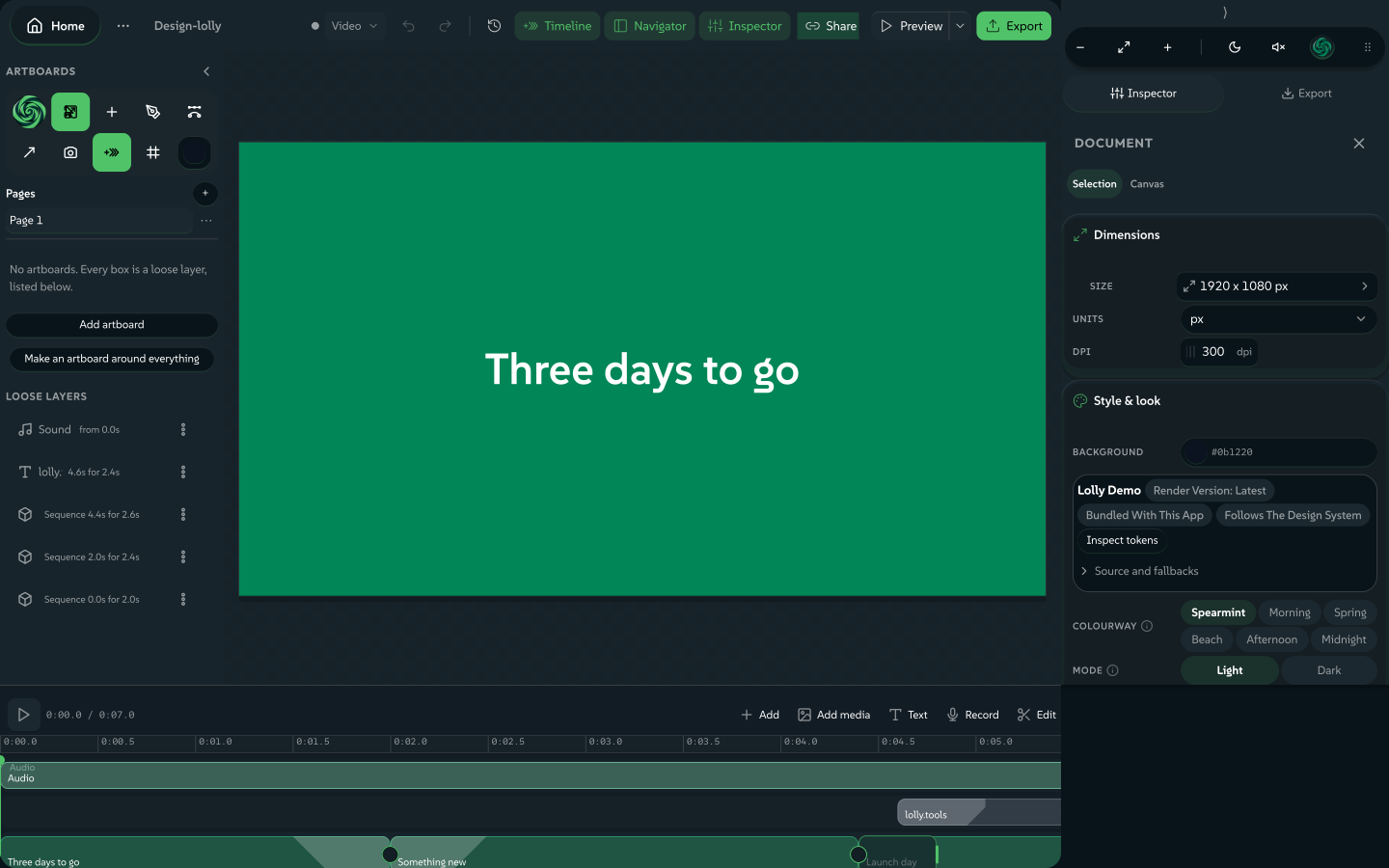 signed by Lollyvector SVG319 paths~20k nodes444 groups2 images357 KB自己驗證取得已簽署檔案


The Navigator and the Inspector
The Navigator lists every artboard (headed Artboards, or Slides in a deck) as a folding group of its Layers. Select an artboard's name to jump there, expand it to select or reorder its layers and use the arrow keys to move through the list; Left returns to the artboard heading. Pages groups artboards into named pages, and choosing a page only changes which artboards the editor shows.
The Inspector puts the selected object's text or image controls first. Option chips cover the quick choices, and Advanced holds the styling detail. On a phone the Inspector opens as a sheet from More actions; Escape or Back closes the sheet and keeps your selection.
 signed by Lollyvector SVG60 paths~6.2k nodes101 groups1 image83 KB自己驗證取得已簽署檔案
 signed by Lollyvector SVG60 paths~6.2k nodes101 groups1 image83 KB自己驗證取得已簽署檔案


Resize, scale and rotate
Select an object, then drag a handle to change its size, or drag the round handle below the selection to turn the object. A size drag works in one of two modes:
- Resize, the default, changes the box only. Text rewraps to the new size, and font size, stroke width, corner radius and effects stay as they were.
- Scale grows or shrinks the whole object with its content: font size, stroke, corner radius, shadow, blur, padding and spacing all change by the same amount.
Press K to switch Scale on or off. Without a keyboard, choose Scale mode in the Lolly menu, or press and hold the Pointer button on the rail (or right-click the button) and choose Scale; on a touch screen the object bar has a Scale toggle too. While Scale is on, the Pointer button shows the Scale icon and each handle has a dot in its middle. V or Escape returns to Resize and keeps your selection. Every document opens with Scale off, so nobody scales strokes by accident.
Scale by a number. With Scale on, or with several objects selected, click the readout on the object bar to open the Scale popover. Type a percentage, a width or a height, pick the point that stays still on the 3 x 3 grid, and choose Apply. Each scale is one undo step.
Several objects. A selection of several objects has handles on its edges as well as its corners. While every object is upright or turned by whole quarter turns, and the selection holds no group or circle, a corner drag changes width and height freely. Otherwise the selection keeps its proportions and the readout adds Proportional. While you drag, a small label shows the size, or the percentage in Scale mode.
Flip a selection. Right-click and choose Flip horizontal or Flip vertical, or press Shift+H or Shift+V (Shift, because a bare V is the Pointer). The mirror is a real transform, so the exported SVG, PDF and PNG keep the flip.
Keys you hold during a drag take effect the moment you press or release them; the shortcut sheet (?) lists them too.
| Hold | Resizing or scaling | Rotating | Moving |
|---|---|---|---|
| Shift | Keeps the proportions (Scale always does) | Turns in 15 degree steps | No change |
| Alt (Option) | Works from the centre | Turns freely | Turns snapping and the grid off |
| Cmd/Ctrl | Turns snapping and the grid off | Turns freely | Turns snapping and the grid off |
With no key held, a turn is pulled to the nearest 15 degrees once it comes within 4 degrees of one. Artboards don't rotate, so they have no rotate handle.
Handles, grab zones and touch
Grab anywhere along an edge. Each side of a selection is a resize strip along its whole length, and with a mouse or a pen there is a rotate zone just outside each corner. The pointer shows what a drag will do. A press in a strip or zone becomes a resize or a turn only once you start dragging, so a plain click still selects as before. A locked object has no handles, strips or zones.
Small objects stay movable. On an object 25 screen pixels or less across, the middle handles hide and the others move a little way out from the outline, so a press on the object moves the object. At 10 pixels or less the corner handles go too, and a thin line keeps a handle at each end. A press just beside a thin line or a tiny object, clear of its handles, moves the object.
Large grab areas. On a touch screen each corner zone is a quarter of the selection's width and height on screen, between 24 and 44 pixels, and each side zone covers the stretch between two corners. When the selection is too small for that, the zones move outside its outline. The zone under your pointer or finger is shaded. To get the same zones with a mouse or a pen, turn on Large grab areas in the Lolly menu; the setting stays on this device.
Two fingers on a selection. On a touch screen, put two fingers on a selected object: pinch to scale, twist to turn or move both fingers to carry the selection, all as one undo step. With Scale on, a pinch scales the content too; with Scale off, it resizes in proportion. A twist snaps to the nearest 15 degrees when close, and a two-finger move never snaps. The first finger has to land on the selection and the second has to follow quickly, on the selection or just outside its edge. Two fingers anywhere else zoom and pan the view, and so do two fingers on a selection that holds an artboard or a locked object, covers most of the view or runs past its edge.
Draw your own shapes
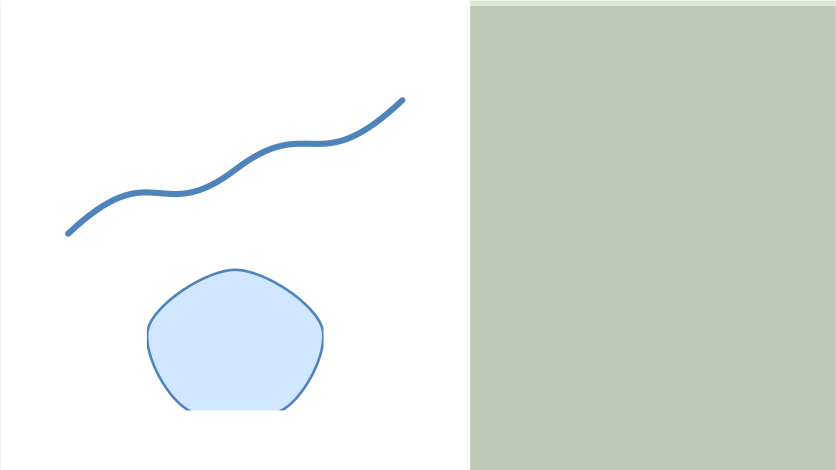
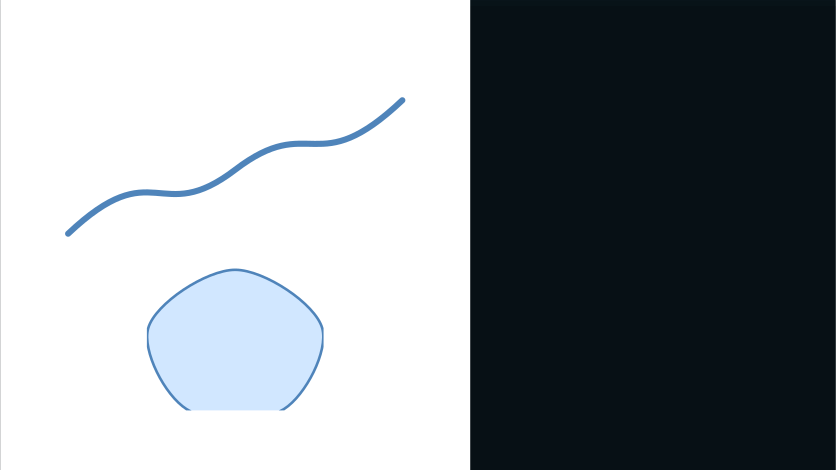
Boxes, circles and rounded frames cover most layouts. For any other shape, draw one: the rail's Pen button (or P) puts you in drawing mode. Three single keys move between modes: V for the Pointer, P for the Pen and N for Edit points. The Pointer is always the way out.
- Click to place a point. On the default curve type, click and drag pulls the point's handles out to make a curve; hold Alt as you click for a hard corner. (On the other curve types every point is a corner and a drag does nothing.)
- Points snap to the artboard and your other boxes as you place them. Alt suppresses the grid while you draw, and both the grid and the edges while you drag a point afterwards.
- Click your first point to close the shape. Otherwise press Enter, double-click or switch tools, and the drawing is kept.
- Escape works one step at a time: the first press abandons the drawing, the second leaves the pen.
- Delete while drawing drops the last point.
The result is an ordinary box. Move, resize, rotate, group, align, restack, fill, shade or fade the path like any other box. The first path takes the fill and stroke your brand gives a path, and each new path after that takes whatever you last used. In a tool whose brand sets nothing for paths, a new path is stroked in the colour you drew with, so the shape is never invisible.
Edit the points again. Double-click the shape, or use Edit points on the object bar. Drag a point to move it, drag a handle to re-aim the curve, click on the curve to insert a point or drag a box round several points and press Delete. A path always keeps at least two points.
Spline type decides what kind of curve runs through your points:
| Type | What it does |
|---|---|
| Smooth (auto) | The default. Works out its own handle lengths, so plain clicks give a smooth curve. A handle you set pins the direction, and the curve still owns the length. |
| Bezier handles | The classic pen: you control every handle, and inserting a point never moves the curve. |
| Through the points | Passes exactly through every point, with no handles. |
| B-spline | Flows near the points rather than through them, for a softer line. |
| Straight lines | A polyline. |
Switching an existing path to a type that works out its own handles asks first, because handle lengths you set cannot be recovered; switching to Bezier handles is always lossless. Mid-drawing the switch applies straight away, and any handles you had pulled are dropped.
Each point also carries a continuity rule, shown by its shape: square for Corner (handles move independently), round for Smooth (handles stay in line) and round with a ring for Symmetric (in line and equal length). Set the rule for selected points and the curve follows at once.
 signed by Lollyvector SVG5 paths38 nodes7 groups5 KB自己驗證取得已簽署檔案
 signed by Lollyvector SVG5 paths38 nodes7 groups5 KB自己驗證取得已簽署檔案


A drawn path travels in a share link like any other box and renders the same from the command line.
Combine shapes
Select two or more shapes, right-click the canvas (two-finger tap on touch) and choose:
- Union merges them into one shape with the topmost one's paint.
- Subtract cuts everything above away from the bottom shape.
- Intersect keeps only the overlap.
- Exclude keeps everything except the overlap.
Three more work on a single shape. Outline stroke… turns a stroke into a filled outline of the same weight. Offset path… grows the outline outwards or, with a negative number, shrinks it inwards. Simplify rebuilds a path with fewer segments at the same outline.
 signed by Lollyvector SVG5 paths47 nodes7 groups5 KB自己驗證取得已簽署檔案

The result is a new path you can keep editing with the pen, stored as plain Bezier curves, so the original spline type does not carry over. Holes are real holes: the Fill rule control on the stroke panel decides whether overlapping contours fill (non-zero) or punch through (even-odd). The operations refuse rather than destroy: ask to intersect two shapes that don't overlap and nothing changes. Text and image boxes have no outline, so they are left alone.
3D scenes and tools inside a design
A box can hold more than a picture. Both kinds below keep a recipe rather than a rendered image, so they redraw at whatever size and moment the document asks for, and an update to the source reaches every design that uses the source.
3D scenes
Choose 3D scene from the rail's add menu and drag out a frame: 3D Studio opens on the new box, and what you set there comes back to the canvas. Afterwards, Edit in 3D Studio in the Inspector's 3D scene section reopens the studio. Place a scene in Design covers posters, the timeline, export and sharing.
Tools inside a design
Choose Image from the rail's add menu, drag out a frame and pick a tool on the picker's Tools tab. The tool fills the frame with its defaults, and the Inspector opens on a Tool section holding that tool's own controls. Change a field and the box updates a moment later, as one undo step. Image fit and Image position work as for any picture, and Replace with another tool or image swaps the box's content.
Tools that move play inside the box: a looping illustration keeps looping on the canvas, follows the playhead once the timeline is open and exports frame by frame to GIF, MP4 or WebM. When the tool says how long one loop lasts, the box gets a clip exactly that long, so a video holds whole loops. A clip you retimed keeps your timing, and turning the tool's motion off makes the box a still picture again.
Timeline (Sequence)
Sequence is Design's timeline: it adds time to the canvas. Every box can start at a moment, run for a length and animate in and out, and the timeline docked under the artboard is where you arrange them. Start from Design's Video template and a short sequence is already in place: two timed text cards on the sequence row and a procedural music bed under them, so you can see how the timeline works before you change anything.
 signed by Lollyvector SVG63 paths~8.8k nodes132 groups105 KB自己驗證取得已簽署檔案
 signed by Lollyvector SVG63 paths~8.8k nodes132 groups105 KB自己驗證取得已簽署檔案


There are two kinds of row:
- The sequence row is magnetic. Clips sit end to end, dragging one reorders the run and deleting one closes the gap. This is the spine.
- Overlay lanes are free. A lower-third, a logo or a caption floats over the spine at its own time, each in its own lane.
- Below them, Always on holds boxes with no timing, present the whole way through. The
+on a chip moves one onto a lane; Make always on sends it back.
Opening the timeline gives it the keyboard, so Space and the arrow keys drive the playhead. A composition that already has timing opens the timeline by itself.
Editing. Drag a clip's middle to move it, drag near either end to trim it and press Split at playhead (or S) to cut it in two. Split needs a clip with a real Length and the playhead a little way inside it, so an open-ended clip such as the music bed cannot be split. Snap to edges is on by default, snapping to clip edges, the playhead and whole seconds; hold Alt to drag without snapping. Every drag is one undo step, and the preview while you drag uses the same arithmetic as the result.
Select a clip and the inspector gives the same edits as numbers: Length, Trim in (how far into the source the clip starts), Speed from ×0.25 to ×4, Animate in and Animate out with their lengths and Mute clip. A clip on the magnetic row has no Start field, because the row owns the order.
Transitions are presets: Fade, Pop, Grow, Rise, Drop, the four Slides, Zoom in and out, Tilt, Swoop, Spin, Drift or Cut (no animation). Distances scale with the object, so one preset reads right on a full-frame card and a small badge. Between two clips on the sequence row, a seam chip chooses Cut or Crossfade; open it again to set the Length (ms) and press Done. In a crossfade, the first clip plays on past the cut and fades out while the next fades in, the same in the preview and the file.
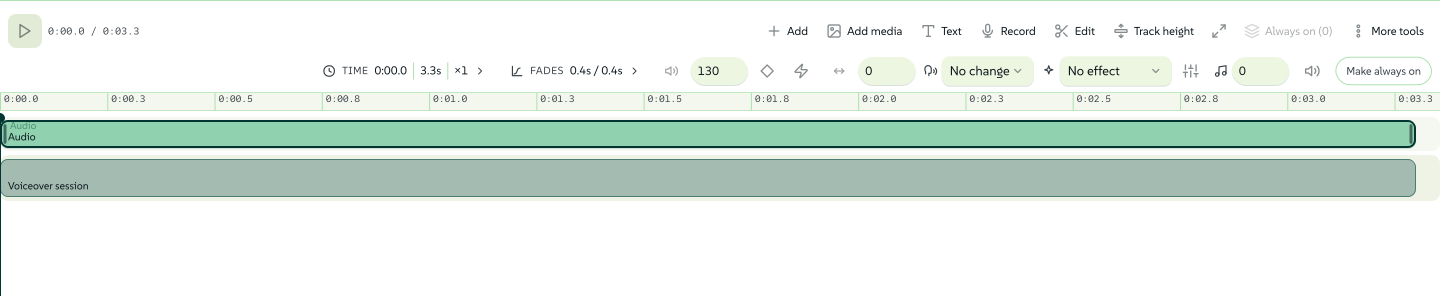
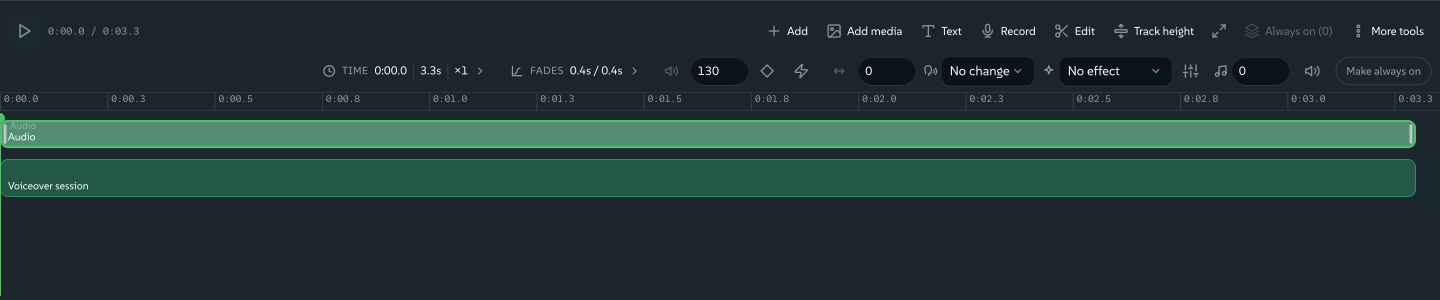
Sound. An Audio clip lives on the timeline like any other clip, with a waveform, trim and mute. The Video template's generated music bed is synthesised at export time, so its bar stays plain and silent until you render. Press the microphone to record a voiceover straight onto the timeline, with a count-in and a level meter; the take is saved as your own asset at the playhead. The camera button beside the microphone records a video the same way, cropped to the artboard as it records, so a colleague can add a clip from a shared link. Select any clip with sound and its strip opens under the timeline for volume, pan, EQ, pitch, normalising and effects such as Voice cleanup; Sound in the sequence editor guide covers the strip. The export panel's Audio track is separate: one bed under the whole clip, with fade and ducking.
 signed by Lollyvector SVG88 paths~5.8k nodes138 groups2 images86 KB自己驗證取得已簽署檔案
 signed by Lollyvector SVG88 paths~5.8k nodes138 groups2 images86 KB自己驗證取得已簽署檔案


Rendering. A motion export draws, decodes and encodes each frame at an exact time, so the file does not depend on your machine keeping up, and MP4 and WebM have no practical frame ceiling. The timeline's length sets the duration unless you type one, and Content Credentials are stamped as on any other export. A still export gives the frame at the playhead, or a contact sheet from the Frames field; see Stills from a timed composition. A sequence is capped at one hour. GIF and animated PNG hold every frame in memory, so they suit short clips. Record live is hidden here because the frame-by-frame render is the better path.
Keyframes, depth and a camera. A transition animates a clip as it arrives and leaves. To pose a box within a clip (drift, fade, blur, lift it off the page and settle it back), select the clip and press +Keyframe: the diamond in the timeline's tools, the diamond on the canvas object bar or Shift+K with the timeline focused. The playhead's position decides which pose your next edit writes. The same keyframes give a timed composition a camera that pushes in, pans and pulls focus. Animating is the full guide, and The sequence editor covers selection, onion skin, splitting, trimming and markers.
Before you export
Design checks your document before you send the file. The Before you export card, in the Inspector's Document section and again in the export panel, reads the saved layer structure, then looks at the settled canvas for clipped text and flat-colour contrast. It asks the same font registry the SVG and PDF outlining uses whether each text run has font bytes that can be embedded. Image and gradient backgrounds are listed as visual checks rather than given a made-up contrast score.
Check a composition against the design system
The export panel's card also compares the composition with your design system, at the same design-system version the render uses. It looks at authored colours, token aliases, font choices and image asset ids. A custom value may be intentional, and an image outside the declared brand assets is a review item, not a banned image.
Where a concrete colour or font suggestion exists, its button changes that one layer, and Undo restores the original. Locked or since-changed layers are never overwritten by an old suggestion. Gradients, effects, nested tool content, rights and subjective quality are outside this comparison, and no check blocks Download.
The house rules a design system brings with it, such as approved colour pairings or a logo per surface, are not part of this card yet. lolly check applies them to a saved Design document, layer by layer; Usage & rules lists them.
The print checks (bleed, resolution, ink coverage and plate counts) join the same card when you turn on Settings → Feature flags → Print preflight. In other tools that flag is what shows the card at all; Export a file describes the print checks.
Presenting
A Design document made of artboards is already a deck. Press Present in the top bar and each artboard becomes a full-screen slide, in the order the artboards sit on the canvas. The button reads Preview until the document's Design outcome is Slides. The deck runs on a copy of the rendered artboards, so leaving puts you back exactly where you were.
The arrow beside Present opens Present from this slide, Speaker view, Present with camera, Narrate, Auto-advance slides, Loop the deck (kiosk) and Export slides as video.
| Key | What it does |
|---|---|
Space, →, Page Down | Next step or slide (or click the strip at the right edge) |
←, Page Up | Back (or click the strip at the left edge) |
| Home, End | First or last slide |
O | Overview: every artboard in your canvas arrangement; click one to open it |
S | Speaker view: current slide, next slide, notes and a clock in a second window |
B | Black screen; any key brings the slide back |
F | Back to fullscreen |
K | Pause or restart a kiosk deck |
| Escape | Peel one layer: overview to deck, deck to editor |
A small control bar fades in when you move the pointer and hides again when you stop. If the browser blocks the speaker pop-up, speaker view opens as a panel over the deck. Notes belong to each artboard and never appear on the slide.
- Reveal steps. Right-click a box and choose Reveal at step 1, 2 or 3 instead of Always visible, and the box waits until you advance onto its step. Boxes sharing a number arrive together.
- Kiosk. Give an artboard a Length and the deck holds there for that long, then advances behind a thin progress bar. Add
kioskto the link and the deck wraps at the end, for signage. - Sub-slide stacks. Right-click an artboard and choose Stack under the previous slide to make it a step of that slide. The overview shows one card, and the inspector's Stack row says which slide the artboard belongs to.
- Morph. When consecutive slides both hold a box with the same Morph match name (
hero, say), the transition moves, resizes and recolours that box instead of cutting. A deck-wide Morph transition does the same for every matched pair. - Narration. Each artboard's Speaker notes can be read aloud. In the Inspector's Document section choose a Voice, optionally a second voice to Blend with, the Speed and a Lead-in and Tail in milliseconds; Show captions when presenting shows the words as they are spoken. The voice runs on your device, and the same notes become the soundtrack of a video export, slide audio in a PowerPoint export and the narrated film in a SCORM package.
The deck is a link too. ?present opens straight into it and s= picks the slide (a position, an artboard id or id.step for a build step), and the address follows you, so what you send is the slide you are on. Reserved URL parameters documents them.
Present with camera places your camera, a logo and a name caption over the slides, with private controls and saved scenes; see Presenting with camera. A Web page box can take the clicker during a talk when you turn on Make interactive in its inspector: at its Focus on click step, Up and Down control the page while Next continues the deck. Live pages that take the clicker covers focus styles, scroll stops and site approval.
Where to go next
- Text in Design: editing text on the canvas, flowing articles through frames and typography.
- Animating: keyframes, depth, the scene camera and Lift layers.
- Import a design: open a Figma, Penpot, Illustrator or InDesign file as editable boxes.
- Share a design with rules: turn a Design document into a tool with only the inputs you choose.
- Export a file: formats, sizes, print units and video.