
Settings is where you change how Lolly works for you: your details, the design system you use, accessibility, what is stored on this device and what is ready offline. Open it with Settings in the bar at the foot of the home screen, or from your avatar menu. It opens on Preferences, with four more tabs alongside.
| Tab | Address | What it holds |
|---|---|---|
| Preferences | #/settings | Your details, design systems, appearance, emoji, accessibility, connections, storage and offline downloads |
| This device | #/settings?tab=device | A live readout of this browser and machine, plus sound and a read-only storage view |
| Design system | #/settings?tab=brand | The active design system as a cover and pages, with a strip of covers to switch systems |
| Capabilities | #/settings?tab=caps | Everything Lolly can do, as searchable cards |
| Activity & stats | #/settings?tab=activity | The catalogue, your local counters and recent work |
Each tab has its own address, and old #/profile and #/d links still open the right place, down to individual settings.
Preferences
Preferences is one long page with a settings rail down the side and a Search settings field above the rail that filters it as you type. Every section opens directly from a link of the form #/settings?focus=<section-id>, for example #/settings?focus=storage-section.
- Your details - your name, contact details and headshot, and the Use my details to create switch. Profiles explains how tools use them.
- Content Credentials - the optional verified identity that signs your exports. See Content Credentials.
- Design systems - switch, add, hide or remove design systems. Design System Setup covers each action.
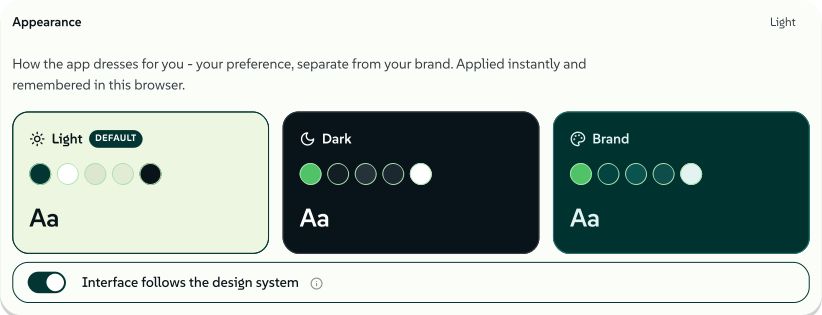
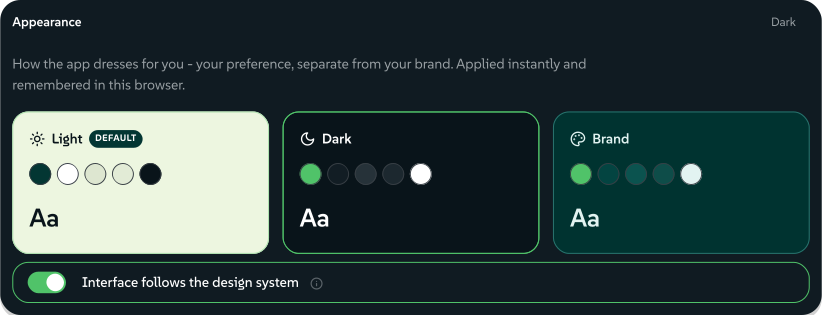
- Appearance - the theme (Light, Dark or Brand, which paints the app in your palette) and Interface follows the design system.
- Emoji - the set your emoji are drawn from when you start something new, with its artwork licence, and how strongly your palette recolours them (Off, Subtle, Strong, Full, Mono or Duotone). Keep skin tones and flags leaves those in their own colours. Work you already made keeps the set it was made with.
- Accessibility - four comfort switches, plus Sound and Neurospicy Mode. See Accessibility.
- Connected services - storage you connect, such as Dropbox, Google Drive, OneDrive, Nextcloud or S3, and Sync across devices. See Sync your devices.
- Trusted sites - the sites a Design web-page box or a Sandbox demo may contact without asking, and, where the server offers it, Allow pages from any site. The Privacy Policy lists what each request sends.
- Your renders - Save my renders to my library keeps a copy of each image, audio clip and video you download in Assets, under a Renders tag.
- Storage - what Lolly keeps on this device, and the buttons that clear or carry your data. See Storage.
- Available offline - download what you need before you lose the connection. See Available offline.
- Hot folder - in the desktop app, watch one folder and pull anything dropped into it into Lolly, through the same chooser a drag-and-drop gets.
- Your activity - what you have made on this device, counted locally.
- Feature flags - turn parts of the app on or off, such as Print preflight or Strip metadata from uploads.
- Lolly instance - where this install gets its tools and catalogue. See Lolly instance.
The theme cards are live previews and apply the moment you pick one, on this device only.
 signed by Lollyvector SVG40 paths~4.3k nodes52 groups58 KB自己驗證取得已簽署檔案
 signed by Lollyvector SVG40 paths~4.3k nodes52 groups58 KB自己驗證取得已簽署檔案


Accessibility
Settings → Preferences → Accessibility holds four comfort settings for the app around your work. Each is off until you turn it on, and none of them reaches inside a tool canvas or an export, so a calmer app never moves a pixel of the file you ship.
- Reduce motion turns off the app's transitions, slides and flourishes. Your canvas and any animated export keep moving as designed.
- Hide colourful previews swaps the gallery's preview artwork for calm icon-and-text cards, and quietens project thumbnails so they stay recognisable without shouting.
- High contrast strengthens the app's borders, text and focus rings. Your brand colours and the canvas stay as you set them.
- Large text enlarges the app's labels, menus and button text. Type inside your designs is untouched, so nothing you export reflows.
These settings live on your profile, so they travel in a profile export and arrive on the next install with your name and sessions. A small device-only copy applies them before the first paint.
The same card holds Sound, a gentle layer of assistive sounds for what you do (arriving in the gallery, a Content Credentials result, closing a panel), and Neurospicy Mode, a calm focus track. Turning Neurospicy on opens a small player in the corner that follows you across the app. There you pick a track, skip, set the volume and minimise or close the player. Tracks include procedural Lolly Sings tunes, ambient loops and beats, your own audio and internet radio stations, which need a connection. Both are off by default and remembered, and turning Sound off mutes the focus track too. The profile menu and This device carry the same switch.
The interface is keyboard-navigable, custom controls carry labels for screen readers and each tool's live preview is exposed as one labelled image describing what it shows.
Storage
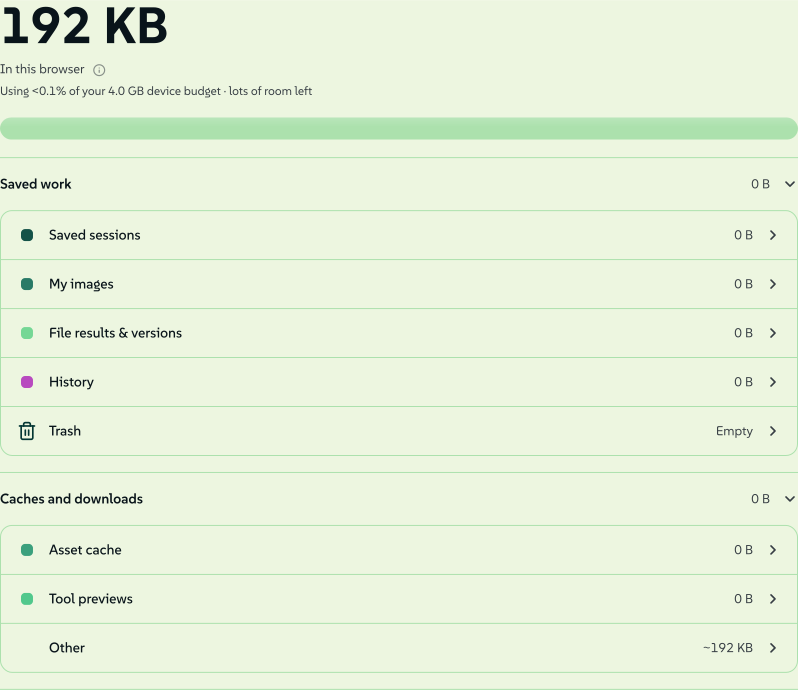
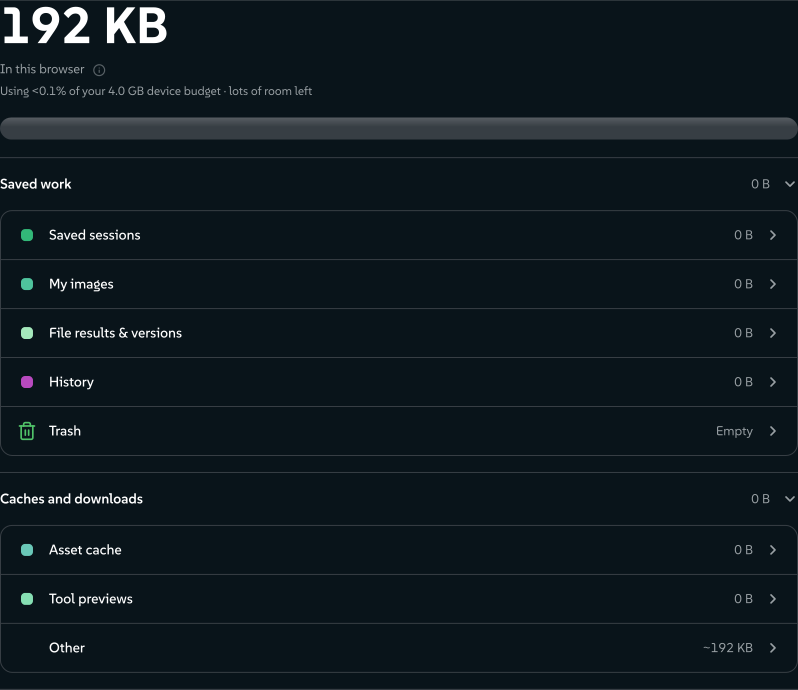
The storage meter accounts for every byte this install holds, category by category, against what the browser reports.
 signed by Lollyvector SVG37 paths~4.9k nodes85 groups65 KB自己驗證取得已簽署檔案
 signed by Lollyvector SVG37 paths~4.9k nodes85 groups65 KB自己驗證取得已簽署檔案


Under the meter:
- Move to another device has Export my data, Import data… and Export my data & render everything. Move your work to another device walks through them.
- Clear cache drops downloaded catalogue files, which download again when needed.
- Remove automatic checkpoints older than 30 days frees History space and keeps saved and named versions.
- Clear all my data removes everything Lolly keeps in this browser, after you type a word to confirm. If you clear your browser data lists what goes.
Available offline
Lolly caches screens as you visit them, which only covers where you have already been. Available offline is for the trip you can see coming: download the parts you will need and watch one progress bar, and everything you took keeps working with no connection.
- App, catalogue and guides - The app (every view, editor and font, including screens you have never opened), the Catalogue (all of it, or Choose by tag) and Guides & docs (this documentation in your language, screenshots included).
- AI models - each on-device model on its own row with its size: Speech voices, Upscaling models, Background removal, Text recognition, Verify deep scan, Durable credential, Rewriter model, Ask matching model, AI text detector and Singing voices. A model over 50 MB is marked large download.
- Tools - each tool downloads on its own, or Download all takes every tool. A tick means ready offline.
Download everything at the top takes the app, the catalogue scope you chose, the guides and all the tools. Tick Include all the AI models to add the models, or download a model by its own row; the singing voices are only ever downloaded from their own row. An organisation's policy can turn AI downloads off, and the rows then tell you.
Downloads resume where they stopped if you cancel or lose the connection, and refresh themselves when you are back online, fetching only what a release changed. If the browser has not granted persistent storage, Protect downloads asks for it: the difference between "downloaded" and "downloaded until the browser wants the space back".
Lolly instance
Lolly instance says where this install gets its tools and catalogue: an instance's address, or Bundled with this app when everything ships inside the build.
- Design-system source shows where the supplied design system comes from.
- Instance console opens a deployment's admin pages, where it offers them.
- Change points the desktop app at another instance. A browser cannot load tools and assets across origins, so on the web the section offers Open a workspace instead.
- Leave removes the instance's design system, tools and catalogue, and your own work stays. See Use Lolly at your organisation.
- When you are signed in to an organisation, Sign out ends this session and Sign out everywhere ends your sessions on every device, this one included.
This device
- This Machine - screen, input, graphics, memory, codecs, storage backend and more, read live from this session. Nothing is stored and nothing is sent. It opens by itself on a wide screen, where the tab lays out in two columns.
- Sound - the interface sounds and the Neurospicy focus loops, the one switch on this tab that writes anything.
- Storage - a read-only view of the meter in Preferences, which is where you clear or carry your data.
Design system
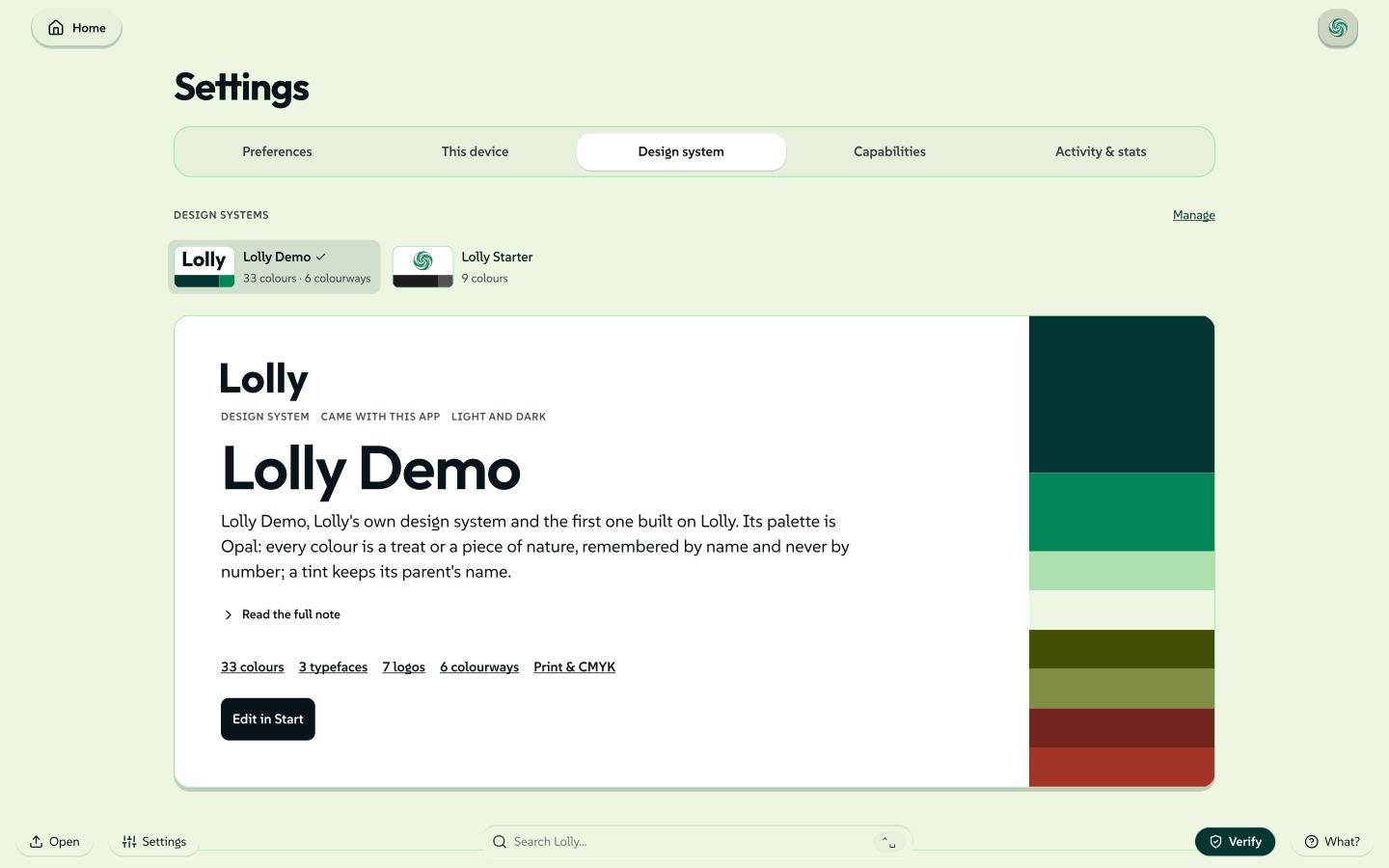
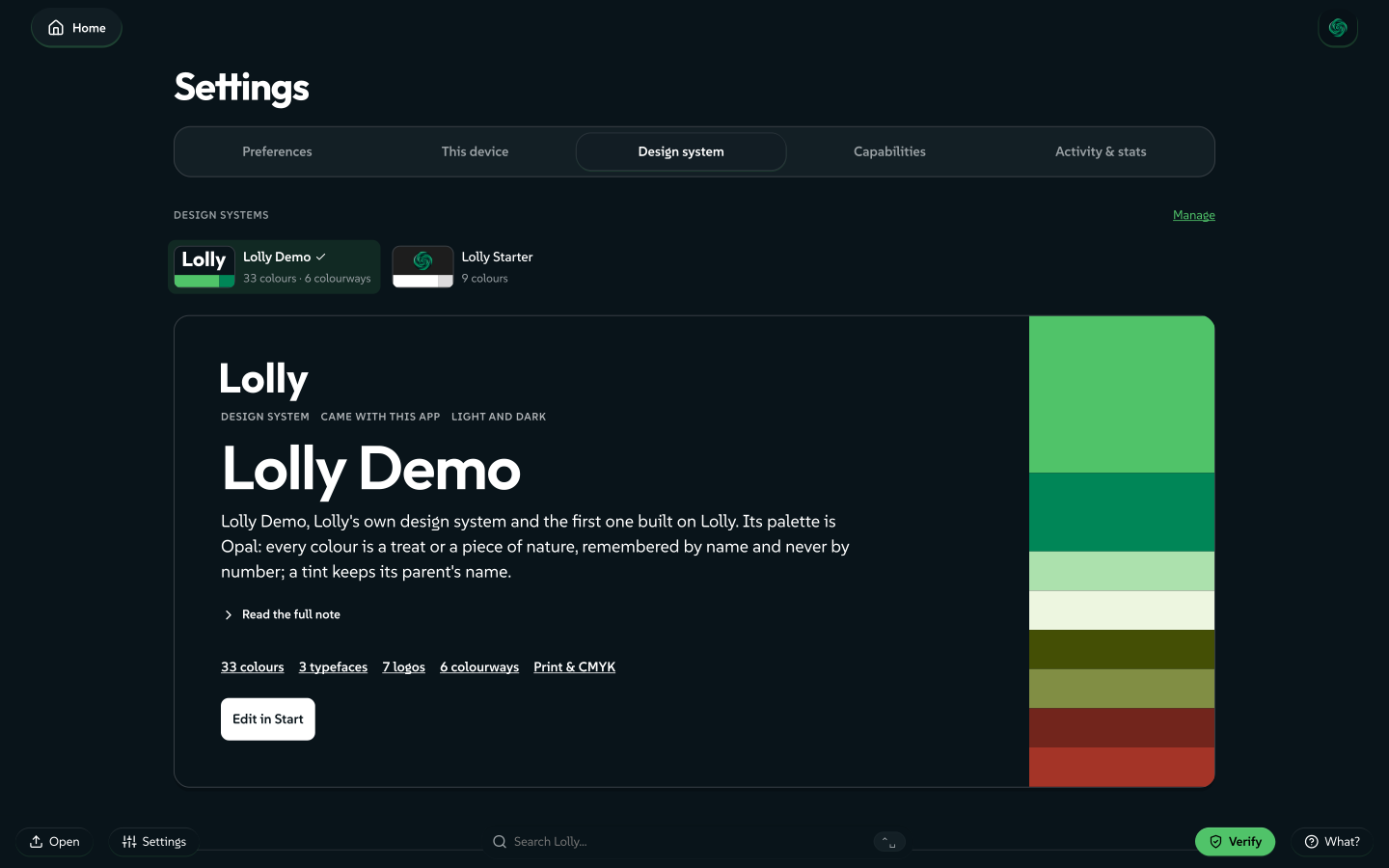
The active design system, set out to read. When this browser holds two or more design systems, a strip of small covers at the top lists them: choose one to make it active, and Undo in the notice that follows puts the previous one back.
 signed by Lollyvector SVG104 paths~12k nodes151 groups1 image234 KB自己驗證取得已簽署檔案
 signed by Lollyvector SVG104 paths~12k nodes151 groups1 image236 KB自己驗證取得已簽署檔案


The tab opens on a cover painted in the system's own colours, with its logo, its name in its display face and the note its author wrote. A line of counts on the cover links to each page:
- Colour - the surface, text, primary and secondary of the light and dark looks, every named colour as a chip with its name and hex, a band for each tint ramp and the chart spectrum, and the colour roles in a fold. Select a value to copy the hex.
- Type - Headings, Text, Emphasis and Code, each set in its own face.
- Logos - each logo file on the ground it was made for.
- Colourways - the light and dark pair of each colourway, when the system has more than one.
- Tokens - radius, spacing, effects and gradients.
- Print & CMYK - the colours locked to an exact ink, and the press conditions a CMYK PDF can declare.
Switching is the only change this tab makes. You edit a design system in Design System Setup at #/start, which the cover links to. A read-only system says so on its cover; local systems you create stay editable. /b and /brand are shortlinks straight to this tab.
Capabilities
Every part of the platform is written up as a card, in twelve groups: Experiences, Platforms & runtimes, Accessibility & languages, Export formats, Import formats, Print production, Automation & AI, Determinism & reproducibility, Brand & design system, Privacy & data ownership, Security & access control and Architecture (for builders). Each group folds and shows its card count. A card opens into a dialog with that capability's features and, for about half of them, the screenshot this documentation uses.
The search field above the groups filters the cards as you type and opens whichever groups still hold a match. It says how many capabilities it is searching, and a query with no match says so in words.
This tab is written documentation of what Lolly can do, kept in step with these guides. It does not probe the machine you are on; This device does that.
Activity & stats
The build first: how many tools are loaded, how many export formats exist, how many surfaces the platform runs on and how many brand assets the catalogue carries, with a Catalogue panel breaking down what ships in this build.
Then your own side: Your activity counts what you have made on this device, and Recent creations and Latest exports are stacks you can swipe through, each appearing once there is something to show. Both open an item as it was. These counters stay on the device; an optional Lolly Work instance keeps its own organisation telemetry and audit records.
Deep links
Every tab and section of Settings has its own link, which you can bookmark or paste. Search points its Settings results at the same registry Settings renders from, so a section cannot be renamed out from under a search result.
Every form of link
- A tab:
#/settings?tab=brand,#/settings?tab=caps,#/settings?tab=device,#/settings?tab=activity. - A Preferences section:
#/settings?focus=<section-id>, such as#/settings?focus=offline-section. - A section, exactly: its id as a bare flag, such as
#/settings?dash-storage,#/settings?dash-logos,#/settings?dash-colourwaysor#/settings?cap-formats. The older#/settings?dash-lockand#/settings?dash-palette-wheellinks open the cover and the Colour page. - A section by keyword:
#/settings?print,#/settings?formats,#/settings?palette(the Colour page) or#/settings?tokens. Keywords can be shared:printbelongs to both the brand tab's print reference and the Print production group, and the first in page order wins. Use the id when it matters which.
A deep link switches to the tab that owns the target, opens any group it is folded inside, then scrolls to it, settling for a moment while the sections above it finish laying out. The retired #/platform and #/capabilities addresses fold into Settings with their deep-link flags intact.
Related: Profiles for your details and the contexts you create in. Design System Setup for editing what the Design system tab shows. Find and recover your work for storage, backups and moving devices.