

Hindi nakakulong ang mga design file mo
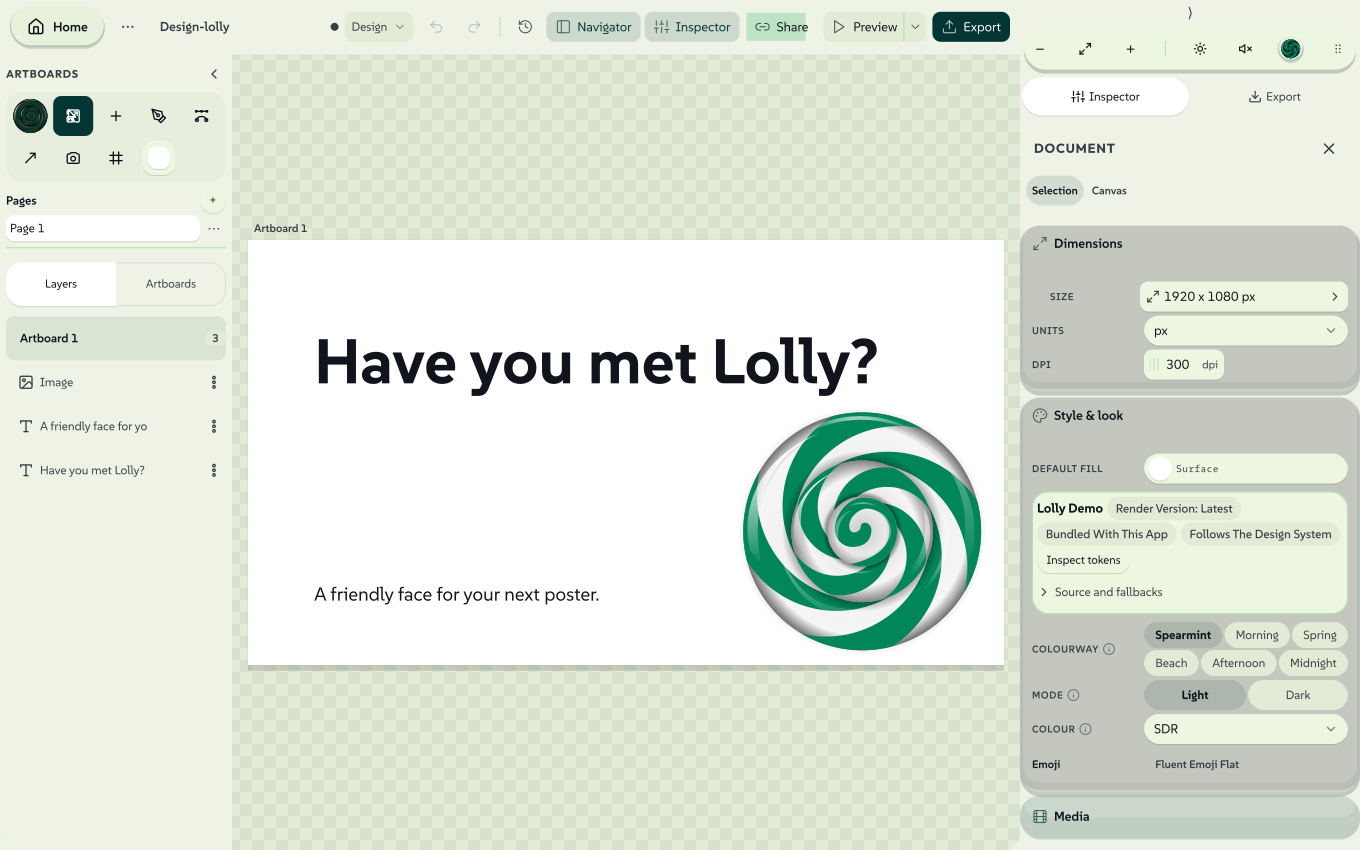
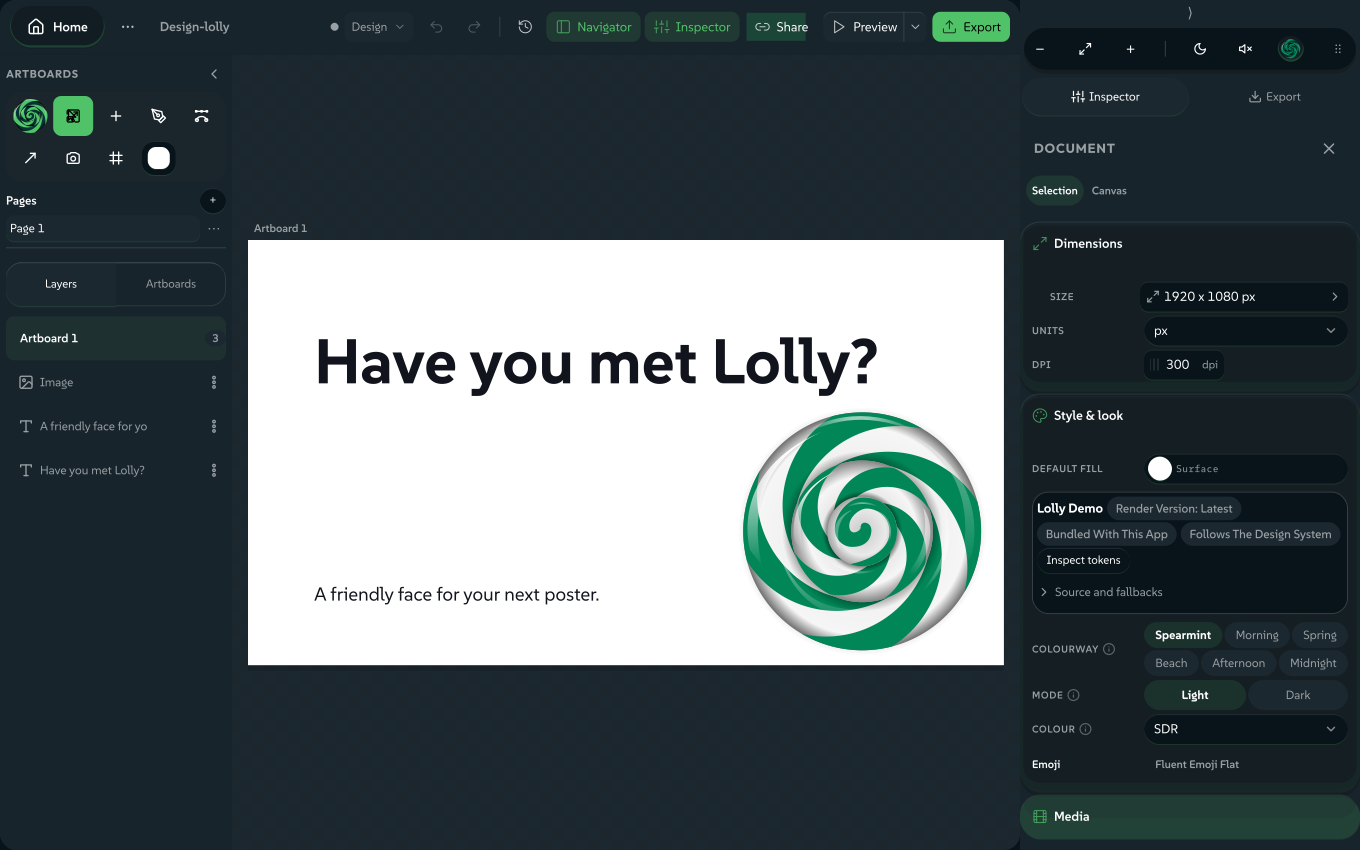
Ang tapos mong ginawa sa Figma, Penpot, Illustrator, InDesign o kahit anong SVG app ay hindi na kailangang manatiling naka-lock sa iisang app. Buksan ang Design, i-click ang Mag-import ng disenyo, at magbubukas ang file bilang buhay na layout - hindi flattened na larawan. Bawat layer ay nagiging editable box na handa mong patuloy na gawan, i-mix sa mga tool at i-render gamit ang parehong mga panuntunan.
Figma, Penpot, Illustrator, InDesign o anumang SVG
Bawat layer ay isang box na puwede mong i-retype, i-restyle at ilipat
Maglagay ng QR code, live chart o isa pang render
SVG, PDF, PNG, video - magagawa ulit mula sa isang URL
Nananatiling text ang text, hugis ang mga hugis, at sumasali sa library mo ang mga imahe. Patuloy mong gagawan ang disenyo - hindi ka na kailangang mag-repaint ng screenshot.
Ang mga font ay nagre-remap papunta sa mga typeface mo, at bawat fill ay dumadaan sa parehong colour guard tulad ng isang native box. Ang isang banyagang artboard ay dumarating na sakop na ng patakaran.
I-save ito at magiging reusable, URL-addressable na tool ang layout - isang tool na puwedeng buksan, punan ulit at i-render ng kahit sino na may Lolly. Hindi na kailangan ng design app.
Last year's poster is in Figma and this year's dates are in your inbox. Import a design opens that file in Design as layers you can edit: text stays text, shapes stay shapes and pictures go into My images. The file is read on your device and nothing is uploaded.
In Design, open the Lolly menu (the Lolly mark), choose Import a design, pick how the file arrives under Import as, then choose the file.
Replace the board
The default. One page replaces the board and the artboard takes the file's frame size. A multi-page PDF or deck asks which page; an InDesign file opens its first spread.
As artboards
Every page or slide becomes its own artboard, each one editable.
As timed scenes
Every frame becomes a scene on the timeline, ready for timing, music and a voiceover (see Make it a video).
 signed by Lollyvector SVG288 paths~14k nodes329 groups3 images282 KBI-check mo mismoKunin ang signed na file
 signed by Lollyvector SVG281 paths~14k nodes329 groups3 images281 KBI-check mo mismoKunin ang signed na file


What comes in from each app
| File | From | What comes in |
|---|---|---|
.fig | Figma: File → Save local copy | Decoded in the browser, with no Figma account, plugin or API key. |
.penpot or .zip | Penpot's export | Boards, layers, pages and groups; a native .penpot file also keeps its layouts (see Penpot layouts). |
.ai or .pdf | Illustrator, saved with the default PDF-compatible option, or any PDF | Vector paint, text and images read straight from the page. |
.idml | InDesign: File → Export → InDesign Markup | Every spread and its margins, as artboards or scenes; Replace the board opens the first spread. A raw .indd cannot be read, so export IDML first. |
.psd or .psb | Photoshop | Text, shapes and paths stay editable; other layers come in as pictures in place (see Photoshop files). |
.pptx | PowerPoint | One slide on the board (a longer deck asks which), or every slide as an artboard or a timed scene. |
.xml | Premiere (Final Cut Pro 7 XML), or a Lolly XML + media ZIP | Choose Replace the board; the clips open in Sequence (see Premiere XML exchange). |
.svg | Any app, including Figma and Penpot SVG exports | For editable text from a Figma SVG, untick Outline text in Figma's export dialog. |
SVG is the widest door: almost any design app can export SVG, so almost any design can reach Lolly that way. A PowerPoint deck has other doors too: Rebrand a deck moves one onto your design system, and Formats lists the rest.
What happens to the layers
The importer maps layers onto Design's boxes and keeps as much editable as it can:
- Text stays text. Type becomes real text boxes with content, size, alignment, weight, line height and per-run colours, so you retype a headline instead of repainting one.
- Shapes stay shapes. Rectangles, rounded rectangles, ellipses and pills become native shape boxes with their fills, opacity, rotation and corner radii.
- Images are extracted. Bitmaps go into My images, your on-device library, and are placed as image boxes.
- Complex vector art is kept as a picture. Paths, gradients and other paint the box model cannot express become crisp SVG image boxes, so the look holds where editing cannot.
- Geometry follows the source. SVG positions, sizes and rotations use browser geometry. PDF imports read page coordinates and character advances.
A PDF import keeps clipping and supported effects inside transparent SVG artwork. Text fragments that belong together are joined; separate styles and distant columns stay apart. Cropped text, missing fonts, approximate CMYK colours and unsupported effects need review, so compare the import with the original before you share the result. IDML brings supported named styles and character formatting into Design text; bundled images enter the library, and an external link needs its image supplied or it stays a labelled placeholder. From the terminal, lolly adobe idml layout.idml lists every spread with the Design inputs it maps to, with no profile or download needed.
Fonts and colours on your design system
- Type moves to your design system's faces. An imported font that is not available maps to one of the active design system's faces: monospace families map to the mono face, and weights clamp to the cuts that exist. A notice lists each change and offers Add brand fonts; Back returns you to the imported design. To keep your company's typeface, add it in the Type room of Design System Setup before importing.
- Colours are checked. Every imported fill passes the same colour check native boxes use. From there, snap colours to the active colourway's swatches with the normal pickers.
The Share with rules route works differently: it keeps source font names and offers an explicit repair rather than substituting faces. See Share a design with rules.
Penpot layouts: kept or fixed
A native .penpot file keeps its supported flex and grid layouts, nested groups, named pages, group opacity and blend modes, so the design stays responsive in Design (Layout in Design explains the controls). Groups with masks, shadows or blur become an SVG asset when their look can be preserved; an unsupported combination reports an error.
Penpot's legacy ZIP export stores each page as SVG. Those pages import with every layer where Penpot placed it, without the layout rules, and the message after the import says how many layouts came in as fixed positions. A board exported from Penpot as SVG does not list its layouts at all, so it imports the same way with no message. Use the native .penpot export to keep layouts editable.
Photoshop files
Photoshop imports accept 8-, 16- and 32-bit RGB, grayscale, CMYK and Lab documents. Previews use 8-bit pixels: Lab converts to sRGB and HDR clips to the display range. Unsupported text, effects and smart objects become approximations or picture layers.
To inspect a document, or to keep an untouched copy of its source bytes, use the CLI. Visual parity with Photoshop is not verified.
lolly adobe psd-inspect original.psd
lolly adobe psd-preserve original.psd --output=preserved.psd
Darkroom also opens Photoshop and GIMP layers for grading; see Darkroom.
Make it a video
Choose As timed scenes, or drop the file anywhere on the gallery and pick Make a video from its frames. A Figma file's top-level frames, a Penpot file's boards or a PDF's pages each arrive as a timed clip, already playing in order.
Each frame is drawn by Design's own renderer into a vector still, with text as outlines and images embedded, so scenes stay sharp at any export size and need no fonts at playback. From there it is an ordinary Sequence session: reorder and trim clips, add a music bed, record a voiceover, put text on top and export MP4, WebM, GIF or APNG.
Keep going
An imported layout is an ordinary Design session, so it can do everything a native one can:
- Make it a reusable tool. Use Share a design with rules to choose the text, images and approved choices recipients may change, then share one portable
.lollytool. Layer locks help while you edit; they are not recipient permissions. For custom inputs and behaviour, see Authoring tools. - Mix in tools. Any box can hold another Lolly tool as a live asset, such as a QR code or a live chart, re-rendered on load rather than flattened.
- Animate the layers. Import onto Replace the board, select layers and choose Choreograph; see Choreograph.
- Export the design. SVG, PDF, Print PDF, Print TIFF, PNG, JPG and WebP work as for any Design document, as does InDesign IDML for a round trip (Export a file).
- Make many. Drive it from Batch, one finished file per spreadsheet row, or keep it in a Projects folder.
- Bring the tokens across. Lolly's colours are DTCG design tokens, the format Penpot reads and writes and Tokens Studio brings to Figma, so the palette you design with and the palette Lolly applies can be one file. Import them in Design System Setup.
Limits and safety
- Imported SVG is treated as untrusted: scripts, event handlers and foreign objects are removed before parsing, and anything kept as an image is cleaned again when it is stored. Nothing runs and nothing leaves the device.
- SVG artwork, including a Penpot export read as SVG pages, is capped at 2,000 elements; anything past that is dropped with a warning rather than locking the tab.
- A Design document holds up to 20,000 layers and 256 pages, and a file over 100 MB is refused.
- Effects outside the box model, such as complex blend stacks or unusual strokes, become an image rather than editable properties.
Every other file Lolly opens, from photos to audio, is listed in Formats. For newly written text, see Text in Design.
Section links from the earlier guide
- What comes in from each app
- What comes in from each app
- Dynamic layouts
- Groups and pages
- Fonts and colours on your design system
- Keep going
- Photoshop files
- Bring in an Adobe photo preset
- Start from a motion starter
- Premiere XML exchange
- Make it a video
- Choreograph: one click, a whole motion arc
- Keep going
- Keep going
- Limits and safety
- Bringing files in
- Bringing files in
- Bringing files in
- Bringing files in
- Bringing files in
- Bringing files in
- Bringing files in
- Bringing files in